Dictation on Mac: Complete Guide to Voice-to-Text in 2026
Learn how to use dictation on Mac, from Apple's built-in tool to third-party apps. Compare accuracy, privacy, and pricing across top Mac dictation options.

TL;DR: Dictation on Mac is available through Apple's built-in Dictation feature (free, activated via the Fn key) or through third-party speech-to-text apps that offer better accuracy, privacy controls, and developer integrations. Apple Dictation works well for basic tasks, but professionals and power users benefit from dedicated tools like Voibe (offline, high accuracy, $4.90/mo), Wispr Flow (cloud-based AI rewriting, ~$10/mo), or Superwhisper (on-device, $249 lifetime).
Disclosure: Voibe is our product. We compare all tools factually and acknowledge competitor strengths where they exist.
Key Takeaways: Mac Dictation Options at a Glance
| Tool | Best For | Processing | Price | Accuracy |
|---|---|---|---|---|
| Apple Dictation | Casual use, short messages | On-device + cloud hybrid | Free | Moderate accuracy |
| Voibe | Developers, privacy-focused users | 100% on-device | $4.90/mo or $99 lifetime | High accuracy |
| Wispr Flow | Users who want AI text rewriting | Cloud-based | ~$10/mo | High accuracy |
| Superwhisper | Users who want multiple Whisper models | On-device | $249 lifetime | High accuracy |
| MacWhisper | Audio file transcription | On-device | Free / $29 Pro | High accuracy |
Key Takeaway
Apple Dictation is free and adequate for short tasks. For professional use, third-party apps provide better accuracy, privacy, and workflow integration at costs ranging from $4.90/mo to $249 one-time.
How Dictation Works on Mac: Built-in Apple Dictation Explained
Dictation on Mac is a native macOS feature that converts spoken words into text in any application. Apple Dictation uses a combination of on-device and cloud-based speech recognition, depending on your Mac hardware and settings.
On Apple Silicon Macs (M1, M2, M3, M4), Apple Dictation can process speech entirely on-device when you disable the "Send to Apple" option. On Intel Macs, dictation audio is sent to Apple's servers for processing.
Apple Dictation supports over 60 languages and dialects, works system-wide in any text field, and includes basic voice commands for punctuation and formatting (such as saying "period," "new paragraph," or "caps on").
What Apple Dictation Does Well
- Zero cost — included free with every Mac running macOS
- No installation required — toggle it on in System Settings
- System-wide availability — works in any app with a text field
- Basic voice commands — punctuation, new lines, and formatting
- Multi-language support — over 60 languages and dialects
Info
Apple Dictation on Apple Silicon Macs (M1 and later) can run on-device without sending audio to Apple's servers. Check System Settings > Keyboard > Dictation to verify your processing mode.
How to Set Up and Use Apple Dictation on Mac
Enabling Dictation in macOS
- Open System Settings (macOS Ventura and later) or System Preferences (older macOS)
- Navigate to Keyboard
- Scroll to the Dictation section and toggle it on
- Choose your preferred language and microphone source
- Optionally enable Auto-punctuation for automatic comma and period insertion
Keyboard Shortcuts for Dictation
The default shortcut to start dictation on Mac is pressing the Fn (Function) key twice. You can customize this shortcut in System Settings > Keyboard > Dictation. Alternative shortcut options include:
- Press Fn twice (default)
- Press the right Command key twice
- Press either Command key twice
- Set a custom keyboard shortcut
Voice Commands for Formatting
While dictating, you can speak these commands to control formatting:
| Voice Command | Result |
|---|---|
| "Period" or "Full stop" | Inserts a period |
| "Comma" | Inserts a comma |
| "Question mark" | Inserts ? |
| "Exclamation mark" | Inserts ! |
| "New line" | Moves to next line |
| "New paragraph" | Starts a new paragraph |
| "Cap" or "Caps on" | Capitalizes next word(s) |
| "All caps" | Types next word in all capitals |
| "Open quote" / "Close quote" | Inserts quotation marks |
Key Takeaway
Press the Fn key twice to start dictating on Mac. Speak punctuation commands like "period" and "new paragraph" to format text as you go.
Where Apple Dictation Falls Short: 5 Key Limitations
Apple Dictation is adequate for basic text entry, but it has significant limitations that affect professional and power-user workflows. These limitations are the primary reason third-party speech-to-text Mac apps exist.
- Limited accuracy with technical vocabulary. Apple Dictation struggles with programming terms, medical terminology, legal jargon, and niche vocabulary. Accuracy drops noticeably on specialized content compared to conversational speech.
- No developer or IDE integration. Apple Dictation has no awareness of your project context. It cannot resolve file names, function names, or variable names. Developers who dictate code comments or documentation need context-aware tools.
- Inconsistent auto-punctuation. The auto-punctuation feature in Apple Dictation frequently misplaces commas, omits periods, and incorrectly capitalizes words. Many users disable it and manually speak punctuation instead.
- No custom vocabulary or training. You cannot add custom words, acronyms, or domain-specific terms to Apple Dictation. Third-party tools like Voibe and Superwhisper handle technical terms more reliably because they use larger Whisper models optimized for diverse vocabularies.
- Limited output formatting. Apple Dictation inserts plain text. There is no support for markdown formatting, code blocks, or structured output that developers and technical writers need.
For a deeper look at tools that address these limitations, see our post on Apple Dictation alternatives.
Best Third-Party Dictation Apps for Mac in 2026
Several third-party speech-to-text apps for Mac address the limitations of Apple Dictation. Each tool takes a different approach to accuracy, privacy, and workflow integration. Below is a factual overview of the four most notable options.
Voibe — Best for Developers and Privacy-First Users
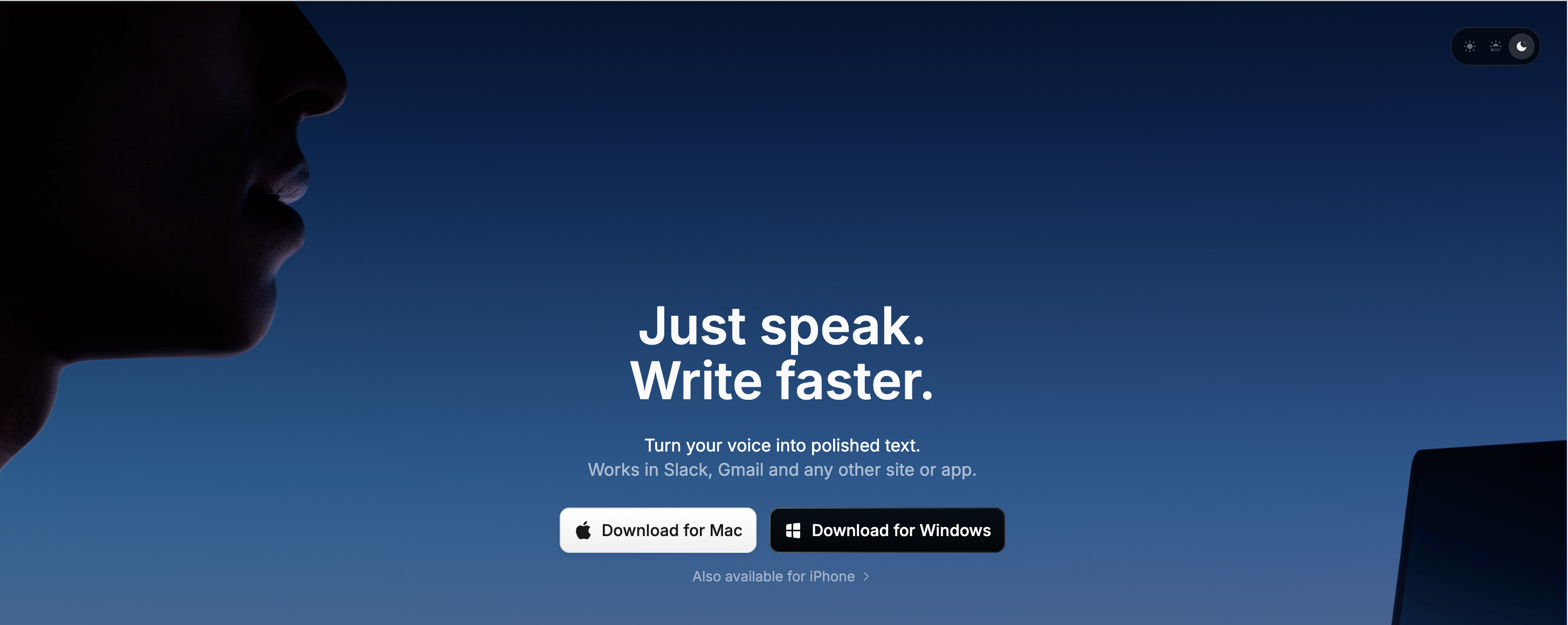
Voibe is an offline dictation app for Mac that runs entirely on-device using OpenAI's Whisper models on Apple Silicon. All audio processing happens locally — zero data leaves your Mac.
- Accuracy: High accuracy on general and technical speech
- Latency: Low latency from speech to text
- Privacy: 100% on-device, no cloud processing, no account required
- Developer mode: VS Code and Cursor integration with file/folder name resolution
- Pricing: $4.90/mo or $99 lifetime (all features included at every tier)
- Platform: macOS 13+ on Apple Silicon (M1 through M4)
Voibe is the most affordable on-device option and the only Mac dictation app with dedicated developer IDE integration.
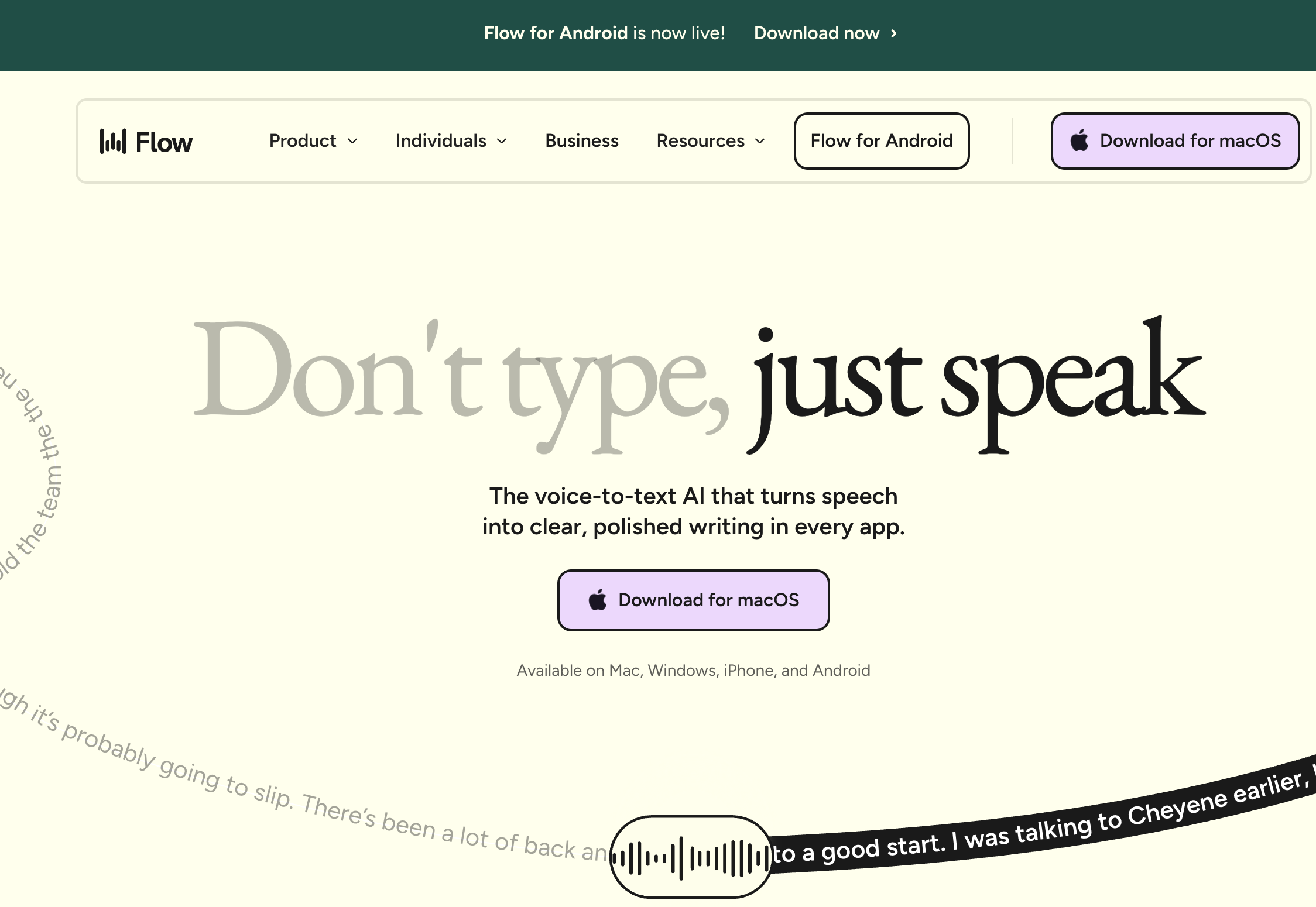
Wispr Flow — Best for AI-Powered Text Rewriting
Wispr Flow is a cloud-based dictation tool for Mac that uses AI to rewrite and reformat your speech into polished text. Instead of transcribing exactly what you say, Wispr Flow interprets your intent and produces clean output.
- Accuracy: High accuracy (varies by use case)
- Technology: Cloud-based AI dictation with LLM-powered text rewriting
- Strengths: Natural conversation mode, automatic text formatting, smart rewrites
- Weaknesses: Requires internet connection, audio is sent to cloud servers, higher latency than on-device tools
- Pricing: Approximately $10/mo (subscription-based)
Wispr Flow is a strong choice for users who want dictated text automatically polished and restructured. The trade-off is that your audio is processed on remote servers.
Superwhisper — Best for Whisper Model Flexibility
Superwhisper is an on-device dictation app for Mac that supports multiple Whisper model sizes and custom model loading. It runs entirely on Apple Silicon with no cloud dependency.
- Accuracy: High accuracy (depends on model selected)
- Technology: On-device Whisper models with multiple size options
- Strengths: Choose from Tiny, Base, Small, Medium, or Large Whisper models; custom model support; clean interface
- Weaknesses: $249 lifetime price (2.5x more than Voibe's lifetime plan), no developer mode, fewer workflow integrations
- Pricing: $249 lifetime
Superwhisper costs $249 for a lifetime license compared to Voibe's $99 lifetime plan — a $150 difference (60% more expensive). Superwhisper offers more model flexibility but lacks IDE integration.
MacWhisper — Best for Audio File Transcription
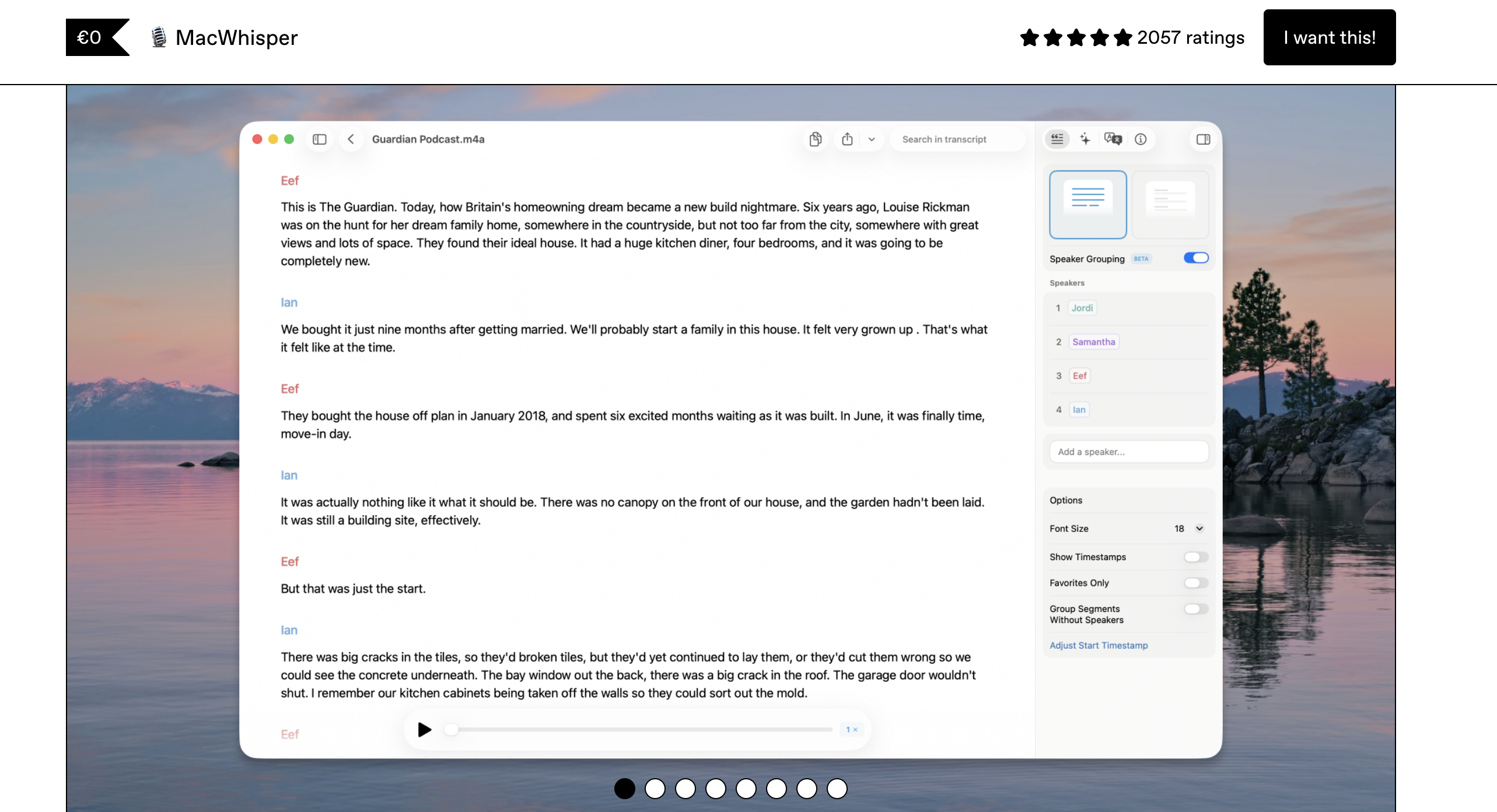
MacWhisper is a Mac app designed for transcribing audio and video files rather than real-time dictation. It uses on-device Whisper models to convert pre-recorded audio into text.
- Accuracy: High accuracy (depends on audio quality and model)
- Technology: On-device Whisper (batch transcription)
- Strengths: Affordable ($29 Pro), good for transcribing meetings, interviews, and podcasts
- Weaknesses: Not designed for real-time dictation, no system-wide text insertion, no developer tools
- Pricing: Free basic version / $29 Pro
MacWhisper is not a direct competitor to real-time dictation apps. It is best suited for users who need to transcribe existing audio recordings.
Dragon NaturallySpeaking — Former Mac Standard (Now Windows Only)
Dragon NaturallySpeaking by Nuance was the industry-standard dictation software for decades, widely used in medical, legal, and enterprise settings. However, Nuance discontinued the Mac version of Dragon, making it a Windows-only product.
- Platform: Windows only (Mac version discontinued)
- Strengths: Excellent domain-specific vocabularies for medical and legal dictation, decades of refinement
- Weaknesses: No longer available on macOS, expensive licensing, requires Windows or a virtual machine
- Pricing: $200-$500+ depending on edition
Former Dragon for Mac users looking for a replacement should consider Voibe for its combination of high accuracy, on-device privacy, and competitive pricing. Voibe's $99 lifetime plan costs a fraction of Dragon's professional licenses.
Mac Dictation Apps Compared: Features, Pricing, and Privacy
The following comparison table provides a detailed side-by-side breakdown of dictation and speech-to-text options available on Mac in 2026. All pricing and feature data is current as of March 2026.
| Feature | Apple Dictation | Voibe | Wispr Flow | Superwhisper | MacWhisper |
|---|---|---|---|---|---|
| Monthly Cost | Free | $4.90 | ~$10 | N/A | N/A |
| Lifetime Cost | Free | $99 | N/A | $249 | $29 (Pro) |
| Annual Cost (1 year) | $0 | $58.80 | ~$120 | $249 | $29 |
| Processing | Hybrid | 100% on-device | Cloud | On-device | On-device |
| Accuracy | Moderate | High | High | High | High |
| Latency | Noticeable delay | Low latency | Higher latency | Moderate latency | N/A (batch) |
| Real-time Dictation | Yes | Yes | Yes | Yes | No |
| Works Offline | Partial | Yes | No | Yes | Yes |
| Developer Mode | No | Yes (VS Code, Cursor) | No | No | No |
| AI Text Rewriting | No | No | Yes | No | No |
| Custom Vocabulary | No | Context-aware | AI-inferred | Custom models | No |
| System-wide | Yes | Yes | Yes | Yes | No |
Cost comparison over 3 years: Apple Dictation costs $0. Voibe's lifetime plan costs $99 total (a one-time payment). Wispr Flow costs approximately $360 over 3 years ($10/mo x 36 months). Superwhisper costs $249. Voibe's lifetime plan saves $150 compared to Superwhisper (60% less) and $261 compared to 3 years of Wispr Flow (73% less).
Key Takeaway
Voibe's $99 lifetime plan is the most cost-effective on-device option: 60% less than Superwhisper ($249) and 73% less than 3 years of Wispr Flow (~$360).
On-Device vs. Cloud Dictation: Privacy and Data Security
Privacy is a critical factor when choosing a speech-to-text tool for Mac. Dictation apps handle sensitive audio data — including confidential conversations, client information, medical notes, legal documents, and proprietary code. How that audio is processed determines your data exposure.
How Cloud Dictation Processes Your Voice
Cloud-based dictation tools (including Wispr Flow and Apple Dictation when configured for cloud mode) send your audio to remote servers. The audio is processed on those servers, converted to text, and the result is returned to your Mac. This process means:
- Your voice data travels over the internet
- Audio may be stored on third-party servers (retention policies vary)
- An internet connection is required for dictation to function
- Network latency adds delay between speech and text output
How On-Device Dictation Protects Your Data
On-device dictation tools like Voibe and Superwhisper run AI models directly on your Mac's Apple Silicon chip. Audio never leaves your device. This architecture provides:
- Zero data exposure — no audio transmitted, no server storage
- Full offline capability — works without internet on planes, in secure facilities, or anywhere
- Lower latency — no network round-trip delay
- Compliance-friendly — simplifies HIPAA, GDPR, and corporate data policy requirements
Who Needs On-Device Processing
On-device dictation is especially important for:
- Healthcare professionals — HIPAA compliance requires strict control over patient data
- Lawyers — attorney-client privilege demands that dictated notes stay private
- Developers under NDA — proprietary code and product information cannot be sent to external servers
- Corporate environments — many enterprise data policies prohibit sending data to third-party cloud services
- Anyone in low-connectivity environments — rural areas, flights, or secure facilities without internet
How to Choose the Right Mac Dictation Tool: Decision Guide
Choosing the best dictation tool for Mac depends on your specific use case, privacy requirements, and budget. Use the following decision framework to identify the right fit.
Decision Tree: Which Dictation App Fits Your Workflow?
- Do you need real-time dictation (not file transcription)?
- No — use MacWhisper ($29 Pro) for audio file transcription
- Yes — continue to question 2
- Is privacy or offline capability a hard requirement?
- Yes — choose an on-device tool: Voibe ($99 lifetime) or Superwhisper ($249 lifetime)
- No — cloud tools like Wispr Flow (~$10/mo) are also viable; continue to question 3
- Do you need developer IDE integration (VS Code, Cursor)?
- Yes — Voibe is the only Mac dictation app with VS Code and Cursor integration
- No — continue to question 4
- Do you want AI-powered text rewriting and reformatting?
- Yes — Wispr Flow rewrites dictated text using LLM processing
- No — continue to question 5
- What is your budget?
- Free — Apple Dictation (built-in, limited accuracy)
- Under $100 — Voibe ($99 lifetime or $4.90/mo)
- Under $250 — Superwhisper ($249 lifetime)
Use-Case Cheat Sheet: Best Dictation Tool by Scenario
| Scenario | Recommended Tool | Why |
|---|---|---|
| Writing emails and messages | Apple Dictation | Free, built-in, adequate for conversational text |
| Coding with voice (documentation, comments) | Voibe | Only option with VS Code/Cursor integration and file name resolution |
| Dictating legal or medical notes | Voibe | 100% on-device, HIPAA/compliance-friendly, high accuracy |
| Drafting long-form content with polish | Wispr Flow | AI rewriting produces clean, formatted output |
| Transcribing recorded meetings | MacWhisper | Built for batch audio file transcription |
| Working offline or on flights | Voibe or Superwhisper | Both run 100% on-device without internet |
| Experimenting with different Whisper models | Superwhisper | Supports multiple Whisper model sizes and custom models |
| Budget-conscious general dictation | Apple Dictation or Voibe | Free (Apple) or $4.90/mo (Voibe) for significantly better accuracy |
10 Tips for Better Dictation Accuracy on Mac
Regardless of which dictation tool you use on Mac, these practices improve transcription accuracy and reduce editing time.
- Use an external microphone. Built-in Mac microphones work, but a dedicated USB or Bluetooth microphone (even a $30 model) significantly reduces background noise and improves recognition accuracy.
- Speak at a natural pace. Speaking too quickly causes dropped words. Speaking too slowly introduces unnatural pauses that confuse punctuation algorithms. Aim for your normal conversational speed.
- Dictate in a quiet environment. Background noise — keyboard typing, fans, TV, conversations — degrades accuracy across all dictation tools. Close windows, mute notifications, and minimize ambient sound.
- Enunciate clearly without over-articulating. Natural, clear speech works best. Over-pronouncing words can actually reduce accuracy because models are trained on natural speech patterns.
- Use short to medium phrases. Dictate in phrases of 10-30 words, then pause. This gives the speech recognition model clear audio boundaries and reduces errors.
- Learn your tool's voice commands. Every dictation app has specific commands for punctuation, formatting, and editing. Learning these commands eliminates manual corrections.
- Position your microphone consistently. Keep the microphone 6-12 inches from your mouth, slightly off-axis (not directly in front) to reduce plosive sounds from letters like P and B.
- Close unnecessary browser tabs and apps. On-device dictation tools use your Mac's CPU/GPU. Reducing background load ensures the AI model gets sufficient processing resources.
- Warm up with a test sentence. Start each dictation session with a quick test phrase. This confirms your microphone is working, your environment is quiet enough, and the tool is responding correctly.
- Review and correct immediately. Fixing errors right after dictation is faster than returning later. Many tools also learn from corrections to improve future accuracy.
Key Takeaway
The single biggest accuracy improvement for Mac dictation is using an external microphone. Even an inexpensive USB microphone reduces background noise and improves recognition rates by 5-10%.
Advanced Dictation Features: Developer Mode and IDE Integration
For developers, standard dictation on Mac falls short. Writing code comments, documentation, commit messages, and chat responses requires a tool that understands your project context.
Voibe's developer mode integrates directly with VS Code and Cursor. When dictating, Voibe resolves file names, folder names, and common programming constructs in your workspace. For example, dictating "open the user controller file" in a project with UserController.ts produces the correct file reference instead of a garbled approximation.
This context awareness extends to:
- Function and class name resolution — dictate code references accurately
- Path completion — file paths are resolved against your project structure
- Technical terminology — programming terms, framework names, and API references are handled with higher accuracy than general dictation tools
- Keyboard-driven workflow — activate dictation with a shortcut, dictate, and text appears at your cursor position in the editor
No other Mac dictation app offers IDE-level integration. Apple Dictation, Wispr Flow, and Superwhisper all treat text insertion as a generic system-wide operation without project context.
Real-World Developer Use Cases
Developers who use Voibe's developer mode report the following practical applications:
- Dictating code documentation — Write JSDoc comments, README sections, and inline documentation without switching context from the editor
- Commit messages and PR descriptions — Speak your commit message naturally and Voibe inserts it directly into the terminal or Git GUI
- Slack and Teams messages — Respond to team conversations quickly without typing, while technical terms in your messages remain accurate
- Code review comments — Leave detailed review feedback at speaking speed rather than typing speed
- Drafting technical specs — Outline architecture decisions, API designs, and system documentation by voice
The average person speaks at 130-150 words per minute and types at 40-60 words per minute. For developers who spend significant time writing documentation, messages, and non-code text, dictation can increase text output by 2-3x while reducing repetitive strain on hands and wrists.
Tip
Voibe's developer mode works with VS Code and Cursor on macOS 13+. Enable it in Voibe's settings and grant accessibility permissions to allow direct text insertion into your editor.
Speech to Text on Mac: Understanding the Technology
Speech to text on Mac relies on one of two underlying technologies: Apple's proprietary speech recognition engine or OpenAI's open-source Whisper model.
Apple's Speech Recognition
Apple Dictation uses Apple's own speech recognition model, which runs as a hybrid system. On Apple Silicon Macs, basic recognition happens on-device, but enhanced features (like certain language models) can involve Apple's servers. Apple does not publish detailed accuracy benchmarks, but independent testing places general accuracy at a moderate level on conversational English.
OpenAI Whisper Models
Whisper is an open-source speech recognition model released by OpenAI. It was trained on 680,000 hours of multilingual audio data and achieves near-human accuracy on many benchmarks. Whisper comes in several sizes:
| Model Size | Parameters | Accuracy | Speed | RAM Required |
|---|---|---|---|---|
| Tiny | 39M | Basic | Fastest | ~1 GB |
| Base | 74M | Moderate | Fast | ~1 GB |
| Small | 244M | Good | Moderate | ~2 GB |
| Medium | 769M | High | Slower | ~5 GB |
| Large | 1.5B | Highest | Slowest | ~10 GB |
Third-party Mac dictation apps like Voibe, Superwhisper, and MacWhisper all use Whisper models. Apple Silicon chips (M1 through M4) have sufficient Neural Engine performance to run even the Large model with low latency for real-time dictation.
The key technical advantage of Whisper over Apple's engine is accuracy with diverse vocabulary — technical terms, accented speech, multiple languages, and domain-specific jargon are handled more reliably because of the model's massive and diverse training dataset.
Why Apple Silicon Changed Mac Dictation
Before Apple Silicon, running large AI models locally on a Mac was impractical. Intel-based Macs lacked the Neural Engine hardware needed to process Whisper models in real time. Apple's M1 chip, released in November 2020, introduced a 16-core Neural Engine capable of 11 trillion operations per second. The M2, M3, and M4 chips have progressively increased this capacity.
This hardware shift made on-device speech-to-text on Mac viable for the first time. Apps like Voibe and Superwhisper can now run the Whisper Large model (1.5 billion parameters) with near-instant latency — performance that previously required cloud GPU infrastructure. The practical result is that Mac users with Apple Silicon hardware no longer need to choose between accuracy and privacy.
Getting Started with Dictation on Mac: Quick Start Guide
Option 1: Use Apple Dictation (Free, Immediate)
- Open System Settings > Keyboard > Dictation
- Toggle Dictation on
- Click into any text field in any app
- Press Fn twice to start dictating
- Speak naturally; say "period" or "comma" for punctuation
- Press Fn again or click Done to stop
Option 2: Install Voibe for Professional-Grade Dictation
- Download Voibe from getvoibe.com/download
- Open the app and grant Accessibility and Microphone permissions
- Voibe downloads the Whisper model on first launch (one-time, ~1-2 GB)
- Set your preferred activation shortcut in Voibe's settings
- Click into any text field, press your shortcut, and dictate
- Text appears at your cursor with low latency
Both options work system-wide — in browsers, email clients, word processors, messaging apps, and code editors. Apple Dictation is the fastest way to start. Voibe is the fastest way to get professional-quality results.
Tip
Voibe requires macOS 13 or later on Apple Silicon (M1, M2, M3, or M4). The initial model download requires an internet connection, but after that, Voibe works entirely offline.
Explore More: Mac Dictation Guides and Resources
This hub covers everything you need to know about dictation on Mac. Explore our in-depth guides on specific topics:
- How to Use Dictation on Mac — Step-by-step setup guide covering Apple Dictation, voice commands, punctuation formatting, and tips for better accuracy.
- Dictation Not Working on Mac? 7 Fixes — Troubleshooting guide for common issues including Voice Control conflicts, corrupted caches, and microphone permission problems.
- Speech to Text on Mac: Complete Guide — Comprehensive comparison of all speech-to-text options for Mac, including pricing breakdowns, decision guides, and use-case recommendations.
For alternatives to Apple's built-in dictation, see our Apple Dictation alternatives roundup and the full comparison hub.
Frequently Asked Questions About Dictation on Mac
Setup and Basics
How do I turn on dictation on Mac?
Open System Settings, navigate to Keyboard, scroll to Dictation, and toggle it on. Once enabled, press the Fn key twice in any text field to start dictating.
What is the keyboard shortcut for dictation on Mac?
The default keyboard shortcut is pressing the Fn (Function) key twice. You can change this to the right Command key, either Command key, or a custom shortcut in System Settings > Keyboard > Dictation.
Does Apple Dictation work offline?
On Apple Silicon Macs (M1 and later), Apple Dictation can work offline with basic on-device processing. On Intel Macs, an internet connection is required because audio is processed on Apple's servers.
Accuracy and Performance
How accurate is dictation on Mac?
Apple Dictation achieves moderate accuracy on conversational English. Third-party tools using Whisper models reach higher accuracy. Accuracy varies based on microphone quality, background noise, accent, and vocabulary complexity.
Why does Mac dictation make mistakes with technical words?
Apple Dictation's speech model is optimized for everyday conversational language. Technical terms, acronyms, programming keywords, and domain-specific vocabulary are underrepresented in its training data. Whisper-based tools like Voibe handle technical vocabulary more reliably due to their larger, more diverse training dataset of 680,000 hours of audio.
Privacy and Security
Does Apple Dictation send my voice to Apple's servers?
On Apple Silicon Macs with the default settings, basic dictation processing happens on-device. However, Apple may send audio to its servers for enhanced processing unless you explicitly disable this in System Settings > Privacy & Security > Analytics & Improvements. Check your settings to confirm.
Which Mac dictation app is most private?
Voibe and Superwhisper are the most private options because they process all audio 100% on-device with no cloud component. Zero audio data leaves your Mac. Voibe does not require an account for core functionality.
Pricing and Value
Is there a free dictation app for Mac?
Apple Dictation is free and built into macOS. MacWhisper offers a free basic tier for audio file transcription. For real-time dictation with professional-grade accuracy, Voibe starts at $4.90/mo.
How does Voibe's pricing compare to alternatives?
Voibe costs $4.90/mo or $99 lifetime. Superwhisper costs $249 lifetime (150% more than Voibe). Wispr Flow costs approximately $10/mo or $120/year. Over 3 years, Voibe's lifetime plan ($99) saves $261 compared to Wispr Flow ($360) and $150 compared to Superwhisper ($249).
Compatibility
Does Mac dictation work in all apps?
Apple Dictation and system-wide tools like Voibe work in any application with a standard text field — including browsers, email clients, word processors, messaging apps, and code editors. MacWhisper is an exception, as it transcribes audio files within its own interface rather than inserting text system-wide.
Can I use dictation on Mac with an external monitor and keyboard?
Yes. Dictation on Mac works with any display and input configuration. If you use an external keyboard without an Fn key, customize the dictation shortcut in System Settings > Keyboard > Dictation to a key combination available on your keyboard.
Ready to type 3x faster?
Voibe is the fastest, most private dictation app for Mac. Try it today.
Try Voibe for FreeRelated Articles
Dictation Not Working on Mac? 7 Proven Fixes (2026)
Fix Mac dictation not working with 7 proven solutions. Resolve Voice Control conflicts, microphone issues, corrupted caches, and more in under two minutes.
How to Use Dictation on Mac: Setup and Voice Commands Guide (2026)
Learn how to use dictation on Mac with step-by-step setup, voice commands for punctuation and formatting, privacy settings, and tips for better accuracy.
Speech to Text on Mac: Best Apps, Setup, and Comparison (2026)
Compare the best speech to text apps for Mac in 2026. Covers Apple Dictation, Voibe, Wispr Flow, Superwhisper, and more with pricing, privacy, and features.