
How to Use Dictation on Mac — What Apple Doesn't Tell You
How to turn on and use dictation on Mac: the one-minute setup, the voice commands worth memorizing, and what to do when it stops after a 30-second pause.

Your Mac ships with a free, built-in dictation engine — off by default, and documented by Apple only up to a point. Here's the full setup, the voice commands worth memorizing, and the limits nobody mentions until they hit them.
TL;DR: To use dictation on Mac, open System Settings > Keyboard > Dictation, toggle it on, then press the Globe (🌐) or Fn key twice — or the F5 microphone key once, if your MacBook has one — in any text field and start speaking. Your Mac converts speech to text in real time. Press the shortcut again or hit Escape to stop.
- Open Apple menu > System Settings > Keyboard > Dictation and toggle it on
- Place your cursor in any text field and press the Globe (🌐)/Fn key twice to start dictating
- Speak naturally — say "comma," "period," or "new paragraph" for formatting
- Press the shortcut again, hit Escape, or click the microphone icon to stop
| Feature | What to Know |
|---|---|
| Activation shortcut | Press the Globe/Fn key twice (default), or the F5 microphone key once where present |
| Works in | Any text field across all macOS apps |
| Processing (Apple Silicon) | On-device — audio stays on your Mac |
| Processing (Intel) | Cloud — audio sent to Apple servers |
| Auto-stop | Ends after 30 seconds of silence — no cap on dictation length |
| Type while dictating | Yes, on Apple Silicon Macs (M1 and later) |
| Voice commands | Punctuation, formatting, capitalization, and symbols |
For a broader overview of all dictation options on Mac, see our complete guide to dictation on Mac.
How to Turn On Dictation on Mac
Enabling dictation on Mac takes about 30 seconds. You only need to do this once — the setting persists across restarts. Here's how to turn on dictation in macOS Sonoma, Sequoia, and Tahoe (macOS 26) — the steps are identical in all three.
- Click the Apple menu in the top-left corner of your screen
- Select System Settings
- Click Keyboard in the left sidebar
- Scroll down to the Dictation section
- Toggle Dictation to On
- Choose your preferred microphone source (built-in or external)
- Select your language(s) — you can add multiple languages for multilingual dictation
- Confirm or customize your keyboard shortcut (default: press the Globe/Fn key twice)
macOS offers several shortcut options for activating dictation:
- Press the Globe (🌐) or Fn key twice (default on most Macs)
- Press the Microphone key once (F5 on 2021-and-later MacBook keyboards)
- Press either Command key twice
- Press right Command key twice
- Custom shortcut of your choice
To customize this shortcut, set a trigger for a keyboard without a Globe key, or fix conflicts with apps that capture the Fn key, see our complete guide to Mac dictation keyboard shortcuts.
If your Mac has Apple Silicon (M1, M2, M3, or M4), you can also enable auto-punctuation in this same settings panel. Auto-punctuation inserts commas, periods, and question marks automatically as you speak, in supported languages (Apple lists per-language availability on its macOS feature availability page).
How to Turn Off Dictation on Mac
To turn dictation off, go back to System Settings > Keyboard > Dictation and set the toggle to Off. If you keep triggering dictation by accident — usually an unintentional double-tap of the Fn key — you don't have to disable it entirely: switch the shortcut to a different option (like pressing the right Command key twice) in the same panel, and the accidental activations stop.
Key Takeaway
Enable dictation once in System Settings > Keyboard > Dictation. Choose your microphone, language, and shortcut key — then you're ready to dictate in any app.
Tip
If you don't see the Dictation option under Keyboard settings, make sure your Mac is running macOS Ventura (13.0) or later. On older macOS versions, go to System Preferences > Keyboard > Dictation instead.
How to Start and Stop Dictation on Mac
Starting and stopping dictation on Mac uses simple keyboard shortcuts. Once dictation is enabled in System Settings, you can activate it in any text field across macOS.
Starting a Dictation Session
- Click to place your cursor where you want text to appear
- Press the Globe (🌐)/Fn key twice (or your configured shortcut)
- Wait for the cursor area to highlight and pulse — this indicates dictation is active and listening
- Begin speaking naturally
You can also start dictation from the menu bar in most apps: choose Edit > Start Dictation.
On Apple Silicon Macs (M1 and later), you can continue typing while dictation is active. Your typed text and dictated text merge seamlessly. This is a significant advantage over Intel Macs, where typing interrupts the dictation session.
Stopping a Dictation Session
You have three ways to stop dictation on Mac:
- Press your dictation shortcut again
- Press the Escape key
- Press the Microphone key (if your Mac's function row has one)
There is no cap on how long you can dictate — Apple's dictation documentation states you can "dictate text of any length without a timeout." The only automatic stop is silence-based: if no speech is detected for 30 seconds, the session ends. That auto-stop prevents accidental recording of background noise or private conversations — but it also means pausing to collect a thought can end your session.
Info
The 30-second silence cutoff is not configurable — there is no setting to lengthen or disable it, so pausing to think ends the session. And while Apple's current documentation says there is no limit on dictation length, that wording is new with the latest macOS release — earlier versions were widely reported to stop after roughly 30 seconds of continuous speech, real-world reports confirming the new behavior are still limited, and users on Apple's own forums regularly report sessions stopping early anyway. If pauses are part of how you write — or you rely on dictation because typing hurts — third-party apps like Voibe keep listening through them.
Dictation Voice Commands: Punctuation, Formatting, and Symbols
Mac dictation voice commands let you insert punctuation, control formatting, and add symbols without touching the keyboard. Learning these commands is essential for producing clean, properly formatted text through dictation.
Punctuation Commands
| Say This | Result |
|---|---|
| "period" or "full stop" | . |
| "comma" | , |
| "question mark" | ? |
| "exclamation point" or "exclamation mark" | ! |
| "colon" | : |
| "semicolon" | ; |
| "ellipsis" or "dot dot dot" | ... |
| "hyphen" or "dash" | - |
| "em dash" | — |
Formatting Commands
| Say This | Result |
|---|---|
| "new line" | Moves to next line |
| "new paragraph" | Starts a new paragraph |
| "tab key" | Inserts a tab character |
Capitalization Commands
| Say This | Result |
|---|---|
| "caps on" | Capitalizes first letter of each word until "caps off" |
| "caps off" | Returns to normal capitalization |
| "all caps" | Types next word in ALL CAPITALS |
| "all caps on" | Types in ALL CAPS until "all caps off" |
| "all caps off" | Returns to normal capitalization |
| "no caps" | Types next word in all lowercase |
| "no caps on" | Types in lowercase until "no caps off" |
| "no caps off" | Returns to normal capitalization |
Spacing and Symbol Commands
| Say This | Result |
|---|---|
| "no space" | Removes space before next word |
| "no space on" | Suppresses spaces until "no space off" |
| "no space off" | Returns to normal spacing |
| "numeral [number]" | Inserts the digit (e.g., "numeral 5" types 5) |
| "open quote" | " |
| "close quote" | " |
| "open parenthesis" | ( |
| "close parenthesis" | ) |
| "open bracket" | [ |
| "close bracket" | ] |
| "at sign" | @ |
| "pound sign" or "hash" | # |
| "ampersand" | & |
| "asterisk" | * |
Auto-punctuation (available on Apple Silicon Macs for supported languages) can handle basic commas and periods automatically. However, explicit voice commands give you more precise control over formatting.
On-Device vs Cloud Dictation: What Happens to Your Audio
How Mac dictation processes your audio depends on your Mac's processor. Apple Silicon Macs and Intel Macs handle speech recognition differently, with significant implications for privacy and performance.
Apple Silicon Macs (M1, M2, M3, M4): On-Device Processing
On Apple Silicon Macs, dictation runs entirely on-device by default. Your spoken audio is processed by a local speech recognition model on your Mac's Neural Engine. No audio data leaves your computer, and no internet connection is required for dictation to work.
On-device processing also means lower latency — text appears almost immediately as you speak. Apple Silicon Macs can handle dictation alongside other tasks because the Neural Engine operates independently from the CPU and GPU.
Intel Macs: Cloud-Based Processing
On Intel Macs, dictation audio is sent to Apple's servers for processing. This means:
- An internet connection is required for dictation to function
- Your audio data travels to Apple's servers and back
- There's noticeable latency compared to on-device processing
- If you've opted in to Improve Siri & Dictation, Apple keeps audio samples tied to a random identifier for up to six months — you can opt out and delete them
How to Check Your Processing Mode
To verify whether your Mac processes dictation on-device or in the cloud, go to System Settings > Keyboard > Dictation. If you see an option to disable sending audio to Apple, your Mac supports on-device processing. Intel Macs won't show this option because cloud processing is the only available mode.
Auto-Punctuation Settings
Auto-punctuation is available on Apple Silicon Macs for supported languages. To enable or disable it:
- Open System Settings > Keyboard > Dictation
- Toggle Auto-Punctuation on or off
Auto-punctuation works best for conversational speech. For technical content where punctuation placement matters, many users prefer to speak punctuation commands manually for precise control.
Key Takeaway
Apple Silicon Macs (M1 and later) process dictation entirely on-device with no audio data sent to Apple. Intel Macs send audio to Apple's servers, requiring an internet connection.
Tips for Better Dictation Accuracy on Mac
Dictation accuracy on Mac depends on several controllable factors. These tips apply whether you're using Apple's built-in dictation or a third-party speech-to-text tool.
- Use an external microphone. The built-in Mac microphone picks up keyboard noise, fan sounds, and room echo. Even an inexpensive USB microphone ($20-40) significantly reduces background interference and improves recognition accuracy.
- Speak at a consistent, natural pace. Rushing causes dropped words. Over-enunciating confuses speech models trained on natural speech patterns. Aim for your normal conversational speed with clear pronunciation.
- Minimize background noise. Close windows, mute notification sounds, and pause music or video playing on your Mac. Background audio is the most common cause of misrecognized words across all dictation tools.
- Use voice commands for punctuation. Don't rely entirely on auto-punctuation. Explicitly saying "period," "comma," and "new paragraph" gives you predictable results. This is especially important for professional documents where formatting matters.
- Dictate in short to medium phrases. Speak in bursts of 10-30 words, then pause briefly. This gives the speech model clear boundaries and reduces compounding errors across long sentences.
- Position your microphone properly. Keep it 6-12 inches from your mouth, slightly off-axis rather than directly in front. This reduces plosive sounds from letters like P and B while maintaining clear audio pickup.
- Close unnecessary apps when using on-device dictation. On-device speech recognition uses your Mac's processing power. Closing heavy apps (browsers with many tabs, video editors) frees up resources and can improve transcription speed.
- Warm up with a test phrase. Start each session by dictating a quick test sentence. This confirms your microphone is working, your environment is suitable, and the tool is responding as expected.
For users who need consistently high accuracy with technical vocabulary, third-party dictation tools that use larger Whisper speech models often outperform Apple's built-in dictation. These tools let you choose larger model sizes that trade processing time for better accuracy on specialized content.
Voice Control vs Dictation: Understanding the Difference
Voice Control and Dictation are two separate speech features built into macOS. They serve different purposes, and they can conflict with each other if both are enabled at the same time.
What Each Feature Does
Dictation converts spoken words into text. You activate it in a text field, speak, and your words appear as typed text. Dictation supports voice commands for punctuation and formatting, but it doesn't control your Mac's interface.
Voice Control is a full accessibility feature that lets you operate your entire Mac by voice. You can click buttons, navigate menus, select items, scroll pages, and perform almost any mouse or keyboard action through spoken commands. Voice Control also includes dictation capabilities, but they work differently from the standalone Dictation feature.
The Conflict Between Them
When Voice Control is turned on, macOS disables the standard Dictation feature. You can't use both simultaneously. This means:
- Your Fn key shortcut stops triggering Dictation when Voice Control is active
- Voice Control's dictation mode has different voice commands and behaviors
- Switching between them requires going to System Settings
If your dictation suddenly stops working after enabling Voice Control, this is the most likely cause. Turn off Voice Control in System Settings > Accessibility > Voice Control to restore standard Dictation.
When to Use Each
- Use Dictation if you only need speech-to-text in text fields
- Use Voice Control if you need hands-free control of your entire Mac (for accessibility or specific workflows)
For troubleshooting tips when dictation stops working, including the Voice Control conflict, see our guide on fixing dictation not working on Mac.
What Changes in macOS 27 Golden Gate (and What Doesn't)
Apple announced a major dictation upgrade at WWDC 2026 (June 8, 2026) as part of Siri AI and macOS 27 Golden Gate: a more powerful on-device model that MacRumors' WWDC recap describes as delivering "a major accuracy gain for systemwide dictation."
Before you wait for it, know the fine print:
- It needs new hardware. The upgraded model requires 12GB of unified memory — on Mac, that means M3 or later. M1 and M2 Macs don't get it.
- It isn't out yet. macOS 27 Golden Gate has been in public beta since July 13, 2026 (the second public beta landed July 22); general release is expected in fall 2026.
- The known gaps are unaddressed so far. Apple has not said whether the 30-second silence cutoff or the missing custom vocabulary change.
Everything else in this guide describes dictation as it ships today on macOS Tahoe (26) and earlier. For the full picture — including where your voice data goes under Siri AI — see our breakdown of Apple's WWDC 2026 dictation announcement.
Key Takeaway
macOS 27 Golden Gate (public beta since July 13, 2026; full release expected fall 2026) brings a major dictation accuracy upgrade — but only with 12GB+ unified memory (M3 or later on Mac), and Apple hasn't said whether the silence cutoff changes.
Beyond Built-in Dictation: Third-Party Speech-to-Text Tools for Mac
Apple's built-in dictation covers basic speech-to-text needs, but it has limitations that third-party tools address. The most common frustrations with Apple Dictation include the silence cutoff, declining accuracy, and no developer IDE integration.
Where Apple Dictation Falls Short
- The 30-second silence cutoff — not configurable. Apple's current documentation says dictation has no length cap but stops automatically after 30 seconds without speech, and there is no setting to extend or disable that. Pause to collect a thought and the session ends — you press the shortcut and start over, which is particularly painful for users with RSI or limited mobility who use dictation as their primary input.
- Accuracy reportedly declining. Users on Apple Community forums report that accuracy has worsened in recent macOS updates. Technical terms, API names, framework names, and code-related vocabulary are particularly problematic.
- Words dropped mid-sentence. A commonly reported issue on recent macOS versions is mid-sentence word drops, producing incomplete output.
- Stops working randomly. Dictation sometimes appears active but produces no transcription — reported by users as occurring roughly 3 out of 10 times, requiring repeated reactivation to recover.
- No custom vocabulary — you can't add specialized terms, acronyms, or project-specific words like API names or framework identifiers.
- Inconsistent auto-punctuation — commas and periods are often placed incorrectly in complex sentences.
- No IDE integration — developers can't get context-aware dictation in VS Code, Cursor, or other editors.
Users who find Apple Dictation limiting due to these constraints can upgrade to a third-party alternative that removes them.
Third-Party Alternatives Worth Considering
Voibe is a Mac dictation app that gives you a choice of modes: a fully on-device mode that runs Whisper on Apple Silicon (nothing leaves your Mac) or a private cloud mode that runs only open-source models with zero retention. Either way, your audio and text are never stored, sold, or used to train AI — making it suitable for privacy-sensitive work (legal, medical, corporate).
Unlike Apple Dictation, Voibe doesn't stop listening when you pause: Hands-Free Mode (press Fn+Space, or double-tap Fn) dictates continuously in sessions of up to 5 minutes, and Live Dictation mode shows words on-screen as you speak so you can edit before the text is inserted.
Voibe also supports spoken punctuation and symbols by name — commas, brackets, the @ sign, currency and math symbols — plus structure commands like "new line," "bullet point," and "numbered list." A developer mode adds VS Code, Cursor, and Windsurf integration for context-aware dictation in code editors, alongside custom vocabulary and 100+ languages with in-app switching. Pricing is $9.90/mo, $99/yr, or $199 lifetime. (Voibe is our product.)
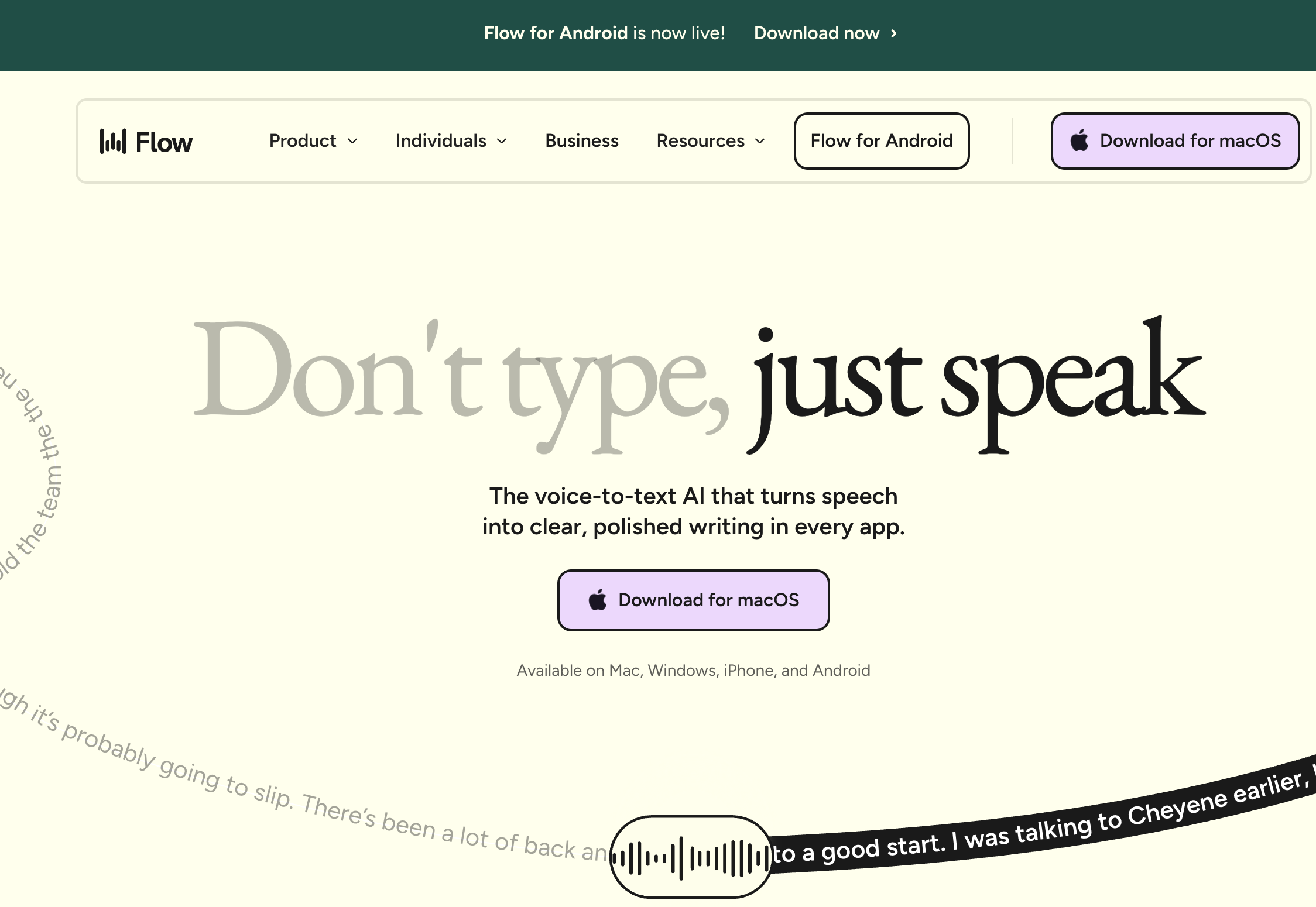
Other third-party Mac dictation tools include Wispr Flow (cloud-based with AI text rewriting, $12/mo billed annually or $15 month-to-month — note it captures screenshots for context awareness), Superwhisper (on-device Whisper models, $249.99 lifetime or $8.49/mo), and MacWhisper (audio file transcription, €59 Pro one-time).
For a detailed comparison of all Mac dictation apps — including features, pricing, accuracy, and privacy — see our complete guide to dictation on Mac. For an overview of options beyond Apple's built-in tool, see our post on Apple Dictation alternatives.
Tip
If you're a developer who dictates documentation, commit messages, or code comments — or if the 30-second Apple Dictation timeout is breaking your flow — Voibe's developer mode resolves file and folder names from your project context with no timeout limit. Try it free at getvoibe.com/download.
Frequently Asked Questions About Mac Dictation
Setup Questions
What is the keyboard shortcut for dictation on Mac?
The default keyboard shortcut for dictation on Mac is pressing the Globe (🌐) or Fn key twice. On 2021-and-later MacBooks with a dedicated Microphone key on F5, pressing it once also starts dictation. You can change the shortcut in System Settings > Keyboard > Dictation — options include double-pressing either Command key or a custom combination. For conflicts and customization, see our Mac dictation keyboard shortcuts guide.
Can I use dictation with multiple languages on Mac?
Yes. Mac dictation supports multiple languages simultaneously. In System Settings > Keyboard > Dictation, click the language dropdown to add additional languages. You can switch between languages during dictation, and macOS will attempt to auto-detect the spoken language when multiple are enabled.
Usage Questions
Can I type and dictate at the same time on Mac?
Yes, but only on Apple Silicon Macs (M1, M2, M3, M4). On Apple Silicon, you can type on the keyboard while dictation is active, and both typed and spoken text merge seamlessly. On Intel Macs, typing interrupts the active dictation session.
How do I add punctuation while dictating on Mac?
Say the punctuation name out loud while dictating. For example, say "period" to insert a period, "comma" for a comma, "question mark" for a question mark, and "new paragraph" to start a new paragraph. On Apple Silicon Macs, you can also enable auto-punctuation in System Settings > Keyboard > Dictation to have commas and periods inserted automatically.
Troubleshooting Questions
Why does Mac dictation stop after 30 seconds?
Mac dictation stops automatically after 30 seconds of silence, and there is no setting to extend or disable that cutoff. Apple's documentation states you can dictate text of any length — the auto-stop triggers on pauses, not total speaking time. If dictation quits while you're actively speaking, that's not the silence cutoff; see our guide to fixing dictation not working on Mac. And if thinking pauses keep ending your sessions (especially if you dictate due to RSI or limited mobility), third-party apps like Voibe keep listening through them.
Does Mac dictation work offline?
On Apple Silicon Macs (M1 and later), Mac dictation works offline because speech processing happens on-device. On Intel Macs, dictation requires an internet connection because audio is sent to Apple's servers for processing. To confirm your Mac's processing mode, check System Settings > Keyboard > Dictation.
Tools and Alternatives
What is the best dictation app for Mac?
The best dictation app for Mac depends on your use case. Apple Dictation is free and adequate for short, casual text entry. For professional use, Voibe ($9.90/mo, $99/yr, or $199 lifetime) offers Whisper-based dictation with developer IDE integration, plus a fully on-device mode that works offline on Apple Silicon. Wispr Flow ($12/mo billed annually, $15 month-to-month) is best for users who want AI-powered text rewriting. Superwhisper ($249.99 lifetime or $8.49/mo) offers multiple Whisper model sizes. For a full comparison, see our complete guide to dictation on Mac.
Summary: Getting the Most Out of Dictation on Mac
Using dictation on Mac is straightforward: enable it once in System Settings, press the Globe/Fn key twice in any text field, and start speaking. Voice commands for punctuation, formatting, and symbols let you produce clean text without touching the keyboard.
Key points to remember:
- Apple Silicon Macs process dictation on-device — no audio leaves your computer
- Intel Macs send audio to Apple servers — internet is required
- Voice commands like "period," "comma," and "new paragraph" control formatting
- Voice Control and Dictation conflict — disable Voice Control if Dictation stops working
- There's no cap on dictation length, but sessions auto-stop after 30 seconds of silence — and that cutoff isn't configurable
- Auto-punctuation is inconsistent in complex sentences; using explicit voice commands gives more reliable results
For basic text entry — emails, messages, notes — Apple's built-in dictation works well. If the silence cutoff, declining accuracy, or random transcription failures get in your way, third-party options like Voibe address these gaps directly.
Related guides:
- Dictation on Mac: Complete Guide to Voice-to-Text
- Dictation Not Working on Mac: Fixes and Solutions
- Apple's WWDC 2026 Dictation Announcement, Explained — the macOS 27 upgrade, which Macs get it, and where your voice goes under Siri AI
- Getting Started with Voibe: Complete Setup Guide
- Apple Dictation vs Wispr Flow: Should You Upgrade from Free?
- Apple Dictation vs OpenAI Whisper: Built-In vs Open-Source Model
- Apple Dictation vs Dragon: Free Built-In vs $699 Professional
- Voice Input Workflow: A Complete Guide for Developers and Writers — the Talk-Draft-Polish loop and the editing passes that make voice drafts faster than typing
- How to Voice-Prompt ChatGPT, Claude, and Cursor — the Five-Part Voice Prompt framework for dictating AI prompts
- Why Talking to AI Changes Everything — the case for making voice your primary input when working with AI tools
- How to Use Dictation on Windows — the same setup guide for Win+H and Voice Access on the other platform
If accuracy rather than setup is your problem, it is worth working out whether the microphone is even the cause — our guide to dictation microphones has a five-minute test that separates audio problems from vocabulary problems before you spend anything.
Best AI Dictation and Meeting Notes for Confidential Work
Draft letters, notes and emails 5x faster. Get meeting notes without a bot joining your call. Nothing used to train AI.
- Mac + Windows
- No bot in your calls
- Nothing used to train AI
- 7-day free trial
Want to compare plans first? View pricing →
Related Articles
Switching From Apple Dictation: When Free Stops Being Enough
I build a paid dictation app. My honest advice: don't switch from Apple Dictation until you hit one of its three walls. Here's how to tell — and how to move.
Dictation on Mac: What Free Gets You, and When It Isn't Enough
Apple's built-in dictation is free and fine — until it cuts out mid-thought. How to set it up, where it stops short, and which Mac apps go further.
Dictation Not Working on Mac? 8 Proven Fixes (2026)
Fix Mac dictation not working with 8 proven solutions. Resolve Voice Control conflicts, keyboard shortcut conflicts, microphone issues, and app-specific failures in Word, Terminal, and Chrome.