How to Use Dictation on Mac: Setup and Voice Commands Guide (2026)
Learn how to use dictation on Mac with step-by-step setup, voice commands for punctuation and formatting, privacy settings, and tips for better accuracy.

TL;DR: To use dictation on Mac, open System Settings > Keyboard > Dictation, toggle it on, then press the Fn key (or Microphone key) in any text field to start speaking. Your Mac converts speech to text in real time. Press Fn again or hit Escape to stop.
- Open Apple menu > System Settings > Keyboard > Dictation and toggle it on
- Place your cursor in any text field and press the Fn key to start dictating
- Speak naturally — say "comma," "period," or "new paragraph" for formatting
- Press the Fn key again, hit Escape, or click the microphone icon to stop
| Feature | What to Know |
|---|---|
| Activation shortcut | Press the Fn key (default) or Microphone key on F5 |
| Works in | Any text field across all macOS apps |
| Processing (Apple Silicon) | On-device — audio stays on your Mac |
| Processing (Intel) | Cloud — audio sent to Apple servers |
| Auto-timeout | Stops after 30 seconds of silence |
| Type while dictating | Yes, on Apple Silicon Macs (M1 and later) |
| Voice commands | Punctuation, formatting, capitalization, and symbols |
Disclosure: Voibe is our product. This guide covers Apple's built-in dictation objectively. We mention Voibe where third-party alternatives are relevant and note when it's our own tool.
For a broader overview of all dictation options on Mac, see our complete guide to dictation on Mac.
How to Enable Dictation on Mac
Enabling dictation on Mac takes about 30 seconds. You only need to do this once — the setting persists across restarts. Here's how to turn on dictation in macOS Ventura, Sonoma, and Sequoia.
- Click the Apple menu in the top-left corner of your screen
- Select System Settings
- Click Keyboard in the left sidebar
- Scroll down to the Dictation section
- Toggle Dictation to On
- Choose your preferred microphone source (built-in or external)
- Select your language(s) — you can add multiple languages for multilingual dictation
- Confirm or customize your keyboard shortcut (default: press Fn key)
macOS offers several shortcut options for activating dictation:
- Press Fn key (default on most Macs)
- Press Microphone key (F5 on newer MacBook keyboards)
- Press either Command key twice
- Press right Command key twice
- Custom shortcut of your choice
If your Mac has Apple Silicon (M1, M2, M3, or M4), you can also enable auto-punctuation in this same settings panel. Auto-punctuation inserts commas and periods automatically based on your speech rhythm. It's available for English, Spanish, French, German, Italian, Portuguese, Cantonese, Mandarin, Japanese, and Korean.
Key Takeaway
Enable dictation once in System Settings > Keyboard > Dictation. Choose your microphone, language, and shortcut key — then you're ready to dictate in any app.
Tip
If you don't see the Dictation option under Keyboard settings, make sure your Mac is running macOS Ventura (13.0) or later. On older macOS versions, go to System Preferences > Keyboard > Dictation instead.
How to Start and Stop Dictation on Mac
Starting and stopping dictation on Mac uses simple keyboard shortcuts. Once dictation is enabled in System Settings, you can activate it in any text field across macOS.
Starting a Dictation Session
- Click to place your cursor where you want text to appear
- Press the Fn key (or your configured shortcut)
- Wait for the cursor area to highlight and pulse — this indicates dictation is active and listening
- Begin speaking naturally
On Apple Silicon Macs (M1 and later), you can continue typing while dictation is active. Your typed text and dictated text merge seamlessly. This is a significant advantage over Intel Macs, where typing interrupts the dictation session.
Stopping a Dictation Session
You have three ways to stop dictation on Mac:
- Press the Fn key again (or your configured shortcut)
- Press the Escape key
- Click the microphone icon that appears near your cursor
If you stop speaking for approximately 30 seconds, dictation automatically times out and stops. This auto-timeout prevents accidental recording of background noise or private conversations.
Info
The 30-second auto-timeout is a common source of confusion. If your dictation keeps stopping unexpectedly, you're likely pausing too long between phrases. Speak in continuous phrases with brief natural pauses to keep the session active.
Dictation Voice Commands: Punctuation, Formatting, and Symbols
Mac dictation voice commands let you insert punctuation, control formatting, and add symbols without touching the keyboard. Learning these commands is essential for producing clean, properly formatted text through dictation.
Punctuation Commands
| Say This | Result |
|---|---|
| "period" or "full stop" | . |
| "comma" | , |
| "question mark" | ? |
| "exclamation point" or "exclamation mark" | ! |
| "colon" | : |
| "semicolon" | ; |
| "ellipsis" or "dot dot dot" | ... |
| "hyphen" or "dash" | - |
| "em dash" | — |
Formatting Commands
| Say This | Result |
|---|---|
| "new line" | Moves to next line |
| "new paragraph" | Starts a new paragraph |
| "tab key" | Inserts a tab character |
Capitalization Commands
| Say This | Result |
|---|---|
| "caps on" | Capitalizes first letter of each word until "caps off" |
| "caps off" | Returns to normal capitalization |
| "all caps" | Types next word in ALL CAPITALS |
| "all caps on" | Types in ALL CAPS until "all caps off" |
| "all caps off" | Returns to normal capitalization |
| "no caps" | Types next word in all lowercase |
| "no caps on" | Types in lowercase until "no caps off" |
| "no caps off" | Returns to normal capitalization |
Spacing and Symbol Commands
| Say This | Result |
|---|---|
| "no space" | Removes space before next word |
| "no space on" | Suppresses spaces until "no space off" |
| "no space off" | Returns to normal spacing |
| "numeral [number]" | Inserts the digit (e.g., "numeral 5" types 5) |
| "open quote" | " |
| "close quote" | " |
| "open parenthesis" | ( |
| "close parenthesis" | ) |
| "open bracket" | [ |
| "close bracket" | ] |
| "at sign" | @ |
| "pound sign" or "hash" | # |
| "ampersand" | & |
| "asterisk" | * |
Auto-punctuation (available on Apple Silicon Macs for supported languages) can handle basic commas and periods automatically. However, explicit voice commands give you more precise control over formatting.
On-Device vs Cloud Dictation: What Happens to Your Audio
How Mac dictation processes your audio depends on your Mac's processor. Apple Silicon Macs and Intel Macs handle speech recognition differently, with significant implications for privacy and performance.
Apple Silicon Macs (M1, M2, M3, M4): On-Device Processing
On Apple Silicon Macs, dictation runs entirely on-device by default. Your spoken audio is processed by a local speech recognition model on your Mac's Neural Engine. No audio data leaves your computer, and no internet connection is required for dictation to work.
On-device processing also means lower latency — text appears almost immediately as you speak. Apple Silicon Macs can handle dictation alongside other tasks because the Neural Engine operates independently from the CPU and GPU.
Intel Macs: Cloud-Based Processing
On Intel Macs, dictation audio is sent to Apple's servers for processing. This means:
- An internet connection is required for dictation to function
- Your audio data travels to Apple's servers and back
- There's noticeable latency compared to on-device processing
- Apple may store audio samples for up to 6 months to improve its service (you can opt out)
How to Check Your Processing Mode
To verify whether your Mac processes dictation on-device or in the cloud, go to System Settings > Keyboard > Dictation. If you see an option to disable sending audio to Apple, your Mac supports on-device processing. Intel Macs won't show this option because cloud processing is the only available mode.
Auto-Punctuation Settings
Auto-punctuation is available on Apple Silicon Macs for supported languages. To enable or disable it:
- Open System Settings > Keyboard > Dictation
- Toggle Auto-Punctuation on or off
Auto-punctuation works best for conversational speech. For technical content where punctuation placement matters, many users prefer to speak punctuation commands manually for precise control.
Key Takeaway
Apple Silicon Macs (M1 and later) process dictation entirely on-device with no audio data sent to Apple. Intel Macs send audio to Apple's servers, requiring an internet connection.
Tips for Better Dictation Accuracy on Mac
Dictation accuracy on Mac depends on several controllable factors. These tips apply whether you're using Apple's built-in dictation or a third-party speech-to-text tool.
- Use an external microphone. The built-in Mac microphone picks up keyboard noise, fan sounds, and room echo. Even an inexpensive USB microphone ($20-40) significantly reduces background interference and improves recognition accuracy.
- Speak at a consistent, natural pace. Rushing causes dropped words. Over-enunciating confuses speech models trained on natural speech patterns. Aim for your normal conversational speed with clear pronunciation.
- Minimize background noise. Close windows, mute notification sounds, and pause music or video playing on your Mac. Background audio is the most common cause of misrecognized words across all dictation tools.
- Use voice commands for punctuation. Don't rely entirely on auto-punctuation. Explicitly saying "period," "comma," and "new paragraph" gives you predictable results. This is especially important for professional documents where formatting matters.
- Dictate in short to medium phrases. Speak in bursts of 10-30 words, then pause briefly. This gives the speech model clear boundaries and reduces compounding errors across long sentences.
- Position your microphone properly. Keep it 6-12 inches from your mouth, slightly off-axis rather than directly in front. This reduces plosive sounds from letters like P and B while maintaining clear audio pickup.
- Close unnecessary apps when using on-device dictation. On-device speech recognition uses your Mac's processing power. Closing heavy apps (browsers with many tabs, video editors) frees up resources and can improve transcription speed.
- Warm up with a test phrase. Start each session by dictating a quick test sentence. This confirms your microphone is working, your environment is suitable, and the tool is responding as expected.
For users who need consistently high accuracy with technical vocabulary, third-party dictation tools that use larger Whisper speech models often outperform Apple's built-in dictation. These tools let you choose larger model sizes that trade processing time for better accuracy on specialized content.
Voice Control vs Dictation: Understanding the Difference
Voice Control and Dictation are two separate speech features built into macOS. They serve different purposes, and they can conflict with each other if both are enabled at the same time.
What Each Feature Does
Dictation converts spoken words into text. You activate it in a text field, speak, and your words appear as typed text. Dictation supports voice commands for punctuation and formatting, but it doesn't control your Mac's interface.
Voice Control is a full accessibility feature that lets you operate your entire Mac by voice. You can click buttons, navigate menus, select items, scroll pages, and perform almost any mouse or keyboard action through spoken commands. Voice Control also includes dictation capabilities, but they work differently from the standalone Dictation feature.
The Conflict Between Them
When Voice Control is turned on, macOS disables the standard Dictation feature. You can't use both simultaneously. This means:
- Your Fn key shortcut stops triggering Dictation when Voice Control is active
- Voice Control's dictation mode has different voice commands and behaviors
- Switching between them requires going to System Settings
If your dictation suddenly stops working after enabling Voice Control, this is the most likely cause. Turn off Voice Control in System Settings > Accessibility > Voice Control to restore standard Dictation.
When to Use Each
- Use Dictation if you only need speech-to-text in text fields
- Use Voice Control if you need hands-free control of your entire Mac (for accessibility or specific workflows)
For troubleshooting tips when dictation stops working, including the Voice Control conflict, see our guide on fixing dictation not working on Mac.
Beyond Built-in Dictation: Third-Party Speech-to-Text Tools for Mac
Apple's built-in dictation covers basic speech-to-text needs, but it has limitations that third-party tools address. The most common frustrations with Apple Dictation include the 30-second silence timeout, limited accuracy with technical or domain-specific vocabulary, and no developer IDE integration.
Where Apple Dictation Falls Short
- 30-second auto-timeout — dictation stops if you pause to think, review notes, or reference another document
- Limited technical vocabulary — programming terms, medical terminology, and legal jargon are frequently misrecognized
- No custom vocabulary — you can't add specialized terms, acronyms, or project-specific words
- No IDE integration — developers can't get context-aware dictation in VS Code, Cursor, or other editors
- Inconsistent auto-punctuation — commas and periods are often placed incorrectly in complex sentences
Third-Party Alternatives Worth Considering
Voibe is an offline dictation app for Mac that runs Whisper speech models entirely on-device. Audio never leaves your Mac, making it suitable for privacy-sensitive work (legal, medical, corporate). Voibe includes a developer mode with VS Code and Cursor integration for context-aware dictation in code editors. Pricing is $4.90/mo or $99 lifetime. (Voibe is our product.)
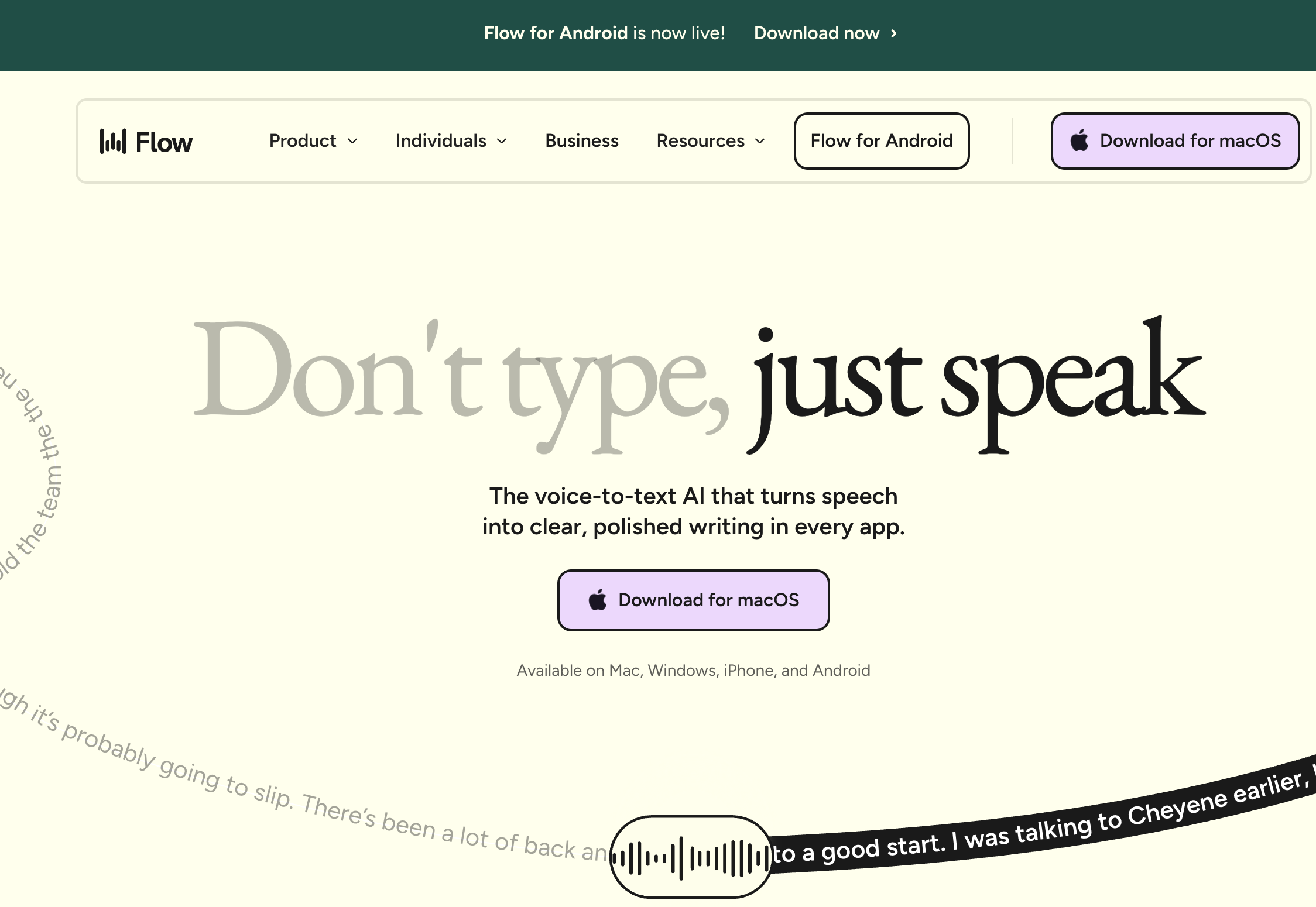
Other third-party Mac dictation tools include Wispr Flow (cloud-based with AI text rewriting, ~$10/mo), Superwhisper (on-device Whisper models, $249 lifetime), and MacWhisper (audio file transcription, $29 Pro).
For a detailed comparison of all Mac dictation apps — including features, pricing, accuracy, and privacy — see our complete guide to dictation on Mac. For an overview of options beyond Apple's built-in tool, see our post on Apple Dictation alternatives.
Tip
If you're a developer who dictates documentation, commit messages, or code comments, Voibe's developer mode resolves file and folder names from your project context. Try it free at getvoibe.com/download.
Frequently Asked Questions About Mac Dictation
Setup Questions
What is the keyboard shortcut for dictation on Mac?
The default keyboard shortcut for dictation on Mac is pressing the Fn (Function) key. On newer MacBooks, you can also press the Microphone key on F5. You can customize the shortcut in System Settings > Keyboard > Dictation to use the Command key twice or a custom key combination.
Can I use dictation with multiple languages on Mac?
Yes. Mac dictation supports multiple languages simultaneously. In System Settings > Keyboard > Dictation, click the language dropdown to add additional languages. You can switch between languages during dictation, and macOS will attempt to auto-detect the spoken language when multiple are enabled.
Usage Questions
Can I type and dictate at the same time on Mac?
Yes, but only on Apple Silicon Macs (M1, M2, M3, M4). On Apple Silicon, you can type on the keyboard while dictation is active, and both typed and spoken text merge seamlessly. On Intel Macs, typing interrupts the active dictation session.
How do I add punctuation while dictating on Mac?
Say the punctuation name out loud while dictating. For example, say "period" to insert a period, "comma" for a comma, "question mark" for a question mark, and "new paragraph" to start a new paragraph. On Apple Silicon Macs, you can also enable auto-punctuation in System Settings > Keyboard > Dictation to have commas and periods inserted automatically.
Troubleshooting Questions
Why does Mac dictation stop after 30 seconds?
Mac dictation has a built-in auto-timeout that stops the session after approximately 30 seconds of silence. This is a feature, not a bug — it prevents accidental recording of background audio. To avoid the timeout, speak in continuous phrases without long pauses. If dictation stops unexpectedly for other reasons, see our guide to fixing dictation not working on Mac.
Does Mac dictation work offline?
On Apple Silicon Macs (M1 and later), Mac dictation works offline because speech processing happens on-device. On Intel Macs, dictation requires an internet connection because audio is sent to Apple's servers for processing. To confirm your Mac's processing mode, check System Settings > Keyboard > Dictation.
Tools and Alternatives
What is the best dictation app for Mac?
The best dictation app for Mac depends on your use case. Apple Dictation is free and adequate for short, casual text entry. For professional use, Voibe ($4.90/mo or $99 lifetime) offers on-device Whisper-based dictation with developer IDE integration and full offline capability. Wispr Flow (~$10/mo) is best for users who want AI-powered text rewriting. Superwhisper ($249 lifetime) offers multiple Whisper model sizes. For a full comparison, see our complete guide to dictation on Mac.
Summary: Getting the Most Out of Dictation on Mac
Using dictation on Mac is straightforward: enable it once in System Settings, press the Fn key in any text field, and start speaking. Voice commands for punctuation, formatting, and symbols let you produce clean text without touching the keyboard.
Key points to remember:
- Apple Silicon Macs process dictation on-device — no audio leaves your computer
- Intel Macs send audio to Apple servers — internet is required
- Voice commands like "period," "comma," and "new paragraph" control formatting
- Voice Control and Dictation conflict — disable Voice Control if Dictation stops working
- The 30-second silence timeout is normal behavior, not a bug
For basic text entry — emails, messages, notes — Apple's built-in dictation works well. For professional workflows that require higher accuracy, better privacy, or developer tools, third-party options like Voibe fill the gaps.
Related guides:
Ready to type 3x faster?
Voibe is the fastest, most private dictation app for Mac. Try it today.
Try Voibe for FreeRelated Articles
Dictation on Mac: Complete Guide to Voice-to-Text in 2026
Learn how to use dictation on Mac, from Apple's built-in tool to third-party apps. Compare accuracy, privacy, and pricing across top Mac dictation options.
Dictation Not Working on Mac? 7 Proven Fixes (2026)
Fix Mac dictation not working with 7 proven solutions. Resolve Voice Control conflicts, microphone issues, corrupted caches, and more in under two minutes.
Speech to Text on Mac: Best Apps, Setup, and Comparison (2026)
Compare the best speech to text apps for Mac in 2026. Covers Apple Dictation, Voibe, Wispr Flow, Superwhisper, and more with pricing, privacy, and features.