
Menu Bar & System Tray
Voibe runs quietly from your Mac's menu bar — the strip of icons at the top-right of your screen — so it's always one click away without cluttering up your app switcher.
On Windows the same thing lives in the system tray, at the right-hand end of the taskbar next to the clock. The screenshots below are from macOS. Both platforms let you open the dashboard and quit from the icon; individual menu options can differ.
Here's what you'll find when you click the Voibe icon.
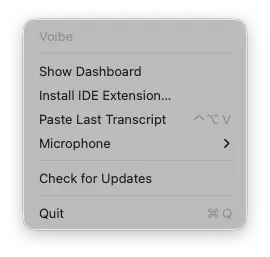
The Voibe menu, open from the menu bar icon.
Finding the Voibe icon
On a Mac, after you launch Voibe for the first time, the Voibe logo — a small wave-like "V" — appears in the menu bar at the top-right of your screen, alongside the clock, battery, and other system icons.
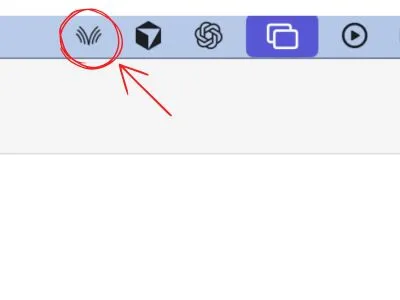
Can't see the icon?
- If your menu bar is crowded, the icon may be hidden behind the notch on newer MacBooks. Try closing a few other menu bar apps, or drag icons with ⌘ held down to rearrange.
- On Windows, the icon is usually just tucked into the tray overflow. Click the chevron (^) to the left of the tray icons to reveal hidden ones, then drag Voibe onto the taskbar to keep it visible — or turn it on under Settings → Personalisation → Taskbar → Other system tray icons.
- If Voibe isn't running at all, launch it from Applications on a Mac, or from the Start menu on Windows. You can optionally set it to launch at startup from Voibe's settings. On Windows, Voibe keeps running when minimized.
Tips
- Use "Paste Last Transcript" to recover lost dictation. If text landed in the wrong place or you closed the window too soon, click the Voibe menu bar or system tray icon → Paste Last Transcript to drop it wherever your cursor is now. On a Mac the keyboard shortcut is ⌃⌥V.
- Switch microphones on the fly. Plugged in a better mic? Open the Voibe menu bar → Microphone and select it. No need to restart the app.
- Rearrange the icons. On a Mac, hold ⌘ and drag any menu bar icon to reorder. On Windows, drag the Voibe icon out of the tray overflow panel and onto the taskbar. Put it somewhere easy for you to glance at.
- Quit to save battery — sometimes. Voibe is idle when you're not pressing the hotkey, so quitting isn't necessary for power saving. Only quit if you explicitly don't want dictation available.
Still stuck? Email hi@getvoibe.com and we'll help you out.