
Microphone & Accessibility Permissions
On a Mac, Voibe needs two macOS permissions to do its job: microphone (to hear you) and accessibility (to detect your hotkey and insert text). These are the minimum a dictation app needs.
On Windows, Voibe needs only microphone access. Windows has no equivalent of the macOS accessibility permission, so the global hotkey and text insertion work without granting anything extra.
This page explains exactly what each permission does, what Voibe cannot do with them, and how to grant or revoke them.
On this page
Microphone permission
What Voibe uses it for
To capture audio while you're actively dictating. Voibe only opens the microphone input stream during an active dictation. Push-to-Talk ends on release; Hands-Free and Live Dictation continue until you stop them.
What we promise
- ✓ Audio is only captured during an active dictation. Voibe does not listen when dictation is stopped.
- ✓ Your audio is discarded the moment transcription finishes — never stored, sold, or used to train any AI model.
- ✓ On Apple Silicon Macs, choose on-device transcription to keep audio on your Mac, or zero-retention cloud transcription. Windows and Intel Macs use cloud transcription. Cloud audio is deleted when transcription completes. Optional AI text formatting sends finished text to the cloud with either engine; turn it off for fully local dictation.
How to grant on Mac
macOS prompts you automatically the first time Voibe tries to record. Click Allow.
If you missed the prompt, open System Settings → Privacy & Security → Microphone and toggle Voibe on.
How to grant on Windows
Windows asks the first time Voibe tries to record. Allow it.
If you missed the prompt, open Settings → Privacy & security → Microphone, make sure Microphone access and Let apps access your microphone are on, then find Voibe in the list and turn it on. Full Windows setup guide.
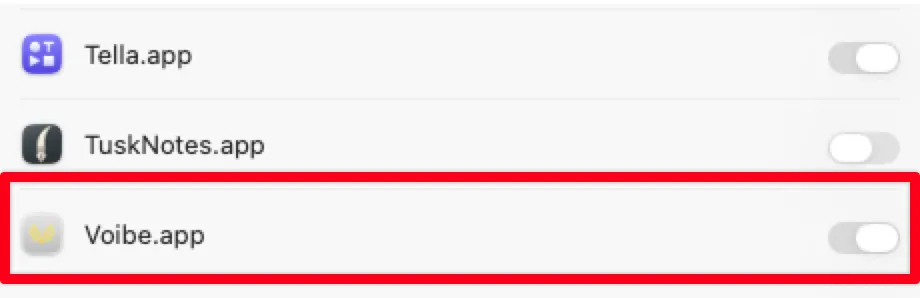
Toggle Voibe on to let it hear you while you dictate.
Accessibility permission (Mac only)
This one is specific to macOS. Windows has no equivalent permission — global hotkeys and text insertion are ordinary capabilities there — so Windows users can skip this section.
What Voibe uses it for
Two things — both necessary for a global dictation hotkey to work.
- Detecting the hotkey. macOS only lets an app see keystrokes from every other app if it has accessibility. Without this, Voibe couldn't know you pressed the hotkey while you're in Cursor, Gmail, or anywhere else.
- Pasting the transcribed text. Once Voibe has your transcript, it needs to insert it into the text field you're focused on. That also requires accessibility.
What we promise
- ✓ Voibe only listens for the specific hotkey you've configured. It does not log, store, or transmit any other keystrokes.
- ✓ The text insertion happens locally — your transcript goes directly from Voibe to your active text field after transcription and any optional AI text formatting finish.
- ✓ Voibe does not read the contents of other apps, does not observe what you type, and does not take screenshots.
How to grant
macOS does not auto-prompt for accessibility. You have to grant it manually:
- 1. Open System Settings.
- 2. Go to Privacy & Security → Accessibility.
- 3. Toggle Voibe on.
- 4. If Voibe isn't in the list, click the + button and add it from your Applications folder.
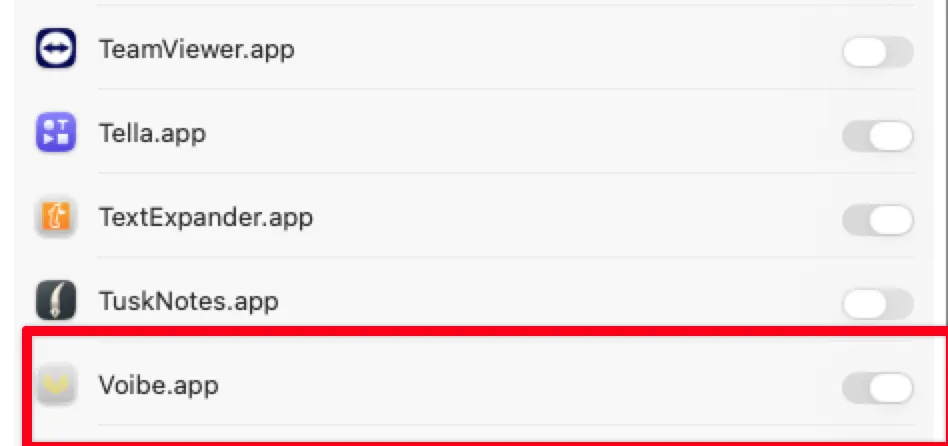
Toggle Voibe on so it can detect your hotkey and insert transcribed text.
What Voibe cannot do
Microphone and accessibility together sound like a lot of access. In practice, they're narrow to what dictation requires. Here's what Voibe does not do, and cannot do:
- Listen outside an active dictation. The mic closes when you stop dictation, including when you end a Hands-Free or Live Dictation session.
- Log or transmit your keystrokes. Accessibility lets Voibe see whether the hotkey is down — not what you're typing.
- Keep, sell, or train on your audio. In on-device mode, transcription runs entirely on your Mac's Neural Engine. In cloud mode — which is how Voibe runs on Windows and Intel Macs — audio goes over an encrypted connection to open-source models and is deleted the instant transcription completes; never stored, sold, or used to train AI.
- Access files, camera, screen, or clipboard beyond what's needed. Voibe hasn't asked for those permissions because it doesn't use them.
- Read the contents of other apps. Voibe writes text into the focused field. It doesn't read what's already there.
Granting or revoking permissions
Every permission can be toggled off any time in your system settings. You're always in control.
| Permission | Platform | Where to manage |
|---|---|---|
| Microphone | Mac | System Settings → Privacy & Security → Microphone |
| Accessibility | Mac | System Settings → Privacy & Security → Accessibility |
| Microphone | Windows | Settings → Privacy & security → Microphone |
If you revoke a permission, Voibe will stop working until you re-enable it — dictation can't happen without it.
On-device or zero-retention cloud — your choice
On an Apple Silicon Mac, pick on-device mode to keep transcription entirely on your Mac's Neural Engine, or zero-retention cloud mode running open-source models. On Windows and Intel Macs, Voibe uses zero-retention cloud mode. Either way, your audio is never stored, sold, or used to train AI. Read more on our security page.
Still stuck? Email hi@getvoibe.com and we'll help you out.