
Developer Mode
Developer Mode turns voice into the fastest way to prompt your AI coding agent. Voibe scans the workspace open in Cursor, VS Code, or Windsurf — locally, on your own machine — so when you say a file name, folder path, or identifier, it resolves correctly instead of being transcribed as plain English.
Mention a file out loud and Voibe attaches it as context to your AI chat. No clicking through file trees mid-thought.
Developer Mode is specific to code editors. For prompting Claude, ChatGPT, or any other assistant with a chat box, see Dictating to AI Assistants — no setup required there.
On this page
What Developer Mode does
Without Developer Mode, dictating into a code editor produces plain English — which is fine for prose but breaks down the moment you say useAuth.ts or src/components/Header. With Developer Mode on, Voibe does three extra things:
Resolves names from your workspace
Voibe knows what's in the project you have open. Say "use auth dot t s" and you get
useAuth.ts, not "use auth dot ts". Same for
folder paths, function names, and identifiers in camelCase, snake_case, or PascalCase.
Attaches files to AI chats
In Cursor's chat, Composer, or any AI agent inside your editor, mention a file by
voice and Voibe adds it as context — the same as if you'd typed an
@-mention. Talk about a refactor and the files
you reference are already attached when you press Enter.
Understands coding context
Symbols and conventions that trip up generic dictation — file extensions, import paths, common libraries, language keywords — get formatted the way developers actually write them.
Supported editors
Developer Mode is delivered through the Voibe IDE extension, which runs in any editor built on the VS Code extension API:
Cursor
The flagship integration. Voice-prompt Composer, attach files mid-sentence, dictate chat messages without taking your hands off the keyboard.
VS Code
Same workspace awareness for Microsoft's editor. Great for Copilot Chat, dictating docs, and writing commit messages from the integrated source control panel.
Windsurf
Codeium's agentic editor — also a VS Code fork, so the Voibe extension installs the same way and resolves the same workspace context.
What about JetBrains, Xcode, or Zed? Voibe still types into them — dictation works system-wide. But the workspace-aware Developer Mode features (file resolution, attaching context to AI chats) are only available where the IDE extension runs. JetBrains support is on the roadmap.
How to enable it
- 1
Open the Voibe menu
Click the Voibe wave icon in your Mac menu bar (top-right of the screen, near the clock). On Windows, it's in the system tray at the right-hand end of the taskbar.
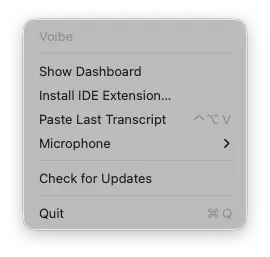
Look for the Install IDE Extension item.
- 2
Install the extension
Pick Install IDE Extension. Voibe detects which editors you have installed and offers a one-click install for each. The extension is signed and installs through the editor's normal extension flow.
- 3
Restart your editor
Quit and reopen Cursor, VS Code, or Windsurf so the extension activates and starts indexing the workspace you have open. There's no separate "turn on Developer Mode" toggle — once the extension is installed and your editor is the frontmost app, Voibe uses it automatically.
- 4
Dictate
Click into the Composer, Copilot Chat, an editor pane, or the integrated terminal. Hold your Voibe hotkey, speak, release. File names you mention resolve correctly and any "file" or "folder" references are attached automatically when supported by that surface.
Voice commands for files and folders
Inside an AI chat surface in your editor (Cursor Composer, Cursor Chat, Copilot Chat), these phrases attach files and folders as context:
| Say | Voibe does |
|---|---|
| "file login dot t s x" | Attaches login.tsx from your workspace. |
| "folder src slash auth" | Attaches the src/auth directory. |
| "files, header, footer, and nav" | Attaches all three matching files at once. |
| "in use auth, the login function" | Resolves useAuth and login() as identifiers in your prompt. |
Pronunciation tip: say file extensions phonetically (".t s x", ".p y", ".g o") rather than as words. Voibe handles both, but phonetic is more reliable for uncommon extensions.
Example workflows
Voice-prompting Cursor Composer
Open Composer, hold the hotkey, speak the change you want and the files involved:
"Refactor the auth flow. Move the redirect logic out of file login dot t s x into folder src slash auth slash hooks. Keep the existing test in file login dot test dot t s x passing."
Composer receives a structured prompt with login.tsx, src/auth/hooks, and login.test.tsx already attached as context.
Writing commit messages
Open VS Code's Source Control panel, click into the message field, hold the hotkey, and explain what changed. File names, function names, and refactor jargon come out correctly — no editing pass needed.
Dictating to Claude Code in the terminal
Open the integrated terminal in Cursor or VS Code with Claude Code running. Voibe detects the workspace context from the surrounding editor, so even though you're speaking into a TTY, file names still resolve correctly.
Linear tickets and code review comments
Tab to your browser, open a Linear ticket or a GitHub PR review, dictate the bug repro or review note. File and function references stay precise even outside the editor — Voibe applies workspace resolution wherever your IDE was the most recently focused workspace.
How resolution works
When the IDE extension is active, it sends Voibe a list of file paths, folder paths, and symbols from the workspace you have open. That list lives in memory on your own machine. When you dictate, Voibe matches phonetic guesses against the list to pick the most likely identifier.
Three things to know about how this stays private:
- Your workspace stays on your machine. File and folder names are read locally by the extension and matched locally by Voibe. There is no telemetry containing your code or paths, and your file list is never stored, sold, or used to train AI.
- Only paths and symbols, not file contents. Voibe sees that you have a
file called
payment.ts; it does not read what's inside it. Your code stays in your editor. - Same transcription path as regular dictation. The IDE extension only adds the workspace vocabulary — it doesn't change how audio is handled. Apple Silicon Macs can use on-device or cloud transcription; Windows and Intel Macs use cloud transcription. Cloud audio is deleted after transcription and never stored, sold, or used to train AI.
See Security for the full architecture.
Tips for best results
- Open the workspace before dictating. Developer Mode reads the currently open project. If your editor is empty or pointed at a different folder, Voibe falls back to plain dictation.
- Use the words "file" and "folder" to anchor references. Saying "file login" is more reliable than just saying "login" when you're in the middle of a long prompt — it tells Voibe the next token should resolve from the workspace.
- Combine with Memory for project jargon. Internal acronyms, service names, and product terms that aren't filenames belong in Memory. Use Developer Mode for code identifiers and Memory for everything else.
- If a name keeps mishearing, check the workspace is indexed. Reload the editor window (⌘⇧P → "Reload Window") to refresh the file list the extension sends to Voibe. Helpful after large branch switches.
- Keep the Voibe extension up to date. Newer extension releases ship better matching for popular frameworks. Updates surface in the editor's extension panel, same as any other.
Still stuck? Email hi@getvoibe.com and we'll help you out.