
How to take meeting notes
Voibe Work takes notes in your meetings from your Mac. It records your microphone and the meeting audio, then writes a summary and a full transcript when the meeting ends. Nothing joins the call, so the other people in the meeting see only you.
Before you start
- Meeting notes come with Voibe Work, and with the 7-day free trial.
- They run on Mac, on macOS 14.4 or later, and on Windows.
- Voibe needs two permissions to record a meeting: Microphone, for your voice, and System Audio Recording, for everyone else on the call. Voibe asks for both the first time you record.
- Notes are written in the cloud, so you need an internet connection for the summary and transcript. If you lose your connection, Voibe holds the recording and finishes it when you're back online.
Start taking notes
Voibe works with any meeting app on your Mac, including Zoom, Microsoft Teams, Google Meet in your browser, Slack huddles, Webex and FaceTime. There are three ways to start.
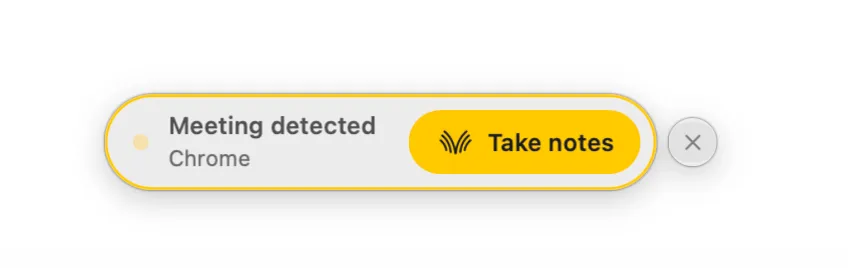
- When a meeting app starts using your microphone, a small bar appears saying Meeting detected. Click Take notes.
- Or open Meetings in the Voibe app and start a recording there.
- Or press your Meeting Notetaker shortcut key. Press it again to stop.
Let everyone know
The other people on the call won't see Voibe. When recording starts, Voibe reminds you to let everyone know you're taking notes.
You're responsible for following the recording consent rules that apply to your meetings and your location.
While you're recording
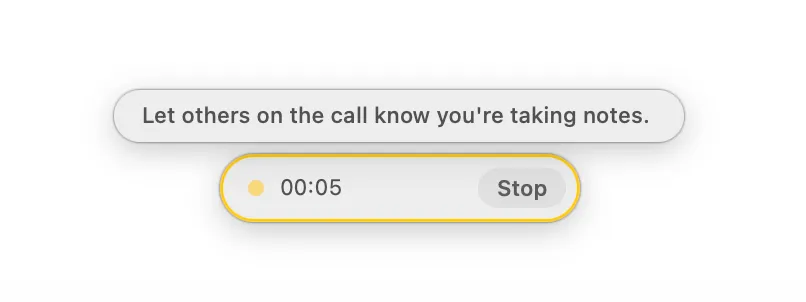
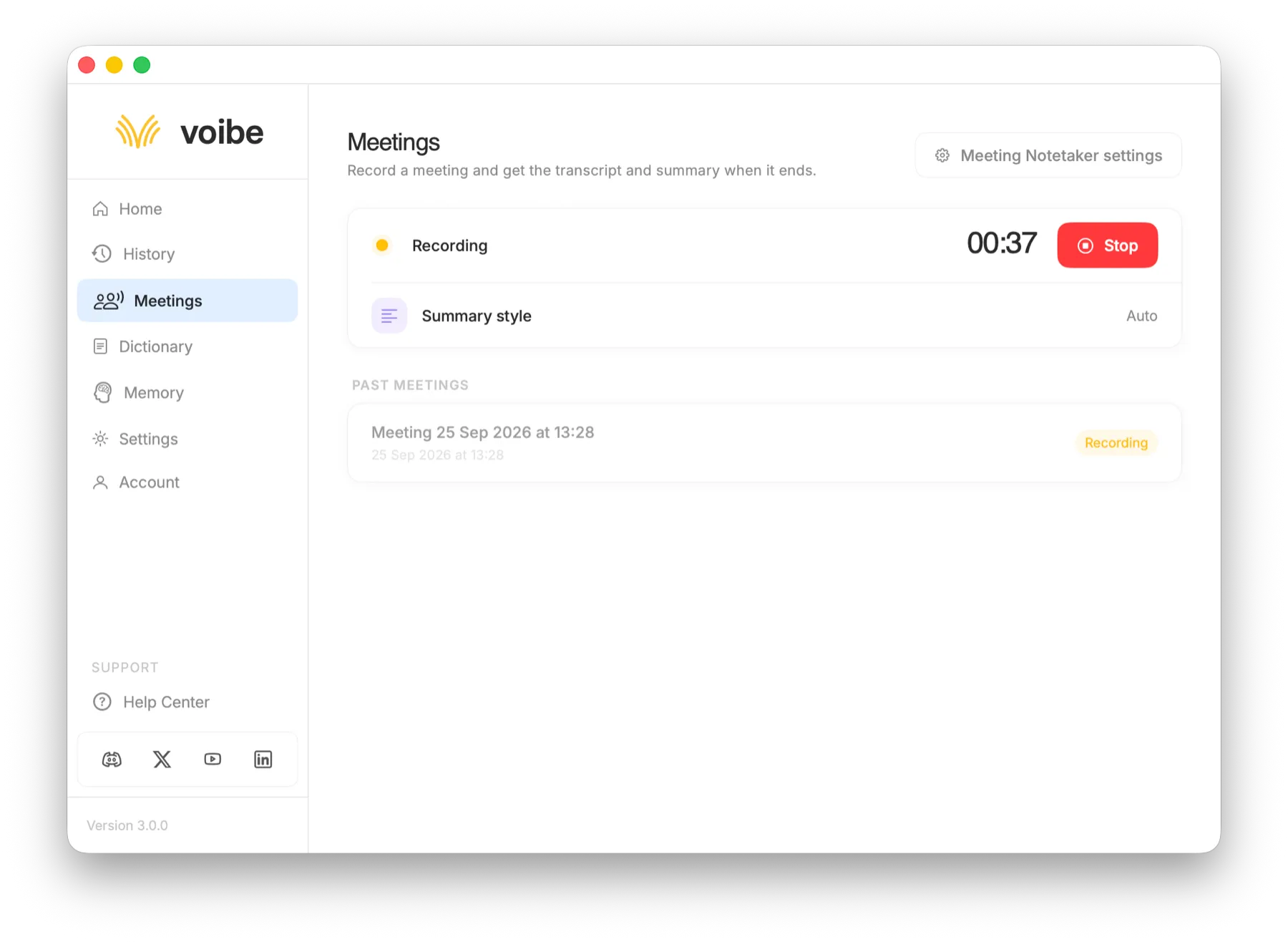
A small bar shows the recording time. Click Stop on it, or press your shortcut key, when the meeting is over. The Meetings page in the Voibe app shows the same recording, with its own Stop button.
The Meetings page also shows the summary style this meeting will be written in. Change it before the meeting ends if you'd like a different one.
If you forget to stop, Voibe stops on its own and keeps what it recorded:
- Shortly after the call ends.
- After a long stretch with no sound.
- When your Mac goes to sleep, shuts down or runs out of space.
- When the meeting reaches its length limit. Voibe warns you a few minutes before.
Your summary
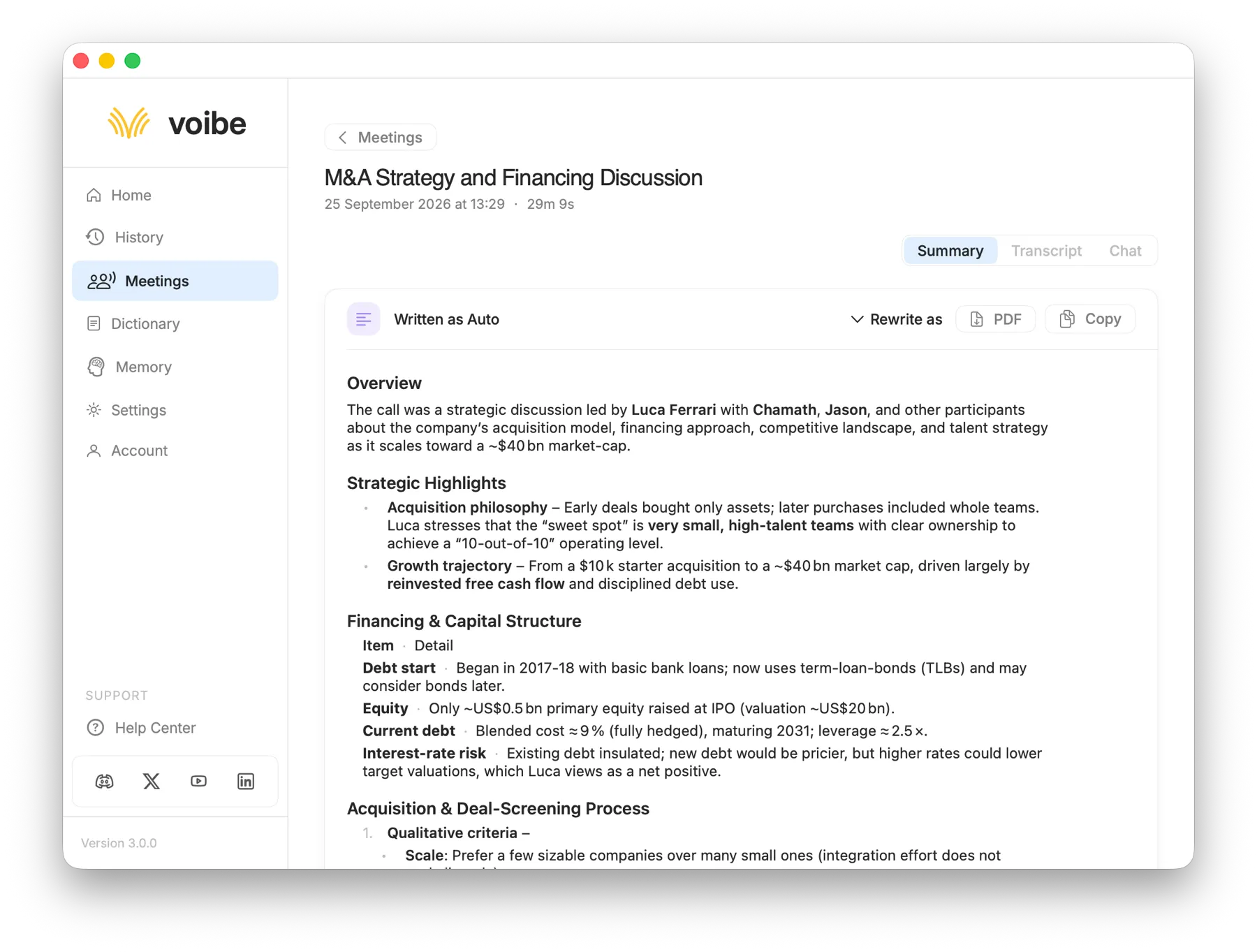
When the meeting ends, Voibe writes up your notes and lets you know when they're ready. Open the meeting from the Meetings page. It has three tabs: Summary, Transcript and Chat.
Every summary is written in a summary style. The default, Auto, works out what kind of meeting it was and picks the sections that fit. Voibe also comes with styles for one-on-ones, sales calls, standups and interviews.
To see the same meeting a different way, click Rewrite as and choose another style. The transcript stays the same; only the summary changes.
Make your own summary style
Add your own summary styles in Meeting Notetaker settings. Describe what the summary should contain, in up to 2,000 characters. For example: "Client intake. Summarise under: the client's situation, documents they mentioned, deadlines, and what we promised to send."
Pick a style for each kind of meeting. The last one you use becomes the default for your next meeting.
Your transcript and speakers
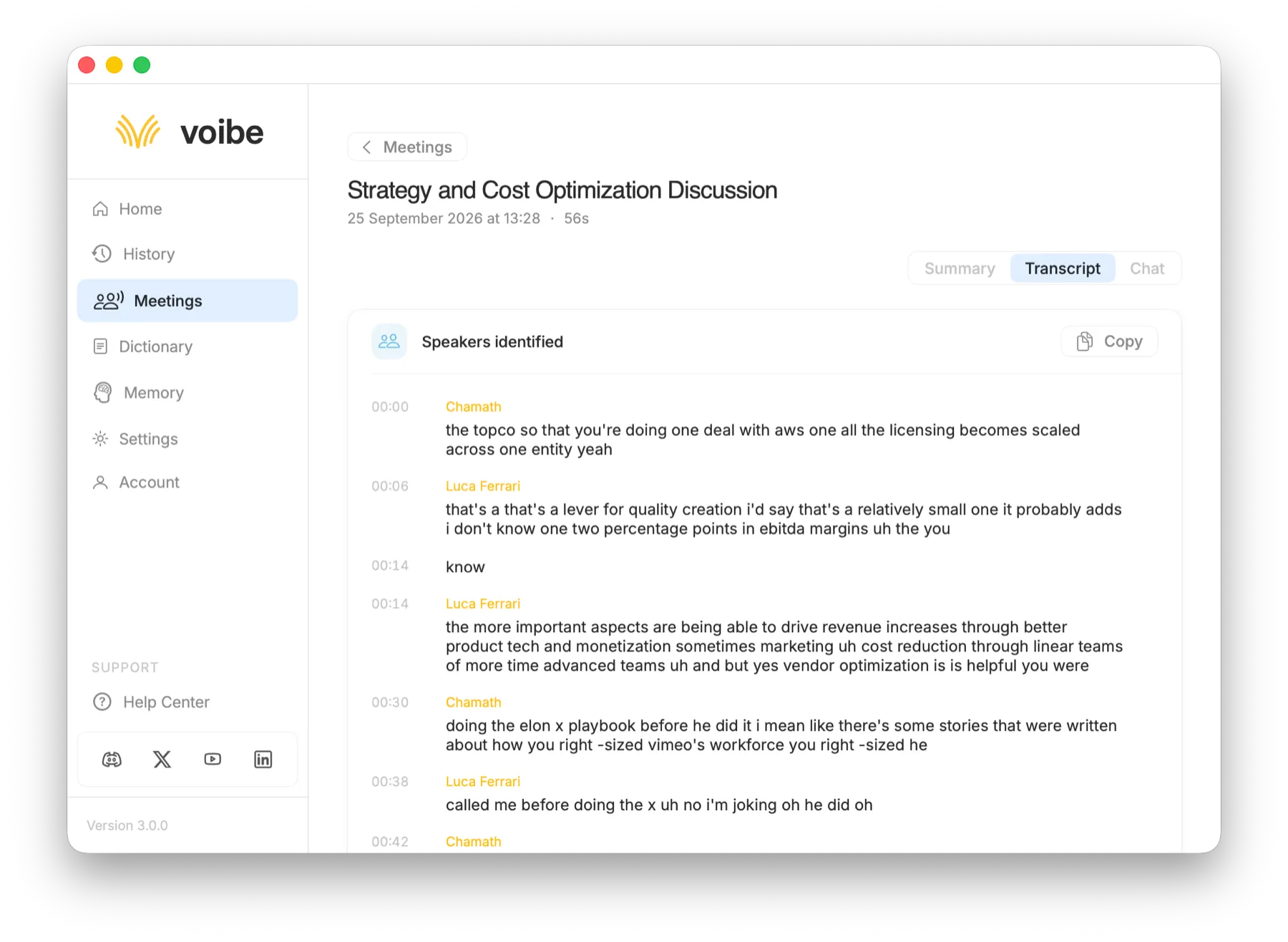
Every meeting comes with a full transcript. Voibe labels each speaker and puts a time next to every line.
Click a speaker's name to rename them. The summary updates to use the new name.
Chat with your meetings
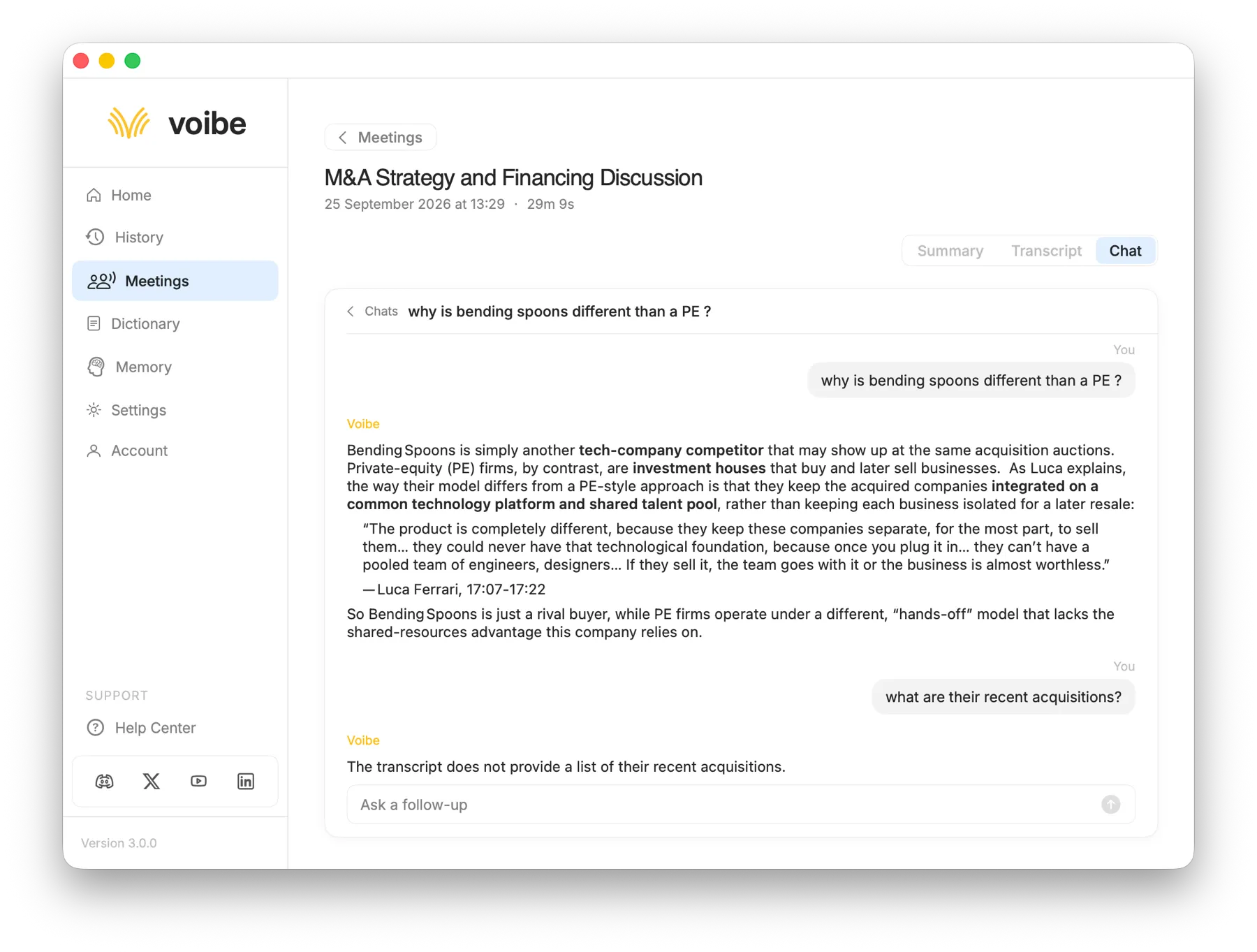
Open the Chat tab and ask what was agreed, who owns what, or for a follow-up email. Voibe answers only from that meeting, and shows the exact words each answer is based on, with who said them and when. If the meeting doesn't contain the answer, it says so.
Each question can have its own chat, so answers you want to keep don't get buried. Ask a follow-up inside a chat, or go back to Chats to start a new one. You can delete a chat at any time.
Copy or export your notes
Click Copy on the Summary or Transcript tab to copy it in one click, then paste it into email, your notes app or your CRM. To keep a file or share it, click PDF on the Summary tab to save the summary as a PDF.
Where your notes are stored
Meeting audio is processed by open-source models on zero-retention cloud providers and deleted as soon as processing completes. Nothing from your meetings is used to train AI.
Summaries, transcripts and chats are saved on your Mac, not on our servers. The recording itself stays on your Mac for a day after the meeting so you can play it back, then it's deleted. A recording that failed to upload is kept until you delete it.
Deleting a meeting permanently removes its summary, transcript and any chat about it.
Meeting Notetaker settings
Meeting notes have their own settings. Open Meetings in the Voibe app and click Meeting Notetaker settings. There you can:
- Set or change the Meeting Notetaker shortcut key.
- Turn Offer to record meetings on or off. With it off, Voibe won't ask when a meeting starts, and you start every recording yourself.
- Add and edit your summary styles.
Common questions
My notes only have my voice in them. What's wrong?
Voibe doesn't have System Audio Recording access, so it can't hear the other people on the call. Open System Settings, go to Privacy & Security, find Screen & System Audio Recording and turn on Voibe. Then record again.
Voibe didn't offer to take notes when my meeting started.
Check that Offer to record meetings is on in Meeting Notetaker settings. If you recently closed the Meeting detected bar for that app, Voibe waits a while before asking again. You can always start from the Meetings page or with your shortcut key.
Voibe offered to take notes when I wasn't in a meeting.
Voibe notices meetings when an app starts using your microphone. Google Meet runs in a browser tab, so a browser using the microphone for something else can look the same. Close the bar and carry on.
A speaker has the wrong name.
Open the Transcript tab and click the speaker's name to rename them. The summary updates to use the new name.
My meeting says Waiting for internet.
Your recording is safe on your Mac. Voibe finishes the notes as soon as you're back online. If processing fails, upload the recording again from the meeting.
Does a bot join the call?
No. Voibe records from your Mac, so nobody has to admit a notetaker and the other people on the call see only you.
I see Meeting notes come with Voibe Work.
Your account is on Voibe Dictation. Upgrade to Voibe Work to take meeting notes. If you're a Voibe Dictation subscriber, you pay only the difference for the rest of your billing period.