
How to Type With Carpal Tunnel: Ergonomics, Voice, and Recovery (2026)
How to keep working when typing aggravates carpal tunnel: ergonomic setup that actually helps, when to switch to voice, and a step-by-step walkthrough of Voibe's Hands-Free Mode.
If your hands hurt right now, the most important thing to know is that you can keep working. The combination most occupational therapists recommend for computer users with carpal tunnel syndrome is straightforward: change the ergonomic setup, reduce the total typing volume by adding voice dictation for the high-volume parts of the day, and keep up with the rest, splinting, and physical therapy your clinician is guiding. This guide covers the first two — the ergonomic setup that actually helps, and the dictation workflow that works for users whose hands cannot tolerate held-key push-to-talk. Medical care stays with your clinician; we are not a substitute for medical advice.
TL;DR: Start with the ergonomic setup. If symptoms persist after two to four weeks of consistent ergonomic use, add voice dictation using Voibe's Hands-Free Mode (double-tap to start, no key held during speech, included in the 7-day free trial). This is the standard non-surgical pattern recommended by the American Academy of Orthopaedic Surgeons, the Mayo Clinic, and the Job Accommodation Network. Read on for the step-by-step.
Key Takeaways: Working With Carpal Tunnel at a Glance
| Step | What it does | When to add it |
|---|---|---|
| Adjust ergonomics | Reduces wrist deviation and forearm rotation that load the median nerve | First — even mild symptoms warrant this |
| Wear a wrist splint at night | Keeps wrists neutral during sleep when most users unconsciously flex them | Standard first-line non-surgical management per AAOS |
| Reduce typing volume with voice dictation | Removes the repetitive finger flexion that drives CTS in computer users | When ergonomics alone do not resolve symptoms in 2–4 weeks |
| Use tap-based activation (Hands-Free Mode) | Avoids replacing typing load with held-key load | From day one of dictation — not after |
| Build dictation-dominant workflows | Spreads load across voice and hands rather than concentrating it | Within the first two weeks of starting dictation |
| See a clinician if symptoms persist | Confirms diagnosis, rules out cervical radiculopathy, evaluates need for steroid injection or surgical referral | If pain, numbness, or weakness persists or worsens despite the above |
Start With the Ergonomic Setup That Actually Helps
Ergonomic changes do not cure carpal tunnel, but they reliably reduce the loading pattern that triggers symptoms — which is often enough on its own for early or mild cases, and which is the foundation for everything else.
Keyboard: neutral wrists, no deviation
A flat, rectangular keyboard forces your wrists into ulnar deviation (tilted outward toward the pinky side) because your shoulders are wider than the keyboard. Split keyboards — where the left and right halves can be angled outward — keep the wrists in line with the forearms. Tented keyboards add a slight upward tilt in the middle, which also reduces forearm pronation. Options range from $80 for entry-level split keyboards (Microsoft Sculpt) to $300–$400 for premium ergonomic options (ZSA Moonlander, Kinesis Advantage360, Glove80). Many employers cover these as ADA accommodations.
Mouse: vertical or trackball, not flat
A standard flat mouse forces your forearm into full pronation (palm down). A vertical mouse keeps the forearm in a neutral handshake position. Trackballs avoid the small-muscle motion of moving the whole hand. The Logitech MX Vertical (~$100) is the popular default; cheaper alternatives like the Anker Vertical Ergonomic Mouse (~$30) work for users who want to test the concept before committing.
Wrist position: floating, not resting
Wrist rests are often misused — they are designed for resting between bursts of typing, not for typing on. Typing with wrists pressed against a rest creates direct pressure on the carpal tunnel from below. The neutral position is forearms parallel to the floor and wrists floating just above the keyboard surface, with the home row reachable without wrist extension.
Monitor and chair: indirect but real
A low monitor causes you to lean forward, which rotates the shoulders inward and pulls the forearms into a worse position. Raise the monitor so the top of the screen is at or just below eye level. A chair with adjustable arm rests at the right height keeps the shoulders relaxed; shrugged shoulders cascade down to wrist tension. These are not direct CTS interventions but they shape the wrist position you end up holding for eight hours.
Key Takeaway
Ergonomic setup is the foundation. It will not cure carpal tunnel on its own, but the wrong setup will undo the benefits of every other intervention.
Recognize When Ergonomics Aren't Enough
For mild and early carpal tunnel, ergonomic changes plus night splinting often resolve symptoms within four to eight weeks. For users whose symptoms persist past that window — or whose work demands keep typing volume high regardless of setup — ergonomics alone are not the full answer. The next intervention is reducing the actual typing volume, not improving the typing position.
Three signals that ergonomics alone are not enough:
- Symptoms persist or worsen after two to four weeks of consistent ergonomic use and night splinting.
- You are waking up with hand numbness or tingling despite wearing a wrist brace at night.
- You have begun to avoid typing-heavy tasks because they hurt — drafting long emails, writing documents, taking detailed notes.
At that point, adding voice dictation for the high-volume parts of the workday is the next step in the non-surgical management ladder. This is not a last resort or a dramatic intervention — the Job Accommodation Network lists speech recognition software as a standard ADA accommodation for carpal tunnel, and occupational therapists routinely prescribe it as part of the active-rest protocol. The point is to remove the repetitive load, not to remove yourself from the work.
Set Up Voibe's Hands-Free Mode (Step-by-Step Walkthrough)
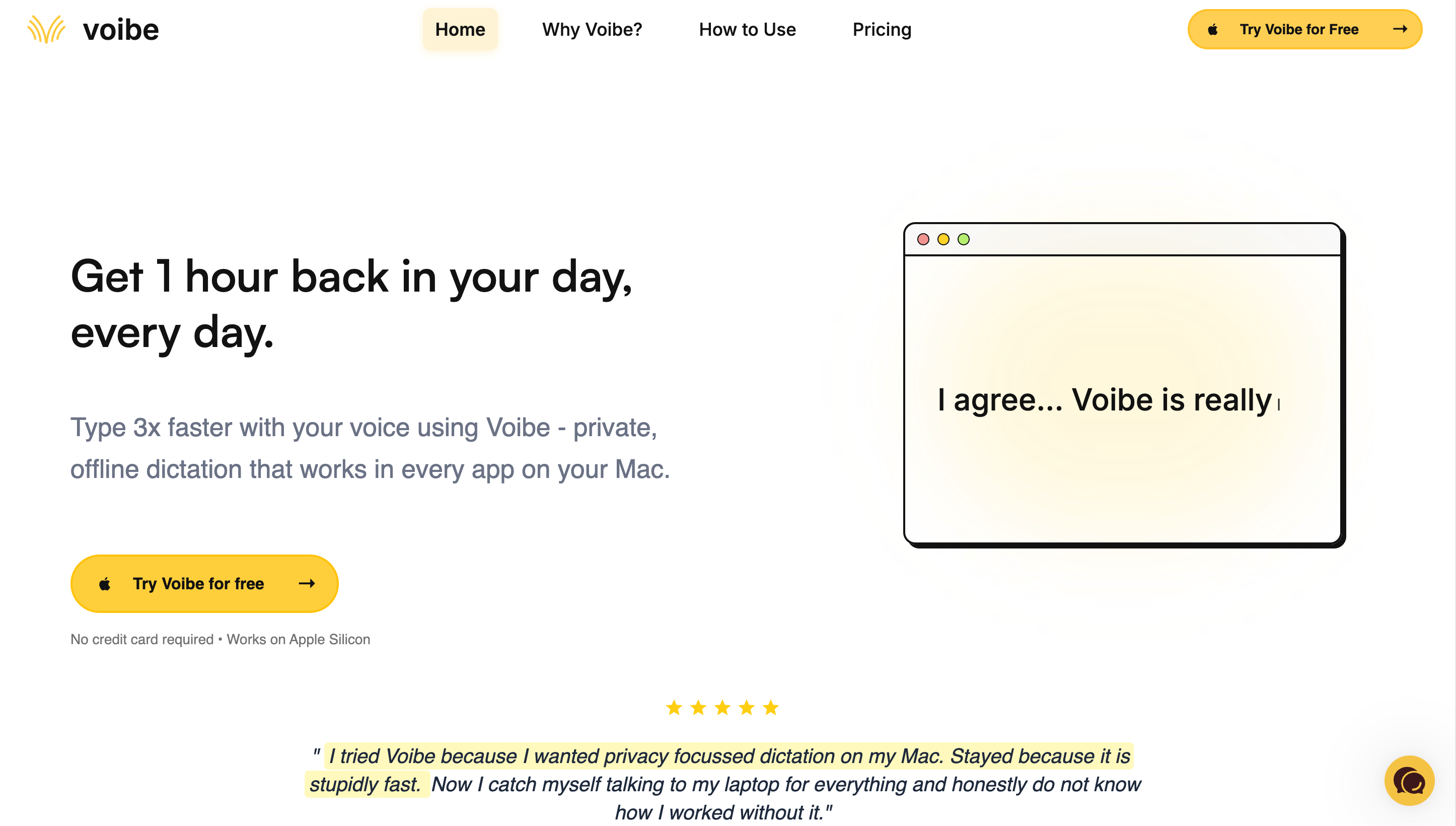
This is the most important section in the guide. The activation model — how you start and stop dictation — is the single biggest variable in whether a dictation app works for CTS users. Voibe's Hands-Free Mode is built for users who cannot hold a key during speech.
1. Download Voibe
Download from getvoibe.com. Voibe runs on Mac (macOS 13 or later; all Macs — the fully on-device mode needs Apple Silicon, M1–M4) and on Windows via a native app. On Mac the download is a standard .dmg; drag the Voibe app into your Applications folder. No account, no email, no card.
2. Grant microphone permission
On first launch, macOS will prompt for microphone access. Click “OK.” You can verify or change this later under System Settings → Privacy & Security → Microphone.
3. Choose your activation hotkey
Open Voibe Settings → Hotkey. The default is double-tap. If double-tap is uncomfortable — common for users with arthritis or severe CTS — you can remap to a single key, a function key (F5 is a common pick), or a combination. For users with very limited mobility, mapping the hotkey to a Stream Deck button, foot switch, or accessibility switch lets you trigger dictation without using your hands at all.
4. Try Hands-Free Mode in a text field
Open any app with a text field — Apple Notes, Pages, a browser tab on Google Docs, Slack, Gmail, your email client. Place your cursor where you want text to appear. Double-tap your chosen hotkey. A small floating window appears at the bottom of your screen.
5. Speak naturally and watch Continuous Transcription
Speak the sentence or paragraph you want to write. Your words appear live in the floating window as you speak — this is Continuous Transcription. There is no session-length cap; you can speak for as long as you need. Many users find it helpful to look at the floating window while speaking so they can catch any words that came out wrong before committing them.
6. Commit text with Enter
When you are done speaking, press Enter (or double-tap your hotkey again to stop and commit). The text from the floating window inserts into your active app at the cursor position. You can edit it from there with the keyboard — but the bulk of the writing happened by voice.
7. Add Custom Vocabulary if accuracy lags on specific terms
If you use medication names, condition names, doctor names, legal phrases, programming terms, or other domain-specific words that general models miss, Voibe's Custom Vocabulary feature (paid plans: $7.50/month, $59/year, or $149 lifetime) lets you add those terms. Recognition accuracy on those specific words improves. The vocabulary stays local on your Mac — there is no shared dataset, no server-side training.
Key Takeaway
The activation model is the criterion. Voibe's Hands-Free Mode is double-tap to start, no key held during speech, and double-tap or Enter to commit — built for users whose hands cannot tolerate sustained key pressure.
Build a Dictation-Dominant Daily Workflow
Switching to dictation does not require eliminating typing entirely — and most CTS sufferers find the all-or-nothing version unsustainable. The pattern that works for most users is dictation-dominant: voice for the high-volume parts of the workday, keyboard for short edits and shortcuts.
A typical knowledge-worker day reshaped for CTS:
- Email and Slack messages over a sentence or two → dictate. The single biggest source of finger flexion in most workdays.
- Document drafts, meeting notes, project plans → dictate. Long-form output benefits the most.
- Code comments, commit messages, ticket descriptions → dictate with Custom Vocabulary for technical terms.
- Short replies, hotkey-driven navigation, quick edits → keep on the keyboard. These do not generate enough finger flexion to drive symptoms.
- Anything inside a form with many small fields → mix. Dictate the long free-text fields, type into short ones.
The goal is to push the total daily finger-flexion count well below your symptom threshold without making the workflow feel artificial. Most users find that the first week feels awkward and the second feels natural — the cognitive cost of composing prose by voice rather than typing fades quickly.
Find Quick Wins to Reduce Daily Typing Volume
Beyond dictation, several smaller changes reduce typing load without requiring a workflow overhaul.
Text expansion
Tools like Raycast, TextExpander, or built-in macOS Text Replacement let you type a short trigger (";;sig") and have it expand to a long block of text (your full email signature, a boilerplate paragraph, an address). For repetitive text you type daily, this can cut hundreds of keystrokes.
Hotkey-driven navigation
Spotlight, Raycast, and Alfred replace clicking through menus with typing a short command. Cmd+Space, type a few letters, hit Enter — far less repetitive motion than mouse-driven app switching.
Browser-side autofill and password managers
1Password, Bitwarden, and macOS Keychain autofill credentials and form data so you are not typing the same address, phone number, and account information dozens of times per week.
Voice messages for short replies
For texts and short Slack messages where dictation feels like overkill, voice messages skip the typing entirely. Many teams have moved more communication to async voice for exactly this reason.
Reduce non-essential typing-heavy work
Audit your last week of work and identify the single most repetitive typing task. Often there is an automation, template, or tool that eliminates it entirely. The marginal gain compounds over the year.
Know When to See a Clinician
This guide is a workflow guide, not a medical guide. The interventions above are the standard ergonomic and assistive-technology pattern that occupational therapists recommend for computer users with carpal tunnel symptoms. They are not a substitute for clinical care.
Common indications that warrant clinical evaluation, per the American Academy of Orthopaedic Surgeons:
- Persistent or worsening symptoms despite several weeks of consistent ergonomic adjustment and night splinting.
- Hand weakness — dropping objects, difficulty with fine motor tasks like buttoning a shirt.
- Thenar muscle wasting — visible thinning of the muscle at the base of the thumb.
- Constant numbness rather than intermittent tingling.
- Pain radiating up the forearm, which can suggest the symptoms originate higher up (cervical radiculopathy) rather than at the wrist.
A clinician — a primary care physician for initial evaluation, an orthopedic hand specialist or neurologist for confirmation — can confirm the diagnosis with physical exam findings and nerve conduction studies, rule out other conditions that cause similar symptoms, and discuss whether steroid injection, ergonomic prescription, formal occupational therapy, or surgical release is appropriate for your specific case. We are not a substitute for that conversation.
Warning
If you have sudden, severe hand symptoms — particularly after an injury, with hand swelling, or with skin color changes — that warrants prompt clinical evaluation rather than self-management. The same applies for symptoms that affect both hands suddenly or that come with neck pain.
Related Reading
- Best Dictation Software for Carpal Tunnel — The product comparison that pairs with this how-to guide: six apps ranked by activation model, with the CTS-specific framing.
- Accessibility Dictation Hub — Overview of dictation options for users with hand pain, covering arthritis, RSI, ADHD, and post-surgery recovery.
- Typing With Arthritis Guide — A similar guide for users whose hand pain comes from joint disease rather than nerve compression.
- Best Dictation Software for Hand Pain — Pattern-based decision tree (by symptom, not diagnosis) for users with overlapping or undiagnosed conditions.
- Best Dictation Software for Tendinitis — Hotkey-by-inflamed-tendon mapping for users whose hand pain comes from tendon inflammation (de Quervain's, ECU, flexor).
- RSI Prevention for Computer Users — The three-lever prevention guide (setup, pacing, load) for computer users who want to stay ahead of symptoms.
- Best Dictation Software After Hand Surgery — If you are considering carpal tunnel release, this covers the post-op recovery use case specifically.
- Recovering From Hand Surgery: Typing, Voice, and Continuity — Phased recovery timeline by procedure, including CTR.
- Why Offline Dictation Matters — Why processing speech on your Mac (instead of in the cloud) matters when you dictate about medications and medical topics.
- Cloud vs Local Dictation — How the two approaches differ in privacy, latency, and reliability.
- Job Accommodation Network: Cumulative Trauma Conditions — Free U.S. resource on requesting dictation as a workplace accommodation under the ADA. Covers carpal tunnel syndrome, tendonitis, trigger finger, and related conditions.
Frequently Asked Questions
Should I stop typing entirely if I have carpal tunnel symptoms?
Is a split keyboard or vertical mouse worth the investment?
How do I know when ergonomic changes aren't enough?
Will my employer let me use dictation software at work?
Does Voibe's Hands-Free Mode really work without holding a key?
How long do I have to dictate before it feels natural?
Best AI Dictation and Meeting Notes for Confidential Work
Draft letters, notes and emails 5x faster. Get meeting notes without a bot joining your call. Nothing used to train AI.
- Mac + Windows
- No bot in your calls
- Nothing used to train AI
- 7-day free trial
Want to compare plans first? View pricing →
Related Articles
Best Dictation Software for Carpal Tunnel (2026): 6 Apps Compared
Compared 6 dictation apps for carpal tunnel sufferers. Voibe's Hands-Free Mode is included free with no signup. Honest paragraphs on Superwhisper, Wispr Flow, Apple Dictation, Dragon, MacWhisper.
Best Dictation Software for ADHD (2026): 8 Tools Compared
Compared 8 dictation tools for ADHD writers. Voibe captures thought at the speed of speech with Continuous Transcription and an on-device mode; honest takes on Wispr Flow, Superwhisper, Otter, Apple Dictation, and more.
Voice Typing for ADHD Writers: A Practical Guide (2026)
How to use voice typing for ADHD: set up low-friction dictation on a Mac, run the Capture-First Draft to beat the blank page and working-memory drop, and tame rambling.