
Best Dictation Software for Dyslexia (2026): 8 Tools Compared
Compared 8 dictation tools for dyslexia. Voibe removes the spelling bottleneck with an on-device mode and a private cloud option; honest takes on Read&Write, Apple Dictation, Superwhisper, Google Docs, and more.

If you have dyslexia and writing is the bottleneck, here is the short version. The most useful dictation tool for dyslexia is the one that lets you compose by voice — so your effort goes into ideas instead of spelling — and that you can pair with a text-to-speech feature to hear your draft read back for proofreading. The activation model, the price, and the brand name matter less than those two things.
TL;DR: Voibe is our top pick for dyslexic writers on Mac because it types your speech into any app, never stores or trains on your audio (choose fully on-device processing or a private zero-retention cloud), and includes Custom Vocabulary so names and terms you cannot easily spell are recognized correctly. Read&Write is the strongest all-in-one literacy suite because it bundles speech-to-text, text-to-speech read-back, and word prediction together. Superwhisper and the open-source VoiceInk are the most configurable on-device picks, and Microsoft 365's Dictate and Immersive Reader pair dictation with read-back in one place. Apple Dictation and Google Docs Voice Typing are the free baselines. Whichever you choose, dictation is a support tool, not a cure — it works best alongside, not instead of, structured writing instruction.
Disclosure: Voibe is our product. We compare alternatives honestly and acknowledge competitor strengths throughout this article.
Key Takeaways: Dictation for Dyslexia at a Glance
| Tool | Best for | Built-in read-back | Where audio is processed | Cost |
|---|---|---|---|---|
| Voibe | Mac dictation into any app | Pair with macOS Speak Selection | On-device or private cloud (your choice) | Free plan; $199 lifetime · 7-day free trial |
| Read&Write | All-in-one literacy suite | Yes (text-to-speech built in) | Cloud | Subscription (free for K-12 teachers) |
| Microsoft Dictate + Immersive Reader | Microsoft 365 users | Yes (Immersive Reader) | Cloud | With Microsoft 365 |
| Apple Dictation | Free built-in baseline | Pair with macOS Speak Selection | On-device on Apple Silicon | Free |
| Superwhisper | Configurable on-device Mac power users | No | On-device or cloud | $249.99 lifetime |
| VoiceInk | Open-source, source-auditable | No | On-device | $29–$69 or free build |
| Google Docs Voice Typing | Writing inside Google Docs | No (Docs only) | Cloud | Free |
| Wispr Flow | Cross-platform (Mac, Windows, mobile) | No | Cloud | $144/yr |
For Mac users who want dictation that works in every app and keeps sensitive context private, Voibe at $199 lifetime is roughly $233 (53.9%) less than three years of Wispr Flow Pro Annual ($432) and $50.99 (20.4%) less than Superwhisper's lifetime ($249.99). For users who want everything — dictation, read-back, and word prediction — in a single literacy tool, Read&Write is the most complete, with the trade-off that it is cloud-based and subscription-priced.
Why Standard Writing Tools Fail Dyslexic Writers
Dyslexia is a language-based learning disability that primarily affects reading, spelling, and writing. The International Dyslexia Association describes it as difficulty with specific language skills — particularly reading — that usually extends to spelling and writing, and the Yale Center for Dyslexia & Creativity notes it affects about 20 percent of people and represents 80 to 90 percent of all those with learning disabilities. It is lifelong and not related to intelligence, which is why it affects working adults as much as students.
The reason ordinary writing tools fail is that they all assume the part that is hard for a dyslexic writer is easy. A keyboard assumes you can spell the word you want before you type it. A spell-checker assumes you can recognize the correct spelling once it is offered — but if four suggestions look equally plausible, the checker does not help. Autocorrect assumes your misspelling is close enough to guess, and on phonetic spellings it frequently guesses wrong and changes the meaning. Each tool puts the decoding-and-spelling step back in front of the writer, which is the exact step dyslexia makes unreliable.
The result is a tax that has nothing to do with having ideas. The writer spends working memory and energy on transcription instead of composition, the writing comes slower, and the finished text often underrepresents what the writer actually knows. This is the gap dictation closes — and the reason the British Dyslexia Association and assistive-technology guidance consistently list speech-to-text among the core tools for dyslexic writers.
Key Takeaway
Dyslexia makes the transcription step — turning a known spoken word into correctly spelled text — unreliable. Dictation removes that step from the writer's path, so effort goes into ideas instead of spelling.
How Dictation Helps: Composition Without the Spelling Barrier
Dictation helps dyslexia by letting you write with your voice instead of by hand or keyboard. As Understood.org puts it, a writer who knows how to pronounce a difficult word can simply speak it and then see how it is spelled on screen — the tool handles the spelling that the writer finds hard. The words appear already spelled correctly, which is exactly the step that fails most often when a dyslexic writer types.
The benefit is measurable in output, not just comfort. Reading Rockets reports that students with learning disabilities frequently generate papers that are longer and of better quality using speech recognition, and that the technology can encourage more thoughtful, deliberate writing. When the transcription tax disappears, the writing reflects what the writer actually knows.
One honest caveat belongs up front. Dictation is a support, not a cure. Reading Rockets is explicit that speech recognition technology should be paired with instruction in writing strategies — brainstorming, drafting, and organization — because composing out loud is a different skill from composing on paper, and younger students in particular still need to learn the difference. Dictation removes a barrier; it does not teach writing. The strongest results come from using it alongside structured literacy support, not as a replacement for it.
Info
Editing by voice is harder than drafting by voice. A practical workflow many dyslexic writers use is to get the full draft down by dictation first, then switch to listening to it read back and making fixes — rather than trying to dictate, navigate, and correct all in one pass.
The Dictate-Listen-Revise Loop: Pairing Speech-to-Text With Read-Back
The Dictate-Listen-Revise Loop is a simple workflow that solves the proofreading problem dyslexia creates: dictate your draft by voice, have a text-to-speech tool read it back to you, then revise the errors you hear. It exists because visual proofreading depends on the same decoding skill dyslexia impairs — reading your own text silently often will not surface a dropped word, a wrong homophone (their/there, form/from), or a sentence that does not parse. Hearing it read aloud does.
The loop has three steps:
- Dictate. Speak your draft and let the dictation tool type it into your document. Do not stop to fix small things; get the whole idea down.
- Listen. Use a text-to-speech feature to read the draft back to you. Errors that are invisible on the page are usually obvious to the ear.
- Revise. Fix what sounds wrong. Re-dictate a sentence if it is faster than editing it, and listen again until it reads cleanly.
Some tools bundle both halves of the loop. Read&Write and Microsoft (Dictate plus Immersive Reader / Read Aloud) include speech-to-text and text-to-speech in the same app. On Mac, you can pair any dictation tool — Voibe, Apple Dictation, Superwhisper — with the built-in Speak Selection feature (System Settings → Accessibility → Spoken Content), which reads highlighted text aloud in any app. The point is not which tool; it is closing the loop so you never have to proofread silently.
Key Takeaway
Pair dictation with text-to-speech read-back. Hearing a draft read aloud catches the dropped words and wrong homophones that visual proofreading misses when reading is the impaired skill.
What to Look For in Dictation Software for Dyslexia
Seven criteria, in priority order for dyslexic writers:
1. It removes the spelling step, not just the typing step
The core requirement is that words arrive correctly spelled from speech. Any real dictation tool does this; the differentiator is what happens with words it gets wrong (see Custom Vocabulary below). Avoid tools that lean on you to spell-correct the output, because that puts the hard step back in front of you.
2. It pairs with text-to-speech read-back
Because proofreading by eye is unreliable for dyslexia, the tool should either include text-to-speech or work alongside one (such as macOS Speak Selection). A tool that gives you speech-to-text but no path to hear your draft read back leaves the proofreading problem unsolved.
3. Custom vocabulary for names and terms you can't spell to fix
When a dictation tool mis-hears a name, a brand, or a technical term, a dyslexic writer often cannot easily correct it by typing the right spelling. A tool that lets you add those words once — so they are recognized correctly afterward — removes a recurring source of friction that general models leave in place.
4. System-wide insertion in any app
The tool should type into whatever you are using — email, a document, a web form, Slack, a learning-management system — not just inside its own window or one editor. If it only works in one place and you have to copy and paste everywhere else, the friction undercuts the benefit.
5. On-device processing for privacy
Dyslexia dictation often touches sensitive context: a diagnosis, accommodation paperwork, confidential work, or notes a parent dictates for a child. On-device processing keeps that audio on your own machine. For minors especially, a tool that does not upload audio is the safer default.
6. Low-friction setup
A long account-creation form full of fields to type is itself a barrier when typing is the hard part. Tools that let you start without a heavy signup — or that an evaluator or IT team can deploy for you — lower the cost of getting started.
7. Platform fit (Mac, Windows, or Chromebook)
Match the tool to the device you actually use. Mac users have strong on-device options (Voibe, Superwhisper, VoiceInk, Apple Dictation). Chromebook-heavy schools often standardize on Read&Write or Google Docs Voice Typing. Microsoft 365 households have Dictate plus Immersive Reader built in.
Key Takeaway
If you apply only two criteria, apply these: the tool must remove the spelling step from your path, and you must have a way to hear your draft read back. Everything else is secondary.
The 8 Best Dictation Tools for Dyslexia
Each tool below is evaluated against the seven criteria above, with the spelling-bottleneck removal and read-back pairing carrying the most weight. Third-party ratings, where they exist, are cited with the platform and a link in the product section. Tools are ordered by overall fit for a dyslexic writer on Mac; the cross-platform and literacy-suite options are ranked on their own strengths.
1. Voibe — Best On-Device Dictation for Dyslexic Writers on Mac
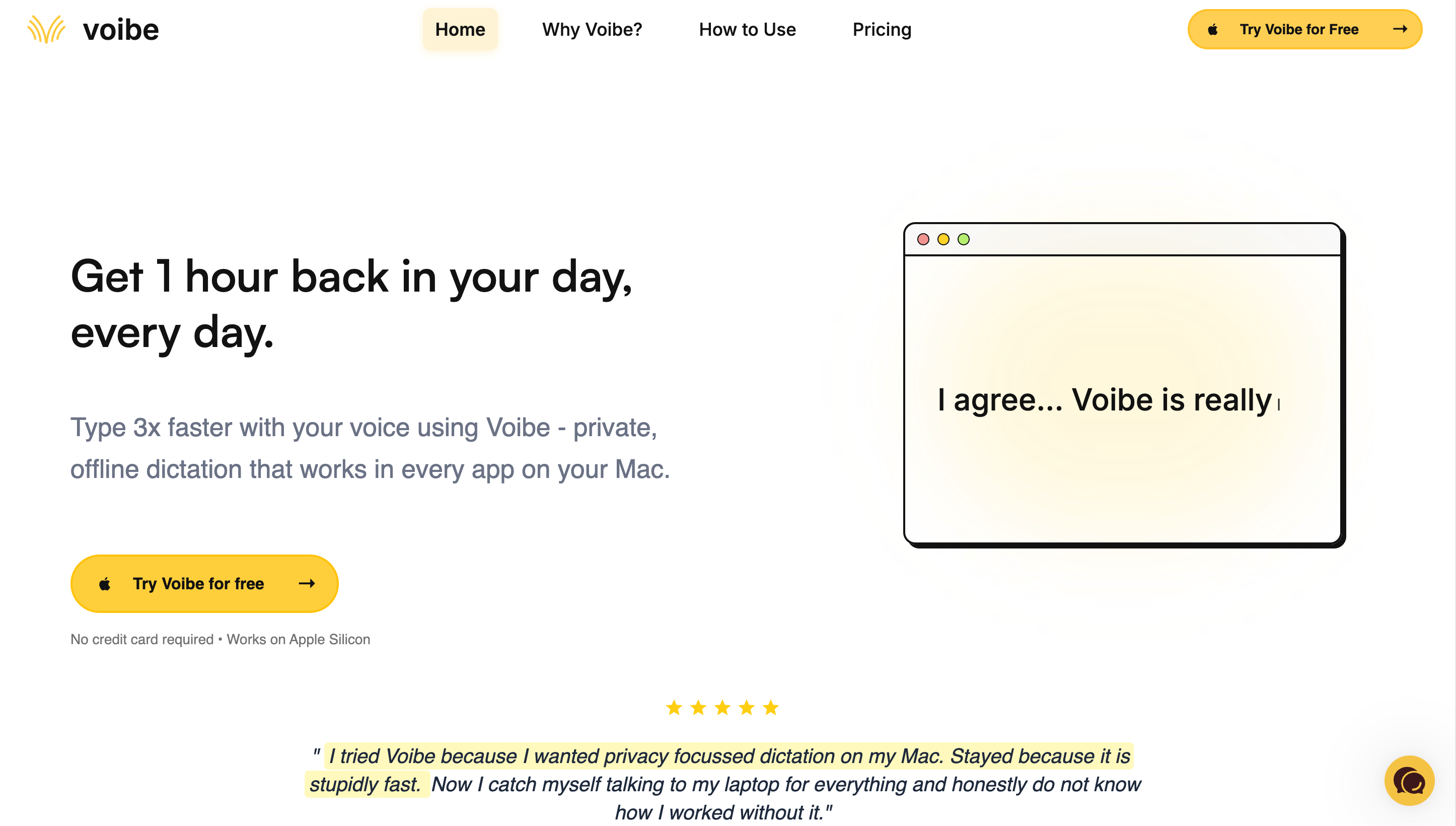
Voibe is a dictation app for Mac and Windows with two user-selectable modes: on-device processing that runs Whisper locally on Apple Silicon (nothing leaves your Mac), or a private cloud that runs only open-source models and deletes your audio the moment transcription completes. Either way, your audio is never stored, sold, or used to train AI. No account is required, and there is no signup gate on the core dictation features.
Disclosure: Voibe is our product. We include it because it fits the category, and we lay out the trade-offs honestly.
Why it fits dyslexia specifically: Voibe types your spoken words, correctly spelled, into whatever app your cursor is in — your email, a document, a web form, a learning-management system, an IDE. That removes the spelling-and-transcription step that blocks dyslexic writers, system-wide rather than in one editor. Custom Vocabulary, included on paid plans, is the feature that matters most here: when Voibe mis-hears a coworker's name, a brand, or a technical term, you add it once and it is recognized correctly afterward — you never have to spell-correct it by hand, which is the part dyslexia makes hard.
For the proofreading half of the loop, pair Voibe with macOS Speak Selection (System Settings → Accessibility → Spoken Content) to hear any highlighted text read back in any app. Voibe does not include its own text-to-speech, so this pairing is how you close the Dictate-Listen-Revise Loop on a Mac.
In on-device mode, dictation about a diagnosis, accommodation paperwork, or confidential work stays on your Mac; in private cloud mode, your audio is deleted the moment transcription completes and is never stored or trained on. The 7-day free trial — no account, no email, no card — is itself an accessibility advantage when filling out a long signup form is a barrier: download the .dmg, drag to Applications, grant microphone permission, and start.
- Types correctly-spelled text into any app, system-wide
- Custom Vocabulary for names and terms you can't spell to fix
- Never stored, sold, or trained on — on-device or private cloud, your choice
- 7-day free trial with no account or signup form to type
- Lifetime option avoids a subscription tail
- No built-in text-to-speech — pair with macOS Speak Selection
- Mac and Windows — no iOS or Android version
- On-device mode requires an Apple Silicon Mac (M1 or later)
- No word-prediction or literacy-suite extras like Read&Write
The value combo: Wispr Flow and Granola in one plan. Voibe Dictation is $99 a year. For $50 more, Voibe Work ($19/month, $149/year, or $399 lifetime) adds AI meeting notes with no bot in the call. That one plan covers what Wispr Flow Pro ($144/year) and Granola Business ($168/year) charge $312 a year for separately, so it costs $163 (52.2%) less every year. Meeting notes are captured on your Mac or Windows PC, processed in Voibe's zero-retention cloud and saved on your computer, and Voibe reminds you to tell everyone you're taking notes.
Key Takeaway
Voibe is the most direct fit for dyslexic writers on Mac: correctly-spelled text into any app, Custom Vocabulary for the words you can't spell to correct, and a no-signup 7-day free trial. Pair it with macOS Speak Selection to add read-back.
2. Read&Write — Best All-in-One Literacy Suite for Dyslexia
Read&Write (from Texthelp, now under the Everway brand) is the most complete single tool for dyslexia because it bundles the whole loop: speech-to-text (Talk&Type), text-to-speech with dual-color word highlighting, word prediction, a picture dictionary, and a screenshot reader, working across Microsoft apps, Google Docs, and the web on Windows, Mac, and Chrome.
Why it fits dyslexia specifically: Read&Write is the rare tool that includes both halves of the Dictate-Listen-Revise Loop in one place, so you do not have to assemble dictation and read-back from separate apps. The word-prediction and dictionary features add support beyond dictation, and the read-aloud highlighting helps with proofreading directly. It is the default recommendation in many schools precisely because it is one deployment that covers reading and writing support together.
The trade-offs are platform and architecture. Read&Write is cloud-based, so audio and text are processed off your device — a consideration for sensitive content. It is browser- and app-integrated rather than a true system-wide Mac dictation tool, and it is subscription-priced: free for individual K-12 teachers, but per-seat pricing for schools, workplaces, and individuals is quote-based and not posted publicly. For a Mac user who mainly needs dictation everywhere and wants audio kept local, an on-device tool plus Speak Selection is leaner; for a user who wants reading and writing support bundled, Read&Write is the most complete.
Key Takeaway
For dyslexia, Read&Write is the strongest single tool because it bundles speech-to-text with built-in read-back and word prediction — the whole proofread-by-ear loop in one place, so you never have to spot spelling errors by eye. The trade-offs are cloud processing and subscription pricing.
3. Microsoft Dictate + Immersive Reader — Best for Microsoft 365 Users
Microsoft Dictate is built into Word, Outlook, PowerPoint, and OneNote, and Microsoft's Immersive Reader / Read Aloud features provide text-to-speech with word highlighting, line focus, and a picture dictionary in the same apps. For a household or school already on Microsoft 365, that is both halves of the Dictate-Listen-Revise Loop without buying anything new.
For dyslexic writers: the integrated dictation-plus-read-back combination is the strongest reason to choose it, and Immersive Reader is one of the best mainstream reading-support features available. The trade-offs are that it is cloud-based (audio is processed off-device) and effectively scoped to Microsoft apps, and it requires a Microsoft 365 subscription. If your writing already lives in Word and Outlook, it is an excellent built-in fit; if you need dictation system-wide on a Mac with audio kept local, an on-device tool is the better match.
Key Takeaway
For dyslexia, Microsoft Dictate plus Immersive Reader is the best built-in fit when you already use Microsoft 365 — Immersive Reader supplies the read-back half of the proofreading loop. The trade-offs are cloud processing and the Microsoft-app scope.
4. Apple Dictation — The Free Built-In Baseline
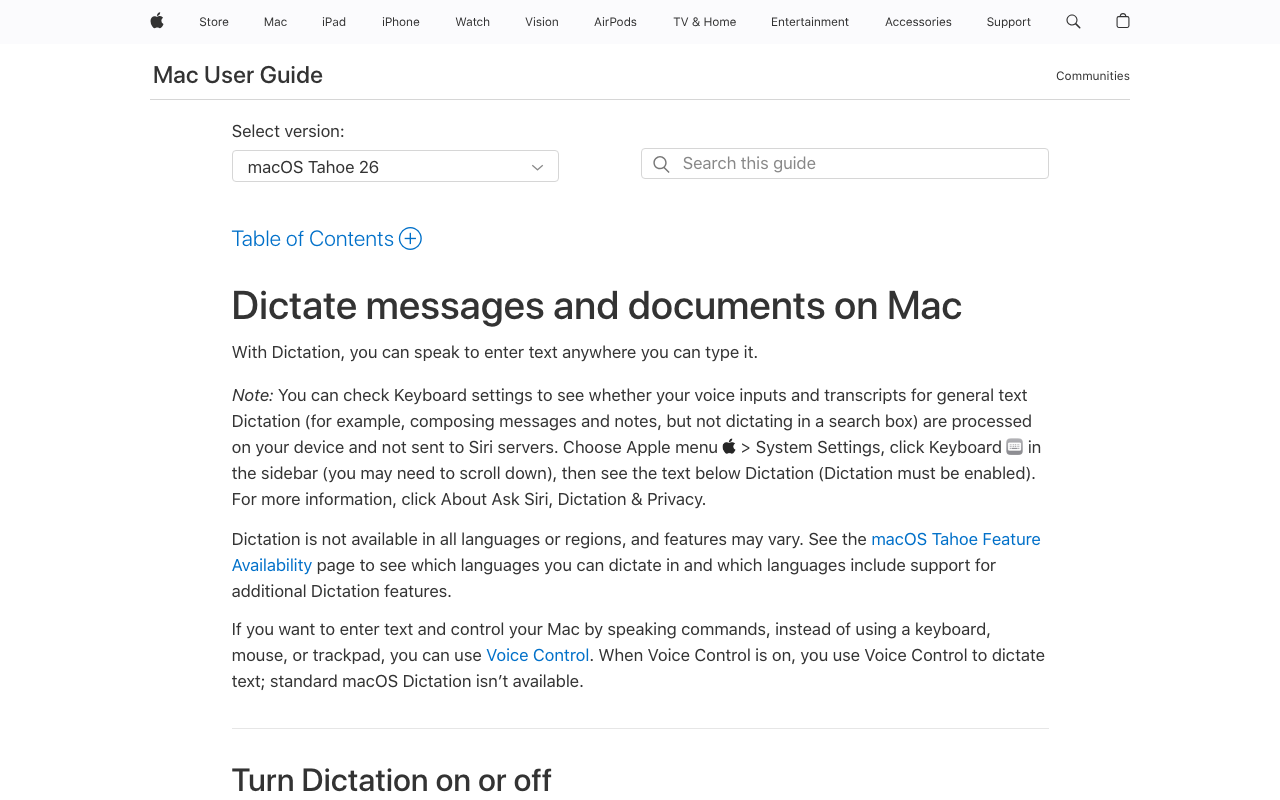
Apple Dictation is included with every Mac, iPhone, and iPad and is genuinely free. On Apple Silicon Macs, most processing happens on-device, so audio generally does not leave the machine. For a dyslexic writer testing whether dictation helps at zero cost, it is the right starting point, and it pairs naturally with macOS Speak Selection for read-back — both halves of the loop, free and built in.
For dyslexic writers: the limitations show up with sustained use. Apple Dictation has a short session cap (commonly reported at around 30 seconds before it stops), no custom vocabulary (so names and uncommon terms get mis-recognized with no way to teach it), and no per-app behavior. For short messages and quick notes it works well; for drafting longer pieces or dictating specialized vocabulary, you will outgrow it. See our Apple Dictation review, privacy breakdown, and true cost analysis for the full picture.
Key Takeaway
Apple Dictation plus Speak Selection is the right zero-cost way to test the Dictate-Listen-Revise Loop. Upgrade to Voibe or Read&Write when the session cap or the lack of custom vocabulary starts limiting you.
5. Superwhisper — Most Configurable On-Device Mac Alternative
Superwhisper is a well-established on-device Whisper dictation app for Mac. It runs Whisper models locally, supports multiple model sizes, and offers deep per-app customization through Modes. Its third-party rating is 4.9/5 from 20 Product Hunt reviews.
For dyslexic writers: Superwhisper delivers the same core benefit as Voibe — correctly-spelled text from speech, processed on-device, inserted into your apps — with more configurability and a steeper setup. Power users who want different transcription Modes for email versus documents, or who want to choose model sizes for an accuracy-and-speed trade-off, will find more depth here. The cost is the setup investment: you will spend time in Settings configuring it, and for some dyslexic users that menu navigation is itself friction worth weighing. Like Voibe, it has no built-in text-to-speech, so pair it with macOS Speak Selection for read-back. For its privacy posture, see our Superwhisper safety investigation.
Key Takeaway
Superwhisper suits a dyslexic Mac user who wants the most configurable on-device dictation and will invest setup time; pair it with Speak Selection so you can hear drafts read back. Voibe is the leaner turnkey option at a lower lifetime price.
6. VoiceInk — Best Open-Source On-Device Option
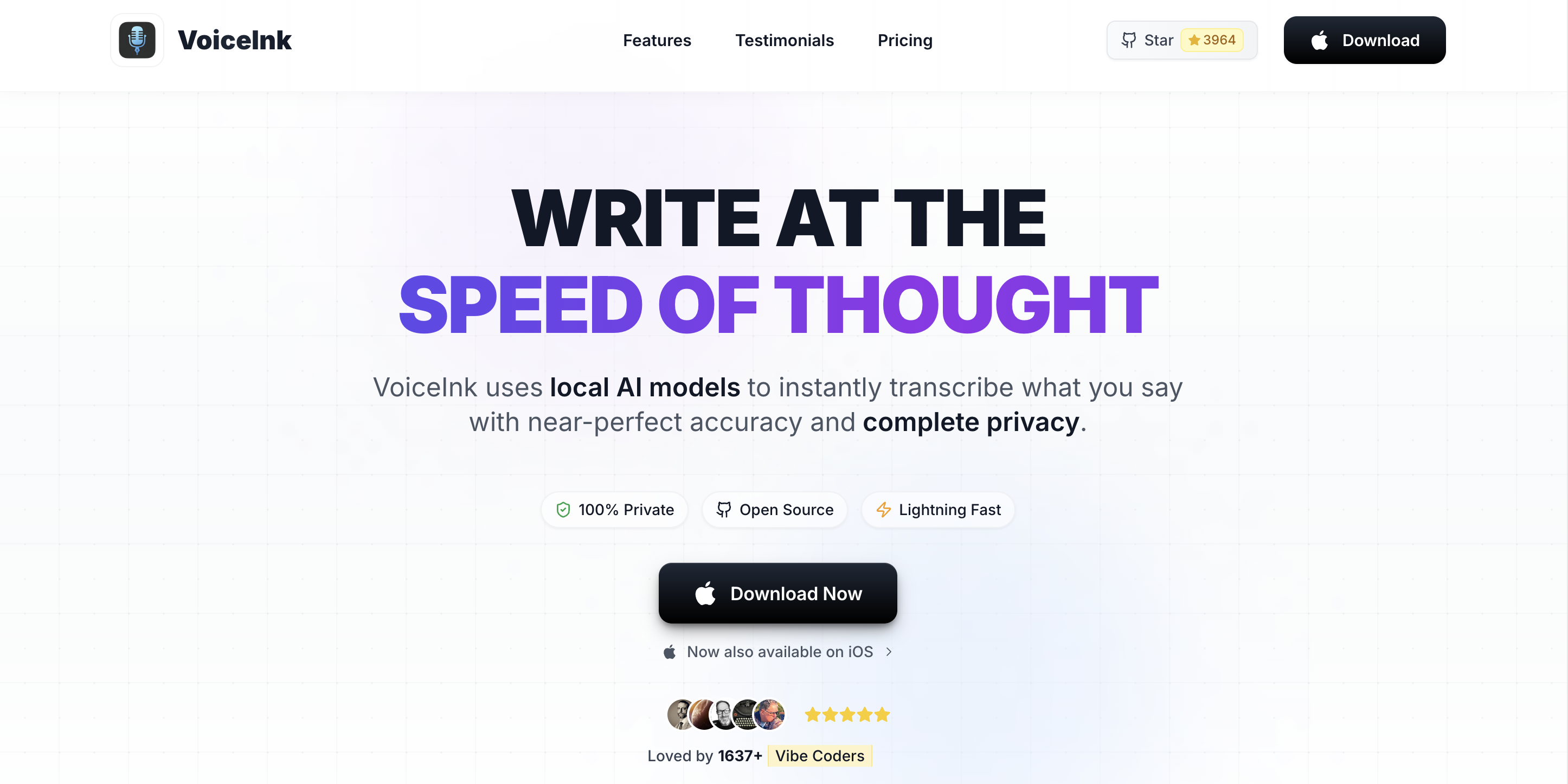
VoiceInk is an open-source (GPL v3) Mac dictation app that runs Whisper models locally, with a personal dictionary and a system-wide hotkey. Because the source is public, it is the choice for users who want to audit exactly how their dictation tool handles audio.
For dyslexic writers: VoiceInk delivers correctly-spelled text from speech, on-device, into any app, and its personal dictionary covers the custom-terms need. The trade-off is the open-source experience: setup and support lean more do-it-yourself than a polished commercial product, and there is no built-in text-to-speech (pair with macOS Speak Selection). For a technical user or a privacy-maximalist who values source-auditable code, it is an excellent free-to-cheap option. For our deeper look, see the VoiceInk review and pricing breakdown.
Key Takeaway
VoiceInk suits a technical or privacy-focused dyslexic user who wants source-auditable, on-device dictation; pair it with Speak Selection for read-back. It trades polish and built-in support for openness and a low one-time price.
7. Google Docs Voice Typing — Free, Inside Google Docs
Google Docs Voice Typing is a free feature for anyone with a Google account. It works inside Google Docs (and Slides speaker notes) and is a common first tool in schools because it costs nothing and needs no installation.
For dyslexic writers: it removes the spelling barrier within Google Docs and is genuinely useful for students who already write there. The constraints are scope and architecture. It works only inside Google Docs and the Chrome browser — not system-wide, so it does not help in email, other apps, or web forms — it requires an internet connection, and it processes audio in Google's cloud rather than on-device. It has no custom vocabulary and no built-in read-back (pair it with a separate text-to-speech extension). For a Docs-centric workflow it is a fine free option; for writing everywhere and keeping audio private, a system-wide on-device tool is the better fit.
Key Takeaway
Google Docs Voice Typing is a solid free option if a dyslexic writer's work lives in Google Docs; pair it with a text-to-speech extension for the read-back it lacks, so you can proofread by ear. It is not system-wide, not on-device, and has no custom vocabulary.
8. Wispr Flow — Best Cross-Platform Option (Mac, Windows, iOS, Android)
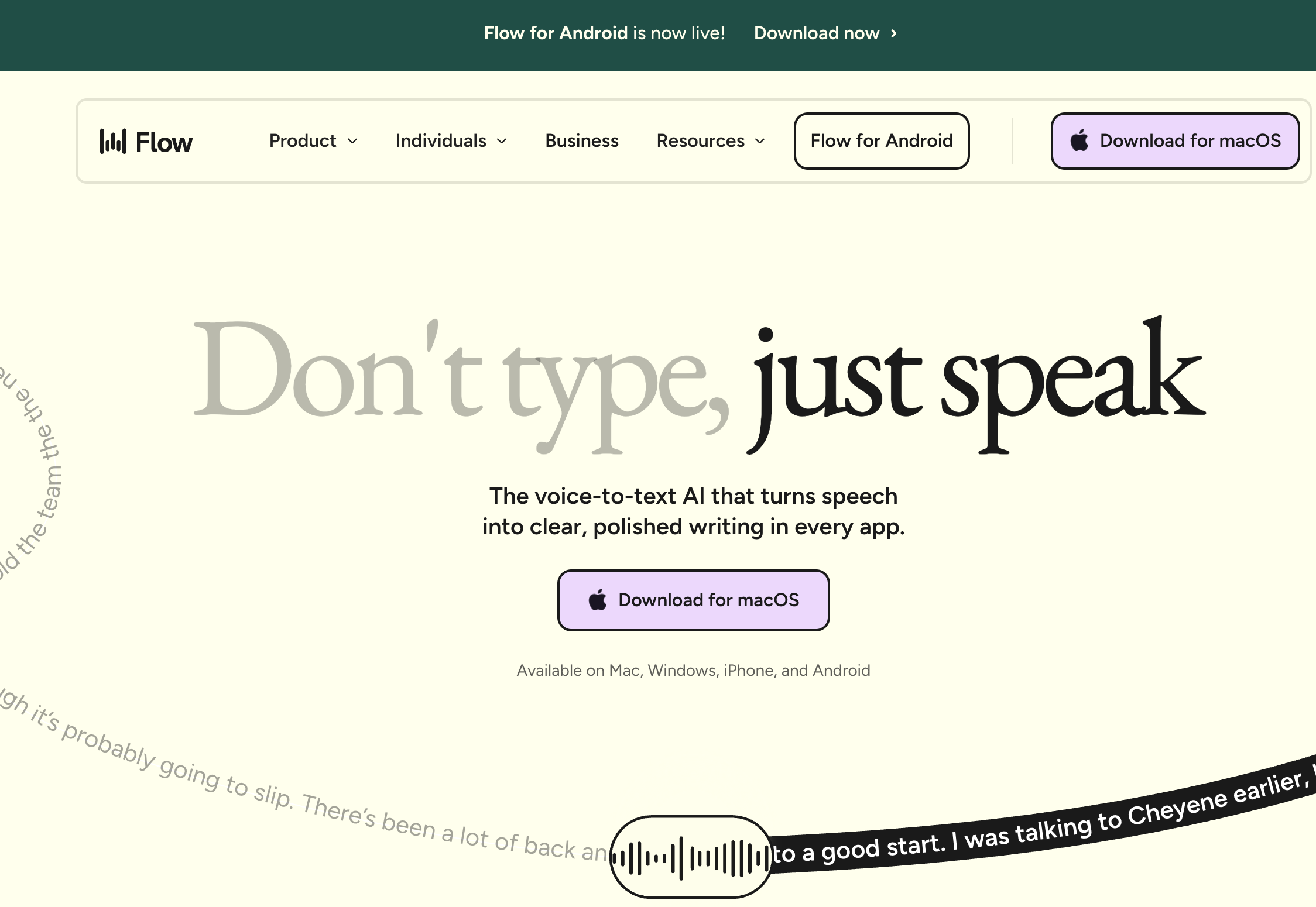
Wispr Flow is a cloud-based AI dictation app that runs on Mac, Windows, iOS, and Android — the strongest pick if you write across several devices. Its third-party rating is 4.5/5 from 7 G2 reviews.
For dyslexic writers: it removes the spelling barrier system-wide and follows you across devices, which is its real differentiator. The trade-off is architectural — Wispr Flow processes audio in the cloud, so dictation about sensitive context leaves your device. It has no built-in text-to-speech, so you would still pair it with a separate read-back tool. Pricing is subscription-only with no lifetime option, so the gap with Voibe widens over time: $432 over three years versus Voibe's $199 lifetime is a $233 (53.9%) difference on the Mac half. For students or professionals who genuinely dictate from a phone and a laptop interchangeably, the cross-platform reach earns its premium. See our Wispr Flow safety investigation and pricing breakdown for the details.
Key Takeaway
Wispr Flow is the right pick when cross-platform reach across Mac, Windows, and mobile justifies cloud processing and a subscription. For Mac-only dyslexic writers handling sensitive context, on-device tools fit better.
Why On-Device Processing Matters for Dyslexia Dictation
Dyslexia dictation frequently involves context you would not want on a vendor's server. A student dictates assignments tied to a documented diagnosis and an accommodation plan. A professional dictates confidential work they happen to find faster by voice. A parent dictates on behalf of a child, which means a minor's words and situation pass through whatever tool is used. The sensitivity is real even when the writing itself looks ordinary.
Cloud-based dictation transmits your audio to a third-party server for transcription, where it may be retained for a period and handled by subprocessors. On-device dictation does not have that exposure surface, because the audio is never uploaded in the first place. Voibe in on-device mode (Apple Silicon Macs), Apple Dictation on Apple Silicon, Superwhisper in local mode, and the open-source VoiceInk all process audio on your Mac. Google Docs Voice Typing, Microsoft Dictate, and Wispr Flow are cloud-based.
For minors and for any regulated or confidential workflow, on-device processing is the more defensible default — a structural property of the tool, not a setting you have to remember to turn on. For the deeper treatment, see cloud vs local dictation, why offline dictation matters, and the AI Privacy Tracker that scores voice and AI tools by privacy posture.
How to Choose: A Decision Tree for Dyslexia Dictation
Four questions, in order:
- Do you want dictation and read-back bundled in one tool, or are you fine pairing two? One tool → Read&Write (cross-platform) or Microsoft Dictate plus Immersive Reader (if on Microsoft 365). Fine pairing → continue.
- What device do you write on? Mac → continue. Chromebook or Google Docs all day → Google Docs Voice Typing or Read&Write. Several devices interchangeably → Wispr Flow (or Voibe, if those devices are Macs and Windows PCs rather than phones).
- Does your dictation touch a diagnosis, a minor's information, or confidential work? Yes → on-device only (Voibe in on-device mode, Apple Dictation on Apple Silicon, Superwhisper local, VoiceInk). No → cloud tools are also fine.
- How much do you write, and do you need custom vocabulary? Occasional / testing → Apple Dictation (free) plus Speak Selection. Daily, with names and terms to teach → Voibe ($199 lifetime); maximum configurability → Superwhisper; source-auditable and cheap → VoiceInk.
Best Tool for Your Situation: A Use-Case Cheat Sheet
| Your situation | Best fit | Why |
|---|---|---|
| Adult professional on a Mac, writing all day | Voibe ($199 lifetime) | Correctly-spelled text into any app, Custom Vocabulary for work terms, audio stays local. |
| Just want to test if dictation helps, at zero cost | Apple Dictation + Speak Selection | Both halves of the loop, free and built into every Mac. |
| Want dictation, read-back, and word prediction in one tool | Read&Write | The most complete literacy suite; cross-platform; cloud and subscription. |
| Already live in Microsoft Word and Outlook | Microsoft Dictate + Immersive Reader | Dictation plus best-in-class read-back, already included with Microsoft 365. |
| Student who writes everything in Google Docs | Google Docs Voice Typing | Free, no install; pair with a text-to-speech extension for read-back. |
| Dictating about a diagnosis or confidential work | Voibe or Apple Dictation (Apple Silicon) | On-device processing keeps sensitive context off vendor servers. |
| Parent dictating on behalf of a child | On-device tool (Voibe / Apple Dictation) | A minor's words never leave the family's Mac. |
| Names and technical terms keep getting mis-heard | Voibe paid (Custom Vocabulary) | Add the words once; no need to spell-correct them by hand. |
| Privacy-maximalist who wants source-auditable code | VoiceInk (open-source) | On-device, GPL v3, personal dictionary, one-time or free build. |
| Writes across a Mac, a PC, and a phone | Wispr Flow ($144/year) | Only option here that also covers the phone; cloud trade-off is real. |
| Dyslexia plus hand pain or fatigue (motor overlap) | Voibe (Hands-Free Mode) | Removes both the spelling and the typing load; see the hand-pain guides below. |
| Requesting dictation as a school or workplace accommodation | Read&Write or Voibe + accommodation brief | Both are defensible; pair with the accommodation guide for the request process. |
Related Reading
- Voice Typing for Dyslexia: A Practical Guide — How to set up the Dictate-Listen-Revise Loop step by step, with macOS read-back configuration and proofreading workflow.
- Best Dictation Software for Dysgraphia — The sibling guide for the writing-output disorder that often co-occurs with dyslexia.
- Best Dictation Software for ADHD — For the attention and working-memory side of writing difficulty, which frequently co-occurs with dyslexia.
- Accessibility Dictation Hub — Overview of dictation for learning differences and physical conditions, including the hand-pain and ADHD clusters.
- Best Dictation Software for Writers — For dyslexic writers focused on long-form drafting speed and flow.
- Dictation as a Reasonable Accommodation — HR request template and a forwardable IT-security brief for requesting dictation at work or school.
- Cloud vs Local Dictation — What happens to your audio with each architecture, and why it matters for sensitive context.
- Job Accommodation Network: Learning Disability — Free U.S. resource listing speech recognition software as a workplace accommodation under the ADA.
- Understood.org: Dictation (Speech-to-Text) Technology — Plain-language explainer on how dictation supports learning and thinking differences.
- Yale Center for Dyslexia & Creativity: Dyslexia FAQ — Authoritative background on dyslexia prevalence and its lifelong, adult-relevant nature.
Final Verdict
For dyslexic writers on a Mac, Voibe is the most direct fit: it types correctly-spelled text into any app, its Custom Vocabulary handles the names and terms you cannot easily spell to correct, and it never stores or trains on your audio — process fully on-device or via a private zero-retention cloud, your choice. Pair it with macOS Speak Selection and you have the full Dictate-Listen-Revise Loop. At $199 lifetime it is roughly $233 less than three years of Wispr Flow and $50.99 less than Superwhisper's lifetime, with no subscription tail.
If you want dictation, read-back, and word prediction bundled in one tool, Read&Write is the most complete literacy suite, and Microsoft Dictate plus Immersive Reader is the equivalent if you already use Microsoft 365. If you write entirely in Google Docs, Google Docs Voice Typing is a fine free start. If you write across several devices, Wispr Flow is the cross-platform option. And if you just want to find out whether dictation helps at all, Apple Dictation plus Speak Selection costs nothing.
Two principles carry the decision. Pick the tool that removes the spelling step from your path, and make sure you can hear your draft read back — and remember that dictation is a support that works best alongside good writing instruction, not a replacement for it.
Tip
If writing is the part of dyslexia that slows you down most, the fastest test is free: turn on Apple Dictation and macOS Speak Selection, dictate a paragraph, and listen to it read back. If the loop clicks, Voibe adds Custom Vocabulary and system-wide use without uploading your audio in on-device mode — three minutes to install, no account, no card.
Frequently Asked Questions
What is the best dictation software for dyslexia?
Does dictation cure dyslexia or replace learning to read and write?
How does dictation actually help if I struggle with spelling?
Why should I pair speech-to-text with text-to-speech for dyslexia?
Is dictation software recognized as an accommodation for dyslexia at school or work?
Why does on-device dictation matter for dyslexia specifically?
Is Dragon still the best dictation tool for dyslexia on a Mac?
Will dictation recognize names, technical terms, and words I can't spell to correct?
How much does dictation software for dyslexia cost?
Best AI Dictation and Meeting Notes for Confidential Work
Draft letters, notes and emails 5x faster. Get meeting notes without a bot joining your call. Nothing used to train AI.
- Mac + Windows
- No bot in your calls
- Nothing used to train AI
- 7-day free trial
Want to compare plans first? View pricing →
Related Articles
Best Dictation Software for ADHD (2026): 8 Tools Compared
Compared 8 dictation tools for ADHD writers. Voibe captures thought at the speed of speech with Continuous Transcription and an on-device mode; honest takes on Wispr Flow, Superwhisper, Otter, Apple Dictation, and more.
Voice Typing for ADHD Writers: A Practical Guide (2026)
How to use voice typing for ADHD: set up low-friction dictation on a Mac, run the Capture-First Draft to beat the blank page and working-memory drop, and tame rambling.
Best Dictation Software for Dysgraphia (2026): 8 Tools Compared
Compared 8 dictation tools for dysgraphia. Voibe removes both the motor and spelling load of writing with an on-device mode and a private cloud option; honest takes on Read&Write, Apple Dictation, Superwhisper, more.