
Best Free Dictation Apps for Windows: Two Are Already on Your PC
Five genuinely free ways to dictate on Windows — two ship with the OS. What each costs you in caps, cloud, and vocabulary, and when paying starts to make sense.

The two best free dictation apps for Windows are already installed on your PC — and most people have only ever met the worse one. Press Win+H and you get Microsoft's cloud voice typing, the tool everyone tries once, watches produce a wall of lowercase text, and abandons (the fix is one buried setting). Meanwhile Voice Access, the better built-in, sits unadvertised in the Accessibility menu — on-device, offline, and able to drive the entire PC by voice.
The short answer, after testing all five on our own machines: the best free dictation app for Windows is Voice Access (Windows 11 22H2+, offline, no caps — and on Copilot+ PCs it adds free AI cleanup). Win+H voice typing is the zero-setup option for quick notes, Handy is the open-source pick for technical users, Willow Voice's free tier offers unlimited cloud dictation on a lighter model, and Talon is the deep end for hands-free computing. All five are genuinely free — no word caps disguised as trials.
Key Takeaways: Free Windows Dictation at a Glance
| Pick | Tool | Works offline | The catch |
|---|---|---|---|
| Best free overall | Windows Voice Access | Yes — on-device | Windows 11 22H2+ only; no custom vocabulary |
| Fastest to start | Win+H voice typing | No — cloud-only | Auto-punctuation ships off by default |
| Best open source | Handy | Yes — local Whisper | You manage models and settings yourself |
| Most generous cloud tier | Willow Voice free | No — cloud-only | Lighter model; young Windows app (Jan 2026) |
| Deepest free tool | Talon | Yes — on-device | Learning curve measured in weeks |
Key Takeaway
Windows is the only mainstream platform whose built-in dictation includes a fully offline, no-cap option (Voice Access) — and on Copilot+ PCs it adds free on-device AI cleanup (Fluid Dictation). Try both built-ins before installing anything.
What "Free" Actually Costs on Windows
None of the five tools below charges money. Each charges something else — know the currency before you pick:
- Some free tools are cloud tools. Win+H sends your audio to Microsoft's online speech services — Microsoft's own documentation says "you'll need to be connected to the internet." Willow's free tier runs on a startup's cloud. If you dictate anything sensitive, the free tools that keep audio on your PC are Voice Access, Handy, and Talon — the same three that keep working when the Wi-Fi doesn't. Our cloud vs local explainer covers why this axis matters more than any feature.
- No free tool learns your vocabulary. Client names, drug names, project jargon — custom dictionaries are effectively a paid feature across the board. The built-ins have none, Handy and Talon don't do vocabulary training (Talon is scriptable if you're technical), and Willow's dictionary is limited. This is the wall most heavy users eventually hit.
- The first impression is rigged against you. Auto-punctuation ships off by default in both Windows built-ins — the wall-of-lowercase-text experience that makes people swear off dictation is a settings toggle, not a quality verdict. Flip it on before you judge anything (our setup guide shows exactly where).
- Free sometimes means "lighter." Willow's unlimited free tier runs its smaller Frontier Mini model, not the flagship one — generous, but not the accuracy its paid tier advertises.
- Setup effort is a price. Win+H costs nothing to learn. Voice Access takes minutes. Handy asks you to pick and download models; Talon asks for weeks of practice. Match the tool to the effort you'll actually spend.
What to Look For in a Free Dictation App
Five questions sort the field faster than any feature list:
- Does it work offline? Offline tools (Voice Access, Handy, Talon) are immune to outages, captive Wi-Fi, and privacy questions in one move. Cloud tools trade that for convenience or accuracy.
- Is there a cap? Everything ranked below is uncapped — that's why the "free tiers" of paid apps (2,000 words/week on Wispr Flow, a 1,000-word demo on Aqua Voice) are covered separately, as what they are.
- Does it clean up your speech? Raw transcription makes you speak the punctuation. Only two free paths add AI cleanup: Fluid Dictation on Copilot+ hardware, and Willow's cloud. Everything else gives you exactly what you said.
- Does it type everywhere? All five below inject text system-wide — into Word, browsers, Slack, IDEs. (This is where browser-locked options like Google Docs voice typing lose on Windows.)
- What happens when you outgrow it? Know the wall in advance: for the built-ins it's custom vocabulary; for Handy it's cleanup; for Willow it's the model. The last section maps the when-to-pay math honestly.
Quick Comparison: the 5 Free Dictation Tools for Windows
Facts verified against Microsoft's documentation and vendor pages in July 2026 — and every tool below installed and run hands-on, not ranked from spec sheets:
| Tool | Requires | Processing | Cap | AI cleanup | Beyond typing |
|---|---|---|---|---|---|
| 1. Voice Access | Windows 11 22H2+ | On-device (offline) | None | On Copilot+ PCs (Fluid Dictation) | Full PC voice control |
| 2. Win+H voice typing | Windows 10 or 11 + internet | Microsoft's cloud | None | No | Text only |
| 3. Handy | Your own hardware (GPU helps) | On-device (offline) | None | No | Text only |
| 4. Willow Voice free | Internet + sign-up | Vendor cloud (Frontier Mini) | None — unlimited words | Yes | Text only |
| 5. Talon | Patience (weeks) | On-device (offline) | None | No | Whole-OS control, voice coding |
1. Windows Voice Access — the Best Free Dictation App Most People Haven't Opened
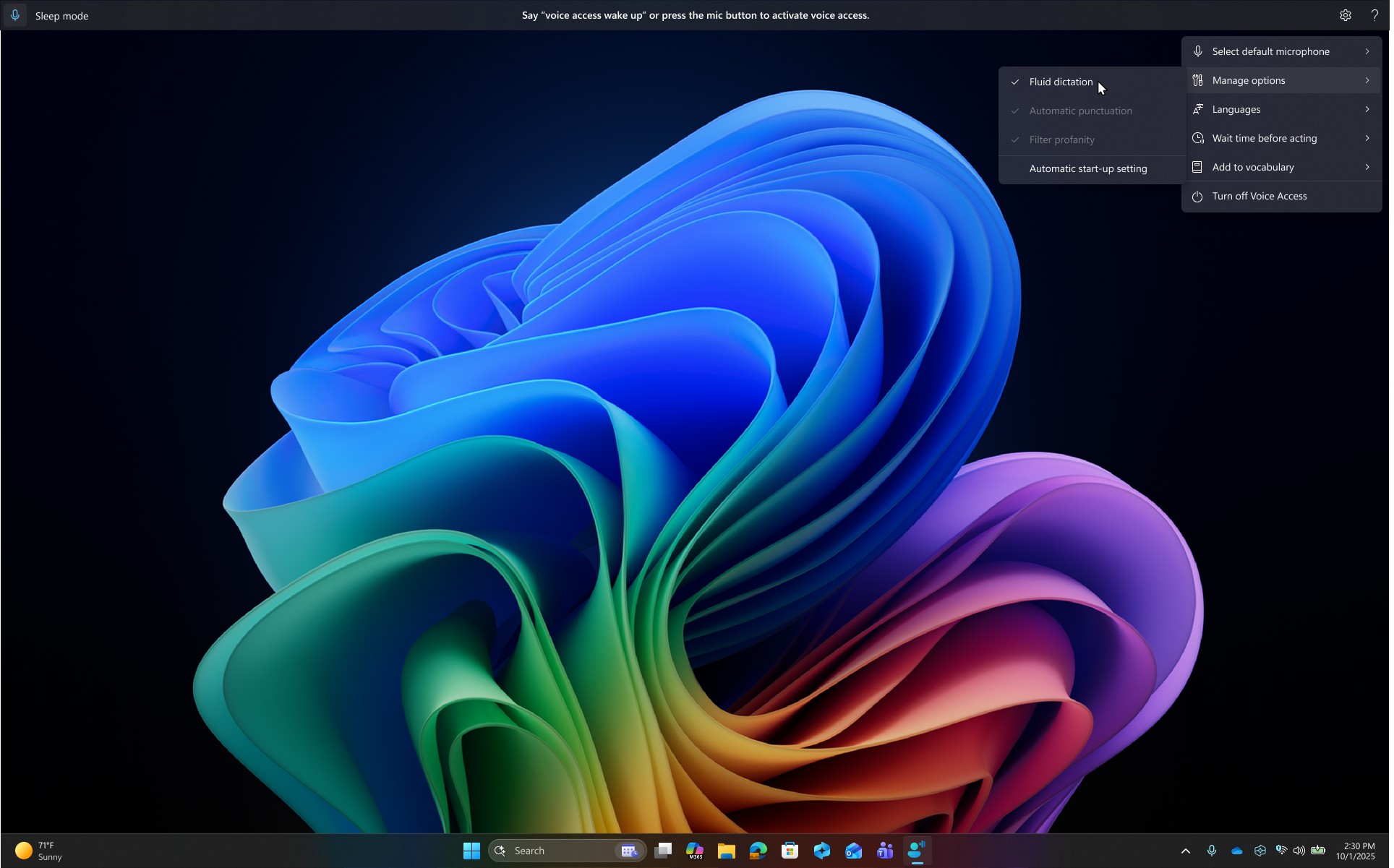
Voice Access is the free dictation tool Windows should advertise on the box. It lives under Settings > Accessibility > Speech on Windows 11 22H2 and later (wake it with Alt+Shift+B), downloads a speech model once, and from then on runs entirely on your PC — no internet, no account, no caps. It types into any app, and it goes where no other free tool on this list goes: full voice control of the machine — open and switch apps, click buttons, scroll, dictate, correct.
On Copilot+ PCs (the Windows 11 AI machines with a 40+ TOPS neural processor — Snapdragon X, Intel Core Ultra 200V, AMD Ryzen AI 300), Voice Access adds Fluid Dictation: on-device small language models that fix punctuation and grammar and drop filler words as you speak — the exact feature subscription dictation apps charge for, running locally, free, and switching itself off in password fields. That combination — offline, uncapped, AI-cleaned — exists nowhere else at $0.
The honest catch: Windows 10 users are excluded, language support is roughly English plus six other language families, there's no custom vocabulary, and its modes tripped us in our own testing — commands-only mode hears you and refuses to type (our Windows troubleshooting guide covers that trap). Auto-punctuation is off until you turn it on. We scored the built-in stack 7/10 in our full review of Windows' built-in dictation — above Apple's built-in, mostly because of this app.
Best for: anyone on Windows 11 — this is the default answer. Set it up once with our Windows dictation guide and see how far free goes.
2. Win+H Voice Typing — Zero Setup, One Hidden Setting, One Big Asterisk
Press Win+H in any text field on Windows 10 or 11 and a dictation bar appears — no install, no account, 43 supported languages, and decent accuracy on everyday prose. It's the fastest possible start with dictation on Windows, and for Windows 10 machines it's the only built-in option (Voice Access requires 11).
Two things to know before you judge it. First, flip on auto-punctuation (the gear icon in the dictation bar) — it ships off by default, it's the first setting we change on every machine we test, and the resulting wall of lowercase text is why most people quit in the first minute. Second, the asterisk: Win+H is cloud-only. Microsoft's documentation is plain that "you'll need to be connected to the internet" — audio is processed on Microsoft's online speech services, dictation stops the moment your connection drops, and the Online speech recognition privacy toggle (Settings > Privacy & security > Speech) silently disables the whole feature when off. IT policies sometimes flip that switch; if Win+H "stopped working," start there — or with our troubleshooting guide.
Best for: quick notes and messages on any Windows machine, and Windows 10 users who can't run Voice Access. If the audio is sensitive, use an offline tool instead.
3. Handy — Free, Open Source, and Entirely Yours
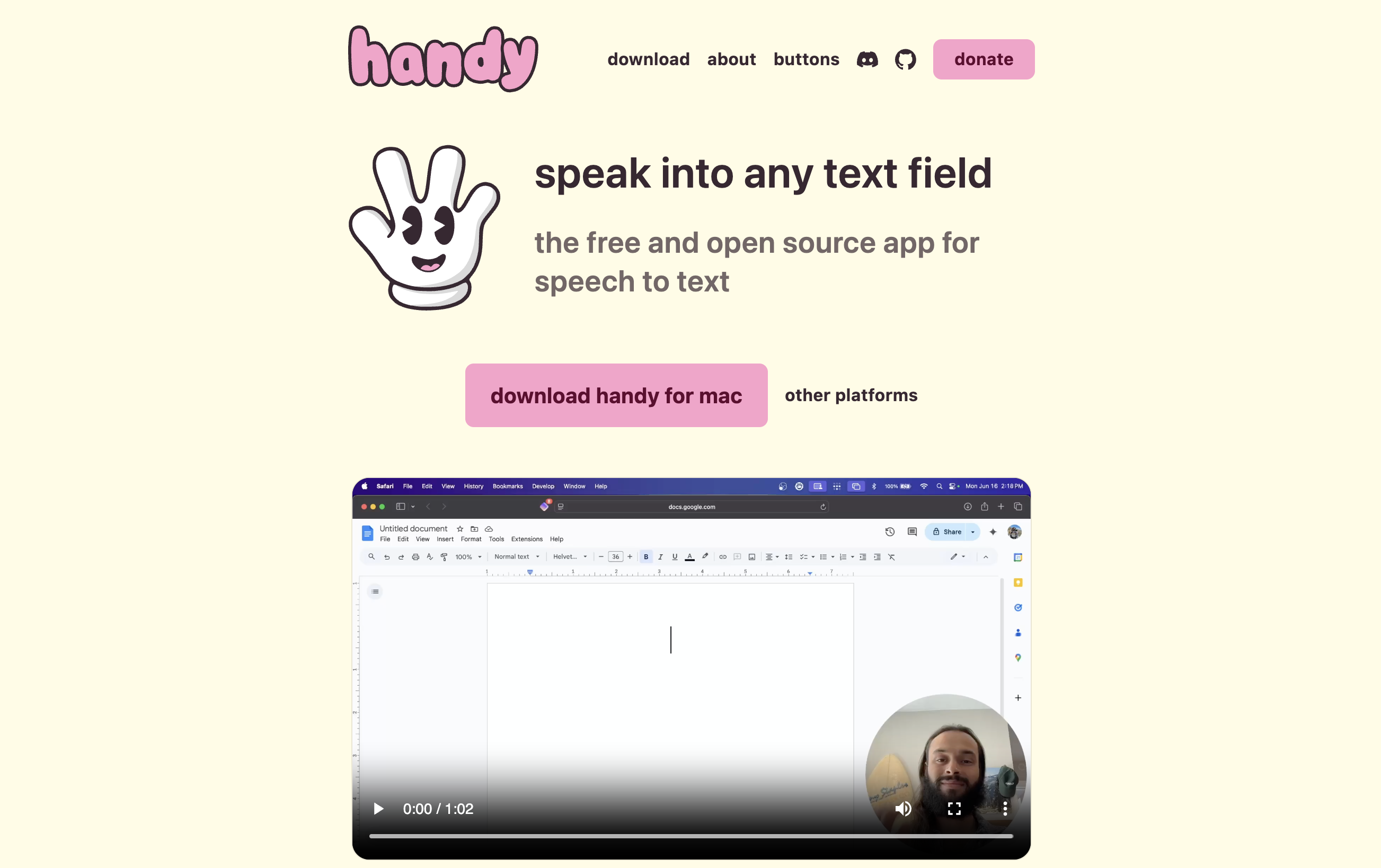
Handy is what free looks like when a community builds it: MIT-licensed, open-source push-to-talk dictation by solo developer Cj Pais, with 26,600+ GitHub stars. It runs local Whisper models with GPU acceleration on Intel, AMD, or NVIDIA graphics (plus the CPU-optimized Parakeet V3 for modest machines), types system-wide, and involves no account, no telemetry business model, and no cloud at all — for our Handy safety analysis we audited the source and found no cloud transcription endpoint in the codebase, period.
The honest catch: you're the IT department. You choose models, tune shortcuts, and file GitHub issues when something breaks; there's no AI cleanup and no vocabulary training. In our testing, accuracy tracks which Whisper model your hardware can comfortably run — a gaming GPU makes it excellent; a five-year-old laptop makes it patient work. Our Handy review maps the experience honestly.
Best for: developers, tinkerers, and privacy-first users with decent hardware who want unlimited offline dictation and enjoy owning their stack.
4. Willow Voice Free Tier — Unlimited Words, Lighter Model, Real Trade
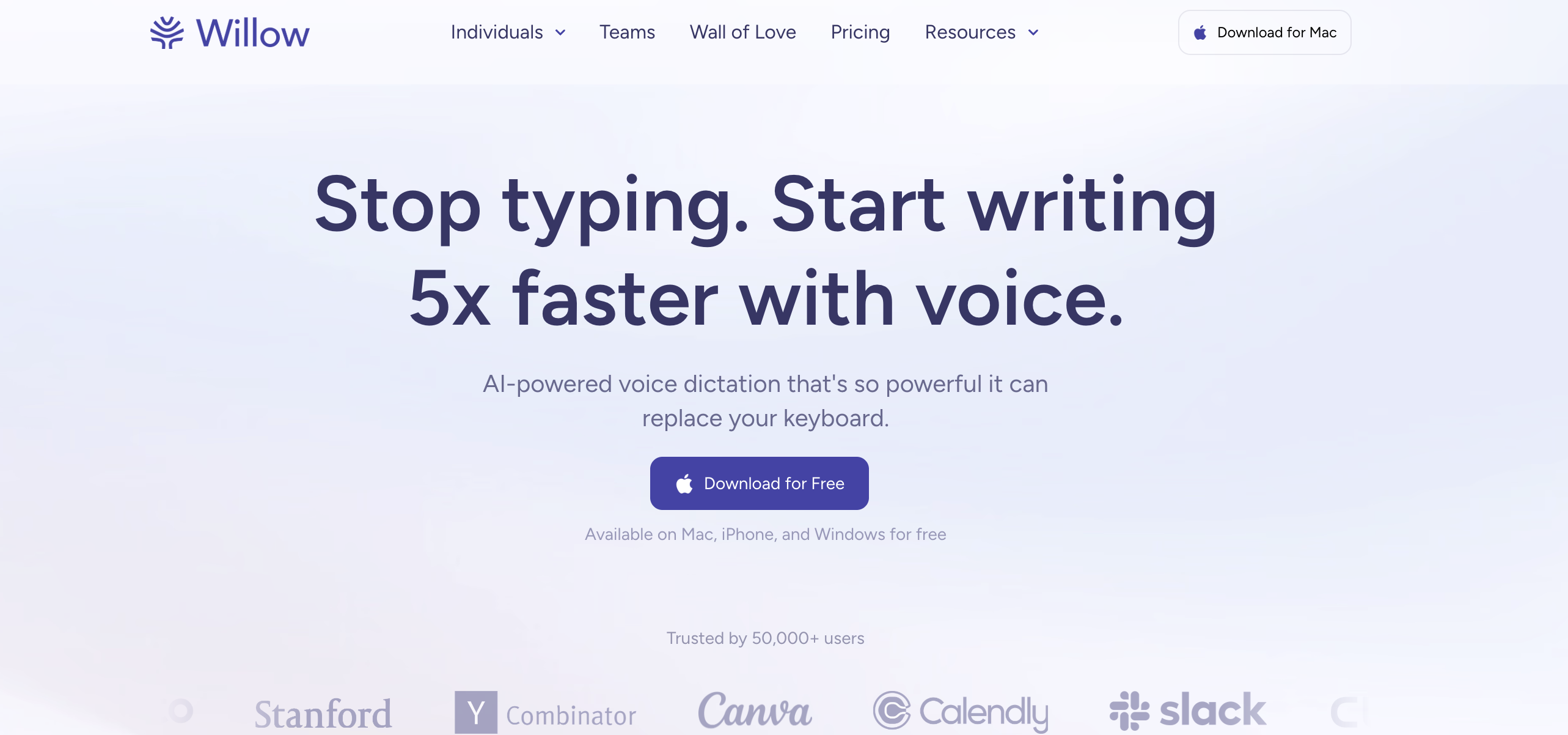
Among cloud dictation startups, Willow Voice makes the most generous free offer on Windows: unlimited dictation, no weekly word cap, with AI-cleaned output — running on its lighter Frontier Mini model rather than the flagship one. Against the caps everyone else uses as an upsell lever (Wispr Flow's free tier stops at 2,000 words/week), unlimited is a genuine distinction. The Windows app arrived January 2026 via the Microsoft Store.
The honest catch: it's cloud-only — your audio is processed on Willow's servers, online-only, which is the exact trade the three offline tools above refuse — and the Windows port is months old. An independent three-month review scored Willow around 7/10, with notably weaker accuracy on technical terms — consistent with what we saw in our own time on the free tier — and the lighter free-tier model won't beat that. Paid Willow is $15/month (or $12/month billed annually — $144/year), and our Willow Voice review and free-tier deep dive cover whether that upgrade earns its price.
Best for: high-volume dictators of general prose who accept cloud processing and want $0 with no meter running.
5. Talon — the Deepest Free Tool, for People Who Need More Than Typing

Talon isn't really a dictation app — it's free, on-device voice control of the entire operating system: voice coding, app control, eye-tracking support, noise-based inputs, and a scriptable grammar you can bend to any workflow. For developers with RSI it's the reference answer (Josh Comeau's hands-free coding write-up shows what it can do), and it costs nothing — an optional Patreon funds beta builds.
The honest catch, which our own attempts confirmed: the learning curve is measured in weeks, and prose dictation is not its strength — many Talon users pair it with a dedicated dictation tool for actual writing. If typing pain is what brought you here, our accessibility dictation hub maps tools by condition, hands-free options included.
Best for: RSI and accessibility users, and developers who want to operate the whole PC by voice — not just fill text boxes.
The "Free Tiers" That Are Really Demos
Three names you'll meet while searching deserve honest labels rather than ranking spots:
- Wispr Flow free tier — 2,000 words per week. That's a few emails a day from one of the category's most polished (and cloud-only) apps; its Windows client is also an Electron port with documented resource complaints. Real usage hits the cap fast — the tier exists to convert you to the $12/month plan. Our Wispr Flow alternatives for Windows guide exists for the people who hit exactly that wall.
- Aqua Voice free tier — 1,000 words, total. A demo in the literal sense: enough to feel its impressive streaming speed once, not a tool you can live on. (Our Aqua Voice review.)
- Voibe — a 7-day full trial, then a free plan with limited words. Our own app: every Voibe Work feature is unlocked for a week with no credit card, then the account moves to Voibe Free ($0 forever, limited words on one device); unlimited use is paid ($9.90/month, $99/year, or $199 lifetime). The word-capped free plan, and the fact that it's ours, are why it sits in this section rather than in the ranking. Voibe Free's launch post lists exactly what the free plan includes on a Windows PC.
Tip
A quick sniff test for "free" dictation apps: uncapped words + works offline + no account = actually free (Voice Access, Handy, Talon). A weekly word cap or a total-word demo = a trial wearing a free-tier costume.
When Free Stops Being Enough
Plenty of people never outgrow the free tools — if your dictation is occasional and your vocabulary is everyday English, Voice Access plus this page's setup links is the whole answer, and you should not pay anyone. The walls that eventually push heavy users to paid tools are specific:
- Custom vocabulary. The first time a client name, drug name, or product term comes out mangled for the hundredth time — no free tool fixes this.
- AI cleanup without Copilot+ hardware. Fluid Dictation needs a 40+ TOPS NPU; on every other PC, free dictation gives you raw transcription to punctuate yourself.
- All-day use. Filler words, formatting, and correction time compound when dictation is your primary input method rather than a convenience.
Voibe is the app we build for exactly those walls — a ground-up native Windows app with a custom Dictionary (add your terms once, no training sessions), Smart Formatting (punctuation, capitalization, and filler handled live without paraphrasing you), and Memory shortcuts, processing speech through Voibe's zero-retention cloud, which runs open-source models on zero-retention providers, with zero retention — audio never stored, sold, or used to train AI (note: no offline mode on Windows; that's what the free on-device tools above are for). Pricing: a free plan with limited words on one device, then $9.90/month, $99/year, or $199 lifetime — against Wispr Flow Pro's $144/year that's $45/year less (31.3% cheaper), and the $199 lifetime is $233 less (53.9% cheaper) than three years of Wispr Flow. The 7-day trial is free, and if the free tools already cover you, keep your money — genuinely.
The value combo: Wispr Flow and Granola in one plan. Voibe Dictation is $99 a year. For $50 more, Voibe Work ($19/month, $149/year, or $399 lifetime) adds AI meeting notes with no bot in the call. That one plan covers what Wispr Flow Pro ($144/year) and Granola Business ($168/year) charge $312 a year for separately, so it costs $163 (52.2%) less every year. Meeting notes are captured on your Mac or Windows PC, processed in Voibe's zero-retention cloud and saved on your computer, and Voibe reminds you to tell everyone you're taking notes.
How to Choose Your Free Dictation Tool
Three questions land you on one name:
- Windows 10 or Windows 11?
- Windows 10 → Win+H is your built-in (cloud); Handy if you need offline
- Windows 11 → continue
- Does it need to work offline (or handle sensitive audio)?
- Yes → Voice Access — on-device, uncapped, free AI cleanup if you have a Copilot+ PC; Handy if you're technical and want model control
- No → continue
- How much will you dictate?
- A lot, and cloud is acceptable → Willow Voice free tier (unlimited words, lighter model)
- Occasionally → Win+H — zero setup, just turn auto-punctuation on first
- It's not about volume — I need hands-free control of the whole PC → Talon, and budget the weeks
And the exit condition: if your jargon must come out spelled right, no free tool will get you there — that's the custom-vocabulary wall in the section above.
Best Free Dictation Tool for Your Situation
Ten situations, mapped:
| Your situation | Best free choice | Why |
|---|---|---|
| Windows 11 laptop, want dictation that just works | Voice Access | Offline, uncapped, one-time setup |
| Windows 10 machine you're not upgrading | Win+H (or Handy offline) | Voice Access requires Windows 11 22H2+ |
| You bought a Copilot+ laptop this year | Voice Access + Fluid Dictation | Free on-device AI cleanup — the best $0 deal in dictation |
| Sensitive work — audio must not leave the PC | Voice Access or Handy | On-device; Win+H and Willow are cloud tools |
| Gaming PC, comfortable on GitHub | Handy | Your GPU runs big Whisper models brilliantly |
| Long documents daily, general vocabulary, cloud OK | Willow Voice free | Unlimited words with AI cleanup |
| Quick Slack replies and emails, zero patience for setup | Win+H | Two keys, any text field — enable auto-punctuation |
| RSI or hands-free computing need | Talon (start with Voice Access) | Whole-OS control; Voice Access is the no-learning-curve start |
| Student taking lecture notes on a budget | Voice Access + Willow free as backup | Offline default, uncapped cloud fallback |
| Your jargon keeps coming out wrong in every free tool | None — that's the paid wall | Voibe's free plan includes custom vocabulary but caps words; unlimited use starts at $99/year (see the when-to-pay section above) |
Frequently Asked Questions About Free Windows Dictation
The basics
What is the best free dictation app for Windows?
Windows Voice Access, for anyone on Windows 11 22H2 or later. It's built in, processes speech on-device after a one-time model download, works offline, has no word caps, controls the whole PC by voice, and on Copilot+ hardware adds free AI cleanup (Fluid Dictation). The best non-Microsoft free tool is Handy — open source, offline, uncapped.
Is Windows dictation really free — no caps or trials?
Yes. Both built-ins (Win+H voice typing and Voice Access) are fully free with no word limits, as are Handy and Talon. Willow Voice's free tier is also uncapped, on its lighter model. The word caps you may have met elsewhere (2,000 words/week, 1,000-word demos) belong to the free tiers of paid apps — covered above as demos, not ranked as free tools.
The built-ins
Does Windows 11 have offline dictation?
Yes — Voice Access (Settings > Accessibility > Speech, Windows 11 22H2+) downloads a speech model once and then works entirely offline, including its Fluid Dictation cleanup on Copilot+ PCs. Win+H voice typing is the opposite: cloud-only, and it stops when the connection drops.
Why does Win+H produce lowercase text with no punctuation?
Because auto-punctuation ships switched off, on both built-ins. Open the gear icon in the Win+H dictation bar (or Voice Access settings) and enable auto-punctuation — this single toggle is the difference between the wall-of-text first impression and usable dictation.
Privacy
Is Win+H voice typing private?
Treat it as a cloud service, because it is one: Microsoft's documentation states you need an internet connection, and audio is processed on Microsoft's online speech services. The Online speech recognition toggle (Settings > Privacy & security > Speech) controls — and when off, silently disables — the feature. For dictation that never leaves your PC, use Voice Access, Handy, or Talon.
Which free dictation tools work with no internet at all?
Voice Access (after its one-time model download), Handy (local Whisper models on your own hardware), and Talon. Win+H and Willow Voice's free tier both require a connection for every word.
Hitting the limits
Do any free dictation apps support custom vocabulary?
Not meaningfully. The Windows built-ins have no custom vocabulary at all, Handy and Talon don't do vocabulary training (Talon can be scripted by technical users), and Willow's dictionary is limited. Reliable handling of names and jargon is effectively where paid dictation begins — via a typed dictionary (Voibe), screen-context reading (Aqua Voice), or auto-learning (Wispr Flow).
Is Dragon free, or is there a free Dragon alternative?
Dragon has no free edition — Dragon Professional v16 costs $699.99, and the $150 Home edition was discontinued in 2023. The free alternatives that cover Dragon's territory are Voice Access (offline dictation plus PC voice control) and Handy (offline, open source); our Dragon alternatives for Windows guide maps the full field, paid options included.
The Bottom Line: Start With What's Installed
Free dictation on Windows is genuinely good in 2026 — better than we expected when we sat down to test it, and far better than anyone who tried Win+H once and quit will believe. The playbook: set up Voice Access today (offline, uncapped, free cleanup on Copilot+ hardware), keep Win+H for machines where you can't, add Handy if you're technical, Willow's free tier if you're high-volume and cloud-tolerant, and Talon if your hands need the whole OS on voice. Turn auto-punctuation on everywhere. Total cost: $0.
And if you hit the walls — jargon, cleanup, all-day use — you'll hit them knowing exactly what you need. That's when the paid field (including ours, from $99/year for unlimited dictation) is worth a look — and not before.
📚 Related Reading
- Best AI Dictation Apps for Windows — the Full Ranking (Paid Included)
- How to Use Dictation on Windows: Win+H & Voice Access Setup
- Windows Voice Typing & Voice Access Review: 7/10
- Dictation Not Working on Windows? The Four Gates
- Best Free Dictation Apps for Mac — the Other Platform
- Best Wispr Flow Alternatives for Windows
- Dragon Alternatives for Windows
- Willow Voice Free Tier: the Deep Dive
- Handy Review: Free Open-Source Dictation, Audited
- Cloud vs Local Dictation: Why It Matters
Best AI Dictation and Meeting Notes for Confidential Work
Draft letters, notes and emails 5x faster on Windows and Mac. Get meeting notes without a bot on Mac. Nothing used to train AI.
- Mac + Windows
- No bot in your calls
- Nothing used to train AI
- 7-day free trial
Want to compare plans first? View pricing →
Related Articles
Dictation Not Working on Windows? 8 Fixes, From Win+H to Voice Access
Windows dictation usually 'breaks' in one of three boring ways: a mic permission, a privacy toggle, or no internet. Here's the 8-fix sequence that finds yours.
How to Use Dictation on Windows — Win+H, Voice Access, and the Setting Everyone Misses
Windows ships two dictation tools — one cloud, one offline — and one default setting that makes both feel broken. Set up Win+H and Voice Access properly.
6 Best AI Dictation Apps for Windows — Ranked by Who Actually Built for Windows
Six AI dictation apps are actually great on Windows in 2026. We ranked them — including the one we built from the ground up for Windows — with verified pricing.