
How to Dictate in Google Docs: Voice to Text With or Without Chrome
Google Docs voice to text, two ways: free Voice Typing if you live in Chrome, or a system-wide on-device tool for any browser and every app. Setup and fixes.

TL;DR: To dictate in Google Docs, you have two good ways to turn voice to text. The free built-in Voice Typing feature (Tools > Voice typing) transcribes your speech and supports voice commands for punctuation, new lines, and formatting like bold and italics — but it only works with the document open in Google Chrome and processes your audio in the cloud. Or run a system-wide dictation tool (Mac and Windows) like Voibe, which types into Google Docs in any browser (Safari, Arc, Chrome) and every other app, processes speech on-device, and adds custom vocabulary. Pick Voice Typing if you live in Chrome and want free; pick a system-wide on-device tool if you want one hotkey everywhere plus privacy for sensitive documents.
This guide covers Voice Typing honestly — its setup, its full voice-command set, and its limits — then the system-wide setup, custom vocabulary, and real drafting, formatting, and editing examples. If you also write in Notion or draft email in Gmail, the same system-wide setup carries straight over.
Key Takeaway
Dictate in Google Docs with the built-in Voice Typing feature (Tools > Voice typing — Chrome-only, cloud-based, good formatting voice-commands), or a system-wide on-device tool that works in any browser and every app and keeps audio on your Mac.
Tip
Quick test of whether a system-wide tool is worth it: do you ever write outside Chrome, or in apps that aren't Google Docs — Safari tabs, Notion, Gmail, Slack, Apple Notes? Voice Typing covers none of those. A system-wide tool covers all of them with the same hotkey, plus keeps sensitive drafts on your machine.
Google Docs Voice Typing vs a System-Wide Dictation Tool
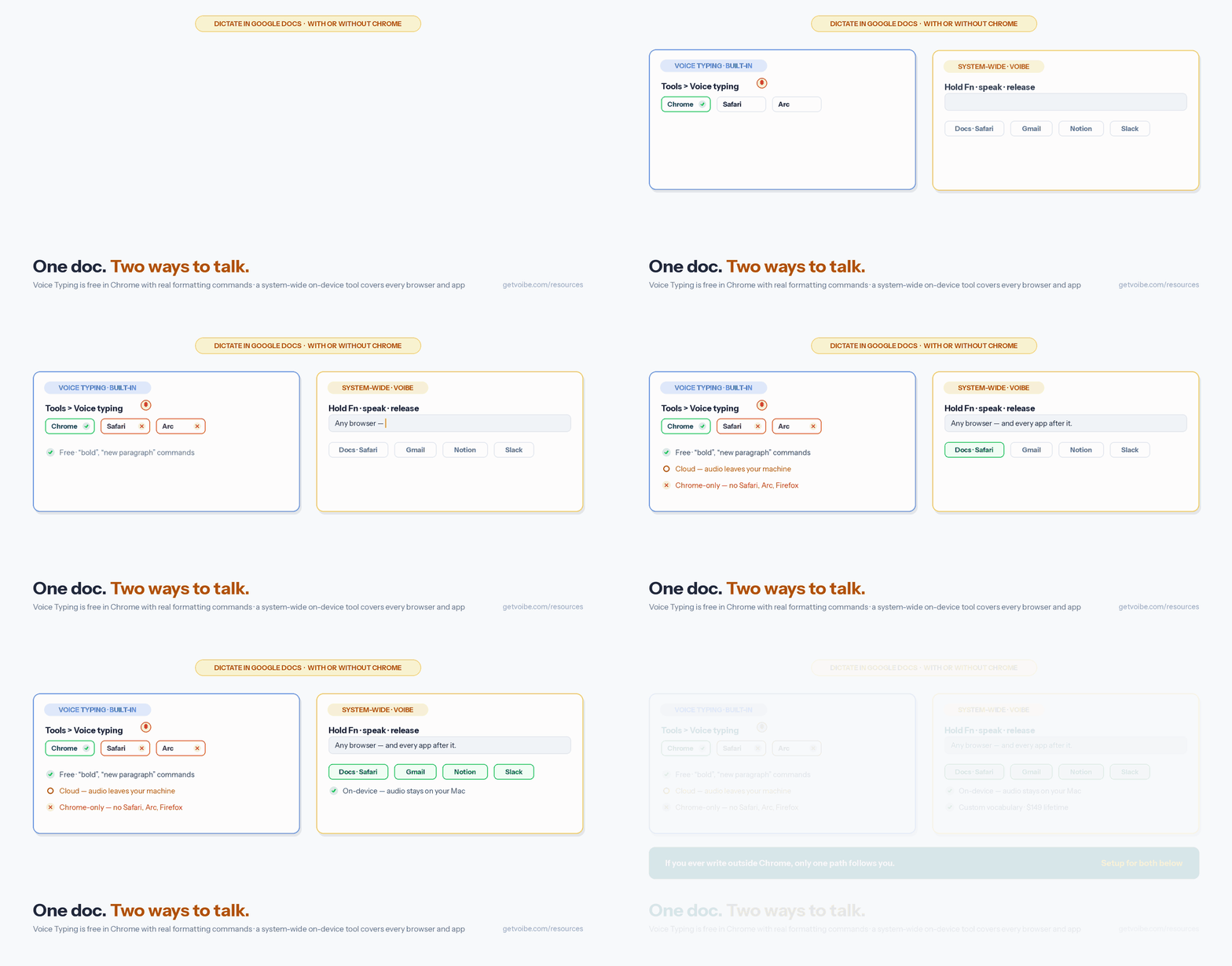
Both are real options, so this is a fair comparison rather than a one-sided one. Google's Voice Typing is free, built into Google Docs, and has a good set of formatting and editing voice commands. Its two constraints are that it needs the document open in Google Chrome (it depends on Chrome's Web Speech service and is unreliable in Safari, Arc, or Firefox), and that it processes your audio in the cloud, which requires an internet connection and sends speech off your machine.
A system-wide on-device tool trades the free price for two things: it works in any app and any browser, and it keeps audio on your Mac. Here is the honest side-by-side:
| Dimension | Google Docs Voice Typing | System-wide on-device (Voibe) |
|---|---|---|
| Works in Google Docs | Yes (in Chrome) | Yes (any browser) |
| Works in Safari, Arc, Firefox | No | Yes |
| Works in every other app (Gmail, Notion, Slack) | No | Yes |
| Platforms | Any OS with Chrome | macOS and Windows apps |
| Processing location | Cloud (Google servers) | On-device, or Voibe's private zero-retention cloud — your choice |
| Works offline | No | Yes (after model download) |
| Custom vocabulary for names / jargon | No | Yes |
| Formatting voice commands ("bold", "new line") | Yes | Automatic punctuation and capitalization, plus spoken punctuation by name |
| Price | Free | $149 lifetime or $7.50/month |
The honest verdict: if you only ever write in Google Docs inside Chrome and don't handle sensitive material, Voice Typing is hard to beat for free. The moment you want to dictate in a second browser, in Gmail or Notion, offline, or with confidential documents that shouldn't leave your machine, a single system-wide on-device tool replaces a browser-locked feature.
How to Turn On Voice to Text in Google Docs (Voice Typing)
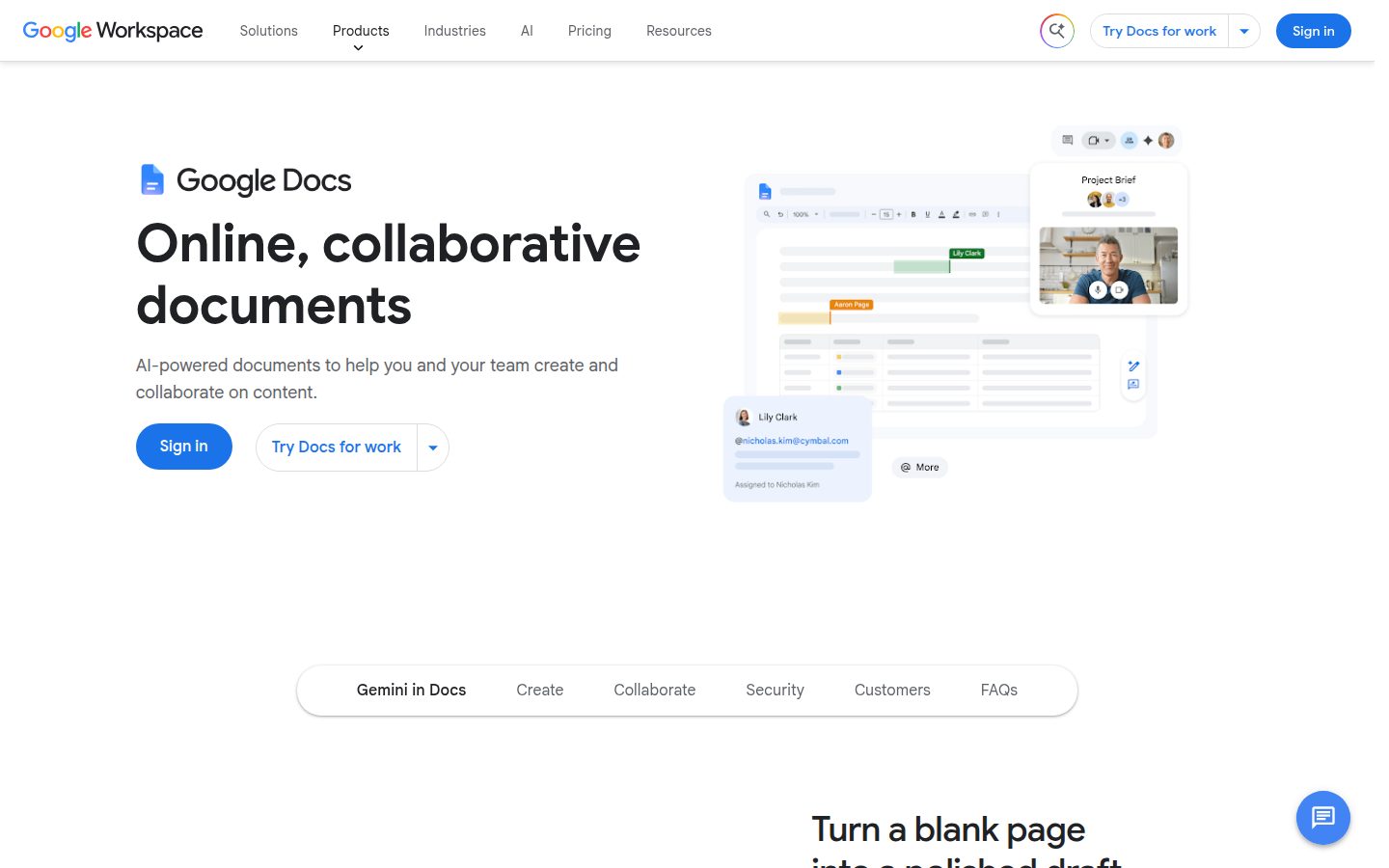
Voice Typing is free and built in. Set it up like this:
- Open your document in Google Chrome (it depends on Chrome's speech service and is unreliable in other browsers).
- Connect a microphone and go to Tools > Voice typing. A microphone box appears on the left edge of the document.
- Set the language above the microphone if needed, then click the microphone to start. Speak; click it again to stop.
You can also toggle the microphone with the keyboard shortcut Cmd+Shift+S on macOS. Voice Typing understands spoken punctuation and a set of formatting and editing commands — the useful ones are below.
| What you want | What you say |
|---|---|
| Punctuation | "period", "comma", "question mark", "exclamation point" |
| Break lines | "new line", "new paragraph" |
| Formatting | "bold", "italicize", "underline", "apply heading 1" |
| Editing | "select last word", "delete", "go to end of line" |
One caveat worth knowing up front: per Google's documentation, voice commands are available only in English, and both the account language and the document language must be set to English. Plain dictation of words works in 100+ languages, but the command layer does not.
Info
Voice Typing also works in Google Slides for speaker notes via Tools > Dictate speaker notes. It does not dictate into slide text boxes directly, and the same Chrome and cloud requirements apply.
Step 1: Install a System-Wide Dictation Tool
The setup mirrors any Mac dictation tool; this guide uses Voibe for its on-device processing, which keeps sensitive documents on your machine, and because it works in Google Docs regardless of which browser you use.
- Download Voibe from getvoibe.com (or the direct .dmg) and drag it to Applications.
- Launch it. On Apple Silicon (M1–M4, macOS 13+) it downloads a local Whisper model (~2 GB) on first run.
- No account, and no internet needed after the model downloads.
Voibe also runs on Windows: a native Windows app (launched July 2026) uses Voibe's private Zero Data Retention cloud — audio and text processed with nothing stored, sold, or used to train AI — so the same hotkey-and-vocabulary setup covers a Windows desktop too.
For the full install walkthrough, see our Voibe setup guide.
Info
Requirements: a Mac running macOS 13 Ventura or later. Voibe works on all Macs (Intel and Apple Silicon); its on-device mode requires an Apple Silicon Mac (M1 or later) and about 2 GB of free disk space for the local model, while its private zero-retention cloud mode runs on any Mac (and powers the native Windows app, launched July 2026). In on-device mode, dictation works offline once the model downloads — useful for writing on a plane or in a spotty cafe.
Step 2: Grant Permissions and Set a Hold-to-Talk Hotkey
A system-wide tool needs two macOS permissions to type into Google Docs (in any browser):
- Accessibility — to insert text (System Settings > Privacy & Security > Accessibility, then enable the app).
- Microphone — to capture speech (granted on first use, or under System Settings > Privacy & Security > Microphone).
Then pick a hotkey you can hold while your hands rest on the keyboard. Voibe defaults to holding Fn: click into your document, press and hold, speak, release, and the text appears at the cursor — punctuated and capitalized automatically, or with punctuation spoken by name ("comma", "em dash", "open bracket") when you want manual control. Reassign it in settings if Fn clashes with your layout — see our Mac dictation keyboard shortcuts guide for options and conflicts. Hold-to-talk suits writing because your hands return to the keys the instant you release, ready to edit.
For longer writing sessions where you want to talk continuously and watch text land, Voibe's Continuous Transcription and Hands-Free Mode keep a session open and show live text in a floating window, committing it when you finish — handy for dictating a full first draft into a doc without holding a key the whole time.
Step 3: Add a Custom Vocabulary for Names and Jargon
This is the capability Voice Typing does not have, and the reason a system-wide tool can be more accurate in your documents. Open Voibe's settings and add the terms speech models routinely get wrong: client and colleague names, product names, acronyms, and industry jargon. Voibe uses a real dictionary that influences transcription itself, not a find-and-replace table that swaps words after the fact.
Plain dictation — including Voice Typing — transcribes unfamiliar names phonetically: a product called "Voibe" or a colleague named "Siân" comes out mangled and needs a manual fix on every mention. Add them once to your custom vocabulary and they land correctly every time, across Google Docs and every other app.
Real Voice Examples for Drafting, Formatting, and Editing
Here is what dictating into Google Docs looks like with each approach. Click into the document, then speak.
Drafting — Get the First Pass Down
Voice is fastest for the first draft, where prose flows faster than you can type. Dictate a paragraph straight through:
- "Thanks for the notes on the proposal. I have reworked the timeline so the design phase finishes before the holidays, and I moved the review to the first week of January."
With a system-wide on-device tool, punctuation and capitalization are handled automatically as it transcribes, so you don't say "period" or "comma" — you just talk.
The same first-pass approach works for job applications. Talk through what you actually did in each role — "Led the migration to the new billing system and trained three new hires on the process" — then compare the draft against ATS resume examples to tighten the structure, keywords, and formatting before you apply.
Formatting — Voice Typing's Strength
This is where Voice Typing shines. Dictate a line, then a command: "Quarterly results" then "apply heading 1"; or select a phrase and say "bold". Its command set ("new paragraph", "italicize", "underline") lets you structure a document without touching the keyboard — a real advantage if you keep the doc in Chrome.
Editing — Fix and Revise
Voice Typing supports editing commands like "select last word", "delete", and "go to end of line". With a system-wide tool, the pattern is different: dictate the new text and edit the last few words with the keyboard, which is usually faster than issuing spoken edit commands.
Keep dictation to short, structured bursts — voice handles a focused two-sentence thought far better than a long run-on. For a repeatable drafting loop, see the Talk-Draft-Polish approach in our voice-prompt AI guide.
Tips for Dictating in Google Docs More Accurately
- Match the tool to the browser. If your doc lives in Chrome, Voice Typing works; if you prefer Safari or Arc, use a system-wide tool that doesn't care which browser you use.
- Add a custom vocabulary for names and jargon. Client names, product names, and acronyms are what dictation gets wrong. A system-wide tool with a real dictionary fixes them once.
- Learn a few Voice Typing commands. If you use Voice Typing, "new paragraph", "apply heading 1", and "bold" cover most formatting without the keyboard.
- Dictate in short bursts. Ten-to-thirty-word phrases are most accurate; pause between thoughts rather than chaining clauses.
- Draft by voice, polish by keyboard. Voice is fastest for the first pass; fix the last few words by hand.
- Use a decent microphone. A basic USB or headset mic noticeably reduces errors versus the built-in mic in a noisy room.
- Keep sensitive drafts on-device. For confidential documents, an on-device tool keeps audio off external servers — Voice Typing sends it to the cloud.
Troubleshooting: When Dictation Isn't Working in Google Docs
Voice Typing option is missing or greyed out
Confirm the document is open in Google Chrome — the Tools > Voice typing option is unreliable or absent in Safari, Arc, Firefox, and Brave. Also confirm a microphone is connected and that Chrome has microphone permission in System Settings > Privacy & Security > Microphone.
Voice commands aren't working
Per Google's documentation, voice commands ("bold", "new line", and so on) work only when both your account language and document language are set to English. Plain word dictation works in other languages, but the command layer does not.
A system-wide tool isn't typing into the doc
Check Accessibility permission first: System Settings > Privacy & Security > Accessibility, and confirm the app is enabled. If it is on but still not typing, remove and re-add it to reset the permission — this resolves most cases after an update. Make sure the browser window is frontmost and your cursor is inside the document body.
Names and jargon are mis-transcribed
Add them to your custom vocabulary. General speech models don't know an unusual name or a product term until told, and Voice Typing has no way to teach it.
Dictation feels slow
Voice Typing depends on your internet connection, so a weak network makes it lag. An on-device tool shares the Neural Engine with other apps; close memory-heavy apps or pick a smaller local model on an 8 GB Mac.
Tools That Make Dictating in Google Docs Easier
Google Docs Voice Typing — free, built in, with a strong set of formatting and editing voice commands. The best free option if you write in Google Docs inside Chrome; it is Chrome-only, cloud-based, and has no custom vocabulary.
Voibe — system-wide on Mac and Windows, with custom vocabulary, spoken punctuation by name, and Hands-Free Mode. Works in Google Docs in any browser and every other app; your audio is never stored, sold, or used to train AI, with a fully on-device mode on Apple Silicon and a private Zero Data Retention cloud behind the Windows app. $149 lifetime or $7.50/month, 7-day trial, no account.
Apple Dictation — free, system-wide baseline, but with a session timeout and no custom vocabulary.
Wispr Flow — polished cloud dictation with AI formatting; cross-platform but cloud-based, so weigh that for sensitive documents. $144/year.
Superwhisper — on-device Whisper modes plus optional cloud LLM cleanup; $249.99 lifetime.
Writing elsewhere too? See our companion guides on how to dictate in Notion and how to dictate in Gmail. For the architecture comparison, see cloud vs local dictation and offline dictation privacy on Mac.
Frequently Asked Questions About Dictating in Google Docs
Basics
Can you dictate in Google Docs?
Yes — with the free built-in Voice Typing feature (Tools > Voice typing, in Chrome), or with any system-wide Mac dictation tool that types into Google Docs in every browser and every other app.
Does Google Docs Voice Typing work in Safari or Arc?
Not reliably. It depends on Chrome's speech service, so the option is designed for Google Chrome. For other browsers, use a system-wide on-device tool that inserts text regardless of the browser.
Setup
Is Voice Typing private?
No — it processes your audio in the cloud via the browser's speech service and needs an internet connection. In on-device mode on an Apple Silicon Mac, Voibe keeps audio on your machine and works offline, which matters for sensitive documents.
What voice commands does Voice Typing support?
Punctuation ("period", "comma"), line breaks ("new line", "new paragraph"), formatting ("bold", "italicize", "apply heading 1"), and editing ("select last word", "delete"). Commands are English-only.
Workflow
How do I dictate into Google Docs without Chrome?
Use a system-wide tool: open the doc in any browser, click into it, hold your hotkey, and speak. The text is inserted at the cursor like a keystroke.
Should I use Voice Typing or a system-wide tool?
Use Voice Typing if Google Docs in Chrome is the only place you dictate and privacy isn't a concern. Use a system-wide on-device tool if you also write in Safari, Gmail, Notion, or Slack, want offline dictation, or handle confidential material.
Start Dictating in Google Docs
Dictating in Google Docs comes down to scope and privacy. The built-in Voice Typing feature is a good, free option with excellent formatting voice-commands — if Google Docs in Chrome is the only place you write and the cloud isn't a concern. A system-wide on-device tool wins the moment you want one hotkey across every browser and app, offline dictation in on-device mode, and audio that is never stored, sold, or used to train AI.
Voibe is the on-device option built for that: download it free (7-day trial, no account), add your custom vocabulary, and dictate your next document — in any browser — with the same hotkey you'll use for email and Slack.
Keep going:
- How to dictate in Gmail — clean email drafts by voice
- Best dictation software for pastors — sermon drafts and ministry writing by voice
- How to dictate in Microsoft Word — the Dictate button, and the paths that work without it
- How to dictate in Notion — notes and docs by voice
- How to voice-prompt ChatGPT, Claude, and Cursor — the Talk-Draft-Polish loop
- Cloud vs local dictation — the architecture comparison
- Getting started with Voibe — complete setup guide
Many of the docs you edit here now arrive from an AI agent. Dictating in Claude Cowork covers briefing that agent by voice — and why the editing phase, the one you are in right now, is where in-app dictation tools stop.
Tip
If you already use Voice Typing and like its formatting commands, you don't have to switch — add a system-wide on-device tool for everything outside Chrome and for sensitive drafts, and keep Voice Typing for in-Chrome formatting. The two work together.
Best AI Dictation and Meeting Notes for Confidential Work
Draft letters, notes and emails 5x faster. Get meeting notes without a bot joining your call. Nothing used to train AI.
- Mac + Windows
- No bot in your calls
- Nothing used to train AI
- 7-day free trial
Want to compare plans first? View pricing →
Related Articles
How to Dictate in Microsoft Word: Speech to Text With or Without 365
Word's Dictate button needs Microsoft 365 — the other two paths don't. How to set up all three ways to dictate in Microsoft Word, greyed-out button included.
Superwhisper Review: Is It Worth $249.99 Lifetime? (2026)
Honest Superwhisper review covering features, pricing, privacy defaults, performance, and the best alternatives for Mac users who want on-device Whisper dictation.
Apple Dictation vs Superwhisper (2026): Is the $249.99 Upgrade Worth It?
Apple Dictation is free built into macOS; Superwhisper is $249.99 lifetime with on-device Whisper + power-user modes. We compare features, privacy defaults, and when paying makes sense.