
Switching From Dragon to Voibe: Your Word List Comes With You
Dragon exports your custom words in four clicks. Here's the whole move to Voibe on Mac or Windows, what maps to what, and the three things that don't.

The only thing worth carrying out of Dragon is the word list: the drug names, statute shorthand, and colleague surnames you taught it one correction at a time. Dragon hands it over in four clicks. I’ve run this move on both platforms, and that’s the step people dread needlessly.
The mechanical migration takes about 15 minutes. Dragon exports your custom words to a TXT or XML file from the Vocabulary Center; Voibe takes them as a bulk paste into its Dictionary (custom vocabulary), where they shape transcription itself rather than being swapped in afterwards. Your hotkey habit takes two minutes to reassign and about a week to unlearn. What doesn’t transfer: Dragon’s prebuilt specialty vocabularies, its voice command-and-control, and any Epic or EHR embedding. Budget seven days of running both before you uninstall anything.
The steps are the same whether you’re leaving Dragon Professional on a Windows PC for the native Voibe for Windows app or moving to a Mac. The one platform difference is where the audio gets transcribed.
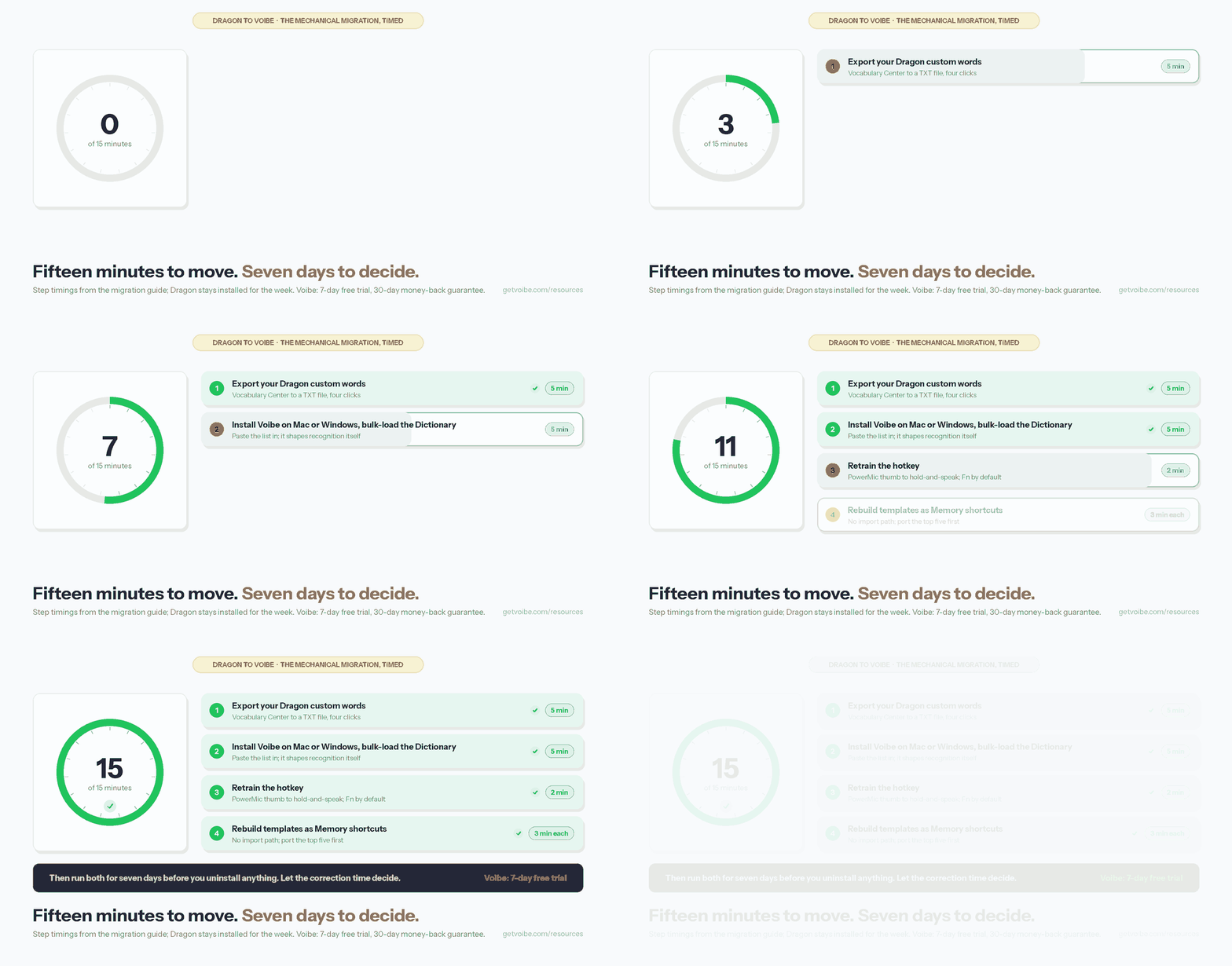
- Export your Dragon custom words (5 minutes)
- Install Voibe on Mac or Windows and bulk-load the Dictionary (5 minutes)
- Retrain the hotkey, PowerMic thumb to hold-and-speak (2 minutes)
- Map your templates and Auto-Texts to Memory (3 minutes each)
Key Takeaways: What Transfers From Dragon, Feature by Feature
Migration nerves are about the customizations you built over years. Here’s the ledger.
| What you built in Dragon | Does it transfer? | Where it lands in Voibe |
|---|---|---|
| Custom words and phrases (Vocabulary Center) | Yes | Export to TXT/XML, bulk-paste into Dictionary. It's real dictionary injection, so your terms shape recognition instead of being find-and-replaced afterwards |
| Auto-Texts, boilerplate, signature blocks | Yes, manually | Recreate as Memory shortcuts: a spoken trigger expands into the full block. No import path, so budget a few minutes per template |
| Spoken punctuation commands ("comma", "new paragraph") | Yes | They work as spoken. Smart Formatting also punctuates, capitalizes, and paragraphs automatically, so you can drop the habit whenever you're ready |
| Hold-to-talk muscle memory (PowerMic thumb) | Yes | Push-to-Talk: hold Fn instead of the thumb button, or reassign the key. Hands-Free Mode replaces holding anything for long dictation |
| Watching text appear as you speak | Yes, on Mac | Live Dictation streams words on screen as you talk so you can edit before they land. Mac only |
| Your Windows PC | Yes | The native Voibe for Windows app, running in zero-retention cloud mode. One plan covers Mac and Windows |
| Your trained voice profile | No, and you don't need it | Voibe uses Whisper, which requires no enrollment or voice training at all |
| Prebuilt specialty vocabularies | No | You teach Voibe your own terms; there's no medical or legal pack to install |
| Voice command-and-control ("click File", "switch to Word") | No | Voibe dictates text into the cursor; it doesn't drive applications by voice |
| Epic / Cerner structured integration | No | Voibe types into any focused field, including web EHRs, but has no structured EHR integration |
Three of those ten are hard noes. If one of them is yours, skip ahead to stick with Dragon if this is you, or settle it now with the full Voibe vs Dragon comparison.
Key Takeaway
Your word list transfers in five minutes into Voibe's Dictionary. Auto-Texts become Memory shortcuts, spoken punctuation still works, and the PowerMic habit becomes hold-Fn. Your voice profile doesn't transfer and doesn't need to. The three genuine losses are specialty vocabularies, command-and-control, and structured EHR integration.
Step 1: Export Your Dragon Custom Words (5 Minutes)

People assume this part hurts. It’s four clicks.
- Open Dragon and find the DragonBar.
- Go to Tools › Vocabulary Center › Export custom word and phrase list.
- Choose a destination folder and a file name.
- Pick your format: XML preserves the word properties you defined (spoken forms, capitalization rules); TXT gives you a plain one-word-per-line list. For migrating to Voibe, TXT is the one you want. It pastes directly.
Nuance documents the path in its own export and import support article (retrieved 2026-08-11). Open the file before you move on. You want your terms in there, not an empty list, and this is the last easy moment to fix it.
If you’re on Dragon Medical Practice Edition and it won’t activate, you may not reach the Vocabulary Center at all. That has its own page: what to do when Dragon Medical Practice Edition stops activating.
While the file is open, delete the junk. Years of Dragon use leave misrecognitions you accepted once and never cleaned up, and a term that worked around Dragon’s weakness can hurt you in another engine.
Warning
Do not uninstall Dragon before step 4 is finished and you have run a full week of real work in Voibe. Dragon reactivation on new hardware is not guaranteed for discontinued versions. Nuance stopped increasing activation counts for discontinued Dragon Medical releases in 2019.
Step 2: Install Voibe on Mac or Windows and Bulk-Load Your Dictionary (5 Minutes)
Pick your platform first, because it decides where your audio gets transcribed.
On a Mac, download Voibe and grant the two permissions it asks for at first launch: Accessibility (to type into other apps) and Microphone. If you dismiss a prompt, both live in System Settings › Privacy & Security. The setup guide has screenshots.
On Windows, where every Dragon install lives, install the native Voibe for Windows app. It’s a ground-up build, not an Electron wrapper, and one plan covers both platforms.
Then open Voibe’s settings and find Dictionary. Entries bulk-edit, which is why step 1 exported to TXT: open the export, copy, paste. A few hundred terms take as long as the paste. Those entries are injected into recognition rather than find-and-replaced afterwards, so a drug name changes how the audio is transcribed.
Two more things while you’re in there:
- Confirm your processing mode. On an Apple Silicon Mac (M1 or later), on-device mode runs Whisper on the Neural Engine: nothing leaves the machine, it needs no internet, and it’s the mode you want for clinical notes. Windows and Intel Macs use Voibe’s zero-retention cloud mode, and there is no offline mode on Windows. Audio is encrypted in transit, transcribed by open-source models, and deleted the moment transcription completes, never stored and never used to train a model, with no third-party AI lab (OpenAI, Google, Anthropic, Microsoft) in the path. You choose at setup and can switch in Settings.
- Choose Speed or Accuracy. Voibe recommends a model for your hardware. Coming from Dragon, the instinct is maximum accuracy. Start on the default for a day; you may not need the heavier model.
There’s no voice enrollment step: no passage to read aloud, no profile to back up. That’s why your Dragon voice profile has nothing to migrate into.
Step 3: Retrain the Hotkey, From PowerMic Thumb to Hold-and-Speak (2 Minutes)
Muscle memory is the part that costs you something. Handle it deliberately, not mid-note. Voibe gives you two triggers:
- Push-to-Talk: hold the Fn key, speak, release. Text appears at your cursor. It’s the direct analogue of the PowerMic thumb button and feels familiar within a day.
- Hands-Free Mode: press Fn+Space or double-tap Fn to start, press again to stop. No key held down. Use it for long-form dictation, and if your hands are the reason you dictate.
Press Escape to cancel a dictation mid-sentence. Learn that on day one; you’ll want it the first time you start talking into the wrong window.
If you’ll miss watching Dragon’s text land as you talk, turn on Live Dictation. It streams words on screen so you can catch a wrong drug name before it commits. Mac only; on Windows the text lands when you release the key.
If you use a PowerMic or a foot pedal, plan around this step. Those devices send keystrokes, so reassign Voibe’s Push-to-Talk hotkey to whatever your hardware already sends. Push-to-Talk and Hands-Free take separate hotkeys in settings. Check what your device emits first.
Your punctuation habit transfers. Dragon trained you to say “comma”, “period”, “new paragraph”, “open paren”, “bullet point”. Voibe takes all of those by name, plus symbols like “@” and currency signs, even a full email address spoken aloud. It also punctuates automatically as you speak, and Smart Formatting adds capitalization, paragraph breaks, and filler-word removal (“um”, “uh”) on top. That’s bounded cleanup: it tidies what you said without rewriting it. Most Dragon users over-dictate punctuation for a week, then stop.
Step 4: Map Your Templates and Auto-Texts (3 Minutes Each)
There is no import path for Dragon Auto-Texts. You’ll recreate them by hand. About three minutes each.
You recreate them in Voibe’s Memory tab. A Memory shortcut is a spoken trigger that expands into preset text: a signature block, your practice address, a referral-letter opener. For the common case, short trigger to long block, it covers the same ground as Dragon’s Auto-Texts.
What it doesn’t do is Dragon’s advanced template behavior: fill-in fields you tab through, nested variables, conditional blocks. Elaborate structured forms get simplified rather than ported. For many solo practitioners that’s fine, because those templates worked around Dragon’s dictation friction. For some it’s a loss, and it belongs on the list of reasons to stay.
Don’t recreate all of them. Open your Dragon Auto-Text list, sort by what you used this month, and port the top five. Add others as you miss them. Most people’s working set is much smaller than their accumulated list.
Tip
Port your five most-used templates before day one, then add more only when you reach for one and find it missing. A month of accumulated Auto-Texts is usually five templates and forty you forgot you made.
Your First Week: A Checklist for Clinical and Professional Notes
The migration is done. The habits aren’t. The order matters here: low stakes first.
- Day 1, scratch file only. Open a blank note and dictate for ten minutes about anything. You’re testing the trigger key and the pause behavior, not producing work.
- Day 1, vocabulary spot-check. Dictate the twenty terms you get wrong most often: drug names, procedure names, colleague surnames, the client names you say daily. Anything that comes back wrong goes straight into the Dictionary. This does more for your week than anything else here.
- Day 2, one real note dictated twice. Write it in Dragon as normal, then redo it in Voibe. Compare correction time, not raw output. That number decides whether the switch worked.
- Days 3–4, move your lowest-stakes work over. Internal notes, emails, admin. Keep anything time-critical in Dragon.
- Day 5, test your real destination fields. If you dictate into a web EHR or a practice-management system, test there, not in a text editor. Voibe types at the cursor, so it reaches fields Dragon’s integrations sometimes didn’t. If your practice runs a PC and a Mac, test both.
- Days 6–7, full switch, Dragon installed. Run a normal working day and note every moment you reach for something Dragon had. That list is your verdict.
You end the week with a list rather than an impression. If it reads “three Auto-Texts I never ported”, port them. If it reads “command-and-control” or “my specialty vocabulary”, that’s an answer too.
What Dragon Does That Voibe Doesn't
The full list, without hedging.
Prebuilt specialty vocabularies. Dragon Medical ships decades of curated medical terminology recognized out of the box. Voibe has a Dictionary you fill yourself. Modern models handle a surprising amount of clinical language unassisted, but that isn’t a pack maintained since the 1990s. Expect a first week of adding terms.
Voice command-and-control. Dragon drives your computer: open applications, navigate menus, select and correct text by voice. Voibe transcribes into the focused field. If you dictate by preference that’s invisible; if you can’t use a keyboard at all, it’s the entire product.
Structured EHR integration. Dragon Medical One is embedded into major EHR platforms. Voibe types into whatever field has focus, which covers web EHRs, but there’s no cursor-aware template navigation and no vendor relationship with Epic.
A signed BAA. Dragon Medical One is sold with one. Voibe isn’t: no HIPAA compliance claim, no BAA, no SOC 2. You get an architecture instead. On-device mode leaves no third party to sign an agreement with; cloud mode deletes audio the moment transcription completes and never stores, sells, or trains on it (full cloud privacy details here). Whether that satisfies your obligations is your reviewer’s call, not ours.
A profile that adapts to an unusual voice. Dragon’s months-long training helps users with strong accents or atypical speech. Voibe has no training loop. For most users the modern model wins from minute one; for some, Dragon’s accumulated profile beats anything untrained.
Stick With Dragon If This Is You
You don’t need all of the above to justify staying. Any one of these is enough.
You drive your computer by voice. If typing isn’t available to you, command-and-control is the product and dictation is a fraction of it. Our accessibility dictation guide covers what replaces it.
Your notes go into Epic, Cerner, or another embedded EHR workflow. Voibe types wherever your cursor is, which is fine in a web EHR field and not the same as an integration. If your organization mandates the embedded workflow, the decision was never yours.
Your compliance reviewer requires a signed BAA. Dragon Medical One is sold with one and Voibe isn’t, and architecture doesn’t substitute for paperwork. See our dictation and HIPAA guide for what the rule asks of you.
A specialty vocabulary is carrying more of your day than you realized. People misjudge this in both directions, which is why the seven-day test ends in a written list. If that list is full of terms you had to teach the Dictionary one at a time, Dragon’s prebuilt pack was doing the work and the switch costs more than it saves.
None of these are close calls. If one applies, stay. If none does, the arithmetic below is the rest of the argument.
The Cost Recap: Three Years of Dragon vs $149 Once
Most people arrive at this page because of the renewal invoice, not the features.
| Option | Year 1 | 3-year total | Platform |
|---|---|---|---|
| Dragon Medical One (1-yr term) | $1,188 + $525 setup = $1,713 | $4,089 | Windows native; Mac via browser only |
| Dragon Medical One (3-yr term) | $948 + $525 setup = $1,473 | $3,369 | Windows native; Mac via browser only |
| Dragon Professional v16 | $699.99 one-time | $699.99 | Windows only |
| Voibe lifetime | $149 one-time | $149 | Mac (on-device on Apple Silicon, or cloud) + Windows (cloud), one plan |
| Voibe annual | $59 | $177 | Mac (on-device on Apple Silicon, or cloud) + Windows (cloud), one plan |
Over three years, Voibe’s $149 lifetime licence saves $3,220 to $3,940 against Dragon Medical One, between 95.6% and 96.4% by contract term. Against Dragon Professional v16’s $699.99 it saves $550.99, about 79%. Voibe is also $7.50/month.
Two caveats on the Dragon numbers. Nuance does not publish Dragon Medical One pricing: the $79–$99 per user per month range and the $525 per-user setup fee are reseller-quoted, verified 2026-09-05, and health systems negotiate lower through Microsoft volume agreements. And $99 is the one-year term; $89 is two-year and $79 three-year, so the cheapest monthly rate is the longest lock-in. Our Dragon Medical One cost breakdown has the arithmetic, and Dragon pricing covers the rest of the line.
For that arithmetic across a year rather than a table, one of our users, a solo physician, shared their year off Dragon Medical One.
Key Takeaway
Over three years, Voibe's $149 lifetime license costs $3,220 to $3,940 less than Dragon Medical One, and $550.99 less than Dragon Professional v16.
The Bottom Line: Run Both for Seven Days
The migration isn’t the hard part: four clicks to export, one paste into the Dictionary, one hotkey to reassign, and the Memory shortcuts you use. The hard part is the week afterwards, when your hand keeps reaching for a thumb button that isn’t there.
So don’t make it a decision. Install Voibe alongside Dragon, run the seven-day checklist, and let correction time tell you. The 7-day free trial and 30-day money-back guarantee are roughly the shape of that experiment.
If the week ends with “I need command-and-control”, that’s a result too. Dragon is still installed.
Worth knowing what the other side feels like before you start. An attorney with four decades of dictating behind them rates Voibe well ahead of Dragon, and the reasons are mostly the ones this guide sets up: no voice training, punctuation handled as you speak, and the vocabulary you are about to export.
The product-exact head-to-head is in Voibe vs Dragon Medical One, the product-line view in Voibe vs Dragon, and the wider field in Dragon Medical alternatives. Before the trial, our guide to medical dictation AI covers the six habits that decide whether dictation sticks, starting with building your Dictionary before your first real note.
Frequently Asked Questions
How do I export my custom words from Dragon?
Can I import my Dragon voice profile into Voibe?
How long does switching from Dragon to Voibe take?
Does Voibe run on Windows, and does it work offline there?
Do my Dragon Auto-Texts and templates transfer?
Will my PowerMic or foot pedal still work?
Do Dragon's spoken punctuation commands work in Voibe?
How much does switching from Dragon to Voibe save?
Is Voibe HIPAA compliant for clinical notes?
Does Voibe work in my EHR?
Should I uninstall Dragon after installing Voibe?
I'm on Dragon Medical Practice Edition and it won't activate. What now?
Best AI Dictation and Meeting Notes for Confidential Work
Draft letters, notes and emails 5x faster on Windows and Mac. Get meeting notes without a bot on Mac. Nothing used to train AI.
- Mac + Windows
- No bot in your calls
- Nothing used to train AI
- 7-day free trial
Want to compare plans first? View pricing →
Related Articles
Switching From Apple Dictation: When Free Stops Being Enough
I build a paid dictation app. My honest advice: don't switch from Apple Dictation until you hit one of its three walls. Here's how to tell — and how to move.
Best Dictation Software for Seniors (No Subscription Needed)
Typing shouldn't be the reason the letters stop. The best dictation software for seniors on Mac and Windows — simple to start, private, no subscription.
EHR Dictation Without the Citrix Headache (Windows & Mac)
Dragon Medical One needs audio extensions to dictate through Citrix. There's a simpler architecture: transcribe locally and type text into any EHR window.