
How to Dictate in Microsoft Word: Speech to Text With or Without 365
Word's Dictate button needs Microsoft 365 — the other two paths don't. How to set up all three ways to dictate in Microsoft Word, greyed-out button included.

The standard advice for dictating in Microsoft Word is one line: "click the Dictate button." It's good advice — right up until the button is greyed out, you discover it needs a subscription you don't have, or you realize it stops working the moment you leave Word.
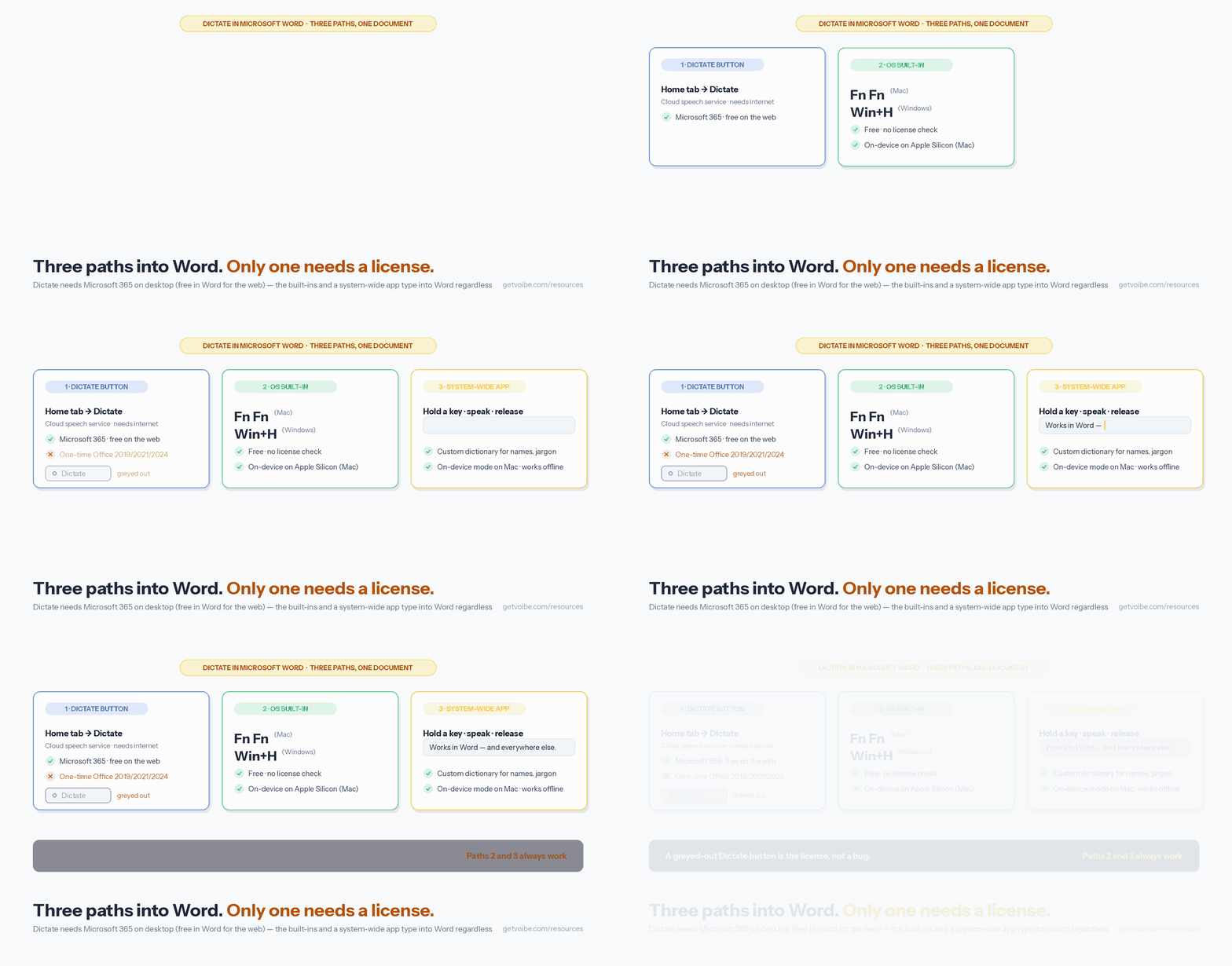
TL;DR: There are three working speech-to-text paths in Microsoft Word, and which one you should use depends on your license and where else you write:
- Word's built-in Dictate button (Home tab > Dictate) — cloud speech to text with a full set of voice commands. Requires a Microsoft 365 subscription in desktop Word; free in Word for the web with a Microsoft account.
- Your operating system's dictation — press Fn twice on a Mac or Win+H on Windows. Free, no subscription, types into Word like a keyboard.
- A system-wide speech-to-text app like Voibe — one hold-to-talk hotkey that types into Word and every other app, with a custom dictionary for names and jargon, and an on-device mode on Mac for documents that shouldn't touch a cloud server.
Setup for any path takes under 10 minutes. This guide covers all three honestly — including the licensing catch behind the greyed-out Dictate button — the same way our companion guides do for Google Docs and Gmail.
Key Takeaway
Microsoft Word has three working speech-to-text paths: the built-in Dictate button (Home > Dictate — Microsoft 365 subscribers on desktop, free in Word for the web, cloud-processed), your OS's free dictation (Fn Fn on Mac, Win+H on Windows), and a system-wide app like Voibe that types into Word and every other app with one hotkey.
Tip
Dictate button greyed out? Check your license before anything else. Word's Dictate feature requires a Microsoft 365 subscription — a one-time-purchase Office 2019/2021/2024 license doesn't include it. The fix options are in the troubleshooting section below.
The Three Ways to Dictate in Word (and Which One You Actually Have)
The confusion around speech to text in Word comes from the fact that two different dictation engines can be active in the same window — plus a third path that ignores both. Word's Dictate button is a Microsoft 365 feature that sends your speech to Microsoft's cloud speech service and drops the text into the document. Your operating system's dictation (Apple Dictation on macOS, voice typing on Windows) knows nothing about Word — it types into whatever text field has focus, Word included. And a system-wide dictation app inserts text at your cursor like keystrokes, which means it works in desktop Word, Word for the web, and every other app on your machine with the same hotkey.
Here's the honest side-by-side:
| Dimension | Word's Dictate button | OS built-in (Mac / Windows) | System-wide app (Voibe) |
|---|---|---|---|
| Cost | Included with Microsoft 365; free in Word for the web | Free with your OS | $7.50/mo, $59/yr, or $149 lifetime (7-day trial) |
| Works in | Word and other Microsoft 365 apps | Any app, including Word | Any app on Mac and Windows, including Word |
| Needs internet | Yes — always | Mac: no on Apple Silicon; Windows Win+H: yes | No in on-device mode (Mac); private cloud otherwise |
| Where speech is processed | Microsoft's cloud speech service | Mac: on-device (Apple Silicon); Windows: Microsoft's online service | On-device (Apple Silicon Mac) or Voibe's private zero-retention cloud |
| Custom vocabulary | No | No | Yes — a real dictionary that influences transcription |
| Voice commands | Yes — punctuation, formatting, lists | Punctuation basics | Automatic punctuation and capitalization; optional Smart Formatting cleanup |
| Best for | Microsoft 365 subscribers who write mostly in Office | Zero-cost dictation without a subscription | One hotkey across Word, email, Slack, browsers, and AI tools — with names and jargon spelled right |
Here is each path in order, then troubleshooting — including the greyed-out button — and the fixes when dictation types into the wrong place.
How to Use Word's Built-In Dictate Button (Microsoft 365)
Word's Dictate feature is Microsoft's own cloud speech to text, and per Microsoft's documentation it requires three things: a Microsoft 365 subscription, a microphone, and a reliable internet connection. Set it up like this:
- Open a document and confirm you're signed in with your Microsoft 365 account.
- Go to Home > Dictate. The first time, allow Word to access your microphone.
- A microphone toolbar appears. Click the mic (or press Alt + ` on Windows; Option + F1 in Word for Mac) and start speaking.
- Open the gear icon on the Dictate toolbar to set the spoken language, switch microphones, toggle auto-punctuation, and enable the sensitive-phrase filter (masks flagged phrases with ***).
- Say "pause dictation" or "stop dictation" — or click the mic — to finish.
The voice commands are Dictate's strongest feature. The useful ones:
| What you want | What you say |
|---|---|
| Punctuation | "period", "comma", "question mark", "open quote" / "close quote" |
| Break lines | "new line", "new paragraph" |
| Formatting | "bold that", "italicize that", "underline that" |
| Lists | "start list", "start numbered list", "exit list" |
| Corrections | "delete that", "backspace", "undo" |
| Controls | "pause dictation", "stop dictation", "show help" |
Language support comes in two tiers: full support for Chinese, English (multiple regions), French, German, Hindi, Italian, Japanese, Brazilian Portuguese, and Spanish — plus roughly thirty preview languages (Dutch, Korean, Russian, Swedish, Turkish, and others) that Microsoft flags as lower accuracy.
Two clarifications worth knowing. First, the licensing nuance: in Word for the web, Dictate is available free with any Microsoft account — the subscription requirement applies to the desktop apps. Second, on privacy: Microsoft states your speech is "sent to Microsoft and used only to provide you with text results" and that the service does not store your audio or transcribed text. It is still a cloud round-trip — your voice leaves the machine, and dictation dies with your connection. Don't confuse Dictate with Word's separate Transcribe feature, which converts recorded or uploaded audio files into a transcript — a different job from typing as you speak.
Info
Dictate is unavailable when a document is open in read-only mode. If the button is active but nothing types, check that you haven't opened a protected view copy — click "Enable Editing" first.
The Free Path: Dictate in Word with macOS Dictation or Windows Voice Typing
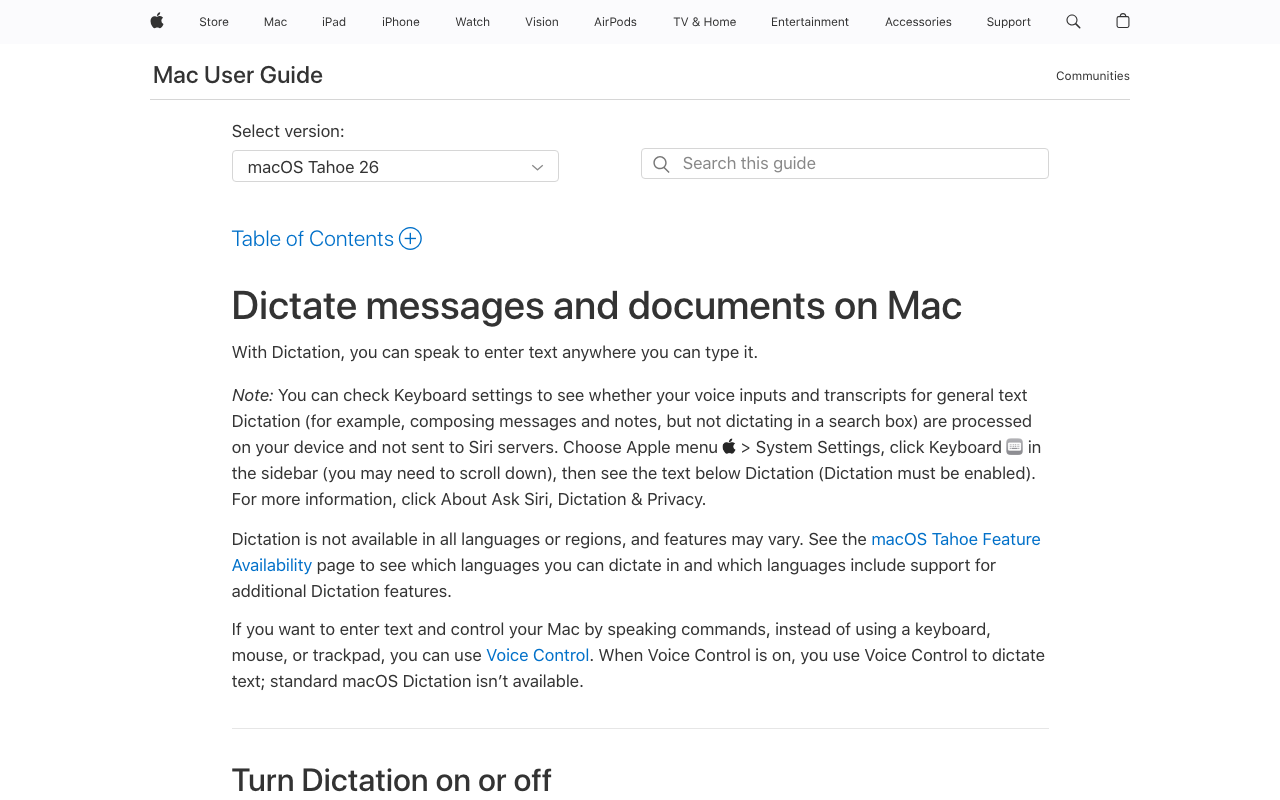
No Microsoft 365 subscription? Both operating systems ship dictation that types into Word like a keyboard — no license check, because Word never knows it's involved.
On a Mac: Press Fn Twice
- Enable it once under System Settings > Keyboard > Dictation.
- Click into your Word document, then press the Fn (or globe) key twice.
- Speak — including punctuation like "period" and "new paragraph" — and press Fn twice again (or Escape) to stop.
On Apple Silicon Macs (M1 and later), Apple processes dictation on-device, so it works offline. One caveat: Apple Dictation ends a session after 30 seconds without speech, and the cutoff is not configurable. Apple's latest macOS Tahoe 26 documentation says dictation length itself is uncapped — though that wording is new and earlier macOS versions were widely reported to stop mid-speech at around 30 seconds. Full setup, voice command tables, and the limits Apple doesn't document are in our complete Mac dictation guide; hotkey options are in the Mac dictation shortcuts guide.
On Windows: Press Win+H
- Click into your Word document and press Win + H. The voice typing panel appears.
- Tap the mic and speak. Voice typing supports 43 languages with optional auto-punctuation (enable it in the panel's settings gear).
- Press Win + H again to dismiss it.
The catch: Win+H voice typing is cloud-only — it processes speech on Microsoft's online service and stops working without internet. On Windows 11 22H2 and later, Voice Access is the offline alternative: it downloads a speech model once, then dictates and controls the whole PC on-device. Our Windows Voice Typing review scores the free stack honestly, and the Windows dictation guide walks through setup.
Both built-ins share the same two ceilings: no custom vocabulary — client names, product names, and technical terms are transcribed by guesswork every time — and no cleanup layer, so filler words land in your document as spoken.
Set Up One Speech-to-Text App That Types Into Word — and Everything Else
If Word is the only place you write, the built-ins above may be enough. The case for a system-wide app is everything else: the same voice that drafts your Word report also answers Gmail, writes in Google Docs, and prompts ChatGPT — with one hotkey and one dictionary. This guide uses Voibe — ours — because it types text at your cursor like keystrokes, which means it works in desktop Word, Word for the web, and any other app without calling either dictation engine. Voibe runs on Mac and Windows; the fully on-device mode is Mac-only (Apple Silicon), while the Windows app (launched July 2026) uses Voibe's private zero-retention cloud.
- Install. Download Voibe from getvoibe.com (7-day free trial, no account). On a Mac, drag it to Applications; on Apple Silicon (M1–M4, macOS 13+) the on-device mode downloads a local Whisper model (~2 GB) on first run. On Windows, run the installer and allow microphone access when prompted.
- Grant permissions (Mac). System Settings > Privacy & Security > Accessibility (so it can insert text) and Microphone (granted on first use).
- Set the hotkey. Voibe defaults to holding Fn: click into your Word document, hold, speak, release — the text appears at the cursor with punctuation and capitalization handled automatically (or speak it: Voibe types punctuation and symbols by name — "comma", "open bracket", "at sign"). For longer documents, Hands-Free Mode (double-tap Fn) keeps a session open without holding a key, and on Mac, Live Dictation streams the text on-screen as you speak.
- Add your dictionary. In settings, add the terms speech models get wrong: client names, product names, acronyms, industry jargon. Voibe's dictionary influences transcription itself — not a find-and-replace pass afterward — so "Q3 OKRs for Siân" lands spelled right in the document, every time. Memory shortcuts go a step further: a spoken trigger expands into preset text — a signature, a URL, a boilerplate paragraph you dictate often.
For confidential documents — contracts, HR notes, unreleased financials — the processing location matters: Word's Dictate and Windows Win+H both send speech to cloud services, while Voibe's on-device mode keeps audio on your Mac entirely (and in either mode your audio is never stored, sold, or used to train AI). The full walkthrough lives in our Voibe setup guide.
Info
Requirements: macOS 13 Ventura or later (Voibe works on Intel and Apple Silicon Macs; the on-device mode needs Apple Silicon and ~2 GB disk for the local model), or Windows with the native Voibe for Windows app. In on-device mode, dictation in Word works offline — on a plane, in a locked-down office, anywhere.
Tips for Word Documents That Need Less Cleanup
- Dictate in short, structured bursts. A focused 10–30 word phrase transcribes far better than a chained run-on — pause between thoughts, not mid-clause.
- Draft by voice, format by keyboard. Get the prose down by speaking, then apply headings, styles, and tables with the keyboard afterward. Voice is a first-draft engine, not a layout tool.
- Teach the dictionary before the big document. If your report is full of product names, client names, or acronyms, add them to your dictation app's custom vocabulary first — Word's Dictate and both OS built-ins can't learn them.
- Learn five Dictate commands. If you use Word's built-in, "new paragraph", "bold that", "start list", "delete that", and "stop dictation" cover most sessions without touching the mouse.
- Use a decent microphone for long sessions. A basic USB or headset mic audibly reduces errors versus a laptop's built-in mic in a room with echo or background noise.
- Match the engine to the document's sensitivity. Meeting notes? Any path works. A confidential contract? Use an on-device path so the audio never reaches a cloud service.
- Proofread numbers and names before sending. Numbers, dates, and proper nouns are where every speech engine slips — scan for them specifically, not just for typos.
Troubleshooting: Why Dictation Isn't Working in Microsoft Word
The Dictate button is greyed out or missing
Start with the license. Word's Dictate feature is only available to Microsoft 365 subscribers — a one-time-purchase Office 2016, 2019, 2021, or 2024 license does not include it, even though the ribbon looks otherwise identical. Also check: you're signed in with the subscribed account, the document isn't read-only (Dictate is unavailable in read-only state), and Word has microphone permission. If a subscription isn't in the cards, use Fn-Fn (Mac) or Win+H (Windows) instead — they type into Word without any license check — or dictate free in Word for the web with a Microsoft account.
Dictate starts, then stops or lags mid-sentence
Word's Dictate depends on a live connection to Microsoft's speech service, so a flaky network shows up as stalls, dropped phrases, or the mic switching itself off. Test your connection, or switch to an offline path: Apple Dictation on Apple Silicon, Voice Access on Windows 11 22H2+, or a system-wide app with an on-device mode.
macOS dictation isn't typing into Word
Confirm the Word window is frontmost and your cursor is inside the document body, then check System Settings > Privacy & Security > Microphone for Word (and Accessibility for third-party tools). If dictation works elsewhere but not Word, our Mac dictation troubleshooting guide has a dedicated Microsoft Word section, including the killall corespeechd reset for a stuck speech engine.
Win+H opens but no text appears
Windows voice typing is cloud-only — no internet, no text. Also check Settings > Privacy & security > Microphone, and that the cursor sits in an editable text field. The Windows dictation troubleshooting guide covers the rest.
Names, acronyms, and jargon come out wrong
Neither Word's Dictate nor the OS built-ins support custom vocabulary, so unusual terms are re-guessed on every mention. The two fixes: keep a find-and-replace pass at the end of each session, or use a dictation app with a real dictionary so the terms transcribe correctly in the first place.
Tools That Make Dictating in Word Easier
- Word's Dictate button — included with Microsoft 365 and free in Word for the web; the best command set for formatting by voice inside Office. Cloud-processed, needs internet, no custom vocabulary.
- Voibe — system-wide speech to text for Mac and Windows with a real custom dictionary, Hands-Free Mode, Memory shortcuts, and a locally stored transcript history; the on-device mode on Apple Silicon keeps audio on your machine, and support questions go straight to the founders. $7.50/month, $59/year, or $149 lifetime with a 7-day trial.
- Apple Dictation — the free Mac baseline; on-device on Apple Silicon, but no custom vocabulary and a 30-second silence cutoff.
- Windows Voice Typing & Voice Access — the free Windows stack; Win+H is cloud-only, Voice Access adds offline dictation on Windows 11 22H2+.
- Wispr Flow — polished cloud dictation with AI rewriting across Mac, Windows, iOS, and Android; $15/month or $144/year, cloud-only.
- Superwhisper — on-device Whisper models with deep per-app configuration; $8.49/month or $249.99 lifetime.
Weighing the whole market instead? Our ranked guide to the best speech to text apps compares these across Mac, Windows, and mobile.
Frequently Asked Questions About Dictating in Word
Setup & Cost
Is dictation in Microsoft Word free?
Word's built-in Dictate requires a Microsoft 365 subscription in the desktop app but is free in Word for the web with a Microsoft account. macOS Dictation and Windows Win+H voice typing are free and type into Word without a subscription.
Does Word have built-in speech to text?
Yes — the Dictate button on the Home tab converts speech to text through Microsoft's cloud service, with voice commands for punctuation, formatting, and lists. It's available across Microsoft 365 apps including Word, Outlook, and OneNote.
Usage
What's the keyboard shortcut for dictating in Word?
Alt + ` (backquote) toggles Word's Dictate mic on Windows; Option + F1 starts it in Word for Mac. System-wide: Fn twice (Mac) or Win + H (Windows).
Can I dictate punctuation and formatting in Word?
Yes. Word's Dictate understands "period", "comma", "new paragraph", "bold that", "start list", and similar commands — and its auto-punctuation toggle can insert periods and commas for you. System-wide tools like Voibe punctuate and capitalize automatically as you speak instead of using command words.
Troubleshooting
Why is Dictate greyed out in my Word?
Rule out the license first: Dictate is a Microsoft 365 subscriber feature, so one-time-purchase Office versions don't include it. Also check you're signed in, the document isn't read-only, and Word has mic permission.
Does dictation in Word work offline?
Word's Dictate doesn't — it needs Microsoft's cloud. Offline options that work in Word: Apple Dictation on Apple Silicon Macs, Voice Access on Windows 11 22H2+, and Voibe's on-device mode on Mac.
Start Dictating Your Word Documents
The decision comes down to license and scope. Already paying for Microsoft 365 and writing mostly in Office? The Dictate button is right there — use it, learn five commands, and you're dictating today. No subscription? Fn-Fn or Win+H gets you free dictation in Word this minute. And if your writing spans Word, email, Slack, and AI tools — or your documents are too sensitive for a cloud round-trip — one system-wide app covers all of it with a single hotkey and a dictionary that finally spells your client's name right.
Voibe is the system-wide option we build: download it free (7-day trial, no account), add your vocabulary, and dictate your next document — in Word or anywhere else.
Keep going:
- How to dictate in Google Docs — the same two-engine story, Google's version
- How to dictate in Gmail — clean email drafts by voice
- Best dictation software for pastors — drafting sermon manuscripts in Word, out loud
- Best speech to text apps — the full ranked comparison across platforms
- How to use dictation on Mac — the complete built-in setup
- Getting started with Voibe — full setup guide
Tip
You don't have to pick just one. Plenty of people use Word's Dictate for formatting-heavy work inside Office and a system-wide hotkey for everything else — the two coexist without conflict.
Best AI Dictation and Meeting Notes for Confidential Work
Draft letters, notes and emails 5x faster. Get meeting notes without a bot joining your call. Nothing used to train AI.
- Mac + Windows
- No bot in your calls
- Nothing used to train AI
- 7-day free trial
Want to compare plans first? View pricing →
Related Articles
How to Dictate in Google Docs: Voice to Text With or Without Chrome
Google Docs voice to text, two ways: free Voice Typing if you live in Chrome, or a system-wide on-device tool for any browser and every app. Setup and fixes.
7 Best Blip AI Alternatives in 2026 (Offline and Privacy-First Options)
Compare the best Blip AI alternatives for voice-to-text dictation. Find offline, privacy-first options without cloud processing or monthly word limits.
6 Best Free Dictation Apps for Mac in 2026
Compare the best free dictation apps for Mac including Apple Dictation, Google Docs Voice Typing, Whisper.cpp, and Voibe's 7-day trial. Find the hidden costs, privacy trade-offs, and limitations of each.