
How to Dictate in Claude Code (and Where Your Audio Goes)
Type /voice, hold space, talk — that's the built-in path. The full setup on Mac, Windows and VS Code, every error that breaks it, and where the audio goes.

Claude Code quietly turned the terminal into the place you write the most prose all day. Task briefs, plan-mode feedback, review instructions — an agentic session is paragraphs of intent, and typing those paragraphs is now the slowest part of the loop. Developers average roughly 40 words per minute typing; natural speech runs 150 or more.
TL;DR: There are two ways to dictate in Claude Code. The built-in way: type /voice in a session, hold the spacebar, talk, release — the transcript drops into your prompt. Switch it with /voice tap and one tap starts recording while the next one sends the prompt. The system-wide way: run a dictation tool like Voibe that types wherever your cursor is — the Claude Code prompt, the shell itself, your editor, a second agent pane, the browser, Slack. /voice is the zero-setup option; the system-wide tool is the one that covers your whole workflow on Mac and Windows, and it can keep the audio on your machine. This guide sets up both.
One fact is worth having before you pick, because it decides the question for some people. Anthropic’s voice dictation docs now state it plainly: voice dictation “streams your recorded audio to Anthropic’s servers for transcription” and “audio is not processed locally.” There is no on-device mode and no local-only toggle. That is fine for most prompts and worth a second thought for the ones full of unreleased architecture.
Key facts: dictating in Claude Code
| Question | Answer |
|---|---|
| Is there built-in voice input? | Yes — /voice, in the Claude Code CLI and the VS Code extension |
| How do you trigger it? | Hold Space (hold mode, the default) or tap Space twice (/voice tap) |
| Where is the audio transcribed? | On Anthropic’s servers. The docs state audio is not processed locally |
| Does it cost tokens? | No. Transcription does not consume Claude messages or tokens and does not count toward /usage |
| What does it require? | A Claude.ai account sign-in and a microphone on the same machine |
| How many languages? | 20, defaulting to English. Vietnamese and Arabic are not among them |
| Where does it not work? | API-key auth, Bedrock, Google Cloud’s Agent Platform, Microsoft Foundry, SSH sessions, Claude Code on the web, and VS Code Remote |
| System-wide alternative | Voibe — $149 lifetime or $7.50/month, on-device on Apple Silicon, 100+ languages, types into every app |
Key Takeaway
Dictate in Claude Code with the built-in /voice mode (hold Space to talk, or /voice tap to start and send with two taps) or a system-wide tool that types into every surface — the prompt, the shell, your editor, and every other agent pane. /voice needs a Claude.ai sign-in and a local microphone, supports 20 languages, and transcribes on Anthropic’s servers rather than on your machine.
Tip
Fastest path: type /voice in your next Claude Code session and hold spacebar to talk. If you find yourself wanting voice in the shell, your editor, and your browser too, graduate to a system-wide tool — one hotkey, every app.
Where You Actually Type in an Agentic Workflow (It's Not Just the Prompt)
An agentic coding session involves far more prose than the prompt box. In a typical hour with Claude Code you write: the task brief, answers to clarifying questions, plan-mode approvals and corrections, mid-session steering ("stop — check the migration first"), commit message tweaks, a PR description in the browser, and a Slack update about what shipped. Claude Code's /voice covers exactly one of those surfaces: the prompt input.
| Surface | Built-in /voice | System-wide dictation tool |
|---|---|---|
| Claude Code prompt (briefs, plan feedback, steering) | Yes | Yes |
| The shell itself (commit messages, branch names, CLI args) | No | Yes |
| Your editor (comments, docs, README) | No | Yes |
| Other agent panes (a second Claude Code, Gemini CLI, Codex) | Per-session only | Yes — one hotkey across all |
| Browser & Slack (PR descriptions, issue comments, updates) | No | Yes |
That's the honest framing for the rest of this guide: /voice is genuinely good at the surface it targets, and a system-wide tool is how voice covers the workflow around it. Most heavy voice users end up running both.
And if the Claude you actually live in is not the terminal one, this is the wrong guide. Claude Cowork runs the same agentic architecture with no terminal required, across files, folders, documents and spreadsheets. Dictating in Claude Cowork covers that surface — the brief structure that makes an agent run unattended, and why a Cowork brief runs several times longer than a chat prompt.
Option 1: Turn On Claude Code's Built-In /voice Mode
Claude Code’s voice mode shipped on March 3, 2026 (TechCrunch) and is now a documented, standard feature rather than a staged rollout. It costs nothing on top of your plan: per the official voice dictation docs, transcription “does not consume Claude messages or tokens and does not count toward the limits shown in /usage.” Setup takes under a minute.
- Update Claude Code. Run
claude updateso you are on a build with voice support. - Type
/voicein an active session. The first time you enable it, Claude Code runs a microphone check — on macOS that triggers the system microphone permission prompt for your terminal, if it has never been granted. You should see:Voice mode enabled (hold). Hold space to record. Dictation language: en (/config to change). - Hold the spacebar and talk. The footer shows
keep holding…during a brief warmup, thenlistening…once recording is live. Your speech appears in the prompt as you speak, dimmed until the transcript is finalized, and the cursor becomes a bar that rises and falls with your microphone level. - Release, edit, then submit. The transcript is inserted at your cursor and the cursor stays at the end of it, so you can mix typing and dictation in any order — hold
Spaceagain to append another take, or move the cursor first to drop speech somewhere else in the prompt.
Two details make it better than you expect. Transcription is tuned for coding vocabulary — regex, OAuth, JSON and localhost come out right — and Claude Code automatically feeds your current project name and git branch name in as recognition hints. Dictation also works in agent view: hold your push-to-talk key while the dispatch input or a peek-panel reply is focused and you are dictating to a background session.
Info
Hold mode is true push-to-talk: hold Space, speak, release. There is no wake word and no ambient listening — the microphone is live only while you hold the key. If holding a key is the problem, /voice tap swaps it for two taps and no warmup.
Every /voice Command, Mode, and Setting
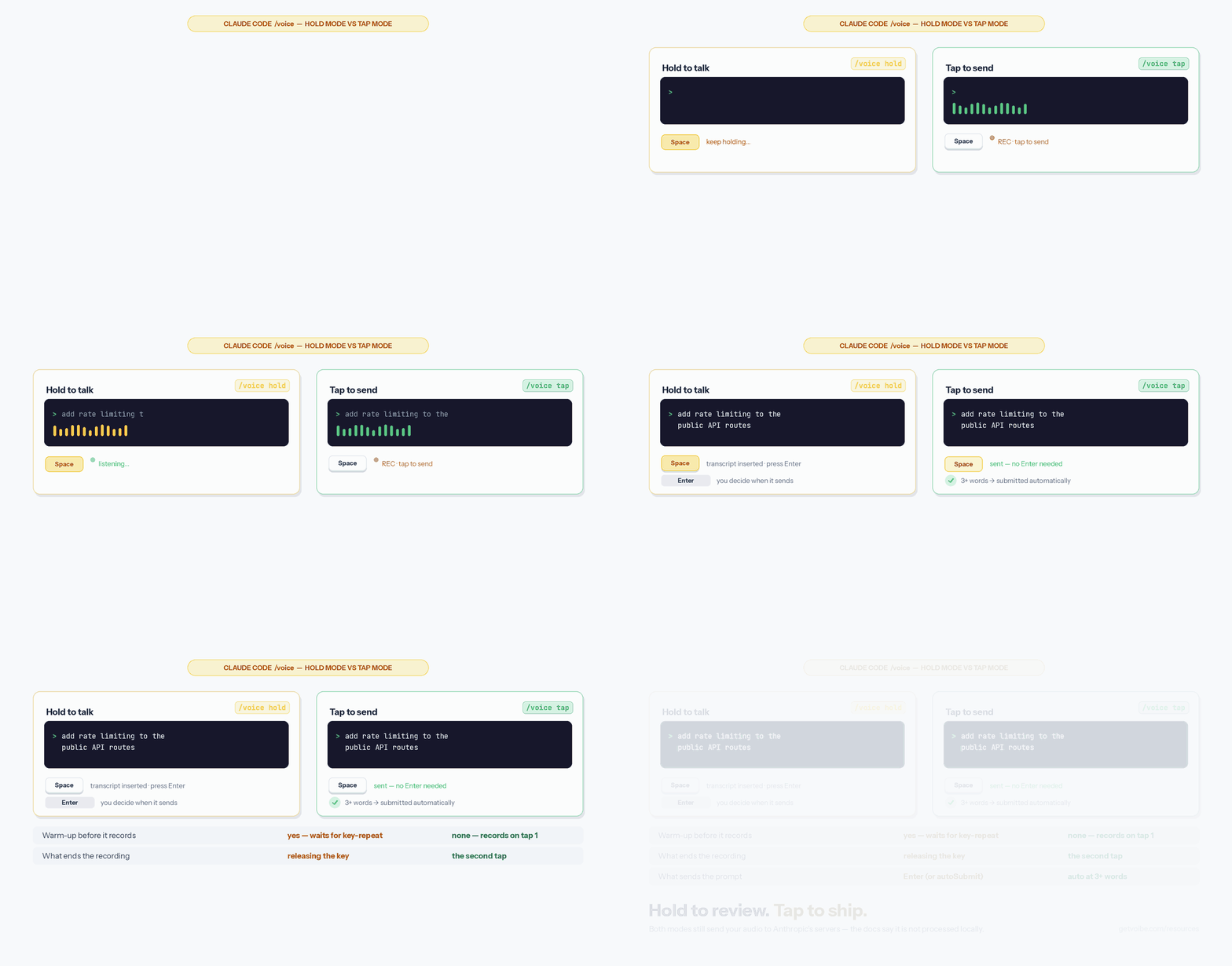
Most write-ups stop at “type /voice.” The command takes an argument, the mode you pick changes the ergonomics completely, and both stick across sessions once you write them into settings. This is the whole surface.
| Command | What it does |
|---|---|
/voice | Toggle dictation on or off, keeping the current mode |
/voice hold | Hold mode — push-to-talk: hold Space, release to insert the transcript |
/voice tap | Tap mode — tap Space to start, tap again to stop and send |
/voice off | Disable dictation |
Hold mode vs tap mode: which one you actually want
Hold mode is the default, and it is genuine push-to-talk. Claude Code detects a held key by watching for rapid key-repeat events from your terminal, which is why there is a short warmup before recording starts — the first couple of repeat characters type into your input and get removed automatically when recording activates. A single tap of Space still types a space, because hold detection only fires on repeat. On release, the transcript lands in the prompt and waits for you to press Enter.
Tap mode has no warmup and nothing to keep held. With the prompt input empty, tap Space to start — the footer shows ● REC · tap to send — then tap again to stop. Claude Code inserts the transcript and submits it automatically once it is at least three words long; anything shorter is inserted but not sent, so a stray tap never fires a one-word prompt. Recording also stops on its own after 15 seconds of silence, or two minutes total.
The practical split: hold if you want to read the transcript before it goes — steering a running agent, where a misheard file path costs you a wrong edit. Tap if holding a key is the problem — that is the accessibility answer, and the same reason a held-key hotkey is the wrong default for anyone managing RSI or hand pain (see our dictation software for RSI guide).
Make it stick: settings, autoSubmit, and a better key
Skip /voice entirely by putting the mode in your user settings file:
{
  "voice": {
    "enabled": true,
    "mode": "tap"
  }
}
Add "autoSubmit": true to that same object and hold mode sends the prompt on key release too, once the transcript clears three words.
The spacebar is not your only option either. The action is bound to voice:pushToTalk in the Chat context; rebind it in ~/.claude/keybindings.json:
{
  "bindings": [
    {
      "context": "Chat",
      "bindings": { "meta+k": "voice:pushToTalk" }
    }
  ]
}
A modifier combination like meta+k starts recording on the first keypress with no warmup at all — the fastest hold-mode setup available. Avoid binding a bare letter in hold mode: hold detection relies on key-repeat, so the letter types into your prompt while it warms up. Some keys are never delivered to terminal applications and cannot be bound at all — Caps Lock returns an error if you try.
Where /voice Won't Work: API Keys, SSH, WSL, and VS Code Remote
Voice dictation has three hard requirements, and each one fails in a way that looks like a broken microphone when it is nothing of the sort. If /voice is missing, refuses to enable, or enables and never records, check these before you touch a single audio setting.
| Requirement | What it rules out |
|---|---|
| A Claude.ai account sign-in | The speech-to-text service is unavailable when Claude Code is configured with an Anthropic API key directly, Amazon Bedrock, Google Cloud’s Agent Platform, or Microsoft Foundry. Run /login to sign in with a Claude.ai account. An organization policy can also switch dictation off account-wide. |
| A microphone on the same machine | No dictation in remote environments. Claude Code on the web and SSH sessions have no local microphone to reach, so there is nothing for /voice to record. |
| WSLg, if you run Claude Code in WSL | WSLg ships with WSL2 installed from the Microsoft Store on Windows 10 and 11. On WSL1 there is no audio path at all — run Claude Code in native Windows instead. |
Voice input in the VS Code extension — and the Remote trap
The Claude Code VS Code extension supports the same /voice dictation as the CLI, under the same Claude.ai account requirement. What it does not support is VS Code Remote — SSH, Dev Containers, and Codespaces — because the microphone is on your local machine while the extension runs on the remote host. If you develop inside a devcontainer, the built-in path is closed to you, and a system-wide tool typing into the focused editor window is the only thing that works. The same is true one layer out in Cursor, which has no /voice of its own; our guide to dictating in VS Code covers the editor surface itself — comments, docs, commit messages in the Source Control box.
Linux and WSL audio
Audio recording uses a built-in native module on macOS, Linux, and Windows. On Linux, if that module cannot load, Claude Code falls back to arecord from ALSA utils or rec from SoX, and prints an install command for your package manager if neither is present. On WSL specifically, install the PulseAudio backend as well — sudo apt install sox libsox-fmt-pulse — because plain sox pulls in the ALSA backend, and WSL has no /dev/snd device for it to record from.
The 20 Languages /voice Supports (and What to Do If Yours Isn't One)
Claude Code’s voice dictation supports 20 languages. It reuses the same language setting that controls the language Claude replies in, and if that setting is empty, dictation defaults to English — which is exactly why a German sentence spoken into a fresh install comes back as English-shaped nonsense. Set it in /config, or write it directly to settings using either the BCP 47 code or the language name:
{ "language": "japanese" }| Language | Code | Language | Code |
|---|---|---|---|
| Czech | cs | Japanese | ja |
| Danish | da | Korean | ko |
| Dutch | nl | Norwegian | no |
| English | en | Polish | pl |
| French | fr | Portuguese | pt |
| German | de | Russian | ru |
| Greek | el | Spanish | es |
| Hindi | hi | Swedish | sv |
| Indonesian | id | Turkish | tr |
| Italian | it | Ukrainian | uk |
If your language setting is not on that list, /voice warns you when you enable it and falls back to English for dictation; Claude’s text responses are unaffected. So the honest answer to “does Claude Code voice support Vietnamese?” is no — Vietnamese is not among the 20, and neither are Arabic, Hebrew, Finnish, Romanian, or Hungarian. (One wrinkle worth knowing if you dictate CJK: the tap-mode notes in the voice dictation docs describe how Japanese, Chinese, and Thai transcripts are word-counted for the three-word auto-submit threshold, but Chinese and Thai are not in the supported-language table.)
This is the one place where a system-wide tool is not merely more convenient but strictly more capable. Voibe runs Whisper, which covers 100+ languages including Vietnamese, and on Apple Silicon it does that entirely on-device — see how Whisper works for why the language coverage is so much wider. If you dictate in a language Anthropic has not shipped yet, the built-in path is not a slower path; it is not a path.
Option 2: Set Up a System-Wide Dictation Tool for Every Surface
A system-wide tool inserts text wherever your cursor is, exactly like a keystroke — which is what makes it cover the shell, your editor, the browser, and every agent pane, not just the Claude Code prompt. This guide uses Voibe — ours, and the one built for exactly this workflow — but the steps apply in spirit to any tool covered at the end.
- Install. On Mac, download the .dmg and drag it to Applications; on Apple Silicon (M1–M4, macOS 13+) it downloads a local Whisper model on first run. On Windows, grab the installer from getvoibe.com. No account needed, 7-day free trial.
- Grant permissions. On macOS: Accessibility (System Settings > Privacy & Security > Accessibility — this is what lets it type into your terminal) and Microphone. On Windows, allow microphone access when prompted.
- Set a hold-to-talk hotkey. Voibe defaults to holding Fn on Mac: press, speak, release, and the text lands at your cursor. Pick a key you can hold while your hands stay on the keyboard — see our Mac dictation keyboard shortcuts guide for conflict-free options.
- Load your Dictionary. Add the terms Claude Code sessions are full of — worktree, monorepo, Tailwind, pnpm, Vitest, your project and service names — so they transcribe correctly every time. This is a real dictionary that influences transcription, not a find-and-replace table.
- Bonus for editor terminals: if you run Claude Code inside VS Code or Cursor's integrated terminal, enable Developer Mode — Voibe detects the open workspace and resolves spoken file and folder names to their exact spelling, so "update user service" lands as
userService.ts. See how to dictate in Cursor for that setup.
On Windows: Voibe runs on Mac and Windows. The Windows app (launched July 2026) is a ground-up native app — not an Electron port — that transcribes through Voibe's private zero-retention cloud; the fully on-device mode is Mac-only (Apple Silicon). The free baseline on Windows is voice typing with Win+H, covered in our Windows dictation guide — it works in terminals but has no custom vocabulary, so CLI terms come out mangled.
Dictating a Fleet: One Hotkey Across cmux, Worktrees, and Parallel Agents
The strongest case for the system-wide approach shows up the moment you run more than one agent. Multi-agent setups are becoming normal: several Claude Code sessions across git worktrees, or a dedicated multiplexer like cmux — an open-source native macOS terminal, built on the GPU-accelerated Ghostty, designed specifically for running AI coding agents in parallel workspaces.
/voice is a per-session feature: it types into the one Claude Code prompt it was enabled in. A system-wide hotkey doesn't care which pane is focused or which agent runs inside it. Click into workspace two, hold the key, redirect that agent; click into workspace three — same key — approve a plan. It works identically whether the pane is running Claude Code, Gemini CLI, or Codex, because the tool types wherever your cursor is.
Steering three agents by keyboard means re-typing context all day. Steering them by voice is one held key and a sentence per pane. For the terminal-side setup in iTerm2, Warp, and Ghostty — including the Secure Keyboard Entry trap — see our companion guide, how to dictate in your terminal, and for where dictation fits in a full agentic stack, our agentic engineering tools piece.
What to Say: Voice Prompts That Work in Claude Code
Dictating to an agent rewards a different style than dictating an email. What works, from daily use:
- Task brief: "Add rate limiting to the public API routes. Use the existing Redis client, keep the limits configurable per route, and write tests before you refactor anything." — goal, constraints, guardrails, in one breath.
- Plan-mode feedback: "The plan looks right except step three — don't touch the schema. Work around it with a view and flag the tradeoff in your summary."
- Mid-session steering: "Stop. The test failure is in the fixture, not the handler. Re-read the setup file before changing anything else."
- Review requests: "Diff this branch against main and list anything that changes public behavior, ordered by risk."
Speak in short, structured chunks — a focused two-sentence instruction transcribes far better than a 60-word run-on. For a repeatable structure (Goal, Inputs, Constraints, Example, Output), use the Five-Part Voice Prompt framework from our guide to voice-prompting ChatGPT, Claude, and Cursor. And always glance at the transcript before you hit Enter: with /voice and system-wide tools alike, the text is editable input, not a fired command.
Dictating to Claude Desktop and claude.ai, Not Just Claude Code
A lot of people arrive here looking for voice input in Claude generally, not Claude Code specifically — and the two work nothing alike. Worse, “Claude dictation not working” usually means one of three different products with three different fixes. Here is the whole map.
| Where you’re typing | Built-in voice | How to trigger it |
|---|---|---|
| Claude Code CLI | Yes | /voice, then hold or tap Space |
| Claude Code VS Code extension | Yes | The same /voice — but not in VS Code Remote |
| Claude Desktop on Mac | Yes, through quick entry | Double-tap Option to open quick entry, then press Caps Lock to start dictating and again to finish |
| Claude Desktop on Windows | No | Quick entry is macOS-only. Use Win+H or a system-wide tool |
| claude.ai in a browser | No desktop dictation | Your OS dictation, or a system-wide tool |
| Claude mobile apps | Voice conversations | A spoken conversation, not editable dictation — different feature, different purpose |
Claude Desktop’s quick entry is the least-known of these, and it is the answer for anyone searching “how to dictate to Claude” who never opens a terminal. Double-tapping Option pops Claude over whatever app you are in; per Anthropic’s help centre, quick entry needs macOS 12 or later, the voice dictation part needs macOS 14 or later, and it is available on every plan including free. Voice is off by default, because switching it on takes over your Caps Lock key — which is also the first thing to check when Claude Desktop dictation “isn’t working.” Claude Desktop has to be running, though it can sit in the background.
The through-line: every one of these built-in options is scoped to one app. A system-wide tool is the only thing that covers the CLI, the desktop app, the browser tab, and the editor with one key. For the privacy posture behind the Claude apps themselves, see is Claude safe? and Claude Pro and Max privacy.
How much of this actually happens? In the State of AI Dictation report, the Claude desktop app took 24% of every word dictated in the month, and the average dictation into an AI assistant ran 38.6 words against 17.1 for email. The prompt is where people say the most.
Keep Your Voice (and Your Code) Private
Voice adds one more data path to think about, and Anthropic has now documented exactly where it goes. The voice dictation docs state that voice dictation “streams your recorded audio to Anthropic’s servers for transcription” and that “audio is not processed locally.” There is no on-device option and no local-only toggle: if you use /voice, your voice leaves the machine. What happens to it after that is governed by your plan’s data and training settings — our Claude Code safety guide breaks those down by tier, and the privacy settings guide covers the training opt-out and network toggles worth two minutes of your time.
A system-wide on-device tool changes the audio side of that equation, and it is the only thing that does. Voibe’s on-device mode transcribes on your Mac’s Apple Silicon — the recording never leaves the machine, and only the finished text you submit enters the Claude Code session. Spoken prompts routinely contain file names, architecture details, and unreleased product plans; on-device transcription keeps that audio inside your security perimeter. On Windows and Intel Macs, Voibe uses its private zero-retention cloud: audio is never stored, sold, or used to train AI. For the deeper comparison, see cloud vs local dictation.
One related prompt worth recognizing before you answer it on autopilot: Claude Code’s post-rating question about sharing your session transcript. Answering yes ships the whole session — our session transcript privacy guide explains exactly what uploads.
Going the Other Way: Letting Claude Code Hear a Recording
Everything above is about your voice going into the prompt. There is a second direction that belongs in the same workflow: Claude Code transcribing audio you already have — a standup recording, an interview, a voice memo you left yourself.
Voibe's speech-to-text API runs a hosted MCP server, so connecting it is one command:
claude mcp add --transport http voibe https://api.getvoibe.com/mcp \
  --header "Authorization: Bearer $VOIBE_KEY"
That registers four tools — create_transcription_job, get_transcript, list_transcripts and get_balance — and from there the whole job is a sentence: “transcribe my latest Zoom recording and summarise the decisions and action items.” Claude Code reads the folder itself, so there is nothing to upload by hand. The server cannot see or create API keys and cannot buy minutes, which makes it a low-stakes thing to connect.
Billing is per second and charged only on a delivered transcript, so the retries an agent makes on its own cost nothing, and the audio is deleted the moment the text exists. If you would rather not use MCP, the same thing is three REST endpoints and a bearer token. Transcribing a Zoom recording walks through the whole loop, including putting it on a cron so it happens overnight.
Try Voibe on Your Next Claude Code Session
![Screenshot of the Voibe homepage at getvoibe.com. The headline reads “Get 1 hour back in your day, every day”, above the subheading “Type 5x faster with your voice. Accurate, instant dictation that works in every app on your Mac or PC” and a “Try Voibe for free” button noting no credit card required and that it works on Mac and Windows. A banner across the top advertises a limited-time saving of up to 33% on every plan; the navigation lists Home, Why Voibe, How to Use and Pricing. To the right, a mock document window titled Henderson-v-Mercer[Confidential].docx shows a Case Notes heading with a dictation waveform standing in for typed text. A row of customer logos runs along the bottom.](/resources/images/screenshots/voibe-website.jpg)
If the last two sections landed — /voice covers one input box, and the audio behind it goes to Anthropic’s servers — this is the ten-minute version of doing something about it. Voibe is our dictation app, built for exactly the workflow this guide describes.
What it changes about a Claude Code day:
- One hotkey, every surface. Hold Fn and talk into the Claude Code prompt, the shell, a second agent pane, your editor, the PR description in the browser, the Slack update afterwards.
/voicereaches the first of those. - The audio can stay on your machine. On Apple Silicon (M1–M4, macOS 13+) Voibe runs Whisper on-device: the recording never leaves the Mac, and only the text you submit enters the session. On Windows and Intel Macs it uses a private zero-retention cloud — audio is never stored, sold, or used to train AI.
- A Dictionary that knows your stack. Add worktree, pnpm, Vitest, your service names, and they transcribe correctly every time.
/voicehas no user-editable vocabulary. - Developer Mode for editor terminals. Run Claude Code inside VS Code or Cursor and Voibe resolves spoken file and folder names against the open workspace, so “update user service” lands as
userService.ts. - 100+ languages, including the ones missing from
/voice’s list of 20 — Vietnamese and Arabic among them.
What it costs. $149 once for a lifetime licence, or $7.50/month, or $59/year (see how that compares across the category). The lifetime licence is $100 less than Superwhisper’s $249 — 40% cheaper — and against Wispr Flow’s $144/year subscription it pays for itself in just over a year, then keeps working. There is a 7-day free trial and no account required to start; full plan details are on Voibe pricing.
Download Voibe for Mac — or grab the Windows installer from getvoibe.com. Then open Claude Code, hold your key, and dictate the task brief you were about to type.
Tip
Fastest honest test: run both for a day. Use /voice for prompts, and let Voibe handle the shell, the commit message, the PR description, and the Slack update. The gap between the two is the thing this guide is actually about.
Claude Code Dictation Not Working: Every Error and Its Fix
First: which Claude are you actually in?
“Claude dictation not working” splits three ways, and the fixes do not overlap. In the Claude Code CLI or VS Code extension, it is /voice and the table below. In Claude Desktop on Mac, it is quick entry — voice is off by default and needs macOS 14 or later. With a system-wide dictation tool, it is almost always Accessibility permission or Secure Keyboard Entry, further down this section.
/voice isn’t available in my session
Run claude update first. If the command is still unrecognized, you are hitting a requirement rather than a bug: /voice needs a Claude.ai account sign-in and is unavailable on API-key auth, Amazon Bedrock, Google Cloud’s Agent Platform, and Microsoft Foundry. Run /login to switch. An organization policy can also disable dictation account-wide.
What each /voice error message actually means
| Message | What it means and what fixes it |
|---|---|
Voice mode requires a Claude.ai account | You are authenticated with an API key or a third-party provider. Run /login and sign in with a Claude.ai account. |
Voice mode is disabled by your organization’s policy | An administrator policy turns dictation off. Only your org admin can change it. |
Microphone access is denied | Your terminal lacks microphone permission. macOS: System Settings > Privacy & Security > Microphone, enable your terminal app. Windows: Settings > Privacy & security > Microphone, turn on access for desktop apps. Then run /voice again. |
Voice mode requires SoX for audio recording (Linux) | The native audio module could not load and no fallback is installed. Install SoX with the command in the error, e.g. sudo apt-get install sox. |
Voice mode could not find a working audio recorder in WSL | WSLg routes audio through PulseAudio, not ALSA. Run sudo apt install sox libsox-fmt-pulse — installing sox alone pulls the ALSA backend, which cannot record on WSL. |
No audio detected from microphone | Recording started and captured silence. Confirm the right input device is the system default and its level is not muted — a classic after plugging in a USB mic or switching to AirPods. |
Voice connection failed | The recording never reached the transcription service. Check your network and retry. |
Voice stream error: WebSocket upgrade rejected with HTTP <status> | A server refused the connection, so this is not a network outage. A 400-range status usually means a stale sign-in, or a proxy or bot-protection service answering in place of the transcription service. Run /login, and check for a VPN or corporate proxy on the path. |
No speech detected | Audio arrived but no words were recognized. Move closer to the mic, cut background noise, and confirm your dictation language matches what you are speaking. |
Voice input is failing repeatedly and has been paused | Three capture failures inside 10 seconds. Dictation pauses until 10 seconds have passed. Fix the underlying cause above — usually a denied permission or a host with no capture device — then trigger voice again. |
Nothing happens when I hold the spacebar
Watch the prompt input while you hold. If spaces keep accumulating, dictation is simply off — run /voice hold. If one or two spaces appear and then nothing, dictation is on but hold detection is not triggering: it depends on your terminal sending key-repeat events, and it cannot detect a held key when key-repeat is disabled at the OS level. Switch to /voice tap, which has no key-repeat requirement. And if tapping Space types a space instead of recording, remember the first tap only starts recording when the prompt input is empty — clear it first.
My terminal isn’t listed in macOS Microphone settings
If your terminal never appears under System Settings > Privacy & Security > Microphone, there is no toggle to flip; you have to reset the permission so macOS prompts again:
- Run
tccutil reset Microphone com.apple.Terminal— orcom.googlecode.iterm2for iTerm2. For another terminal, find its identifier withosascript -e 'id of app "AppName"'. - Quit the terminal with Cmd+Q, not just closing its windows — macOS will not re-prompt a process that is already running.
- Reopen it, start Claude Code, run
/voice, and allow the prompt.
Do not run tccutil reset Microphone without a bundle ID. It revokes microphone access from every app on your Mac, Zoom and Slack included, and each one re-prompts on next use. Running that mid-call is a bad day.
Dictated text isn’t appearing in the terminal (system-wide tools)
This is almost always one of two things, and neither applies to /voice. On macOS, confirm the Accessibility permission (System Settings > Privacy & Security > Accessibility) — that is what lets a tool type into your terminal; if it is enabled and still not typing, remove and re-add the app to reset the grant. The sneakier cause is Secure Keyboard Entry: iTerm2 and Apple’s Terminal both have it, and while it is on, macOS blocks accessibility tools and global hotkeys, so dictation silently stops working in that window. Toggle it off from the app menu (see the iTerm2 FAQ). Our Mac dictation troubleshooting guide covers the rest of the permission stack.
Technical terms come out wrong
/voice is tuned for coding vocabulary and quietly adds your project name and git branch as recognition hints, which handles more than you would guess. What it has no answer for is your own stack: there is no user-editable vocabulary, so a mangled library or service name means editing the prompt by hand before you submit. A system-wide tool with a real custom Dictionary is the fix — add the library names, CLI tools, and project terms once and they transcribe correctly every time.
The microphone isn’t picking up
Which app needs mic permission depends on which path you are using, and this trips people up. For /voice, the terminal needs microphone access, because Claude Code records through it. For a system-wide tool, the dictation app needs it and the terminal does not. Either way, confirm the right input device is selected — a common failure right after plugging in a USB mic or switching to AirPods.
Tools That Make Dictating in Claude Code Easier
Five practical options, with the trade-off that matters for each:
One thing none of these do, worth knowing because it comes up constantly: they put your voice into the prompt, not a recording into the transcript. If what you have is an audio file — a Zoom call, an interview, a voice memo — that is the transcription API, and Claude Code can drive it for you. See how to transcribe a Zoom recording for the version where the agent finds the file, transcribes it and writes the notes.
- Voibe — system-wide on Mac and Windows, with a real custom Dictionary and Developer Mode for editor terminals. On Apple Silicon it runs fully on-device; on Windows and Intel Macs it uses a private zero-retention cloud. $149 lifetime or $7.50/month, 7-day free trial, no account. The fit for daily agent work: one hotkey across Claude Code, the shell, cmux panes, and everything else. See our best dictation software for developers roundup.
- Claude Code /voice — built in, free with your plan, zero setup. Prompt-only, push-to-talk via spacebar, English-focused, no custom vocabulary. The right answer for trying voice today.
- Superwhisper — on-device Whisper modes, and v2.13 added a dedicated Claude Code / OpenCode terminal-agent integration. Deeply configurable (its per-app modes are the signature), with a setup-complexity trade-off users consistently flag. ~$8.49/month or $249.99 lifetime — $100 more than Voibe's $149 lifetime.
- Wispr Flow — polished cloud dictation across Mac and Windows, $144/year with no lifetime option. Capable, but transcription runs in the cloud — weigh that against dictating unreleased code and architecture out loud.
- Apple Dictation / Windows voice typing (Win+H) — the free built-ins. Fine for a quick sentence; both lack custom vocabulary, so CLI and project terms need hand-fixing.
- Typeless — cross-platform dictation that markets a Claude Code workflow directly, and the one people mean when they search “Typeless Claude Code.” Pro is $30/month billed monthly or $12/month billed annually ($144/year), with a free tier capped at 8,000 words per week. Worth knowing before you commit: its processing runs in the cloud (AWS) despite on-device-sounding marketing — we unpack that in the Typeless review. Over three years it costs $432 against Voibe’s $149 one-time, a $283 difference.
Frequently Asked Questions About Dictating in Claude Code
Basics
Does Claude Code have voice input?
Yes — type /voice in a session, hold spacebar to talk, release to transcribe. It rolled out from March 2026 on Pro, Max, Team, and Enterprise plans. Any system-wide dictation tool also types into the Claude Code prompt, plus every other app.
Is /voice the same as Claude's voice conversations on mobile?
No. Claude Code's /voice is dictation — speech becomes editable text in your prompt. The Claude app's voice feature is a spoken conversation. In Claude Code you keep full control of what gets submitted.
Setup
Can I dictate into Claude Code on Windows?
Yes — /voice inside the prompt, or a system-wide tool for every surface. Voibe for Windows is a native app using a private zero-retention cloud; Win+H voice typing is the free baseline.
Which hotkey should I use for a system-wide tool?
One you can hold comfortably while your hands stay on the keyboard — Voibe defaults to Fn on Mac. Avoid keys your terminal multiplexer already binds.
Privacy
Is dictating proprietary code safe?
Spoken prompts contain file names, architecture, and plans. With on-device transcription the audio never leaves your machine — only the text you choose to submit enters the session. With cloud transcription (including /voice, whose processing location is undocumented), treat audio like the rest of your session data.
Workflow
Does /voice use up my rate limits?
Reported testing says transcription itself doesn't count; usage is consumed when you submit the prompt, same as typing.
Can one dictation setup drive multiple agents?
Yes — that's the system-wide tool's strongest case. One hold-to-talk hotkey types into whichever pane is focused: several Claude Code sessions, cmux workspaces, or other agent CLIs.
Modes & keys
What is the difference between /voice hold and /voice tap?
Hold mode is push-to-talk: hold Space, speak, release, and the transcript waits in your prompt for Enter. Tap mode records on the first tap of Space and submits on the second, automatically, once the transcript is at least three words. Hold has a short key-repeat warmup; tap has none.
Can I change Claude Code’s push-to-talk key?
Yes. The action is voice:pushToTalk in the Chat context — rebind it in ~/.claude/keybindings.json. A modifier combination such as meta+k records from the first keypress with no warmup. Bare letter keys are a bad idea in hold mode, and Caps Lock cannot be bound at all.
Languages
Does Claude Code voice dictation support Vietnamese?
No. /voice supports 20 dictation languages and Vietnamese is not one of them; if your language setting is outside that list, dictation falls back to English. An on-device Whisper-based tool such as Voibe covers 100+ languages including Vietnamese.
Start Talking to Your Agent
The prose is the bottleneck now. Claude Code's /voice makes the prompt speakable today — type it in your next session and you're dictating in under a minute. When you notice how much of your day is still typed — the shell, the second agent pane, the PR description, the Slack update — that's the moment for a system-wide tool.
Voibe is built for that layer: on-device on Apple Silicon, native on Windows via a private zero-retention cloud, one hotkey everywhere. Download it free (7-day trial, no account) and dictate your next task brief instead of typing it.
Keep going:
- How to dictate in your terminal — iTerm2, Warp, Ghostty, and the Secure Keyboard Entry trap
- How to voice-prompt ChatGPT, Claude, and Cursor — the Five-Part Voice Prompt framework
- How to dictate in Cursor — Developer Mode and the AI editor
- How to dictate in VS Code — the editor surface around the agent
- Is Claude safe? — the desktop and web apps, not just the CLI
- Is Claude Code safe? — privacy and data retention by tier
- Best dictation software for developers — the full buyer's view
- Getting started with Voibe — complete setup guide
Tip
Try this today: open Claude Code, type /voice, hold spacebar, and speak your next task brief — goal, constraints, guardrails. Then notice how much faster the session starts when the three paragraphs of intent took twenty seconds.
Best AI Dictation and Meeting Notes for Confidential Work
Draft letters, notes and emails 5x faster. Get meeting notes without a bot joining your call. Nothing used to train AI.
- Mac + Windows
- No bot in your calls
- Nothing used to train AI
- 7-day free trial
Want to compare plans first? View pricing →
Related Articles
How to Dictate in Cursor: Every Input, Not Just the Agent
Cursor's voice mode fills the Agent prompt and nothing else — and won't send on a keyword. Speech-to-text for every Cursor input, on Mac, Windows and Linux.
How to Dictate in Your Terminal: iTerm2, Warp, and Ghostty
Your terminal is where the prose lives now — agent prompts, commit messages, PR bodies. Voice setup for iTerm2, Warp, Ghostty, and Windows Terminal.
How to Dictate in VS Code: Voice Coding & Copilot (2026)
Dictate in VS Code by voice: use the on-device VS Code Speech extension, or a system-wide tool that types into every app plus resolves your workspace file and folder names. Setup, Copilot voice-prompting, and tips.