

Meeting Action Items Prompt: The Quick Answer
The prompt below turns meeting notes into a table of action items, with an owner, a task, a due date and a source line for each one. It's for whoever runs the meeting or chases the work afterwards: project leads, managers, chiefs of staff and team leads.
Most AI summaries end with a list called next steps that nobody owns. Some items have no name, and others carry a deadline the assistant made up. This prompt only lists work a person agreed to do. When nobody said a date, the table says no date stated.
It comes in two forms. The paste version works on one meeting in any assistant. The MCP version uses Voibe Meeting MCP, a connector explained below, to let Claude read your last few meetings and list every action still open across them.
Both work with notes from Voibe Work, the meeting-notes plan we build, which takes notes with no bot in the call. They work with notes from other tools too.
Key takeaways
| Question | Answer |
|---|---|
| What does the prompt produce? | A table with owner, task, due date and source line for each action, plus lists of unowned work and [CHECK] items |
| What counts as an action item? | Work a named person agreed to do; status updates and decisions on their own don't count |
| What if nobody gave a date? | The Due cell says no date stated; relative dates like next week stay as said |
| One meeting or several? | The paste version reads one meeting; the MCP version reads your last few meetings and finds what is still open |
| Which assistant does it need? | Any assistant for the paste version; Claude Desktop with Voibe Meeting MCP for the MCP version |
| What do you check before sharing? | Owners, dates, anything under Unowned, and every [CHECK] item |
Key Takeaway
The meeting action items prompt lists only work a named person agreed to do, as owner, task, due date and source line, and writes no date stated when nobody gave a date. The MCP version also finds every open action across your last few meetings.
The Action Items Prompt to Copy: the Paste Version
The paste version works in ChatGPT, Claude, Gemini or any other assistant. Paste the transcript or summary at the bottom and run it.
List every action item from the meeting notes pasted below.

Audience: everyone who was in the meeting, and whoever has to chase the actions later.
Format: one table with four columns, in this order:
- Owner: the person who agreed to do it, by name.
- Task: what they will do, starting with a verb, under 15 words.
- Due: the date or day exactly as it was said. If no date was said, write "no date stated".
- Source: the speaker, the timestamp if the notes have one, and the line that created the action, quoted in under 20 words.
Sort the table by owner. After the table, add two short lists:
- Unowned: work someone said should happen but nobody agreed to do.
- [CHECK] items: everything you marked as unclear, or none.

Rules:
- An action item needs a person who agreed to do something. "We should" with no owner goes under Unowned.
- A status update is not an action item. A decision is not one either, unless someone agreed to carry it out.
- Use only names, tasks and dates from the notes. Never invent an owner or a deadline, and never turn "soon" or "next week" into a calendar date.
- If two people share a task, list it under both names.
- If a name, task or date is unclear, write [CHECK: what is unclear] in that cell.
- No commentary before or after the table.

Notes:
[paste the transcript or summary here]
Why each rule is there
- Owner by name: an action owned by the team is owned by nobody. If no one agreed, the item goes under Unowned instead.
- Due as said: assistants like to turn next week into a tidy date. Keeping the words as spoken stops a guess from becoming a deadline.
- No date stated: an empty Due cell looks like a mistake. These three words show that nobody set a date, which is worth knowing.
- Source line: a quoted line with a timestamp settles any argument about who said they'd do it.
- Unowned list: we should do X is how work gets lost. Listing those items apart gives the meeting lead something to assign.
I'd keep the no-commentary rule. Without it, most assistants open with a paragraph about a productive meeting before they reach the table.
The MCP Version: Every Open Action Across Your Last Meetings
The MCP version lets Claude read the meetings itself. Voibe Meeting MCP is a Voibe Work feature that lets AI apps such as Claude read your meetings. MCP, short for Model Context Protocol, is the standard AI apps use to connect to other software.
Reading several meetings is what makes it useful here. Which actions from the last four project syncs are still open? A paste can't answer that without four pastes. Meeting MCP comes with Voibe Work and the 7-day trial.
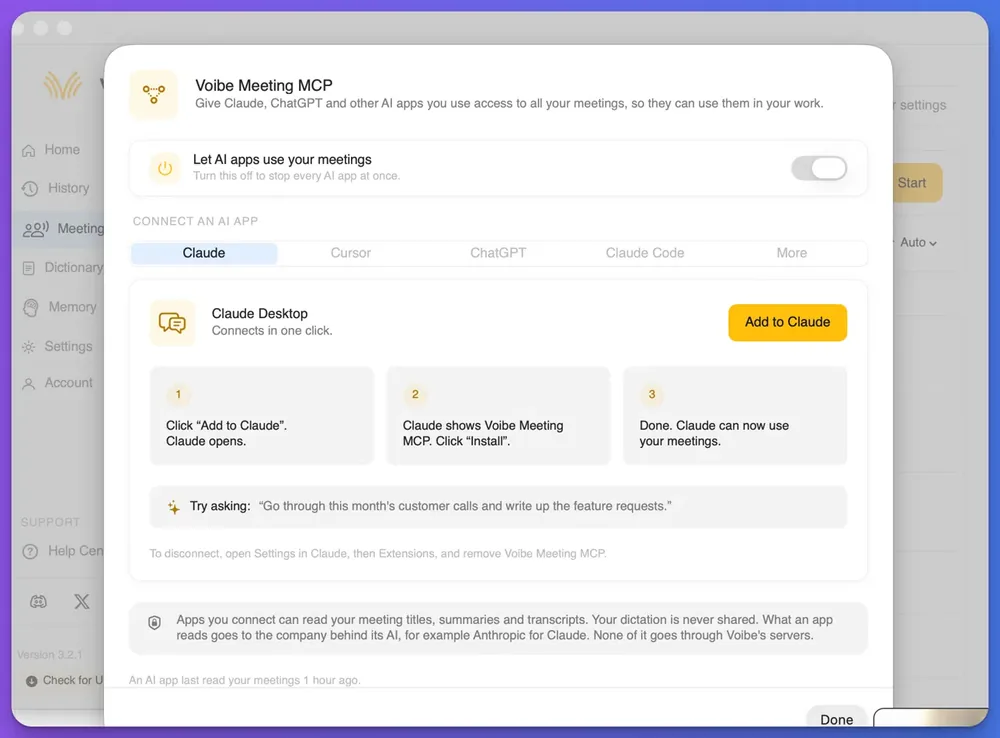
Connect Meeting MCP to Claude Desktop
Claude Desktop is Anthropic's Claude app for Mac and Windows. Connecting it takes three steps:
- In Voibe Work, click MCP on the Meetings page. Check that Let AI apps use your meetings is switched on.
- On the Claude tab, click Add to Claude, and Claude Desktop opens.
- Claude shows Voibe Meeting MCP. Click Install, and Claude can now use your meetings.
To disconnect later, open Settings in Claude, then Extensions, and remove Voibe Meeting MCP.
The MCP version for one meeting
Read my meeting "[meeting title]" from [date] in Voibe.

List every action item in one table: Owner, Task (verb first, under 15 words), Due (exactly as said, or "no date stated"), Source (speaker, timestamp and the line, quoted in under 20 words). Sort by owner.
After the table, list Unowned work (someone said it should happen, nobody agreed to do it) and every [CHECK] item.

Only list an action if a person agreed to do it. Use only names, tasks and dates from the meeting, and never turn a relative date into a calendar date. Write [CHECK: what is unclear] wherever you are unsure.
The MCP version for your last few meetings
This is the prompt to run before a recurring meeting. It finds open actions, carry-overs and overdue items. A carry-over is an action raised in one meeting that comes up again in a later one, still not done.
Read my last [N] meetings in Voibe with [team, client or meeting name]. Today is [date].

List every action item that is still open. An action is open unless a later meeting says it was done or dropped.

Format: one table per owner, with columns Task, Due (as said, or "no date stated"), First raised (meeting and date), Source (the line, quoted in under 20 words) and Status.
Status is one of:
- open: raised once, not done yet;
- carried over: raised again in a later meeting and still not done;
- overdue: the due date said in the meeting has passed.
After the tables, list the actions a later meeting marked as done, with that meeting's date.

Only list an action if a person agreed to do it. Use only what was said in the meetings. Write [CHECK: what is unclear] wherever you are unsure, and list every [CHECK] item at the end.
Set N to cover the period you care about, such as the last four weekly syncs. Claude can only judge an action done if a later meeting says so. Work finished between meetings without anyone mentioning it will still show as open.
Worked Example: A Project Sync Becomes an Action Table
The meeting below is invented: a website relaunch team at a made-up agency, in a two-minute stretch of its weekly sync, which Nadia runs. Every line carries a speaker name and a time, the way a meeting transcript does.
The transcript excerpt
[14:00:12] Nadia: First, the launch date. Are we still on for the 3rd?
[14:00:20] Owen: Yes, if the content freeze holds. I'll set up the staging redirects by Wednesday.
[14:00:41] Rosa: The new icons are done. I still need final copy for the pricing page.
[14:00:52] Nadia: I'll chase Martin for the pricing copy today.
[14:01:10] Owen: Someone should check the contact form on mobile. It broke last time.
[14:01:18] Rosa: I can look at it, but not before Thursday.
[14:01:30] Nadia: Fine. We should probably update the FAQ at some point too.
[14:01:44] Owen: I'll draft the launch checklist. Maybe Kim can review it?
[14:01:52] Nadia: I'll ask her. Rosa, can you send me the icon files?
[14:01:58] Rosa: Sure.
The action table the prompt produces
| Owner | Task | Due | Source |
|---|---|---|---|
| Nadia | Chase Martin for the pricing page copy | today | 14:00:52 Nadia: “I'll chase Martin for the pricing copy today.” |
| Nadia | Ask Kim to review the launch checklist | no date stated | 14:01:52 Nadia: “I'll ask her.” |
| Owen | Set up the staging redirects | Wednesday | 14:00:20 Owen: “I'll set up the staging redirects by Wednesday.” |
| Owen | Draft the launch checklist | no date stated | 14:01:44 Owen: “I'll draft the launch checklist.” |
| Rosa | Check the contact form on mobile | no date stated [CHECK] | 14:01:18 Rosa: “I can look at it, but not before Thursday.” |
| Rosa | Send Nadia the icon files | no date stated | 14:01:58 Rosa: “Sure.” |
Unowned
- Update the FAQ (14:01:30 Nadia: "We should probably update the FAQ at some point too.")

[CHECK] items
- Rosa, contact form: "not before Thursday" gives a start day, not a due date.
What the prompt did with it
- The launch date stayed out: the 3rd is a plan the team confirmed, not a task anyone took on.
- The finished icons stayed out: a status update is not an action item.
- Owen's mobile check went to Rosa: Owen said someone should do it, and Rosa is the one who agreed.
- The FAQ went under Unowned: Nadia said we should, and nobody took it on.
- Thursday got a [CHECK]: not before Thursday is a start day, so the prompt didn't treat it as a deadline.
Nadia now has one thing to assign, the FAQ, and one thing to ask Rosa, a real due date for the form check.
How to Adapt the Action Items Prompt
The core prompt fits most working meetings. Add one of these lines to either version when your meeting needs something different.
For client meetings: split ours from theirs
After a client call, the actions on their side matter as much as yours. Add this line:
Split the table into two: Our actions and Client's actions. A client action is anything the client agreed to send, decide or do.To send the client their half, our meeting follow-up email prompt turns the same notes into an email with next steps and dates.
For your own to-do list
Sometimes you only want your own tasks, in a format your to-do app accepts:
List only the action items assigned to [your name], as a checklist I can paste into my to-do app: "- [ ] task (due)". Keep "no date stated" where no date was said.With calendar dates
Tell the assistant the meeting date if you want real dates, and keep the [CHECK] so you confirm each one:
The meeting took place on [weekday, date]. In the Due column, keep the words as said, then add the calendar date in brackets with [CHECK], for example: Wednesday [5 November, CHECK].For stand-ups, one-to-ones and planning meetings
- Stand-ups: most items are status updates, so expect a short table. Our standup meeting notes template keeps tickets to create in their own section.
- One-to-ones: actions run both ways, from manager to report and back. Our one-on-one meeting notes template tracks carry-overs from last time.
- Planning and retros: when the actions should become tickets, our meeting notes to tickets prompt adds a description and acceptance criteria.
What to Check Before You Share the Action List
An action list tells people what they promised, so a wrong owner causes real friction. Read the table against the transcript before you post it in the team channel.
- Owners: check each name against the source line. A transcript writes names as they sound, so rename speakers before you run the prompt.
- Agreement: make sure each owner actually agreed. Being asked to do something isn't the same as saying yes.
- Dates: confirm every date, and decide what to do with each no date stated. Leave it, or ask the owner for one.
- Unowned work: assign each item or drop it on purpose, so nothing sits in limbo.
- [CHECK] items: fix every one and delete the list before sharing.
Read the source column once more before anything leaves the team. Quotes from a meeting can carry remarks people wouldn't want forwarded to a client or a wider group.
Run the Action Items Prompt on Your Voibe Work Meetings
Voibe Work gives the prompt a transcript with names and times, and no bot joins the call. It captures the meeting from your Mac or Windows PC in Zoom, Microsoft Teams, Google Meet, Webex, Slack huddles or any other meeting app. It also records in-person meetings through your computer's microphone.
Where the prompt's input comes from
- The transcript: it labels each speaker and puts a time next to every line, which is what the Source column quotes. Click a speaker's name to rename them, and the summary updates.
- The summary: Voibe Work summarizes each meeting with a template for its type, and you can create your own template.
- Getting it out: one-click copy puts the transcript or summary on your clipboard for the paste version. PDF export gives you a file.
Meeting audio is processed by open-source models on zero-retention cloud providers and deleted as soon as processing completes. The transcript and summary are saved on your computer, not on Voibe's servers, and never used to train AI. Processing runs in the cloud, so meeting notes need an internet connection.
Who sees the meeting when you run the prompt
The MCP version gives Claude read access to your meetings. The Meeting MCP panel spells out who sees what:
“Apps you connect can read your meeting titles, summaries and transcripts. Your dictation is never shared. What an app reads goes to the company behind its AI, for example Anthropic for Claude. None of it goes through Voibe's servers.”
Turning off Let AI apps use your meetings stops every AI app at once. With the paste version, whatever you paste into ChatGPT, Claude or Gemini goes to that AI company under its terms.
For a quick question about one meeting, ask Voibe Work's built-in meeting chat instead. In-app chat runs on Voibe's zero-retention cloud, and nothing you ask is stored.
Tell everyone before you record
When recording starts, Voibe reminds you to tell everyone you're taking notes. Following the consent rules where each person is stays your responsibility. Our guide to AI notetaker recording consent laws covers them.
What it costs
Voibe Work costs $19 a month, $149 a year or $399 once per seat. One seat covers Mac and Windows. Every new account starts with a 7-day trial of every Voibe Work feature, Meeting MCP included. There's no credit card and no automatic charge.
New to Voibe Work? The first-week setup guide walks you through it.
Get an action list from your next meeting
7 days of every Voibe Work feature on Mac or Windows. No credit card.
Meeting Action Items Prompt FAQ
Action items
What makes a good meeting action item? One named owner, a task that starts with a verb, and a due date if one was said. A source line shows where it was agreed.
What if nobody set a due date? The prompt writes no date stated. Ask the owner for a date, or leave it if the task can wait.
Are decisions action items? Not on their own. A decision becomes an action only when someone agrees to carry it out.
Using AI assistants
Can ChatGPT pull action items from a meeting transcript? Yes. Run the paste version with the transcript in ChatGPT, Claude or Gemini, then check owners and dates before sharing.
Can AI find open action items across several meetings? Yes, with the MCP version. Claude reads your last few meetings through Voibe Meeting MCP and lists what is still open.
Can Claude add the actions to my task app? Voibe Meeting MCP only lets Claude read meetings. Copy the table or the checklist variant into your task app yourself.
Voibe Work and privacy
Where does Voibe Work keep meeting notes? On your computer, not on Voibe's servers. The audio is deleted as soon as processing completes, and the notes are never used to train AI.
Which plans include Meeting MCP? Voibe Work, at $19 a month, $149 a year or $399 once per seat. The 7-day trial every new account gets includes it too.
No Owner, No Action
An action list is only useful if every line has a person behind it. Run the paste version when a meeting ends. Run the MCP version before the next one, so open and carried-over work comes back to the table. Keep the no date stated rule and the Unowned list in every variant.
More prompts like this one are in our AI prompts for meeting notes library. Our guide to AI meeting notes templates covers the summaries those prompts start from.