

How to Stop Meeting Bots Joining Your Calls: The Quick Answer
You signed up for a notetaker once, maybe just to read a summary a client sent you. Now a bot with your name on it turns up to every meeting on your calendar, and the guest list gets an email afterwards.
To stop meeting bots joining your calls, first work out whose account sent the bot, because the fix is different for each case:
- If it's your bot, turn off auto-join and the recap emails, disconnect your calendar, then delete the account and revoke its Google or Microsoft access.
- If it's someone else's bot, lock your meetings. Use a Zoom waiting room for signed-in users only, keep Teams bot detection on, and set Google Meet to Restricted with ask-to-join switched off.
- If a bot is already in the call, remove it like any participant. Some bots also leave on a chat command, such as
stop otterorOpt outfor Read AI.
Each vendor fix takes about five minutes. The host settings take about ten, and you set them once. Every step below links the help article it comes from, checked on November 4, 2026.
Quick-fix table: where each bot's off switch lives
| Bot | Turn off auto-join | Remove it for good |
|---|---|---|
| Otter Notetaker (formerly OtterPilot) | Integrations, Meetings tab, Default auto-join settings: Meetings I manually select | Disconnect the calendar under Integrations, then Account Settings, General, Delete account |
| Fireflies (Fred) | Settings, Personal, Recording & Privacy: turn off Auto-record meetings | Settings, Account, Delete my account |
| Read AI | Account Settings, Meeting Recording, Auto-Join Preferences | Disconnect the calendar, then delete the account in Account Settings |
| Fathom | Settings page, Auto-Record dropdown: No Meetings | Bottom of the Settings page, Delete Account (about 12 hours) |
| tl;dv | Preferences page: turn off auto-recording of calendar events | Profile settings, delete account |
First, Work Out Whose Bot It Is
Look at the bot's name and the meeting chat before you change any setting. A bot named after you, or one that joins meetings you created, almost always comes from your own account. Read AI posts a chat message naming the person who invited it, and Otter's bot posts a link to its notes.
Accounts often appear without anyone choosing a notetaker. Read AI's help center explains the usual path. Someone else's report arrives by email, you sign up to read it, and you connect a calendar on the way. Read may then join your meetings under your name (Read AI help center).
University of Memphis IT described the same loop in October 2024. Read emailed summaries to participants, people created accounts to see the full notes, and Read then tried to join their meetings too. Our Read AI safety review covers how that spread works.
If the bot belongs to a guest, nothing in your own account will stop it. That case is a host problem, and it gets its own playbook further down.
The Four Moves That Remove Any Notetaker From Your Account
Every notetaker on this list gets into your calls the same way: it reads your calendar and joins the meetings it finds. Remove it in four moves, in this order:
- Turn off auto-join. This stops new joins. Otter warns that events you switched on or off by hand keep that setting, so check your upcoming meetings afterwards.
- Stop the recap emails. Most tools email notes to everyone on the invite. Set sharing to yourself only.
- Disconnect the calendar. Without calendar access, the bot can't see your future meetings.
- Delete the account and revoke access. Deleting the account removes its stored meetings. Revoking access at Google or Microsoft closes the door the vendor used.
Export anything you want to keep before move 4, because deletion can't be undone. Cancel any paid plan first as well; Otter says deleting forfeits paid subscriptions.
How to revoke a notetaker's Google access
- Open your Google Account and go to third-party connections.
- Select the notetaker. Under the access section, choose Remove access and confirm. If it also signs you in with Google, choose Delete connection.
- Google notes that the app may keep data it already received, so delete your account on the vendor's side too (Google Account Help).
How to revoke a notetaker's Microsoft access
- For a work or school account, open the My Apps portal and hover over the notetaker.
- Select the ellipsis, then Manage your application, and revoke the permissions you granted.
- Permissions your administrator granted can't be removed by you. Ask IT to remove them (Microsoft Support).
How to Stop Otter Notetaker (OtterPilot) Joining Your Meetings
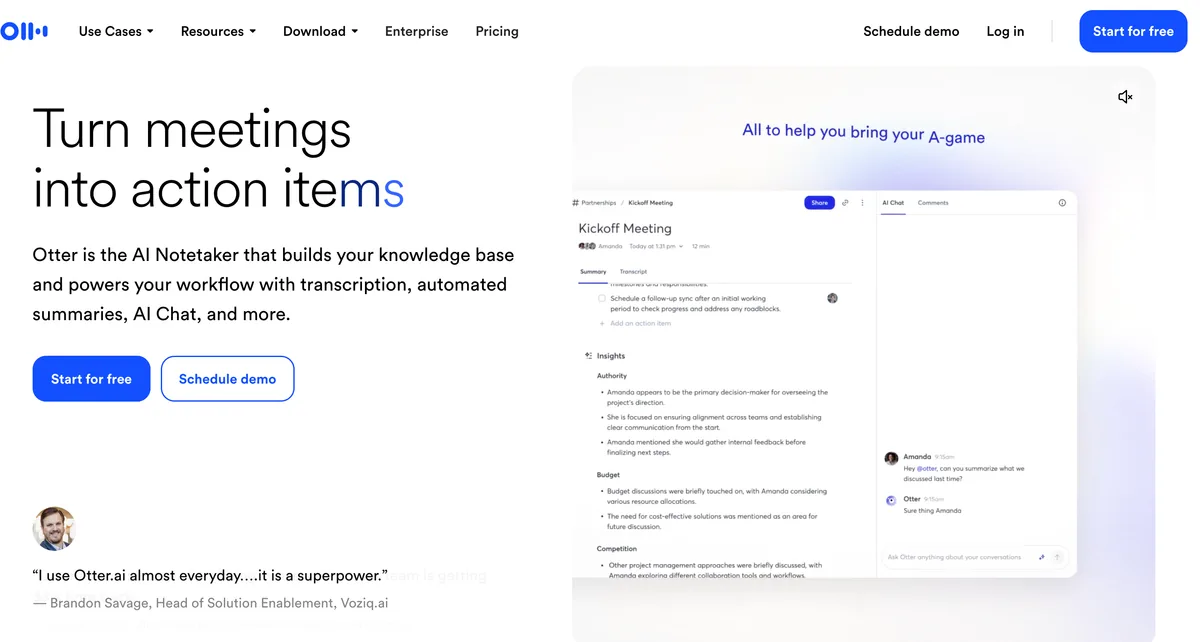
Otter Notetaker, which Otter used to call OtterPilot, joins Zoom, Google Meet and Microsoft Teams meetings from your synced calendar. Otter's help center documents every step below.
Turn off auto-join
- Sign in to Otter. On the homepage Meetings tab, click AI Notetaker settings, or go to Integrations, then the Meetings tab, then Default auto-join settings.
- Select Meetings I manually select.
- Check the homepage calendar for events you toggled on by hand, since those keep their own setting (Otter help).
Stop Otter emailing your guests
- Click the gear icon on the homepage calendar.
- Set Default audience for shared notes to Don't Share-keep my notes private.
- Turn off Send pre-recording emails, which tell participants your Notetaker is coming (Otter help).
Disconnect the calendar and delete the account
- Click Integrations, scroll to the calendar section, and click Disconnect. Synced future events disappear at once (Otter help).
- Go to Account Settings, then General, and click Delete account at the bottom. The option only appears if you're the only user in your workspace (Otter help).
Otter is also the defendant in a consolidated privacy class action in California. It began with a man who never signed up for Otter and says he wasn't told a call was being recorded. Our Otter safety review follows that case.
How to Stop Fireflies (Fred) Joining Your Meetings
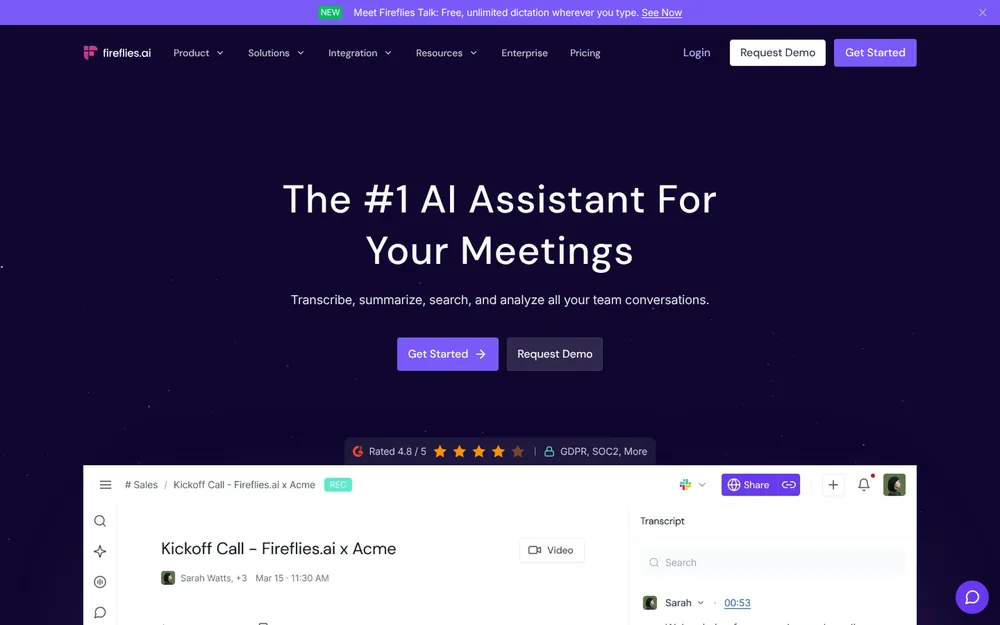
Fireflies' bot, often called Fred after its fred@fireflies.ai address, is set to join all meetings by default. Fireflies' guide documents every step below.
Turn off auto-join
- Open Settings, then the Personal tab, then Recording & Privacy.
- In the Recording section, turn off Auto-record meetings. It saves on its own.
- Prefer to keep it for some calls? From the Home page settings, set Auto-join calendar meetings to Only when I invite fred@fireflies.ai (Fireflies guide).
Fireflies says it may still join meetings that match your recording rules, so review those too. Also remove fred@fireflies.ai from any calendar invite where it was added as a guest (Fireflies guide).
Stop recap emails to the guest list
- In Recording & Privacy, scroll to Email Notification.
- Change Meeting recap email from Everyone on the invite, the default, to Only me (Fireflies guide).
Delete the account
Open Settings, select Account at the bottom left, and click Delete my account. Fireflies says this completely removes its access to your calendar (Fireflies guide). Fireflies also faces a voiceprint class action in Illinois; our Fireflies safety review tracks it.
How to Stop Read AI Joining Your Meetings
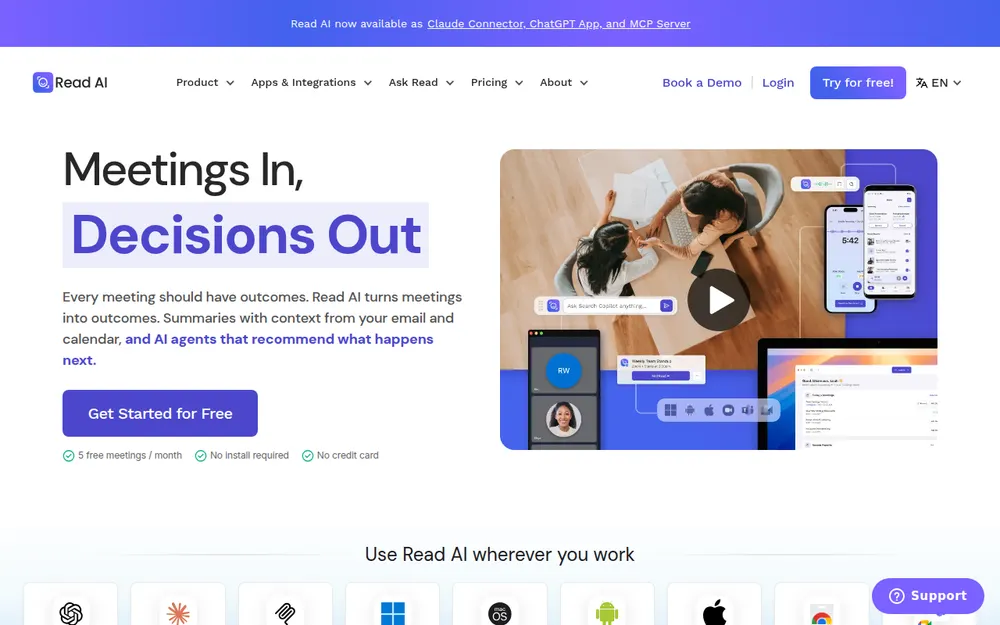
Read AI's help center says each user picks, at sign-up, whether Read joins every meeting, only meetings they host, or only meetings they invite it to. If you clicked through that step quickly, start here.
Turn off auto-join and the emails
- Open Account Settings, then Meeting Recording, then Auto-Join Preferences, and pick the option you want.
- In Report Sharing, change what gets sent to attendees after each meeting.
- To skip one meeting, turn off Add Read? on your Read Calendar at least 15 minutes before it starts (Read AI help).
Remove Read completely
- In Account Settings, disconnect your calendar and any other integrations.
- Delete the account. Read says your data is deleted with it (Read AI help).
- Still seeing Read? Use Read's Account Lookup tool to check for a second account on another email address.
Read's Account & Privacy Center adds the case most people miss. If someone else invited to the meeting has Read connected, Read may still join, even if that person never shows up (Read AI). Read also can't delete another user's reports at a third party's request, corporate IT included.
How to Stop Fathom Joining Your Meetings
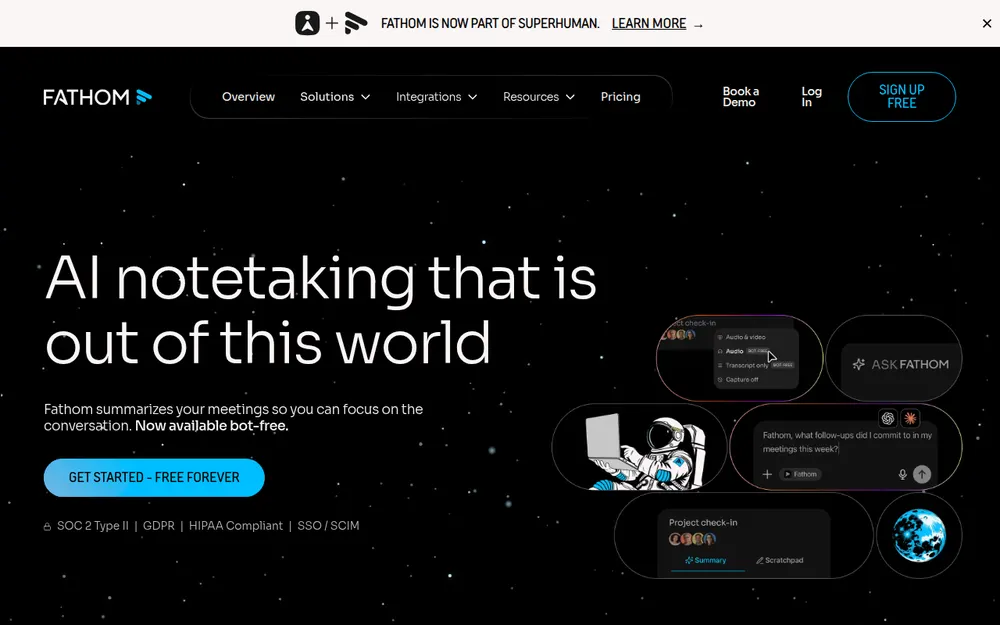
Fathom's help center says it can only record a Zoom, Microsoft Teams or Google Meet call if you're also on the call (Fathom help). A Fathom bot in your meeting therefore points to your own settings, or to a guest who uses Fathom.
Turn off auto-record and auto-share
- Open Fathom's Settings page.
- In Auto-Record Settings, set the first dropdown to No Meetings. The options are All Meetings, External Meetings, Internal Meetings and No Meetings.
- Set the second dropdown, which controls what attendees receive, to Nothing (Fathom help).
- Turn off the impromptu-meeting toggles and Auto Request Recording Consent, which emails attendees before external meetings.
With auto-share on, Fathom emails everyone on the calendar invite right after the meeting ends. They get the summary, plus a recording link if you chose Summary & Recording (Fathom help).
Uninstall and delete
- In the Zoom Marketplace, open Manage, then Installed Apps, and uninstall Fathom.
- Scroll to the bottom of Fathom's Settings page and click Delete Account. Deletion takes about 12 hours and can't be undone. On a Team plan, your admin deletes it for you (Fathom help).
- Fathom's help doesn't document a separate calendar disconnect, so revoke its Google or Microsoft access as described above.
More on Fathom's defaults is in our Fathom safety review.
How to Stop tl;dv Joining Your Meetings
tl;dv's help center says you can deny its bot access when it tries to join a meeting. To stop it trying at all, change the automations that send it. Its auto-record options are all meetings, internal meetings or external meetings.
Turn off auto-recording and emails
- Open tl;dv's preferences page and disable auto-recording of calendar events (tl;dv help).
- Under Auto-send email with meeting notes, choose Only with me, so invitees stop getting notes after each meeting (tl;dv help).
Cancel and delete
- Go to Settings, then Plan & Billing, then Manage subscription, and choose Cancel or pause plan in Stripe.
- In your profile settings, click delete account. tl;dv says all data is deleted and no logs are kept.
tl;dv also had a data exposure in 2026 and asked affected customers to reissue meeting links; our tl;dv safety review has both sides of it.
How to Keep Other People's Bots Out of Meetings You Host
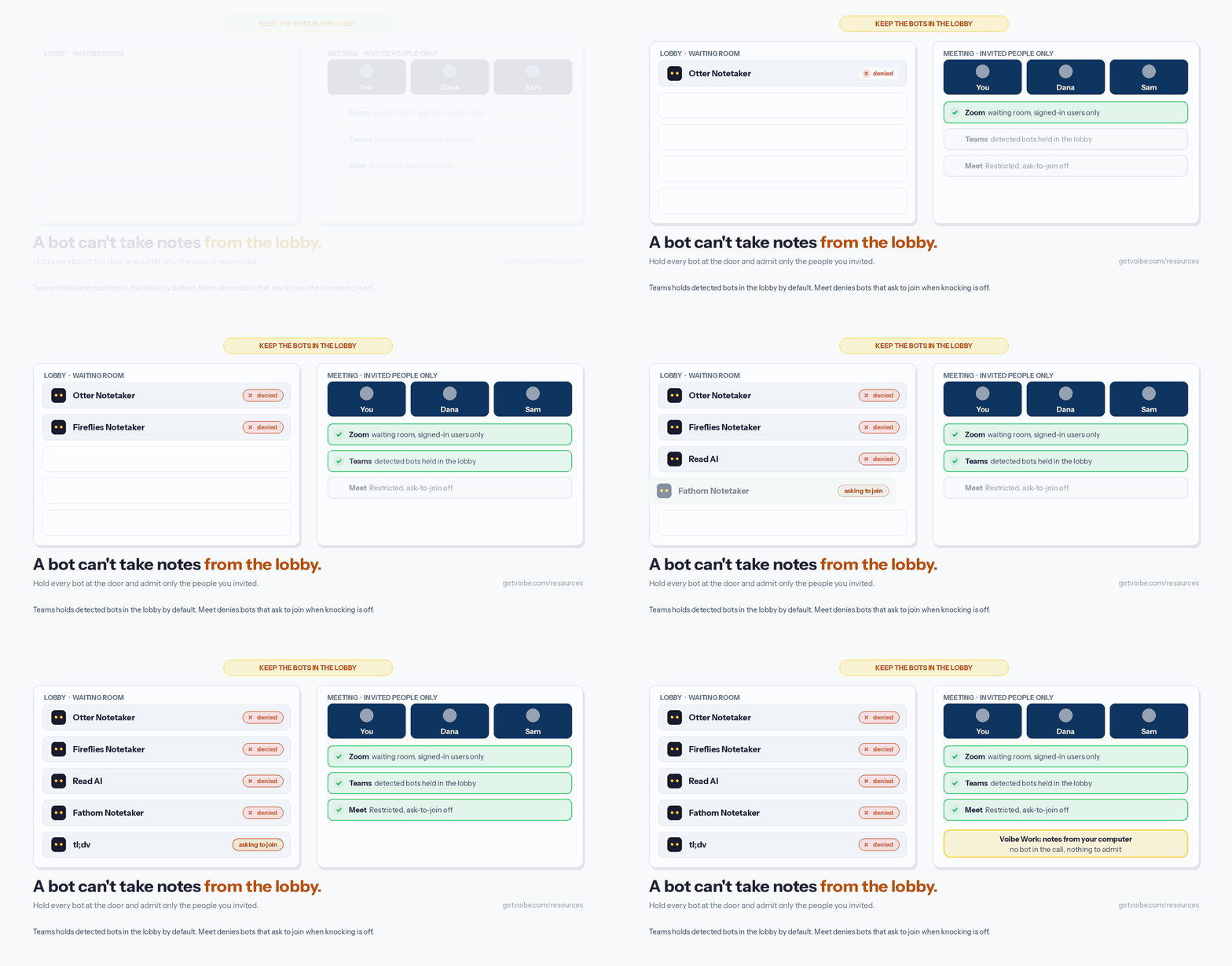
A guest's notetaker is a participant like any other. It can only record if it gets into the meeting, so the goal is to make it wait outside where you can see it. Universities including Case Western Reserve, CUNY and Eastern Washington have blocked notetaker bots outright.
No setting catches every bot. Stony Brook's IT team calls its Zoom domain block not 100% effective, and Microsoft says some bots may not be detected. Pair the settings below with a host who checks the participant list.
The host checklist
- Make every unknown participant wait to be admitted.
- Require a signed-in account where your platform allows it.
- Limit who can admit from the waiting room to hosts and co-hosts.
- Say at the start of the call what you expect about recording.
How to Block Meeting Bots in Zoom
Zoom's own help center documents the waiting room. The domain block and signed-in requirement below come from university IT guides that use them to keep notetakers out.
- Turn on the waiting room. Admins can enable it for every user. Individual users can turn it on for their own meetings unless an admin locked it (Zoom support).
- Allow signed-in users only. In Settings, then Meeting, then Security, turn on Only authenticated meeting participants and webinar attendees can join.
- Block notetaker domains. In the same section, turn on Block users in specific domains from joining meetings and webinars. Add domains such as read.ai, fireflies.ai and fathom.video (Cal Poly IT).
Stony Brook's guide adds otter.ai to that list and warns the block won't catch everything (Stony Brook IT). A bot that joins through a guest's own signed-in Zoom account can still reach the waiting room, which is why the waiting room comes first.
How to Block Meeting Bots in Microsoft Teams
Teams detects external bots and parks them in the lobby. The Microsoft Learn article on managing external bots says the default setting is When detected, require approval before joining. Detected bots wait in the lobby whatever the meeting's lobby settings say, and the organizer has to admit them.
- Admins: in the Teams admin center, open Meetings, then Meeting policies, then Meeting join & lobby. Keep Manage external bots and their access to meetings on the default. The other option, Do not detect bots, lets them in like any external guest.
- Admins: set Who can admit from lobby to organizers and co-organizers, which Microsoft recommends so a presenter can't wave a bot through.
- Organizers: in Meeting options, set Who can bypass the lobby to People who were invited or Only organizers and co-organizers (Microsoft Learn).
Microsoft lists two limits: some bots may slip past detection, and a person can be mislabelled as a bot. Admit that person and mark them with This is not a bot. Our Teams note taker guide covers how the lobby treats notetakers you choose yourself.
How to Block Meeting Bots in Google Meet
Older guides tell you to turn off Quick access. Google's current help describes meeting access types instead, set in Host controls before or during a meeting.
- Open the Calendar event, click Settings, and open the Host controls tab. In a live meeting, open the Host controls panel.
- Under Meeting access, choose Restricted. Only people invited through Calendar, or by a host from inside the meeting, can join without knocking.
- Uncheck Anyone can ask to join, including people who dial in. For Trusted access, the box is Anyone with the meeting link can ask to join.
Google says unchecking that box turns off knocking for the whole meeting. Anonymous users or third-party bots, like note takers, that try to ask to join are then denied automatically (Google Workspace help).
Recurring meetings keep the settings of the first meeting, so set them once on the series. Restricted isn't available on personal Google accounts.
How to Remove a Bot That's Already in the Call
A host can remove any bot like any other participant. Several vendors also give every guest a chat command, which helps when the host isn't you.
| Where | How to remove it | Who can do it |
|---|---|---|
| Zoom | Participants, then the three dots next to the bot, then Remove. Or choose Put in Waiting Room. | The host |
| Microsoft Teams | People panel, then the three dots, then Remove from meeting | The organizer |
| Google Meet | People, then the three dots, then Remove from the call | The host |
| Otter Notetaker | Type stop otter in the meeting chat. It removes every Otter Notetaker at once. | Any participant |
| Read AI | Type Opt out to remove Read and delete the recording, or Read stop to remove it and keep a report so far | Any participant |
| Fireflies | Type /ff leave in the chat. Removed within 3 minutes, it creates no notes. | Typed in the meeting chat |
The chat commands come from Otter's help center, Read AI's help center and Fireflies' guide. Removing a bot ends this meeting's recording only. If the owner's settings stay the same, the bot comes back to the next one.
What to Say When Someone Else's Bot Shows Up
Most bots in your meetings arrive by accident, from a setting someone forgot. A short, friendly line at the start of the call usually fixes it for good.
A script for the start of the call
Before we start, I see a notetaker in the call. We're not recording today, so I'll remove it. If it joined from your calendar, auto-join is probably on, and I'm happy to send you the steps to switch it off.
A line for your meeting invites
Please don't bring AI notetakers to this meeting. Bots will be held in the waiting room and removed.
Why consent comes into it
A bot that joins quietly can record people who never agreed to it. In all-party consent states such as California, everyone in the conversation may need to agree. Our guide to AI notetaker consent laws has each state's rule.
Courts are testing this now. The Otter case started with a participant who never signed up for Otter. Granola has no bot at all, and it was still sued in July 2026. The plaintiff says its capture records people without their knowledge (the Granola lawsuit, explained).
Both cases are still allegations. They share one lesson anyway: tell everyone in the call that notes are being taken.
Take Your Own Notes Without Sending a Bot: Voibe Work
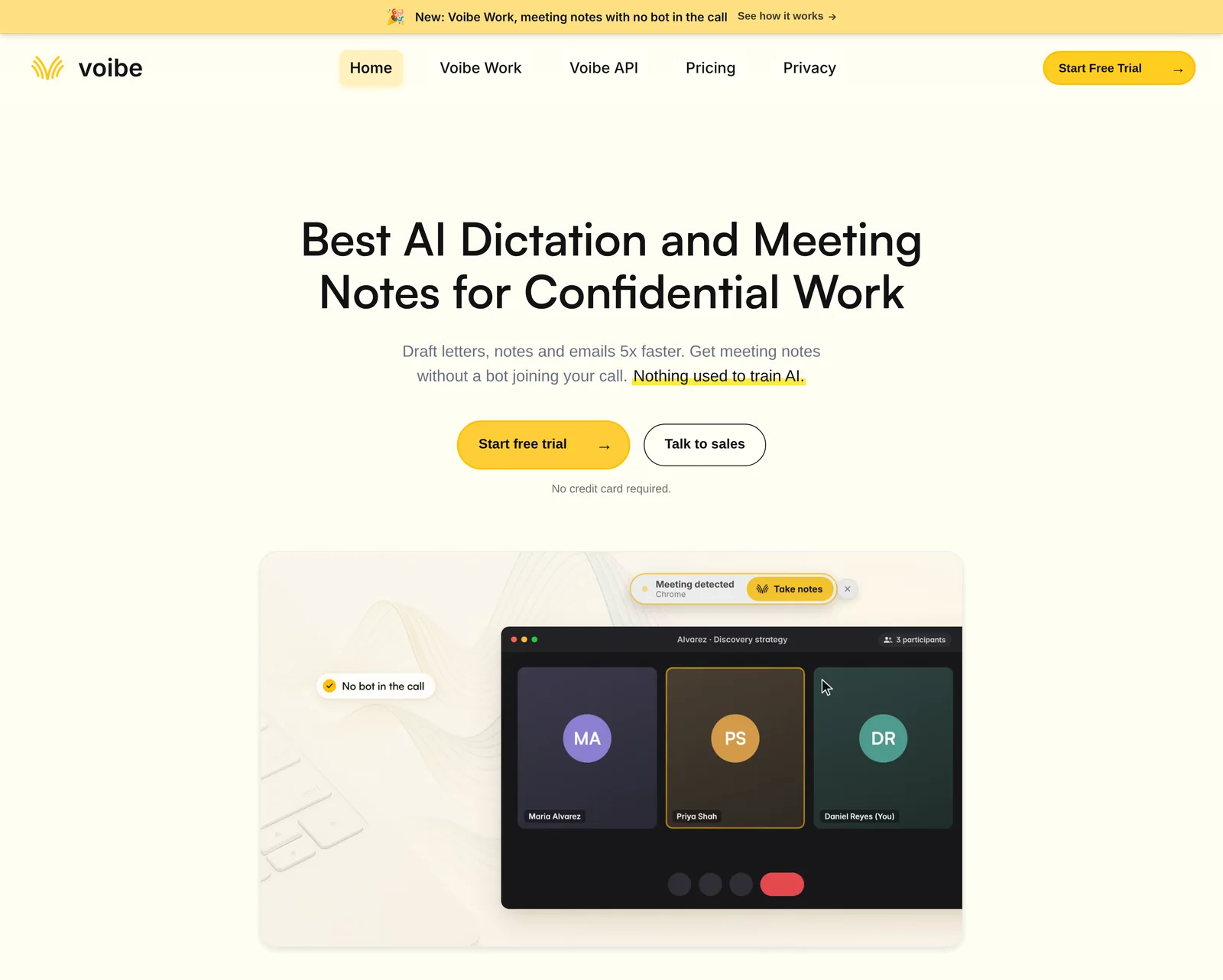
If you blocked bots but still want notes, take them from your own computer. Voibe Work is the meeting-notes plan we build. It captures the meeting from your Mac or Windows PC in Zoom, Microsoft Teams, Google Meet, Webex, Slack huddles or any other meeting app.
No bot joins the call, so nothing waits in a lobby and nobody has to admit a notetaker. Meeting audio is processed by open-source models on zero-retention cloud providers and deleted as soon as processing completes.
The transcript and summary are saved on your computer, not on Voibe's servers, and never used to train AI. Because of that cloud step, meeting notes need an internet connection.
How it works
- Join the call in your usual meeting app. Voibe offers to take notes when the call starts.
- Voibe reminds you to tell everyone you're taking notes. Following the recording-consent rules for you and the other participants is your responsibility.
- The transcript labels each speaker with a time on every line. The summary follows a template for the meeting type, or one you create yourself.
- Copy the notes in one click or export them as a PDF.
Voibe Work also records in-person meetings through your Mac or PC's microphone, and one meeting can run up to 4 hours. Voibe Work doesn't list calendar auto-join, so it never turns up in a meeting you didn't start.
What Voibe Work costs
Voibe Work costs $19 a month, $149 a year or $399 once, and one seat covers Mac and Windows. Every new account starts with a 7-day trial of every Voibe Work feature, with no credit card and no automatic charge.
- Against Granola Business ($168 a year): Voibe Work is $19 (11.3%) cheaper.
- Against Otter Pro ($99.96 a year): Voibe Work costs $49.04 (49.1%) more, and Otter sends a bot into the call.
For confidential calls, how to take confidential meeting notes walks through the whole setup.
See Voibe Work in action
Take notes in your next call without a bot
Start free on Mac or Windows. You get 7 days of every Voibe Work feature, with no credit card.
Why the Bot Keeps Joining and How to Fix It
I deleted the app, but the bot still joins my meetings
Deleting the desktop or phone app doesn't touch the bot, because the bot works from the vendor's servers and your calendar. Turn off auto-join in the web app, disconnect the calendar, and delete the account itself. Then revoke the vendor's access in your Google or Microsoft account.
I turned off auto-join, but the bot came to one meeting anyway
Check that meeting's own toggle. Otter says events you switched on by hand keep that setting after you change the default. In Fireflies, a recording rule or an invite to fred@fireflies.ai can still bring the bot in.
Read AI keeps joining after I deleted my account
Read lists two causes. Either another invitee has Read connected, or you have a second Read account on a different email address. Check the meeting chat for who invited Read, and run Read's Account Lookup tool.
My Zoom domain block didn't stop a notetaker
Some bots join through a participant's own Zoom sign-in, so they don't come from the vendor's domain. Keep the waiting room on and remove anything you don't recognise.
Teams put a real person in the lobby as a bot
Microsoft says detection can misclassify people. Admit them from the lobby and mark them with This is not a bot.
Tools That Make Meetings Without Bots Easier
Blocking bots solves the uninvited-guest problem. If you still want notes, the question becomes where a notetaker keeps your meetings.
Otter is the cheapest of the four if a bot in the call doesn't bother you. Voibe Work is $31 a year (17.2%) cheaper than Read AI Pro. Several bot tools also sell a bot-free desktop mode, but the notes still go to their cloud. The best no-bot meeting note takers ranks every option.
Meeting Bots FAQ
Stopping your own bot
Why does a notetaker keep joining my meetings? Your account has auto-join on and a calendar connected, usually from a quick sign-up. Turn off auto-join, disconnect the calendar, and delete the account if you don't use it.
Does deleting the app stop the bot? No. The bot runs from the vendor's servers using your calendar. Delete the account in the web app and revoke its Google or Microsoft access.
How do I stop a notetaker emailing my meeting guests? Change its sharing setting to yourself only. In Fireflies that's Meeting recap email, Only me; in Otter, Don't Share-keep my notes private.
Keeping other bots out
Can I block AI notetakers from my Zoom meetings? Yes, mostly. Use the waiting room, allow signed-in users only, and block notetaker domains. No setting catches every bot.
Does Microsoft Teams block meeting bots? Teams detects external bots and holds them in the lobby by default until the organizer admits them. Some bots may not be detected.
How do I keep bots out of Google Meet? Set meeting access to Restricted and uncheck the ask-to-join box. Google says bots that try to ask to join are then denied automatically.
Consent and alternatives
Is it legal for a bot to record my meeting without asking? It depends on where each person is. In all-party consent states such as California, everyone may need to agree.
Can I take meeting notes without a bot? Yes. Voibe Work captures the meeting from your Mac or Windows PC, so no bot joins. It reminds you to tell everyone you're taking notes.
Close the Door Once, Then Stop Thinking About It
An uninvited bot is nearly always a setting, not a person. If it's yours, the four moves remove it for good: auto-join off, emails off, calendar disconnected, account deleted.
If it belongs to someone else, lock the door. A waiting room, the Teams lobby or a Restricted Meet keeps it outside, and a friendly line at the start of the call does the rest.
Want the notes without the bot? You can try Voibe Work free for 7 days on Mac or Windows, with no credit card.
More step-by-step guides on meeting notes, recordings and dictation are in our how-to guides.