

How to Give Claude Access to Your Meeting Notes: The Quick Answer
You have an hour of client call in a transcript and one question Claude could answer in seconds. Before you paste it, know where it goes. Claude sends the text it reads to Anthropic, whether you paste it or connect an app.
To give Claude access to your meeting notes, pick one of four routes. Most take a few minutes to set up:
- Voibe Meeting MCP. If you use Voibe Work, click MCP on the Meetings page, then Add to Claude. Claude Desktop installs it in one click.
- Your note taker's MCP server. Granola, Circleback, Otter and Fathom each run one. You connect it from Claude's connector settings and sign in.
- Export and paste. Copy a transcript or export a PDF, then paste it into a chat or add it to a Claude Project. It works with any note taker.
- The Voibe API MCP for raw recordings. If all you have is an audio file, Claude Code or Claude Desktop can transcribe it first. It reads files, not meetings.
Key takeaways
| Route | Setup | What Claude can read | Plans | Where the data goes |
|---|---|---|---|---|
| Voibe Meeting MCP | One click in Claude Desktop | Meeting titles, summaries and transcripts; never your dictation | Voibe Work ($19/mo) and the 7-day trial | Notes stay on your computer; what Claude reads goes to Anthropic |
| Granola, Circleback, Otter or Fathom MCP | Claude connector, then sign in | Notes and, on most plans, transcripts | Free plans on all four, with limits | Notes sit in the vendor's cloud; what Claude reads goes to Anthropic |
| Export and paste | Copy or export, then paste or upload | Only what you paste | Any note taker, any Claude plan | The pasted text joins your chat history at Anthropic |
| Voibe API MCP | One command or a custom connector | The transcript of a file you hand it | 15 free minutes, then $10 for 2,000 minutes | Voibe deletes the audio at once and the transcript after 24 hours |
Neither pasting nor MCP keeps the text away from Anthropic, because both hand it the same words. The routes differ in how much Claude can reach, and how fast you can cut it off.
Key Takeaway
Every route sends the text Claude reads to Anthropic under your Claude plan's terms. Pick a route by how much Claude should reach: one pasted meeting, everything in a note taker, or nothing at all for meetings that must stay out of AI apps.
What Anthropic Sees, Whichever Route You Pick
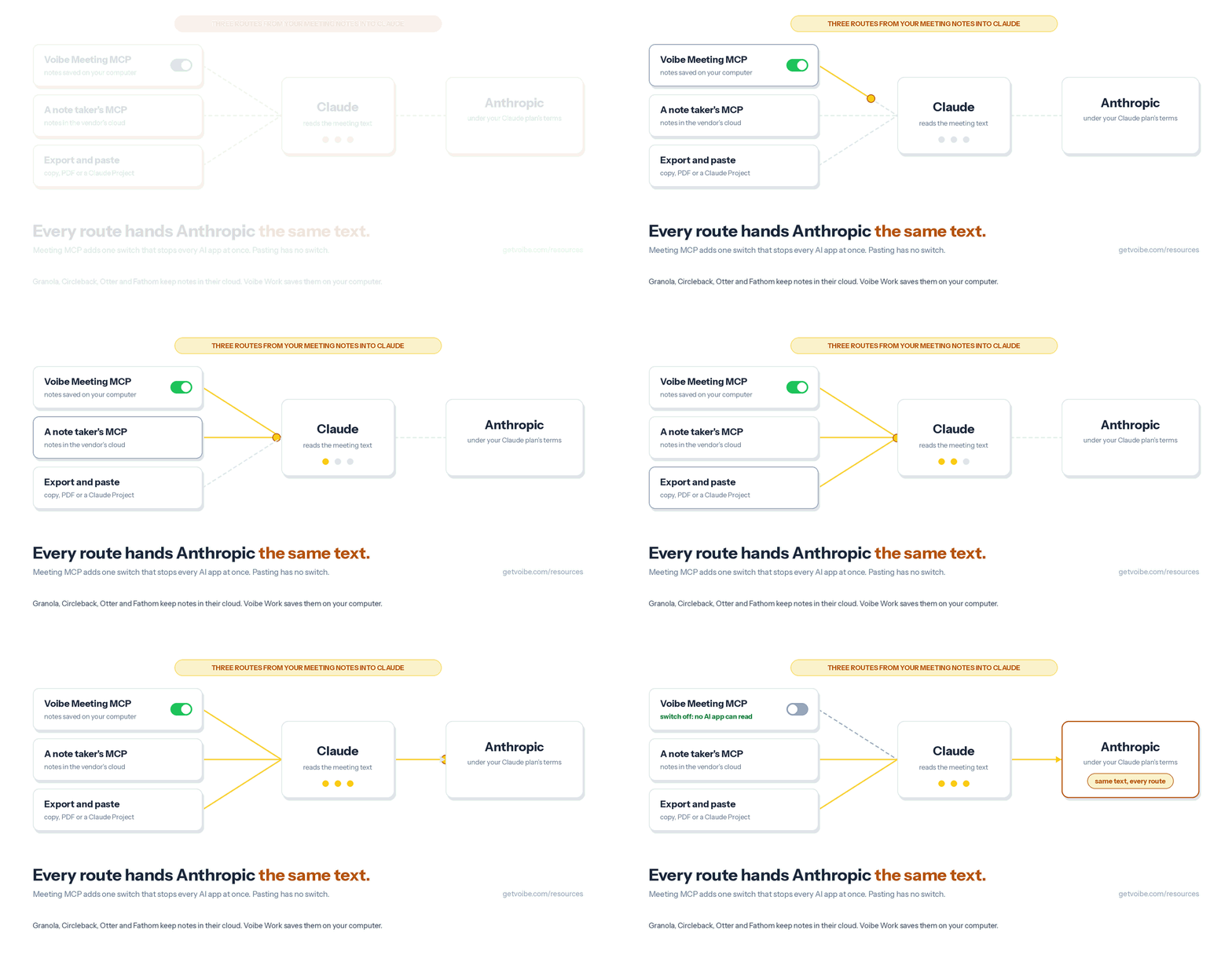
Every route on this list ends at Anthropic. When Claude reads a meeting, through MCP or a paste, the words travel to Anthropic's servers to be processed. They then sit in your chat history under your Claude plan's terms.
How long Anthropic keeps the conversation
On Claude Free, Pro and Max, one setting decides most of it. Anthropic calls it Help Improve our AI models, and it is on unless you turned it off.
- Training on: chats can be kept in de-identified form for up to 5 years and used to train future models.
- Training off: chats are kept for 30 days and not used for training.
- Deleted chats: they leave your history at once and Anthropic's back-end within 30 days.
- Incognito chats: kept up to 30 days, never used for training, and unavailable inside Projects.
Team, Enterprise and the API run on commercial terms, where training is off by default. Zero data retention exists only on commercial contracts, never on a consumer plan. Our Claude safety review covers each surface, and Claude Pro and Max privacy walks through the toggle.
One difference between pasting and MCP
On consumer plans, Anthropic's training article draws a line between the two. It says training data excludes raw content from connectors, including MCP servers, unless you copy that content into the chat. A pasted transcript is chat content, so it counts if your training setting is on.
Claude's answers about a meeting are part of the chat on every route. The safe habit is the same either way: turn the training setting off before meeting notes go anywhere near Claude.
Where the notes sat before Claude read them
The second copy is easy to forget. Granola, Circleback, Otter and Fathom keep your meetings in their own cloud, so a connected Claude reads from there. Voibe Work saves the transcript and summary on your computer, and Meeting MCP sends nothing through Voibe's servers.
Method 1: Connect Voibe Meeting MCP to Claude Desktop
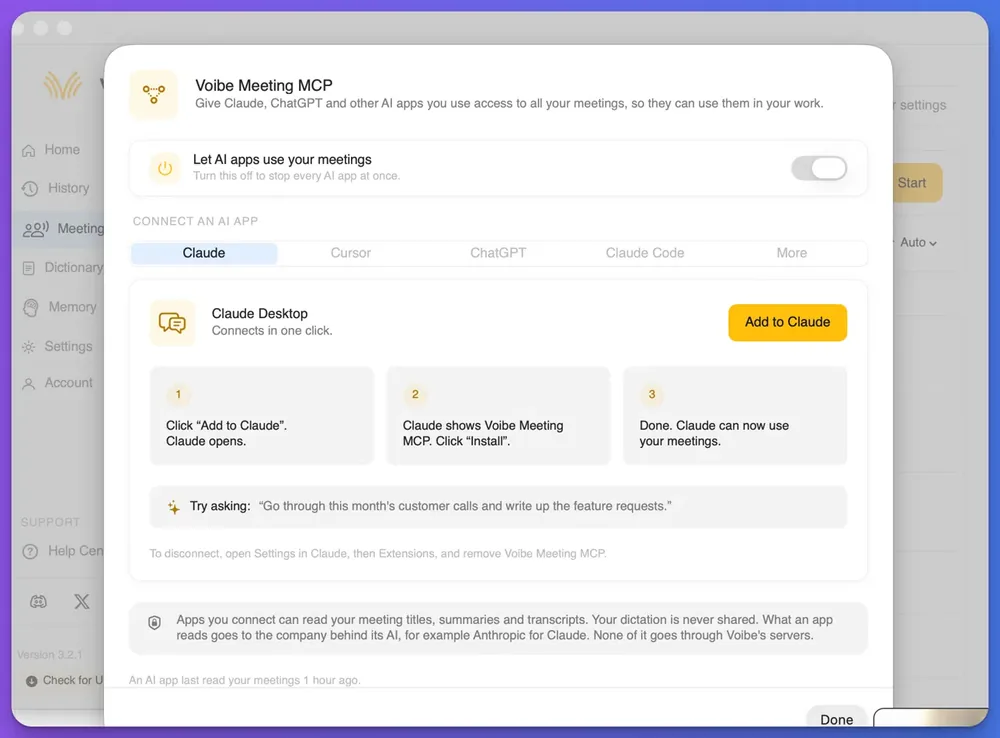
Voibe Meeting MCP is the route we built for Voibe Work, our meeting-notes plan. It lets Claude read every meeting you've recorded, so one question can cover a month of calls.
Voibe Work captures meetings from your Mac or Windows PC in Zoom, Teams, Google Meet or any other meeting app, and no bot joins the call. When recording starts, Voibe reminds you to tell everyone you're taking notes. Following the recording-consent rules where each person is stays your responsibility.
Connect Claude Desktop in one click
- In Voibe, open the Meetings page and click MCP.
- Check that the switch labelled Let AI apps use your meetings is on.
- Pick the Claude tab, which reads Connects in one click, and click Add to Claude.
- Claude Desktop opens and shows Voibe Meeting MCP. Click Install, and you're done.
Then ask for something that spans many meetings. The panel suggests this one: Go through this month's customer calls and write up the feature requests.
The panel also has tabs for Cursor, ChatGPT, Claude Code and More, each with its own steps inside the app. Voibe documents the Claude Desktop route publicly. For Claude in a browser, use the export route below.
What Claude can read
The panel states the privacy terms in four sentences:
Apps you connect can read your meeting titles, summaries and transcripts. Your dictation is never shared. What an app reads goes to the company behind its AI, for example Anthropic for Claude. None of it goes through Voibe's servers.
A footer line tells you when an AI app last read your meetings. To disconnect Claude completely, open Settings in Claude, then Extensions, and remove Voibe Meeting MCP.
Who gets it
Meeting MCP comes with Voibe Work, which costs $19 a month, $149 a year or $399 once, on Mac and Windows. Every new account gets a 7-day trial of every Voibe Work feature, Meeting MCP included, with no credit card.
Voibe Free and Voibe Dictation don't include it. The launch post, Introducing Voibe Meeting MCP, shows the panel in motion.
See Voibe Work in action
Give Claude your meetings, with one switch to stop it
Start free on Mac or Windows. You get 7 days of every Voibe Work feature, Meeting MCP included, with no credit card.
Method 2: Connect Another Note Taker's MCP Server to Claude
If your meetings already live in another note taker, connect its MCP server instead of exporting files. Granola, Circleback, Otter and Fathom all list theirs in Anthropic's connector directory.
The steps in Claude are nearly identical for all four:
- In Claude, open your connector settings. Anthropic labels the page Customize, then Connectors.
- Browse the directory, search for the note taker, and click Connect.
- Sign in to the note taker in the browser window that opens, and approve access.
- In a new chat, check that the connector is switched on, then ask about a meeting.
A connector added this way belongs to your Claude account. Anthropic says the connection runs from its servers across claude.ai, Claude Desktop, Cowork and the mobile apps. On Team and Enterprise plans, an owner may need to enable a connector before members can use it.
Claude Code is separate. You add a server there with a terminal command, shown for each app below. Which note taker deserves the connection is a different question, answered in the best AI note takers with an MCP server.
Granola: Connect From Claude's Directory
- Claude Desktop or web: open connectors, search Granola, connect and sign in. Granola's docs say a connector showing no tools should be removed and re-added at claude.ai.
- Claude Code: run the command below, start a new session, then run
/mcp, pick granola and choose Authenticate.
claude mcp add granola --transport http https://mcp.granola.ai/mcpBasic, the free plan, reads personal and public notes from the last 30 days, and some transcript and search tools are paid only. Business costs $14 per user a month and lifts the time limit. Sign-in is browser-based only; Granola says there is no API key for MCP.
Granola lets AI apps add or remove notes from folders by default, and Enterprise admins can switch that off. Notes live in Granola's cloud, and Granola trains on anonymized data unless you opt out. Read is Granola safe? before connecting client calls.
Circleback: Free MCP, With Write Access
- Claude Desktop or web: open connectors, click Browse connectors, search Circleback, and click the plus sign.
- Claude Code: run the command below, then run
/mcpin a session to sign in.
claude mcp add --transport http circleback https://circleback.ai/api/mcpCircleback's pricing page lists API, MCP and CLI access on every plan, Free included, with a 30-day meeting history on Free. Pro costs $18 a month or $180 a year. More plan detail is in Circleback pricing.
Connecting grants read and write access by default, according to Circleback MCP docs. Its write tools can update and share meetings, edit action items and manage folders. Circleback joins calls with a bot by default and keeps notes in its cloud.
Otter: Read-Only MCP on Every Plan
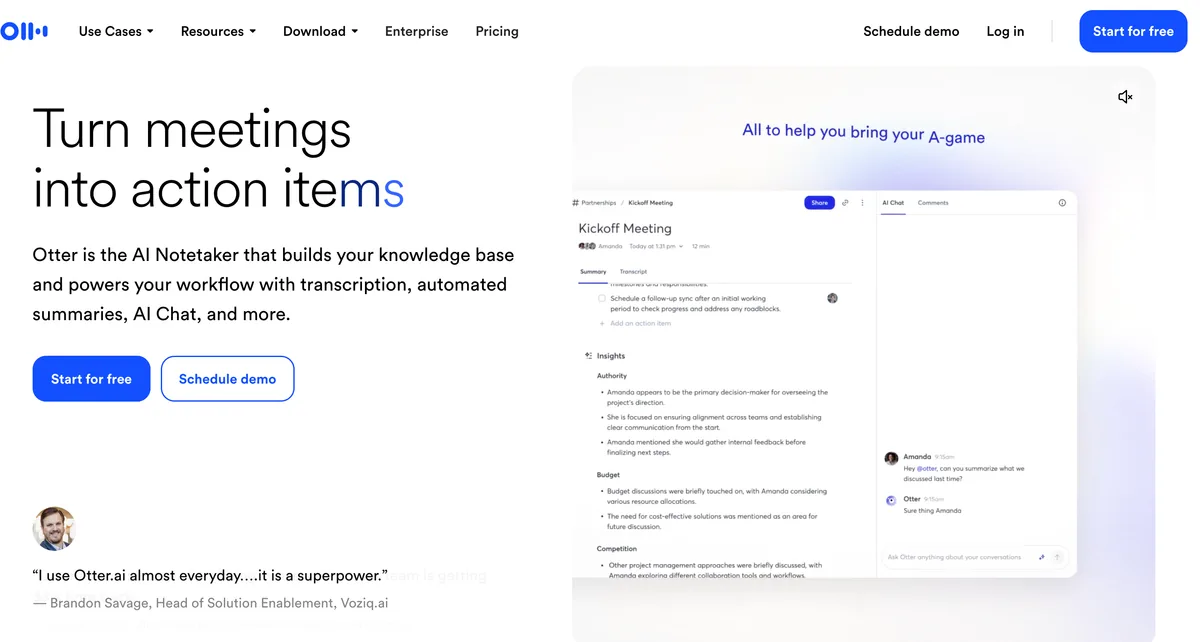
- Claude Desktop or web: open connectors, find the Otter.ai connector in Anthropic's directory, connect and sign in.
- Claude Code: Otter doesn't document it. Its help article covers Claude, ChatGPT, Cursor and Perplexity.
The server at https://mcp.otter.ai/mcp has three tools, all reads: get user info, search and fetch. They reach every meeting you captured in Otter, plus meetings colleagues shared with you in your workspace.
Otter's pricing page lists the MCP server on every plan, including free Basic, which caps transcription at 300 minutes a month. Pro costs $8.33 a month billed yearly ($99.96), or $16.99 monthly. Otter sends a bot into the call, and is Otter safe? covers what it keeps.
Fathom: Connect, Then Ask Your Team Owner
- Claude Desktop or web: open the Fathom connector page in Claude's directory, click Connect and authorize, as the Fathom guide for Claude describes. On a team or organization, an owner must enable it first.
- Claude Code: run the command below. It uses the mcp-remote bridge, so it needs Node.js installed.
claude mcp add fathom -- npx mcp-remote@latest https://api.fathom.ai/mcpFathom's pricing table includes Public API and MCP on all five plans, Free included. Its tools only read: they list and search meetings and return summaries and transcripts. Premium costs $16 a month billed yearly ($192), or $20 monthly.
Fathom records with a bot and keeps meetings in its cloud. Is Fathom safe? covers its data handling.
Method 3: Export Your Notes, Then Paste Them or Add Them to a Claude Project
Exporting works with any note taker and any Claude plan, including Free. It also keeps Claude's reach to exactly the meetings you choose, one at a time.
Paste one meeting into a chat
- Export the transcript or summary. In Voibe Work, use one-click copy or export it as a PDF; other note takers have their own export buttons.
- Open a new chat in Claude and paste the text, or attach the file. Claude accepts PDF, DOCX and TXT, up to 20 files per chat.
- Ask your question, and name the meeting and date so Claude doesn't guess.
Keep a running set in a Claude Project
- Create a Project for one client or one meeting series. Free accounts can make up to five.
- Add each exported transcript to the Project's knowledge. Project files can be up to 30 MB each.
- Start chats inside the Project, and Claude reads across every file you added.
Project content has to fit Claude's context window. On paid plans, Anthropic says Projects switch to retrieval when they near that limit, which expands capacity up to 10 times.
Or hand a folder to Cowork
Claude Cowork, on paid plans, works across folders you choose. Save your exported notes into one folder and point Cowork at it. Cowork's cloud sessions process those files on Anthropic's servers, the same as a chat.
The limits of exporting
- It's manual, so questions across a month of meetings mean a month of exports.
- Copies go stale. A summary you edit after exporting won't update in Claude.
- There is no off switch. A pasted transcript stays in your chat history until you delete the chat.
- Incognito chats can't be used inside Projects, and pasted text counts as chat content for training.
Method 4: Transcribe Raw Recordings for Claude With the Voibe API MCP
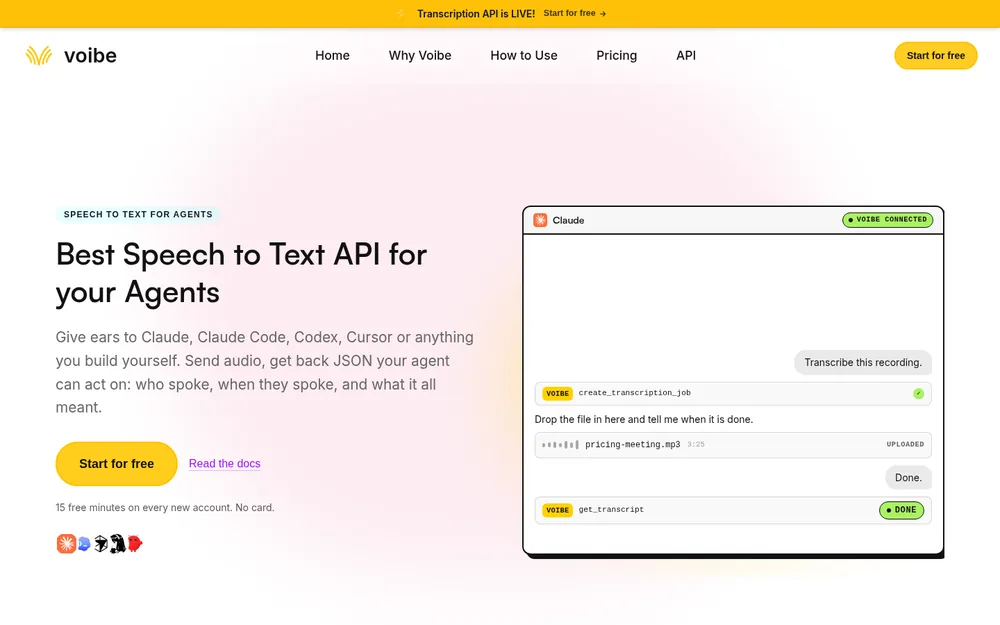
Sometimes there are no notes, only a recording: a Zoom file, a voice memo, an interview someone sent you. The Voibe API runs as an MCP server at https://api.getvoibe.com/mcp, and Claude can call it to transcribe that file.
Set it up
- Claude Code: run the command below, then run
/mcpand sign in through your browser. An API key is optional. - Claude Desktop or web: open Customize, then Connectors, click the plus sign and choose Add custom connector. Name it Voibe, paste the address and sign in.
- Ask: point Claude at the file and ask for a transcript, then for the decisions and action items.
claude mcp add --transport http voibe https://api.getvoibe.com/mcpClaude Code can reach files on your disk directly, which makes it the easier home for this job. Claude's Free plan allows one custom connector.
What it does and doesn't touch
The API MCP transcribes audio files and nothing else. It can't read Voibe Work meetings, your dictation history or a calendar. Voibe deletes the audio once the transcript exists, and deletes the transcript and summary 24 hours after the job finishes.
Once Claude reads that transcript, it follows the same path as any other: to Anthropic, under your Claude plan's terms.
What it costs
New accounts get 15 free minutes with no card. Packs run from $10 for 2,000 minutes to $100 for 24,000 minutes, never expire, and bill per second only when a job finishes. At the $10 rate, a one-hour recording costs $0.30. The full walkthrough is in how to transcribe a Zoom recording.
How to Keep Confidential Meetings Away From Claude
Some meetings shouldn't reach any AI app: privileged client calls, HR investigations, a deal under NDA. For those, keep the number of copies small and keep Claude out of the loop.
- Keep Meeting MCP's switch off. The switch covers every meeting at once, and there is no per-meeting setting. If one meeting must stay private, leave it off for all of them.
- Ask questions inside Voibe instead. Voibe Work's chat with your meetings answers questions about one meeting. It runs on Voibe's zero-retention cloud, and nothing you ask is stored.
- Don't paste those transcripts either. A paste sends Anthropic the same text an MCP read would, plus it counts as chat content.
- Check your Claude plan before anything else. Client data under privilege or NDA belongs on commercial terms, such as Team, Enterprise or the API, not on a consumer plan.
Once Claude reads a meeting, the text falls under Anthropic's terms, not your note taker's. Turning a switch off later stops future reads, but it doesn't recall text Claude already read.
For the full method, from notes by hand to custom templates, read how to take confidential meeting notes.
Warning
Meeting MCP's switch is all or nothing. If even one meeting must never reach Claude, keep the switch off and use Voibe's in-app chat.
Which Route Fits Your Meetings
Answer three questions in order, and the route picks itself.
- Do you only have a recording? Transcribe it with the Voibe API MCP, then ask Claude about the text.
- Do the notes live in Voibe Work? Use Meeting MCP for meetings that can go to Anthropic. Keep the switch off when any of them can't.
- Do they live in another app? Connect its MCP server if your plan includes one, or export and paste.
Use-case cheat sheet
| You want to | Route | Why |
|---|---|---|
| Summarize a month of customer calls | Voibe Meeting MCP or your note taker's MCP | Claude reads across every meeting in one request |
| Ask about one meeting on claude.ai in a browser | Export and paste | Works on every Claude surface and plan |
| Brief Claude on one client, again and again | A Claude Project with exported transcripts | The files stay attached to every chat in the Project |
| Fix a bug a customer described on a call | Your note taker's MCP in Claude Code | Claude Code reads the meeting and the code together |
| Work from an interview recording | Voibe API MCP | It turns the file into text Claude can read |
| Review a privileged client call | Voibe's in-app chat, Meeting MCP off | Nothing reaches an AI app's company |
Tips for Better Results With Meeting Notes in Claude
These habits make Claude's answers sharper and keep fewer copies around.
- Turn off the training setting first. On Claude Free, Pro and Max, switch off Help Improve our AI models before any meeting text arrives.
- Name the meeting. Give the date, the client or the series, so Claude searches the right meetings.
- Ask for quotes with your summary. Asking Claude to cite the transcript line makes a wrong answer easy to spot.
- Fix speaker names at the source. In Voibe Work, click a speaker's name to rename them, and the summary updates before Claude reads it.
- Prefer read-only servers. Where a note taker offers write tools, keep Claude's confirmation prompts on for every change.
- Delete chats you no longer need. A deleted chat leaves Anthropic's back-end within 30 days.
Want prompts to start from? The stand-up meeting notes template and the one-on-one meeting notes template each end with copy-paste prompts in two versions, one for Voibe Meeting MCP and one for a pasted transcript. Our AI prompts for meeting notes library collects ten more.
Tip
Ask Claude to quote the transcript line behind each point. An answer without a quote is the one to double-check.
Why Claude Can't See Your Meeting Notes and How to Fix It
Claude says it can't find any meetings
For Voibe Meeting MCP, open Meetings, then MCP, and check that Let AI apps use your meetings is on. Then confirm your Voibe Work plan or trial is active. For other note takers, open a new chat and check the connector is switched on.
The connector shows no tools
Remove the connector and add it again from claude.ai, then sign in fresh. Granola's docs suggest that fix even when you use Claude Desktop.
Claude only sees my recent meetings
Free plans often cap history. Granola Basic reads the last 30 days, and Circleback Free keeps a 30-day history. Older meetings need a paid plan or an export.
My team can't find the Fathom connector
On Team and Enterprise Claude plans, an owner has to enable a connector first. Ask whoever manages your Claude organization to add it.
The pasted transcript is too long
Paste the summary instead, or split the transcript into parts. In a Project on a paid plan, Claude switches to retrieval when files near the context limit.
Tools That Make This Easier
If you're choosing a note taker partly for its Claude connection, compare where the notes live as well as what the MCP costs.
| Tool | Bot in the call? | Where notes live | MCP on | Paid plan (yearly) |
|---|---|---|---|---|
| Voibe Work (ours) | No | Your computer | Voibe Work and trial | $149 |
| Granola | No | Granola's cloud | Every plan (30 days on Free) | $168 (Business) |
| Circleback | Yes, by default | Circleback's cloud | Every plan | $180 (Pro) |
| Otter | Yes | Otter's cloud | Every plan | $99.96 (Pro) |
| Fathom | Yes | Fathom's cloud | Every plan | $192 (Premium) |
Voibe Work costs $19 (11.3%) less a year than Granola Business, $31 (17.2%) less than Circleback Pro and $43 (22.4%) less than Fathom Premium. It costs $49.04 (49.1%) more than Otter Pro. If you want MCP for free, the other four include it on their free plans, and Voibe doesn't.
On the App Store, Granola holds 4.96 from 14,656 ratings and Otter 4.79 from 87,739. Circleback holds 4.80 from 273. For a bot-free shortlist, see the best no-bot meeting note takers.
Meeting Notes in Claude FAQ
Safety
Is it safe to paste confidential meeting transcripts into Claude? Pasting sends the transcript to Anthropic under your Claude plan's terms, and on consumer plans it counts as chat content for training if that setting is on. Keep privileged or NDA meetings out of consumer Claude.
Is an AI note taker's MCP safer than copy-pasting? Not for the text Claude reads, which reaches Anthropic either way. MCP saves the copying, and Voibe Meeting MCP adds one switch that stops every AI app at once.
Does Anthropic train on meeting notes Claude reads through MCP? On consumer plans, Anthropic says raw content from connectors and MCP servers is left out of training data unless you copy it into the chat.
Setup
How do I connect meeting notes to Claude with MCP? Open Claude's connector settings, find your note taker in the directory, connect and sign in. With Voibe Work, click MCP on the Meetings page, then Add to Claude.
Does Voibe Meeting MCP work with Claude on the web? Voibe documents the Claude Desktop route. For claude.ai in a browser, copy or export the notes from Voibe Work and paste them.
Can Claude Code read my meeting notes? Yes, through a note taker's MCP server. Granola, Circleback and Fathom document a Claude Code command, and Voibe's panel has a Claude Code tab.
Plans and cost
Which note takers include MCP on a free plan? Granola, Circleback, Otter and Fathom do, with limits such as 30 days of history. Voibe Meeting MCP needs Voibe Work or its 7-day trial.
How much does it cost to transcribe a recording for Claude? The Voibe API gives 15 free minutes, then charges $10 for 2,000 minutes, so one hour costs $0.30.
Choose How Much Claude Can Reach
Getting meeting notes into Claude takes a few minutes on any route. Deciding which meetings belong there takes longer. Paste one meeting when one is enough, connect an MCP server when Claude needs the whole archive, and keep confidential calls out entirely.
If your meetings run through Voibe Work, Meeting MCP gives Claude the archive and gives you one switch to take it back. You can try Voibe Work free for 7 days on Mac or Windows, with no credit card.
More step-by-step guides on meeting notes, recordings and dictation are in our how-to guides.