

How to Transcribe a Google Meet Recording: The Quick Answer
The call ended an hour ago and the recording is sitting in Drive. You open the meeting's folder expecting a transcript, and all you find is a video file.
Nobody pressed the transcript button during the call, and Meet doesn't write one afterwards. You don't need a bigger Google plan to fix that. You need the MP4 you already have and a speech-to-text API.
To transcribe a Google Meet recording, download the MP4 from the organizer's Drive and pull the audio out with ffmpeg. Then send the audio to a transcription API. The whole job takes four steps:
- Find the recording. It sits in the organizer's Google Drive, in the Google Meet folder, with one sub-folder per meeting.
- Download the MP4. Select the file in Drive, click More, then Download.
- Extract the audio. One ffmpeg command turns the video into an M4A that is a fraction of the size.
- Transcribe it. Three calls to the Voibe API (POST, PUT, GET) return a speaker-labeled transcript and a summary. An hour of audio costs $0.30.
Most of the first run is setup: installing ffmpeg and creating an API key. After that, each recording is one command, or one sentence to Claude Code.
Key takeaways
| Question | Answer |
|---|---|
| Can Meet transcribe a recording after the meeting? | Not with its own transcript feature, which has to be started during the call |
| Which accounts can record? | Workspace Business Standard and up, Enterprise editions, Workspace Individual, and Google One plans with 2 TB or more. Not free Gmail and not Business Starter |
| Where's the file? | The organizer's Drive, in the Google Meet folder. Recordings from before July 2026 sit in Legacy Meet Recordings inside it |
| Which file do I use? | The MP4. Meet saves no separate audio file, so you extract one |
| What about Take notes for me? | Gemini writes notes, not a transcript. It needs an eligible Workspace edition or Google AI Pro or Ultra, for meetings you host |
| I wasn't the organizer | Ask the organizer to share the file from their Drive |
| Cost | $0.30 per hour of audio on the $10 pack; 15 free minutes, no card |
| What Voibe keeps | Audio is deleted once the transcript is saved; the transcript and summary are deleted 24 hours after the job finishes |
| No recording at all? | Voibe Work captures future Meet calls from your Mac or Windows PC, with no bot in the call |
Key Takeaway
Meet's transcripts and Gemini's notes only happen while the meeting runs. If all you have is the MP4, the transcript has to come from a speech-to-text service, and no Google plan upgrade changes that.
Who Can Record, Transcribe and Take Notes in Google Meet
Google Meet has three features that people tend to lump together: recording, transcripts and Gemini's Take notes for me. Each one has its own eligibility list. You can end up with the recording and no way to get the other two.
Recording
Google's recording help page lists Business Standard, Business Plus, Essentials, Enterprise Essentials, Enterprise Starter, Enterprise Standard, Enterprise Plus and Workspace Individual. Education Plus staff and Teaching and Learning Upgrade licenses can record too.
Personal accounts can record only on a Google One plan with 2 TB or more of storage. A free Gmail account isn't on the list. On Google's Workspace pricing page, recording starts at Business Standard and the Business Starter card leaves it out.
- Your admin has to allow it. On a Workspace account, recording stays unavailable until an administrator turns it on for you.
- Not everyone in the call can press Record. The host and co-hosts can, and so can others from the host's organization when host management is off.
- It needs a computer or an Android device. People on the mobile app or dialed in by phone are told about the recording but can't control it.
- There's an 8-hour ceiling. Meet stops a recording automatically once it reaches 8 hours in total.
Transcripts
Meet's transcript help page names Workspace editions such as Business Standard, Enterprise Plus and Workspace Individual. It doesn't mention Google One or Google AI plans. A personal account that can record may still have no transcript button.
Take notes for me
Gemini's notetaker requires "an eligible Google Workspace edition or Google AI plan," per its help page. Google's announcement from 29 June 2026 names Google AI Pro and Ultra subscribers alongside eligible Workspace business customers. Either way, it covers meetings that you host.
Put together, a free Gmail account gets none of the three features. A Google One 2 TB account gets the recording and nothing else, and a Business Standard account gets all three.
When Google Meet Makes a Transcript, and When It Doesn't
Meet writes a transcript only when someone starts one during the meeting. With host management on, only the host and co-hosts can switch transcripts on; with it off, anyone from the host's domain can.
Hosts can set transcripts to start automatically. Even then, they won't begin until the host or a co-host joins the meeting on the web. Miss that detail and the meeting ends with a recording and no text.
What Meet's own transcript covers
- Languages: English, French, German, Italian, Japanese, Korean, Portuguese and Spanish.
- Where it goes: the organizer's Drive, in the same Google Meet folder as the recording, attached to the Calendar event.
- Who gets it: the host, co-hosts and whoever switched transcripts on get an email with a link. Invitees in the host's organization can open it, unless the meeting had more than 200 invitees.
- What's in it: Google's page says only the spoken words in a meeting are included.
What Take notes for me gives you instead
Gemini's notes are a summary, not a transcript. The notes doc has two tabs: Quick notes, a short summary with action items, and Full notes, a longer overview with decisions and details.
You switch it on in Google Calendar under Video call options, then Meeting records, by ticking Take notes with Gemini. In the meeting itself, click Take notes for me at the top right, then Start taking notes. On work and school accounts, an admin setting can switch it on automatically for some meetings.
The host or a co-host picks who receives the notes: every invited guest, only guests inside the organization, or only hosts and co-hosts. It supports the same eight languages, one per meeting, and it works for in-person meetings too.
A summary is someone's compression of what was said. When you need exact wording, a quote from an interview or proof of who promised what, you need the transcript.
Joined Someone Else's Meeting? How to Get the Recording
A Meet recording belongs to the organizer, so it lands in their Drive, not yours. Google emails the link to the organizer and to whoever started the recording, and adds it to the Calendar event.
- Check the Calendar event first. Attendees from the host's organization get access to the recording automatically, and the link sits on the event.
- Ask the organizer to share it. Guests from outside the organization don't get automatic access. The organizer has to share the file from Drive like any other document.
- Ask for the transcript or notes as well. If someone switched either one on, those files sit in the same meeting folder.
If nobody recorded the meeting, there's nothing to transcribe and no setting that brings it back. For calls you don't host, a notetaker that captures from your own computer fixes it for next time. The Voibe Work section below covers how.
Is a Google Upgrade Cheaper Than Transcribing the File?
Upgrading doesn't help with the recording you already have. Meet's transcript and Gemini's notes are both switched on during a meeting. Neither help page describes running them on a finished recording.
For future meetings, the question is what a year costs. These are Google's US list prices per user, checked on 4 November 2026 on the Workspace and Google AI plans pages:
| Plan | Price | Per year | Record | Transcript | Take notes for me |
|---|---|---|---|---|---|
| Workspace Business Starter | $7/mo annual, $8.40 monthly | $84 | No | No | No |
| Workspace Business Standard | $14/mo annual, $16.80 monthly | $168 ($201.60 monthly) | Yes | Yes | Yes |
| Google AI Pro (personal) | $19.99/mo or $199.99/yr | $199.99 ($239.88 monthly) | Recording needs 2 TB or more; AI Pro includes 5 TB | Not listed | Yes, meetings you host |
| Voibe API | $10 for 2,000 minutes | Depends on use | Uses your file | Yes, speaker-labeled | Summary shaped by your prompt |
What transcribing the file costs
The Voibe API charges $0.005 per minute of audio on its $10 pack, which works out to $0.30 an hour. For 45-minute meetings, each one costs about $0.23, and over 250 working days the year looks like this:
| You record | Voibe API per year | vs Google AI Pro ($199.99/yr) | vs Business Standard ($168/yr) |
|---|---|---|---|
| 2 meetings a week | $23.40 | $176.59 less (88.3%) | $144.60 less (86.1%) |
| 1 a working day | $56.25 | $143.74 less (71.9%) | $111.75 less (66.5%) |
| 2 a working day | $112.50 | $87.49 less (43.7%) | $55.50 less (33.0%) |
| 3 a working day | $168.75 | $31.24 less (15.6%) | $0.75 more (0.4%) |
One month of Google AI Pro at $19.99 buys more than 66 hours of transcription at the entry rate. The $100 pack lowers the rate to $0.25 an hour, so heavy users pay less than the table shows.
When the upgrade is the better buy
The comparison isn't one-to-one, and the API doesn't win every row. A Workspace upgrade gives you the recording itself, which no API can. It also adds 2 TB of storage and the rest of the suite.
- Your team is on Business Starter and needs to record. Business Standard costs $7 more per user per month on an annual plan, which is $84 a year. It adds recording, transcripts and Gemini notes, so upgrade.
- You already record on a Google One 2 TB plan. You have the files but no transcript button, and the API is the cheap way to turn them into text.
- Your meetings aren't in one of Meet's eight languages. The Voibe API's speech and summary models are multilingual, so the recording can be in any language they handle.
- Someone sends you their recording. No plan of yours transcribes another person's file after the fact, but the API does.
How to Transcribe a Google Meet Recording in 4 Steps
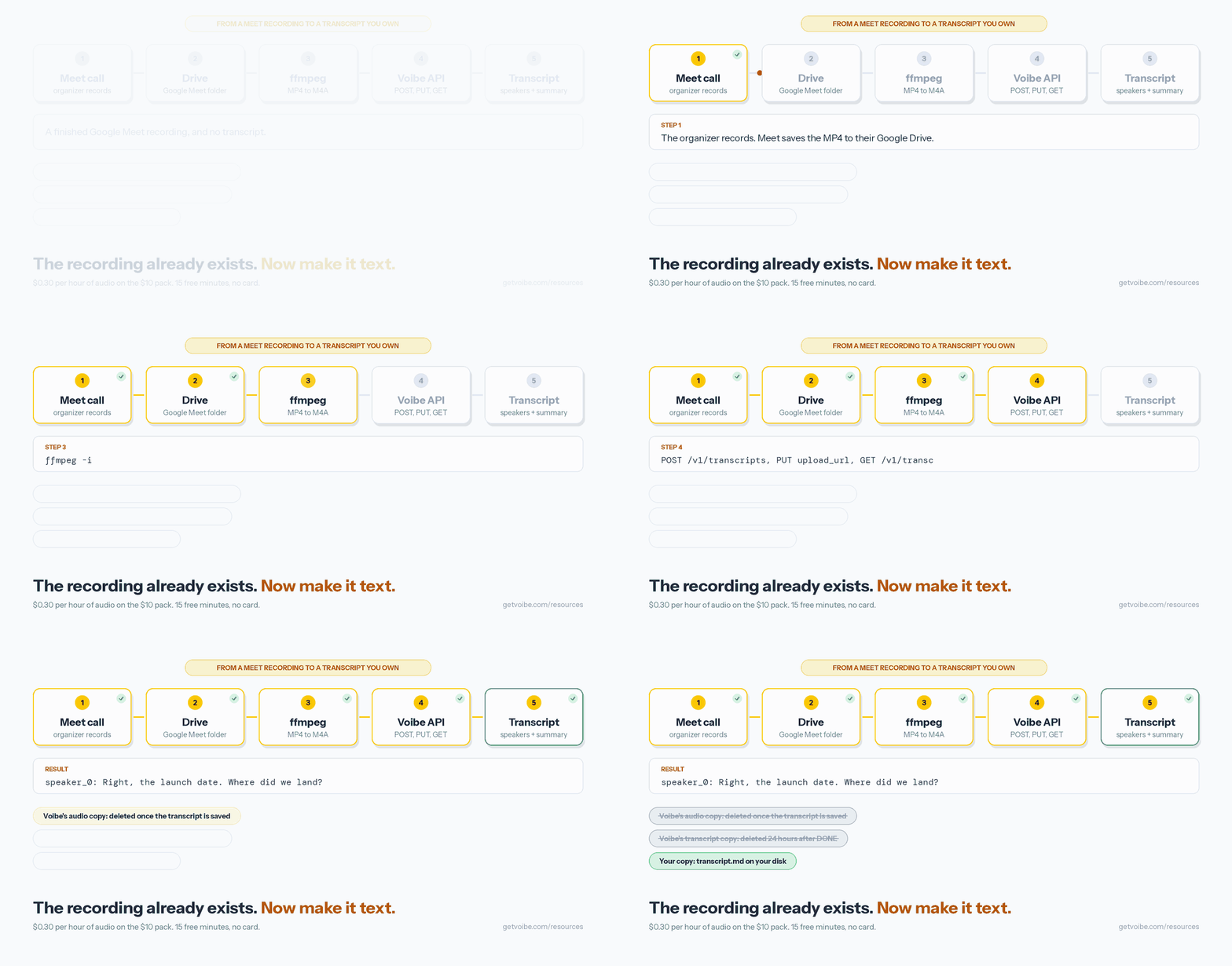
Create a key on the Voibe API keys page first. New accounts get 15 free minutes with no card, which covers a short call from start to finish. Keep the key in a shell variable for the session:
export voibe_key=vb_live_…Step 1: Find the recording in Drive
- Open the email Meet sent after the call, or the link on the Calendar event. Either one opens the file in Drive.
- Or go to Drive and open the Google Meet folder. Each meeting has its own sub-folder holding the recording, plus the transcript and Gemini notes if anyone switched them on.
- Recorded before July 2026? Google renamed the old Meet Recordings folder to Legacy Meet Recordings and moved it inside the Google Meet folder. Old links still work.
If Drive says the file is still processing, it isn't ready yet. Longer meetings take longer, so give it time before assuming something broke.
Step 2: Download the MP4
Select the file, click More, then Download. Google's own help page recommends downloading a recording and playing it from your computer for the best results anyway.
Step 3: Extract the audio with ffmpeg
Meet saves video only, with no separate audio file, so you make one. Install ffmpeg (on a Mac, brew install ffmpeg) and run:
# copy the audio track as it is: fast and lossless
ffmpeg -i meeting.mp4 -vn -c:a copy meeting.m4a
-vn drops the video and -c:a copy passes the audio through without re-encoding. If ffmpeg won't copy the track into an M4A, re-encode it instead:
# or re-encode to small mono AAC
ffmpeg -i meeting.mp4 -vn -ac 1 -c:a aac -b:a 64k meeting.m4a
At 64 kbps mono, an hour of speech comes to about 29 MB. The Voibe API accepts MP4 directly, with a cap of 200 MB per file. Video is the heavy part of a recording, so the audio alone uploads faster and stays far under the limit.
Step 4: Create the job, upload the file, read the result
resp=$(curl -s -X POST "https://api.getvoibe.com/v1/transcripts" \
  -H "Authorization: Bearer $voibe_key" \
  -H "Content-Type: application/json" \
  -d '{"diarize": true, "prompt": "Summarize as decisions, owners and deadlines."}')
job_id=$(echo $resp | jq -r .job_id)
upload_url=$(echo $resp | jq -r .upload_url)
The response holds a job_id and an upload_url, which the last two lines save for the next calls. Speaker labels are off by default, which is why the body asks for them. The prompt shapes the summary, up to 2,000 characters.
curl -s -X PUT "$upload_url" \
  -H "Content-Type: application/octet-stream" \
  --data-binary @meeting.m4a
The signed URL goes straight to storage and works for 5 hours. Transcription starts the moment the upload lands.
curl -s "https://api.getvoibe.com/v1/transcripts/$job_id" \
  -H "Authorization: Bearer $voibe_key"
The status moves from QUEUED to PROCESSING to DONE. Poll with a growing delay, or pass a webhook_url when you create the job. You can also set notify_email to true and get an email when it finishes. On FAILED, the error field says why, and the job isn't charged.
What the Transcript Looks Like
A finished job returns one JSON object. According to the API docs, these are the fields you'll use most:
transcript: lines in time order, each with a speaker label, the text, and start and end times in seconds.transcript_text: the same transcript as one string, with one line per speaker turn.summary.text: a markdown summary shaped by your prompt, which names people when the recording does.content_expires_at: the time the transcript and summary will be deleted.
Speakers come back as speaker_0, speaker_1 and so on, consistent within one job. Here's an illustrative transcript_text from a short launch call:
speaker_0: Right, the launch date. Where did we land?
speaker_1: Design signs off Thursday, so Monday works if QA is clear.
speaker_0: Then Monday it is. Marcus, can QA finish by Friday?
speaker_2: Friday works. I'll flag anything that blocks it by Wednesday.
Your prompt changes the summary and never the transcript. You can quote the transcript in an email and stand behind it. The summary can be regenerated whenever you want a different shape.
What Happens to Your Recording After It's Transcribed
You're about to upload a client call or a candidate interview to someone else's server. Check where it goes first. The Voibe API's rules, from its docs:
- Audio is deleted once the transcript is saved. Anything left over is removed within a day.
- Transcripts and summaries are kept for 24 hours, then deleted. The clock starts when the job finishes, so store the result on your side before then.
- Nothing is used to train models. Transcription runs on open-source models on zero-retention providers, with no third-party AI lab in the audio path.
- Every read is scoped to your account. A job can only be fetched with a key from the account that created it.
The same rules apply to the 15 free minutes and to the $100 pack. There's no retention setting to find. To see how other providers handle retention and billing, read our comparison of speech-to-text APIs for agents.
Transcribe Meet Recordings With the Voibe MCP in Claude
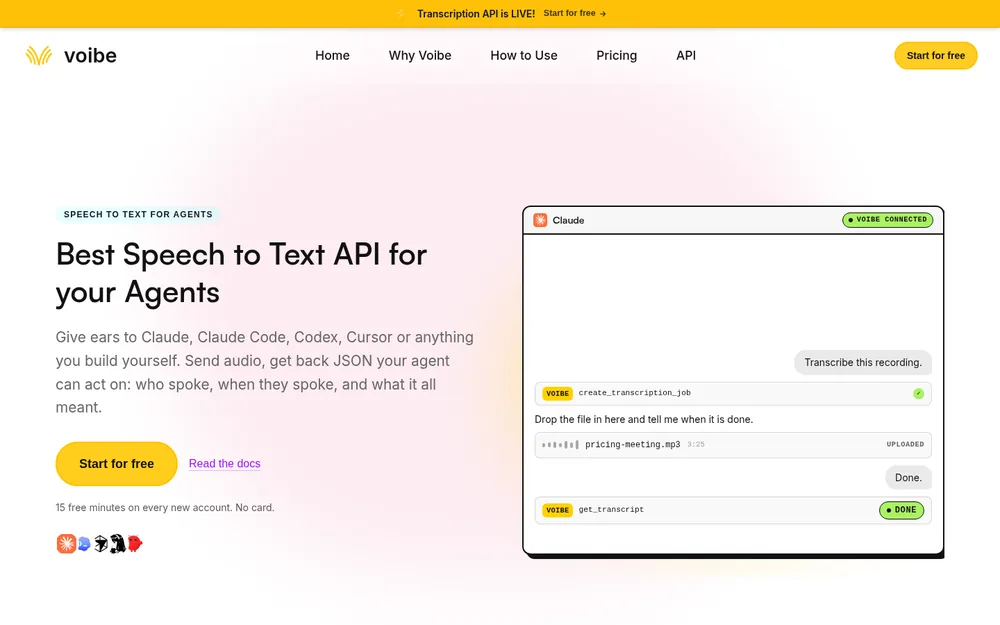
The same API runs as an MCP server at https://api.getvoibe.com/mcp, so Claude can run the whole job for you. It has four tools: create_transcription_job, get_transcript, list_transcripts and get_balance.
Claude Code
claude mcp add --transport http voibe https://api.getvoibe.com/mcpRun /mcp afterwards to sign in through your browser; an API key is optional. Claude Code can read your Downloads folder and run ffmpeg itself, so one sentence covers the job:
Find the newest Meet recording in ~/Downloads and extract the audio with ffmpeg. Transcribe it with Voibe, with speaker labels. Save the transcript and a list of decisions and action items to notes/.
Claude Desktop
Open Customize, then Connectors, choose Add custom connector, paste the server URL and sign in once. Then ask Claude to transcribe a recording. It starts the job and asks for the file, as in the screenshot.
What it can and can't reach
The MCP server starts jobs, reads results, lists them and checks your balance. It can't see or create API keys and it can't buy minutes, so connecting it never hands Claude your billing.
It also transcribes files and nothing else. It doesn't read your Google Drive or your Meet history. The recording has to be on your disk, or in the chat, first.
One difference from running the curl commands yourself: when Claude drives the MCP, Claude reads the transcript. That text goes to Anthropic under your Claude plan's terms. For your most sensitive recordings, run the three calls yourself.
Batch Transcribe a Drive Folder of Meet Recordings
A backlog of recordings is where an API pays for itself. A website handles one file per visit, while a script walks the whole folder in one run. The script reads files on your disk, not in Drive, so download them first.
- Download the folder. In Drive, right-click the Google Meet folder and choose Download. Drive zips it, and you unzip it to a folder such as
~/meet-recordings. - Or keep it synced. Google Drive for desktop can mirror the folder to your disk, so new recordings arrive without a manual download.
- Run the script below. It extracts each audio track, transcribes it, and skips recordings that already have a transcript.
#!/usr/bin/env python3
# Transcribe every Meet recording in a folder that has no transcript yet.
import json, os, pathlib, subprocess, time, urllib.request

api = 'https://api.getvoibe.com/v1'
key = os.environ['voibe_key']
src = pathlib.Path.home() / 'meet-recordings'
out = pathlib.Path('transcripts'); out.mkdir(exist_ok=True)
auth = {'Authorization': 'Bearer ' + key}

def call(method, url, body=None, headers=None):
    req = urllib.request.Request(url, method=method, data=body, headers=headers or {})
    with urllib.request.urlopen(req) as r:
        return r.read()

for video in sorted(src.rglob('*.mp4')):
    dest = out / (video.stem + '.md')
    if dest.exists():
        continue                                  # already transcribed
    audio = video.with_suffix('.m4a')
    subprocess.run(['ffmpeg', '-y', '-i', str(video), '-vn', '-ac', '1',
                    '-c:a', 'aac', '-b:a', '64k', str(audio)],
                   check=True, capture_output=True)
    body = json.dumps({'diarize': True, 'prompt': 'Decisions, owners, deadlines.'})
    job = json.loads(call('POST', api + '/transcripts', body.encode(),
                          {**auth, 'Content-Type': 'application/json'}))
    call('PUT', job['upload_url'], audio.read_bytes(),
         {'Content-Type': 'application/octet-stream'})
    delay = 3
    while True:
        res = json.loads(call('GET', api + '/transcripts/' + job['job_id'], None, auth))
        if res['status'] in ('DONE', 'FAILED'):
            break
        time.sleep(delay)
        delay = min(delay * 2, 30)                # 3s, 6s, 12s, 24s, then 30s
    if res['status'] == 'FAILED':
        print(video.name, res['error'])           # failed jobs are not charged
        continue
    dest.write_text('# ' + video.stem + '\n\n## Summary\n\n' + res['summary']['text']
                    + '\n\n## Transcript\n\n' + res['transcript_text'] + '\n')
    print(dest, round(res['audio_duration_seconds'] / 60, 1), 'min')
Export the key first with export voibe_key=vb_live_…, since the script reads it from the environment. Three choices in it are deliberate:
- It skips finished work. If a transcript file already exists, the recording is skipped. Run it again next week and only new meetings get processed.
- It writes the result straight away. Transcripts are deleted from Voibe 24 hours after each job finishes, so the script saves them to disk the moment they arrive.
- It moves on after a failure. Failed jobs aren't charged, so a corrupt file costs nothing and doesn't stop the run.
The account limit is 50 jobs a minute and 1,000 a day. A script that processes one file at a time stays far below it.
Turning the Transcript Into Meeting Notes
The API gives you speech plus a summary you steer with the prompt. Everything after that belongs to whatever already knows your projects, which is usually an agent or a second prompt.
Summary prompts that suit common Meet calls
| Meeting | Prompt for the summary |
|---|---|
| Weekly team call | Decisions, owners and deadlines, then open questions |
| Customer call | Feature requests and objections, each with the customer's own words |
| Research interview | Themes, each backed by a short quote |
| Board or committee meeting | Motions, who moved and seconded each one, and the result |
| Sales discovery call | Budget, timeline, decision makers and next step |
From the launch call above, a decisions-and-owners prompt would give you something like this:
- Decision: launch moves to Monday, after design signs off on Thursday.
- Action: Marcus finishes the QA pass by Friday and flags blockers by Wednesday.
Hand the transcript to Claude, ChatGPT or your own script for the rest: a follow-up email, tickets, a row in your tracker. If you need formal minutes rather than notes, turning a transcript into meeting minutes covers the format a board can approve.
When You Shouldn't Use an API for This
An API suits a job you'll repeat. It isn't the right tool for every recording, so start with these questions.
One recording, once, and you'd rather not open a terminal?
Use a file-upload transcription site, which will be faster for a single file than setting anything up. Check what the site keeps before you upload a client call. Many of them store your audio in a library.
A folder of them, or the same job next month?
Use the API. The script above is the thing you keep. Running it again on a folder it has already processed costs nothing.
Should an agent own the whole run?
Use the API or the MCP server, in a tool that can reach your disk. A browser upload doesn't connect to anything that comes after it.
Must the audio never leave your machine?
Run Whisper locally. It's slower, speaker separation is rougher and you manage the model files, but nothing gets uploaded. How Whisper works explains what that setup involves.
No recording, or not your meeting?
Use a notetaker that captures from your own computer on the next call, which the next section covers.
Notes on Future Meet Calls With No Bot and No Recording
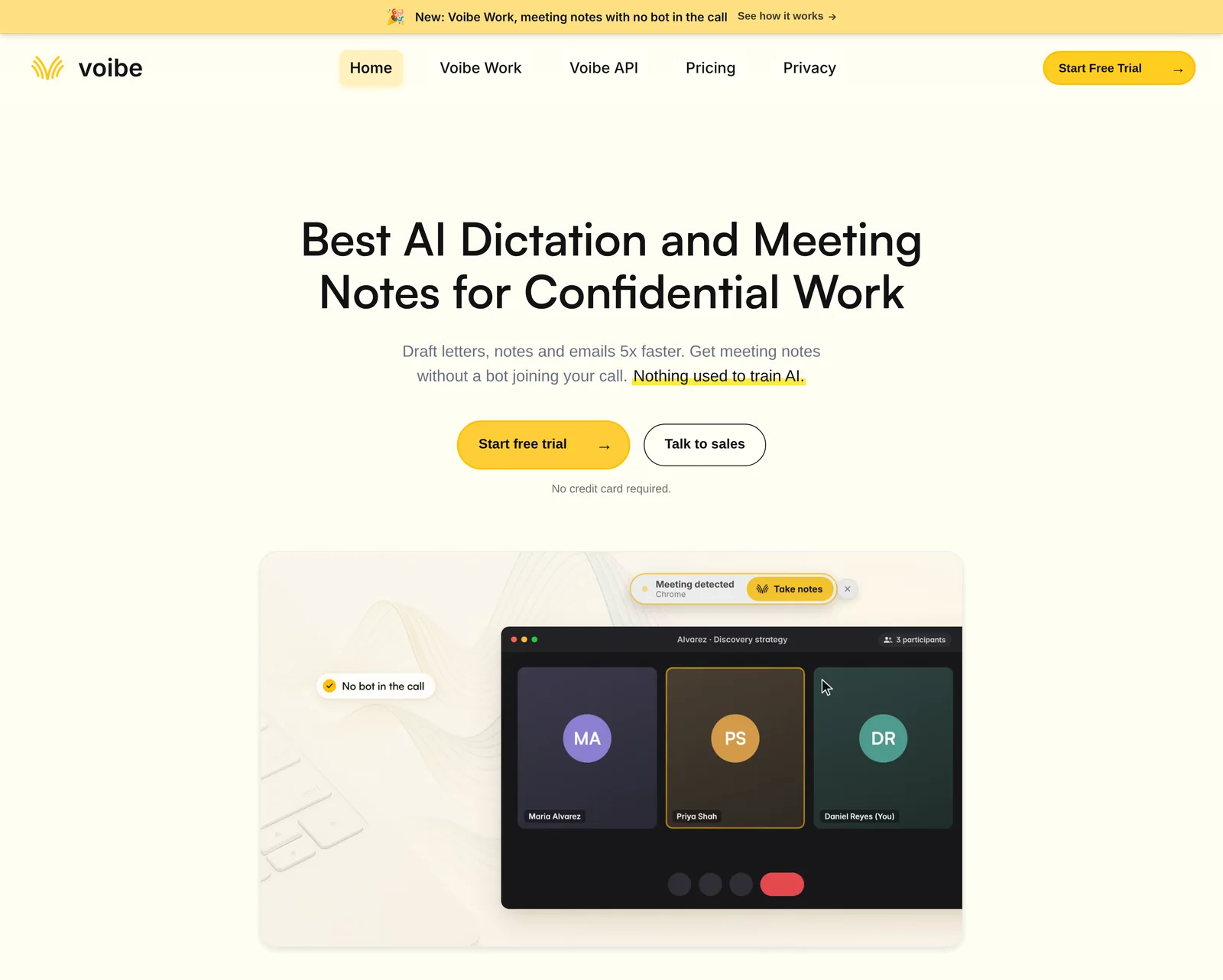
Everything above needs a recording, and Meet only lets some accounts make one. If the meeting is still on your calendar, you can skip the recording entirely.
Voibe Work is the meeting-notes plan we build. It captures the meeting from your Mac or Windows PC in Google Meet, Zoom, Microsoft Teams, Webex, Slack huddles or any other meeting app. No bot joins the call, so nobody has to admit a notetaker. It works whatever Google plan the organizer pays for.
What it does on a Meet call
- It offers to take notes when the call starts. One meeting can run up to 4 hours.
- The transcript labels each speaker. Every line gets a time, and renaming a speaker updates the summary.
- Summaries follow a template for each type of meeting. You can also create your own template, such as one for user interviews.
- You can chat with your meetings. Ask what was agreed or who owns what, then copy the notes in one click or export a PDF.
Meeting audio goes to open-source models on zero-retention cloud providers and is deleted as soon as processing completes. The transcript and summary are saved on your computer, not on Voibe's servers, and never used to train AI. That processing step means meeting notes need an internet connection.
Consent still applies without a bot. When recording starts, Voibe reminds you to tell everyone you're taking notes. Following the consent rules where each person is stays your responsibility. Our guide to AI notetaker recording consent laws covers them state by state.
Voibe API or Voibe Work?
| Voibe API | Voibe Work | |
|---|---|---|
| The job | Transcribe a Meet recording you already have | Take notes on a Meet call while it happens |
| Needs a Meet recording | Yes | No |
| Meetings you don't host | Only if someone shares the file | Yes, captured from your own computer |
| Where results live | Your disk; Voibe deletes its copy 24 hours after the job | Saved on your computer, not on Voibe's servers |
| Price | $10 for 2,000 minutes, charged only on DONE | $19/month, $149/year or $399 once |
Voibe Work includes Voibe's dictation app. Every new account starts with a 7-day trial of every Voibe Work feature, with no credit card. At $149 a year it costs $50.99 (25.5%) less than Google AI Pro's $199.99 and $19 (11.3%) less than Business Standard's $168.
Business Standard also gives you email, 2 TB of storage and Meet's own recording. If you want the suite, buy the suite. Why we built Voibe Work without a bot is in the Voibe Work launch post. The whole bot-free field is ranked in the best no-bot meeting note takers.
See Voibe Work in action
Take notes on your next Meet call without a bot
Start free on Mac or Windows. You get 7 days of every Voibe Work feature, with no credit card.
Tips for Better Google Meet Transcripts
A few habits save you from redoing a transcript, and most of them take seconds.
- Switch Meet's transcript on at the start when your plan has it. It's included on eligible editions, and it's a backup if the recording goes missing later.
- Upload the audio, not the video. The M4A carries the same speech at a fraction of the size. Billing follows audio length, so the transcript costs the same.
- Ask for speaker labels on any meeting. They're off by default in the Voibe API, so send
diarizeas true whenever more than one person talks. - Write the summary prompt for the meeting type. A board meeting and a customer call need different summaries from the same kind of transcript.
- Save results as soon as the job finishes. Voibe deletes transcripts and summaries 24 hours after each job, so keep your own copy.
- Leave the original in the organizer's Drive. Deleting the recording there removes it for everyone it was shared with, so download a copy rather than moving it.
Tip
Recording a long all-hands? Meet stops a recording after 8 hours in total, so split very long sessions into separate recordings.
Why Your Google Meet Recording Has No Transcript, and Other Fixes
The Record button is missing
Work through these five causes in order:
- Your plan doesn't include recording. Free Gmail and Business Starter can't record at all.
- Your Workspace admin hasn't switched recording on for your account yet.
- You aren't the host or a co-host. Others from the host's organization can record only when host management is off.
- You're on an iPhone. Recording needs a computer or an Android device.
- You joined only to present. Join the meeting first, then start the recording.
Drive says the recording is still processing
Wait. Drive marks the file as processing until it's ready, and longer meetings take longer. Meet emails the organizer once the link works. Captions on the Drive player can take a few more hours after that, which doesn't affect downloading.
There's a recording but no transcript
Nobody switched transcripts on, the automatic start never fired because no host joined on the web, or the plan doesn't include transcripts. In every case the fix is the same: download the MP4 and transcribe the file.
Take notes for me doesn't appear
The organizer's plan decides it, and it's limited to meetings hosted by an eligible account. Admins can switch it off for work or school accounts, and Google offers it in select countries only.
ffmpeg won't copy the audio track
Use the re-encode command from Step 3, which converts the audio to mono AAC at 64 kbps. It's a little slower, and it works whatever codec the recording used.
Everyone comes back as one speaker
Speaker labels are off by default in the Voibe API. Create the job again with diarize set to true, which the commands on this walkthrough already do.
The API returns a 402 error
Your balance is empty, so the job is refused before any upload. Buy a pack on the platform site and send the job again; failed jobs are never charged.
Tools That Make Google Meet Transcription Easier
For Meet, the shortlist comes down to one question. Does the tool work on a recording you already have, or only during the call?
| Tool | Works on a finished recording? | Bot in the call? | Cost |
|---|---|---|---|
| Meet transcripts | No, started during the meeting | No | Included with eligible Workspace editions |
| Take notes for me (Gemini) | No, and it writes a summary rather than a transcript | No | Eligible Workspace edition, or Google AI Pro at $19.99/mo |
| Voibe API (ours) | Yes, any MP4 or M4A | No | $0.30 per hour of audio on the $10 pack; 15 free minutes |
| Voibe Work (ours) | No recording needed; captures the live call | No | $149/yr ($19/mo; $399 once) |
| Local Whisper | Yes, on your own machine | No | Free, plus your setup time |
Recordings from other apps follow the same pattern. See how to transcribe a Zoom recording for Zoom's local M4A files and how to transcribe a Teams recording for Microsoft Teams.
Google Meet Transcription FAQ
Google plans and settings
Can Google Meet transcribe a recording after the meeting? Not with its own transcript feature, which has to be started during the call. Google's help pages describe no way to add one to a finished recording. Download the MP4 and transcribe it with a speech-to-text service instead.
Can I record Google Meet with a free Gmail account? No. Recording needs an eligible Workspace edition such as Business Standard, or a personal Google One plan with 2 TB or more of storage.
Does Business Starter include Meet recording? No. Google's pricing page lists recording from Business Standard up, which costs $14 per user per month on an annual plan.
Who can use Take notes for me? Accounts on an eligible Workspace edition, and Google AI Pro and Ultra subscribers, for meetings they host. It writes Gemini notes in eight languages, not a full transcript.
Files and Drive
Where are Google Meet recordings saved? In the organizer's Google Drive, in the Google Meet folder, with a sub-folder for each meeting. Recordings from before July 2026 sit in Legacy Meet Recordings inside that folder.
How do I get a recording of a meeting I didn't organize? Check the link on the Calendar event, which works automatically for attendees in the host's organization. Otherwise, ask the organizer to share the file from their Drive.
Do I need the audio file or the MP4? Meet saves only the MP4. The Voibe API accepts MP4 directly, but extracting an M4A with ffmpeg makes the upload far smaller.
Cost
How much does it cost to transcribe a Google Meet recording? The Voibe API charges $10 for 2,000 minutes, so an hour of audio costs $0.30 and a 45-minute meeting about $0.23. New accounts get 15 free minutes with no card.
Is the API cheaper than upgrading to Google AI Pro? For most people, yes. One 45-minute meeting every working day costs $56.25 a year to transcribe. Google AI Pro costs $199.99 a year and writes notes rather than a transcript.
Agents and privacy
Can Claude transcribe my Google Meet recording? Claude isn't the transcription engine, but Claude Code or Claude Desktop can drive the Voibe MCP server, which returns the transcript. Claude then writes the notes, and what it reads goes to Anthropic.
What happens to my recording after transcription? The Voibe API deletes the audio once the transcript is saved and deletes the transcript and summary 24 hours after the job finishes. Nothing is used to train models.
Can I get Meet notes without recording or adding a bot? Yes. Voibe Work captures the call from your Mac or Windows PC with no bot and saves the notes on your computer. It also reminds you to tell everyone you're taking notes.
The Recording Was the Hard Part
It feels as if you lost something when the transcript isn't there, but you didn't. Meet captured the meeting, and capture is the part you can't redo. What's missing is a conversion step that is cheap, works on any date and stays under your control.
Download the MP4, extract the audio, then POST, PUT and GET. Fifteen free minutes will show you whether the output holds up on your audio before you spend anything. For the meetings still ahead of you, try Voibe Work free for 7 days on Mac or Windows and skip the recording altogether.
More step-by-step guides on meeting notes, recordings and dictation are in our how-to guides.