

Standup Meeting Notes Template: The Quick Answer
Stand-ups are meant to take 15 minutes, and the notes are usually the first thing to go. By Thursday nobody remembers who was blocked on staging, or whether anyone agreed to open a ticket for that bug.
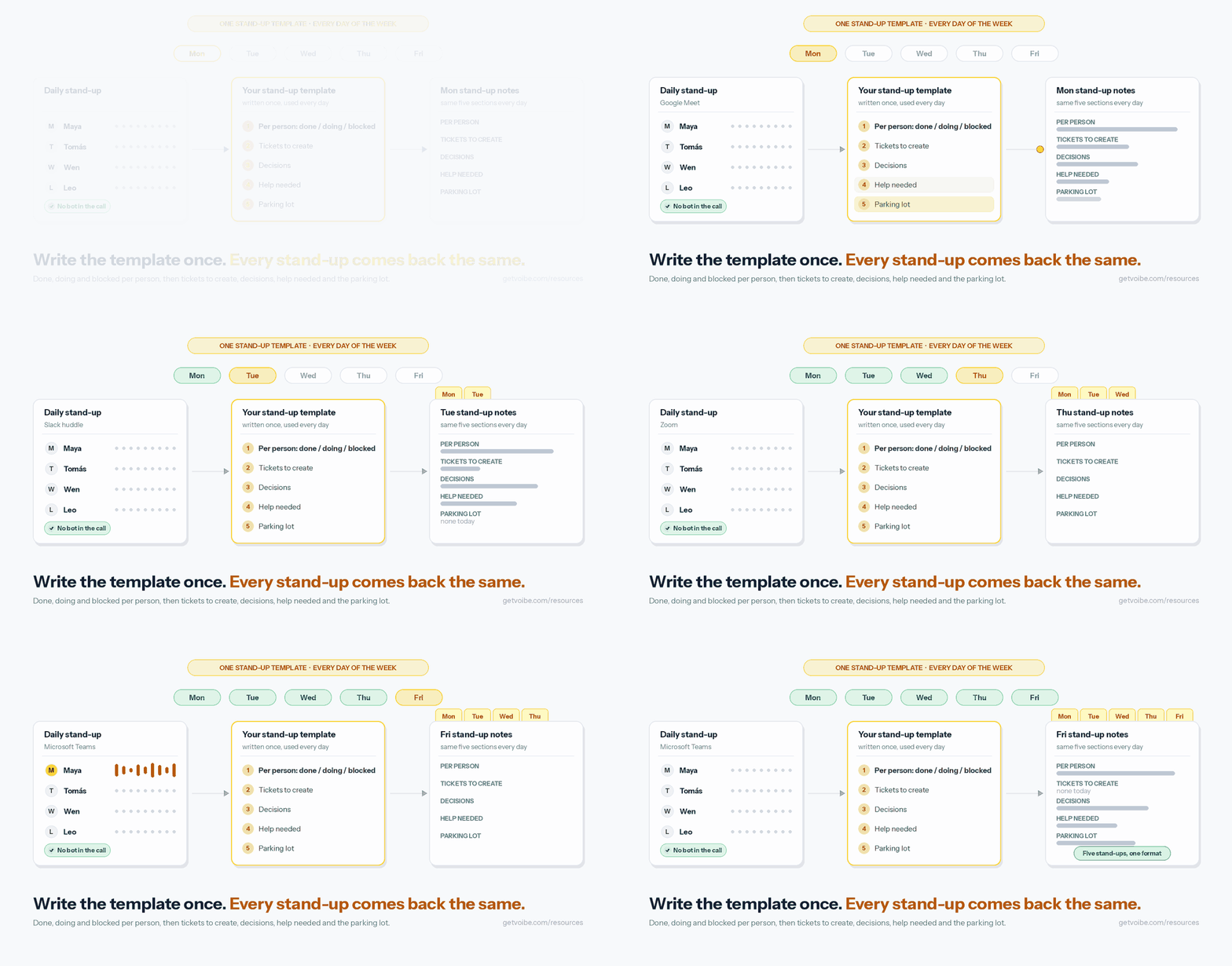
A standup meeting notes template fixes that by giving every stand-up the same five sections. Each person gets three lines for done, doing and blocked. Then the team gets tickets to create, decisions, help needed and a parking lot.
Copy the template below, then use the AI summary prompt that follows it to fill the template from a meeting transcript. The notes come out in the same shape every day.
The 2020 Scrum Guide calls the stand-up the Daily Scrum. It gives the meeting 15 minutes and lets the team pick its own structure, so none of this is required by Scrum itself. I like done, doing and blocked because each line answers one question a teammate actually has.
Key takeaways
| Question | Answer |
|---|---|
| What goes in stand-up notes? | Done, doing and blocked for each person, then tickets to create, decisions, help needed and parking-lot topics |
| How long should the notes be? | Under 250 words; the summary prompt sets that limit |
| How long is the template? | The blank template is 574 characters and the AI summary prompt 1,390 |
| Can AI fill it in? | Yes. Paste the prompt into Voibe Work, our meeting notetaker with no bot in the call, as your own template, or into ChatGPT or Claude with a transcript |
| Can the notes become tickets? | An AI assistant can draft them. It can create them only if you have also connected it to Linear or Jira |
| What stays out? | Health details, reasons for absence, performance comments, passwords, API keys and customer personal data |
Key Takeaway
A standup meeting notes template records done, doing and blocked for each person, then tickets to create, decisions, help needed and parking-lot topics, in under 250 words and the same way every day.
The Standup Meeting Notes Template to Copy
Copy this into your team's notes doc, or keep it as the shape you expect AI notes to take. Fill it top to bottom in the order the stand-up runs, and leave a section empty rather than padding it.
DAILY STAND-UP: [team], [day and date]
Present: [first names]
Absent: [first names]
Sprint goal: [one line]

PER PERSON
[Name]
  Done: [finished since the last stand-up, with ticket IDs]
  Doing: [today's focus]
  Blocked: [what is stuck and who can help], or none

TICKETS TO CREATE
- [title] | owner: [name] | raised by: [name]

DECISIONS
- [decision] | decided by: [name]

HELP NEEDED
- [blocker] | needs: [person or team] | by: [when]

PARKING LOT (after the stand-up)
- [topic] | with: [names]

[CHECK] ITEMS
- [anything unclear: a name, a ticket ID, an owner], or none
Why each section is there
- Per person. Three lines each means a teammate can find their own name, read it, and get back to work.
- Tickets to create. New work someone agreed to track gets an owner here, so it reaches the backlog instead of fading after the call.
- Decisions. Nobody expects a decision in a stand-up, which is exactly why the ones made there get lost.
- Help needed. It pulls every blocker that needs someone else into one list the person running the stand-up can work from.
- Parking lot. Topics for after the stand-up go here with the people involved, so 15 minutes stays 15 minutes.
- [CHECK] items. Anything the note-taker couldn't make out, such as a name, ticket ID or owner, is flagged here so someone confirms it instead of guessing.
The blank template is 574 characters long. Our guide to writing AI meeting notes templates has eight more templates for other meetings, built the same way, and its weekly team sync template pairs well with this one.
The diagram below fills in the template for three people from an invented checkout team, the same team as in the worked example further down.
The Standup Summary Prompt, in Two Versions
The summary prompt is the template written as instructions for an AI. Version A goes into Voibe Work as your own template. Version B wraps the same rules for ChatGPT or Claude with room for a pasted transcript.
Version A: paste it as your own template in Voibe Work
Voibe Work summarizes each meeting with a template for its type, such as client intake or investment committee, and you can create your own template. Create one for your stand-up and paste this in. At 1,390 characters it also fits the 2,000-character prompt field of Voibe's speech-to-text API.
You are writing notes from a daily stand-up. The reader is a teammate who missed it and has one minute to catch up.

Sections, in this order:
1. Per person: one block per speaker, by first name, with three lines. Done (finished since the last stand-up), Doing (today), Blocked (what is stuck and who can help, or none).
2. Tickets to create: new work someone agreed should be tracked. Title, owner, and who raised it. List a ticket only if someone said it should exist.
3. Decisions: one line each, with who decided.
4. Help needed: every blocker that needs someone other than the speaker, with who can unblock it and by when.
5. Parking lot: topics someone asked to take after the stand-up, with the people involved.

Rules:
- Maximum 250 words. Bullets only, and no retelling of the discussion.
- Copy ticket IDs exactly as spoken, such as PAY-212. Never invent one.
- If someone gave no update, write no update. Leave out anyone who was absent.
- A status update is not a task. List an action only if an owner agreed to it.
- Treat stuck, waiting on and can't as blockers, even when said in passing.
- Leave out: health details, reasons for absence, comments on anyone's performance, passwords, API keys, and customer names or personal data.
- If a name, ticket ID or owner is unclear, write [CHECK: what is unclear] instead of guessing.
- End with a list of every [CHECK] item, or none.
Version B: paste it into ChatGPT or Claude with a transcript
Use this one when the transcript comes from somewhere else, or when you want to test the format before you change tools. Paste the transcript between the two marker lines at the bottom.
Turn the stand-up transcript below into notes for a teammate who missed the meeting and has one minute to catch up. Speakers are labelled by name or as Speaker 1, Speaker 2. Keep the labels as given.

Sections, in this order:
1. Per person: one block per speaker, by first name, with three lines. Done (finished since the last stand-up), Doing (today), Blocked (what is stuck and who can help, or none).
2. Tickets to create: new work someone agreed should be tracked. Title, owner, and who raised it. List a ticket only if someone said it should exist.
3. Decisions: one line each, with who decided.
4. Help needed: every blocker that needs someone other than the speaker, with who can unblock it and by when.
5. Parking lot: topics someone asked to take after the stand-up, with the people involved.

Rules:
- Maximum 250 words. Bullets only, and no retelling of the discussion.
- Copy ticket IDs exactly as spoken, such as PAY-212. Never invent one.
- If someone gave no update, write no update. Leave out anyone who was absent.
- A status update is not a task. List an action only if an owner agreed to it.
- Treat stuck, waiting on and can't as blockers, even when said in passing.
- Leave out: health details, reasons for absence, comments on anyone's performance, passwords, API keys, and customer names or personal data.
- If a name, ticket ID or owner is unclear, write [CHECK: what is unclear] instead of guessing.
- End with a list of every [CHECK] item, or none.

--- TRANSCRIPT START ---
[paste the transcript here]
--- TRANSCRIPT END ---
Whatever you paste into ChatGPT or Claude goes to OpenAI or Anthropic under that company's terms. Remove anything you wouldn't post in the team channel before you paste.
Worked Example: A Four-Person Stand-Up, Before and After
The stand-up below is invented: a four-person checkout team on a Tuesday, with about a minute and a half of transcript. Every line carries a speaker name and a time, the way a meeting transcript does.
The transcript excerpt
[09:30:04] Maya: Morning. Tomás, you start.
[09:30:09] Tomás: Yesterday I merged the retry fix, PAY-212. Today I'm on the refund webhook. No blockers.
[09:30:31] Wen: I finished the checkout copy changes. Today I'm testing in Safari, but I still can't get into the staging account.
[09:30:48] Maya: I'll reset your staging access right after this.
[09:30:55] Wen: Thanks. Also, the error banner covers the pay button on small screens. We should track that.
[09:31:06] Maya: Agreed, make a ticket for it. You own it.
[09:31:12] Leo: I was out yesterday afternoon for a doctor's appointment, so not much done. Today it's the pricing page A/B test.
[09:31:30] Tomás: Are we shipping that test Thursday or Friday?
[09:31:36] Maya: Friday. Thursday is the release freeze. Leo and Tomás, take the analytics event names after this.
The notes the template produces
DAILY STAND-UP: Checkout team, Tuesday
Present: Maya, Tomás, Wen, Leo

PER PERSON
Tomás
  Done: retry fix merged (PAY-212)
  Doing: refund webhook
  Blocked: none
Wen
  Done: checkout copy changes
  Doing: Safari testing
  Blocked: no access to the staging account
Leo
  Done: nothing reported
  Doing: pricing page A/B test
  Blocked: none
Maya
  no update

TICKETS TO CREATE
- Error banner covers the pay button on small screens | owner: Wen | raised by: Wen, agreed by Maya

DECISIONS
- The A/B test ships Friday, not Thursday, because of the release freeze | decided by: Maya

HELP NEEDED
- Wen's staging access | needs: Maya | by: today

PARKING LOT (after the stand-up)
- Analytics event names | with: Leo, Tomás

[CHECK] ITEMS
- none
What the template did with it
- Leo's appointment stayed out. The notes say nothing was reported, because the reason for his absence isn't the team's business.
- Staging access became help needed, not a ticket. Maya agreed to fix it herself today. It needs a name and a deadline, not a backlog entry.
- The error banner became a ticket. Wen said it should be tracked and Maya agreed, which is the test the summary prompt applies.
- The event names went to the parking lot. Maya moved that topic after the stand-up, so it gets two names and no discussion.
Maya ran the meeting and gave no update of her own, so the notes record exactly that instead of inventing one.
What to Capture in Stand-Up Notes, and What to Leave Out
Stand-up notes should hold what the team needs tomorrow and nothing that would hurt anyone if the notes were forwarded. The whole team reads them, and stakeholders often do too.
What to capture
Record work items with ticket IDs exactly as spoken, and blockers with the person who can help. Note each decision with the person who made it. Add new work someone agreed to track, parking-lot topics with the people involved, and any date said aloud, such as a release freeze.
What to leave out
- Health and absence. Out yesterday is enough, because the reason belongs to the person and not the notes.
- Performance. Who is behind, or whose code broke the build, is a conversation for a one-to-one.
- Secrets read aloud. Debugging out loud sometimes means reading a password, token or API key. None of it should land in a summary.
- Customer data. Name the bug, not the customer whose account showed it.
The leave-out list in the summary prompt keeps these details out of the summary. The transcript still holds every word that was said, so store it with the same care.
Tell the team before you record
Recording a stand-up is still recording a meeting. Say at the first one that notes are being taken, and say it again when someone new joins. Rules differ by state and country, and our guide to AI notetaker recording consent laws covers them.
Topics that need privacy, such as pay, health or a performance problem, belong in a one-to-one. The one-on-one meeting notes template shows how to handle them there.
Run the Template on Every Stand-Up With Voibe Work
Voibe Work, the meeting-notes plan we build, can run this template on your stand-ups with no bot in the call. It captures the meeting from your Mac or Windows PC in Zoom, Microsoft Teams, Google Meet, Webex, Slack huddles or any other meeting app.
It also records in-person meetings through your computer's microphone, which suits a team that stands around a desk. Our guide to recording an in-person meeting on your laptop covers the room setup.
Set it up once
- Create your own template. Paste Version A of the summary prompt and give it your stand-up's name.
- Take notes when the stand-up starts. On Mac and Windows, Voibe offers to take notes when a call starts, rather than joining from your calendar.
- Rename the speakers. The transcript labels each speaker and puts a time next to every line. Click a speaker's name to rename them, and the summary updates.
- Share the notes. Copy them into the team channel in one click, or export a PDF.
Where the notes go
Meeting audio is processed by open-source models on zero-retention cloud providers and deleted as soon as processing completes. The transcript and summary are saved on your computer, not on Voibe's servers, and never used to train AI. Processing runs in the cloud, so meeting notes need an internet connection.
When recording starts, Voibe reminds you to tell everyone you're taking notes. Following the consent rules where each person is stays your responsibility.
One meeting can run up to 4 hours, far more than a stand-up needs. Transcripts and summaries also arrive 10 to 20 times faster than before, by Voibe's own measurements, according to Voibe's October 2026 update.
What it costs
Voibe Work costs $19 a month, $149 a year or $399 once per seat, with Mac and Windows on one seat. Every new account starts with a 7-day trial of every Voibe Work feature, with no credit card and no automatic charge.
After the trial the account moves to Voibe Free, which covers dictation but not meeting notes.
New to Voibe Work? The first-week setup guide walks you through it.
See Voibe Work in action
Get tomorrow's stand-up notes in this format
7 days of every Voibe Work feature on Mac or Windows. No credit card.
Prompts for What Comes After This Meeting
Stand-up notes are raw material for other work. The four prompts below turn a day, a week or a sprint of stand-ups into a status update, ticket drafts, an escalation note or retro input. Each prompt comes in two forms, one for each route your meetings can take into an assistant.
- Route A, with Voibe Meeting MCP connected in Claude Desktop. Meeting MCP is a Voibe Work feature that lets AI apps such as Claude read your meetings. MCP, the Model Context Protocol, is the standard AI apps use to connect to other tools. Claude reads the meetings itself, so a week or a sprint of stand-ups needs no pasting. Meeting MCP comes with Voibe Work and the 7-day trial.
- Route B, the paste version. Copy the summary or transcript from Voibe Work with one-click copy, paste it under the prompt, and use any assistant.
Connect Meeting MCP to Claude Desktop
- Open the Meeting MCP panel. Click MCP on the Meetings page in Voibe, and check that the switch labelled Let AI apps use your meetings is on.
- Add it to Claude. On the Claude tab, click Add to Claude, and Claude Desktop opens.
- Install it. Claude shows Voibe Meeting MCP, and you click Install.
The panel's own privacy note reads: “Apps you connect can read your meeting titles, summaries and transcripts. Your dictation is never shared. What an app reads goes to the company behind its AI, for example Anthropic for Claude. None of it goes through Voibe's servers.”
Turning off Let AI apps use your meetings stops every AI app at once. In Route B, whatever you paste also goes to that AI company under its terms.
For a quick question about one stand-up, chat with your meetings inside Voibe Work instead. In-app chat runs on the same zero-retention cloud and stores nothing you ask.
The Meeting MCP launch post walks through the panel. Our guide on how to give Claude access to your meeting notes compares it with pasting and other routes.
1. Weekly status update from the week's stand-ups
Write this for a manager or stakeholder who never attends the stand-up. Route A asks Claude to read the meetings through Meeting MCP:
Read this week's daily stand-up meetings in Voibe, Monday to Friday.

Write a weekly status update for our engineering manager, who does not attend stand-ups. Under 200 words, in four sections:
1. Shipped: work finished this week, with ticket IDs.
2. In progress: what carries into next week, with the owner.
3. Risks and blockers: anything blocked on two or more days, and who can help.
4. Decisions: decisions made in stand-ups, with the day.

Use only names, ticket IDs and dates that appear in the meetings. If something is unclear, write [CHECK: what is unclear].
Route B works with the week's notes pasted under the prompt:
Below are this week's stand-up notes, one per day, with the day at the top of each.

Write a weekly status update for our engineering manager, who does not attend stand-ups. Under 200 words, in four sections:
1. Shipped: work finished this week, with ticket IDs.
2. In progress: what carries into next week, with the owner.
3. Risks and blockers: anything blocked on two or more days, and who can help.
4. Decisions: decisions made in stand-ups, with the day.

Use only names, ticket IDs and dates that appear in the notes. If something is unclear, write [CHECK: what is unclear].

[paste Monday to Friday here]
2. Ticket drafts from today's stand-up
Ask for drafts first and create tickets only after you've read them. Route A asks Claude to read the meetings through Meeting MCP:
Read today's daily stand-up in Voibe.

For every item under Tickets to create, draft one ticket with:
- Title: under 70 characters.
- Description: two or three sentences on the problem and where it shows up.
- Acceptance criteria: three testable bullets.
- Owner: as named in the meeting.
- Source: the speaker's line, quoted exactly, with its timestamp.

Do not create anything yet. Show me the drafts first. Use only what was said, and write [CHECK: what is missing] for any detail nobody gave.
Route B works with today's transcript pasted under the prompt:
Below is today's stand-up transcript, with speaker names and a time on every line.

For every piece of new work someone agreed should be tracked, draft one ticket with:
- Title: under 70 characters.
- Description: two or three sentences on the problem and where it shows up.
- Acceptance criteria: three testable bullets.
- Owner: as named in the transcript.
- Source: the speaker's line, quoted exactly, with its timestamp.

Use only what was said, and write [CHECK: what is missing] for any detail nobody gave.

[paste the transcript here]- Creating the tickets. Claude can create the tickets you approve only if you've also connected Linear or Jira to Claude through that tool's own connector. Linear's MCP server has tools for creating issues, and the Atlassian MCP server creates Jira work items under your existing Atlassian permissions.
- What Voibe does. Voibe Meeting MCP only lets Claude read your meetings, and it never writes to Linear or Jira.
For tickets you'd rather write yourself, our guide to dictating in Linear and Jira covers titles and acceptance criteria by voice.
3. Blocker escalation note
Use it when the same blocker keeps coming back and someone outside the team can clear it. Route A asks Claude to read the meetings through Meeting MCP:
Read the last five daily stand-ups in Voibe.

Find every blocker that came up on two or more days. For each one, write a short escalation note to [name, role], under 150 words: the blocker, the days it was raised, who raised it, who can unblock it, and what the team needs by when.

Keep the tone polite and factual, with no blame. Quote only from the meetings, and write [CHECK: what is unclear] where the meetings don't say.
Route B works with the last five days of notes pasted in:
Below are the notes from our last five stand-ups, with the day at the top of each.

Find every blocker that came up on two or more days. For each one, write a short escalation note to [name, role], under 150 words: the blocker, the days it was raised, who raised it, who can unblock it, and what the team needs by when.

Keep the tone polite and factual, with no blame. Quote only from the notes, and write [CHECK: what is unclear] where the notes don't say.

[paste the notes here]
4. Sprint retro input
Run it the day before the retrospective, so the team starts from facts instead of memory. Route A asks Claude to read the meetings through Meeting MCP:
Read every daily stand-up in Voibe since [sprint start date].

Prepare input for our sprint retrospective, under 300 words:
1. A table of recurring blockers: blocker, days raised, who raised it.
2. Work that carried over three or more days, with the owner.
3. Decisions that changed during the sprint, with both days.
4. Parking-lot topics nobody picked up.

Facts only. No judgments about individuals, and no suggestions. Write [CHECK: what is unclear] where the meetings don't say.
Route B works with the whole sprint's notes pasted in:
Below are the notes from every stand-up this sprint, with the day at the top of each.

Prepare input for our sprint retrospective, under 300 words:
1. A table of recurring blockers: blocker, days raised, who raised it.
2. Work that carried over three or more days, with the owner.
3. Decisions that changed during the sprint, with both days.
4. Parking-lot topics nobody picked up.

Facts only. No judgments about individuals, and no suggestions. Write [CHECK: what is unclear] where the notes don't say.

[paste the notes here]
The output comes from your assistant, not from Voibe. Check names, ticket IDs and commitments against the transcript before anything leaves the team. Read twice anything a stakeholder or customer will see.
Two of these prompts have their own pages, with longer versions and worked examples: the weekly status update prompt and the meeting notes to tickets prompt. The rest of the series is in our AI prompts for meeting notes library.
Which Stand-Up Notes Setup Fits Your Team
Pick the row that matches where your stand-up happens and who reads the notes afterwards. Each answer points to a part of the page above.
| Your situation | What to use |
|---|---|
| Remote stand-up in Zoom, Teams, Meet or a Slack huddle | Voibe Work with Version A of the summary prompt as your own template |
| The team stands around a desk | Voibe Work recording through the laptop's microphone, with Version A |
| Async stand-up written in a Slack thread | Paste the thread into ChatGPT or Claude with Version B of the summary prompt |
| Transcript from another note taker | Version B, pasted into the assistant you already use |
| Notes taken by hand | The blank template, filled in by whoever runs the stand-up |
| Your manager wants a Friday update | After-meeting prompt 1, the weekly status update |
| Tickets were agreed in the stand-up | After-meeting prompt 2 for drafts, then a Linear or Jira connector in Claude |
| The same blocker shows up all week | After-meeting prompt 3, the escalation note |
| Retro is tomorrow | After-meeting prompt 4, with Meeting MCP (Route A) reading the whole sprint |
| A customer incident came up in the stand-up | Keep customer data out with the leave-out list, and ask questions about it in Voibe Work's in-app chat rather than an outside AI app |
Why Your Stand-Up Notes Come Out Wrong, and How to Fix It
Each of these four problems has a one-line fix, either in the prompt or in how you review the notes.
Why are the owners in my notes wrong?
The speakers were never named, so the AI guessed from context. Rename each speaker once before you read the summary, and owners follow the real names.
Why does the summary invent tickets?
The prompt didn't say when a ticket counts. Keep the rule that lists a ticket only if someone said it should exist, and every vague maybe stays out of the backlog.
Why are the notes longer than the stand-up?
A side discussion was retold in full. The 250-word cap and the parking-lot section fix it. A topic moved there gets a name and a list of people, not a paragraph.
Why is a blocker missing from the notes?
Someone mentioned it in passing, such as being a bit stuck on a review. The rule that treats stuck, waiting on and can't as blockers catches most of these. A quick read of the transcript catches the rest.
Standup Meeting Notes Template FAQ
The template
What should standup meeting notes include? Done, doing and blocked for each person, then the tickets to create, decisions, help needed and parking-lot topics, all in under 250 words.
Do I need the classic three questions (yesterday, today, blockers)? No, the 2020 Scrum Guide lets the team pick its own structure for the 15-minute Daily Scrum. Done, doing and blocked is one format that works well for notes.
Should absent people appear in the notes? List them under Absent at the top, and leave them out of the per-person section, without recording why anyone was away.
Using AI
Can ChatGPT or Claude write stand-up notes from a transcript? Yes, paste Version B of the summary prompt with the transcript, and check owners and ticket IDs before you share the result.
Can an AI create Jira or Linear tickets from a stand-up? Claude can draft them from the meeting and create the ones you approve, if Linear or Jira is also connected to Claude. Voibe Meeting MCP itself only reads meetings.
Voibe Work and privacy
Can Voibe Work take stand-up notes without a bot? Yes, it captures the meeting from your Mac or Windows PC with no bot in the call. It also records in-person stand-ups through the computer's microphone.
Where are Voibe Work stand-up notes stored? On your computer, not on Voibe's servers. The audio is deleted as soon as processing completes, and the notes are never used to train AI.
How much does Voibe Work cost? $19 a month, $149 a year or $399 once per seat. A 7-day trial of every feature needs no credit card.
Same Five Sections, Every Morning
A stand-up is a daily habit, so its notes should be one too. Copy the template and paste the summary prompt wherever your transcripts land. Keep the leave-out list and the [CHECK] rule when you edit the rest.
Once a week of notes looks the same, the after-meeting prompts can turn it into a status update or a retro in a few minutes. More templates for other meetings are in our guide to AI meeting notes templates.