

Meeting Follow-Up Email Prompt: The Quick Answer
The prompt below turns a meeting's notes into a follow-up email: what you heard, what you agreed, next steps with dates, and what you're sending. It's for anyone who writes the recap after a client or prospect call, from consultants and brokers to account managers.
Most AI follow-up drafts fail in the same place. They promise things nobody said, like a proposal by Friday. Every rule in this prompt exists to stop that. The email holds only what was said in the meeting.
The prompt comes in two forms. The paste version works in ChatGPT, Claude or Gemini with a transcript or summary you paste in. The MCP version lets Claude read the meeting itself through Voibe Meeting MCP, a connector explained below, so one email can cover several calls.
Both work with notes from Voibe Work, the meeting-notes plan we build, which takes notes with no bot in the call. They work with notes from other tools too.
Key takeaways
| Question | Answer |
|---|---|
| What does the prompt produce? | A follow-up email under 200 words in four parts: what we heard, what we agreed, next steps with owner and date, and what I'll send |
| Who is it for? | Anyone who sends the recap after a client or prospect call, with variants for consultations, discovery calls and internal recaps |
| Which assistant does it need? | Any assistant for the paste version; Claude Desktop with Voibe Meeting MCP for the MCP version |
| How does it avoid invented promises? | It uses only names, figures, dates and commitments from the notes, and writes [CHECK: …] where it is unsure |
| What if no date was agreed? | The step says date to confirm instead of a guessed deadline |
| What do you check before sending? | Names, numbers, dates, every commitment and every promised attachment |
Key Takeaway
The meeting follow-up email prompt turns a transcript or summary into an email under 200 words with four parts: what we heard, what we agreed, next steps with owner and date, and what I'll send, using only what was said in the meeting.
The Follow-Up Email Prompt to Copy: the Paste Version
The paste version works in any AI assistant. Fill in the two bracketed fields at the top, then paste your transcript or summary at the bottom.
Write a follow-up email from me to the people I met, using the meeting notes pasted below. Sign it as [your name].

Audience: [name and role of the client or prospect]. They were in the meeting, they are busy, and they may read this on a phone.
Length: under 200 words. Plain text, friendly and direct, no marketing language.

Format:
1. Subject line: the meeting and the main next step, under 60 characters.
2. One opening line that thanks them and names the meeting.
3. What we heard: two to four bullets on their situation, goals or concerns, in their words where possible.
4. What we agreed: one bullet per decision or agreement.
5. Next steps: one bullet each, written as owner, action, date. Include their steps as well as mine.
6. What I'll send: every document, link or file I promised, by name.
7. A one-line close, with the next meeting date if one was set.

Rules:
- Use only names, figures, prices, dates and commitments that appear in the notes. Never add a promise, discount, deadline or attachment that is not there.
- If a next step has no date in the notes, write "date to confirm" instead of choosing one.
- Call a price or figure an estimate unless the notes say it is final.
- Leave out internal remarks, small talk, and personal comments about people who were not in the meeting.
- Where a name, number, date or owner is unclear, write [CHECK: what is unclear]. List every [CHECK] item under the email, or write none.

Notes:
[paste the transcript or summary here]
Why the prompt is written this way
- The audience line: an assistant writes one way for a busy client and another for a colleague. The prompt tells it which.
- The 200-word limit: a short recap gets read in full. The limit also stops the assistant retelling the meeting.
- Next steps as owner, action, date: their steps sit next to yours, so the email reads as a shared plan.
- What I'll send, by name: promised files are easy to forget, and the client remembers every one.
- Date to confirm: left alone, assistants turn an open step into a made-up deadline you then have to meet.
- [CHECK] items: the assistant flags what it couldn't make out instead of guessing. The list under the email shows what to fix.
I'd keep the opening to one line. A client who just spent an hour with you doesn't need a paragraph about how productive it was.
The MCP Version: Claude Reads the Meeting Itself
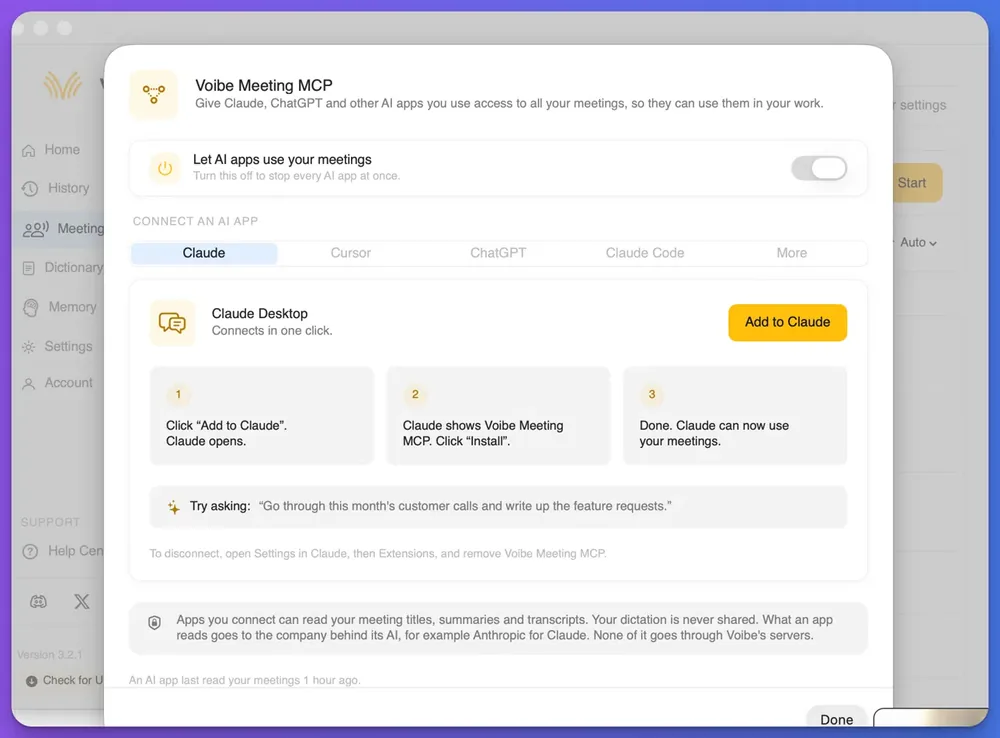
The MCP version does the same job without any copying. Voibe Meeting MCP is a Voibe Work feature that lets AI apps such as Claude read your meetings. MCP, short for Model Context Protocol, is the standard AI apps use to connect to other software.
With it connected, you name the meeting in the prompt and Claude finds it. Meeting MCP comes with Voibe Work and the 7-day trial, not with Voibe Free or Voibe Dictation.
Connect Meeting MCP to Claude Desktop
Claude Desktop is Anthropic's Claude app for Mac and Windows. Connecting it takes three steps:
- In Voibe Work, click MCP on the Meetings page. Check that Let AI apps use your meetings is switched on.
- On the Claude tab, click Add to Claude, and Claude Desktop opens.
- Claude shows Voibe Meeting MCP. Click Install, and Claude can now use your meetings.
To disconnect later, open Settings in Claude, then Extensions, and remove Voibe Meeting MCP. Turning the switch off in Voibe stops every AI app at once.
The MCP version for one meeting
Read my most recent meeting with [client or company name] in Voibe.

Write a follow-up email from me to [name, role], signed as [your name].
Length: under 200 words. Plain text, friendly and direct, no marketing language.
Format: a subject line under 60 characters; one opening line; What we heard (two to four bullets); What we agreed; Next steps (owner, action, date for each, theirs and mine); What I'll send (every document or link I promised); a one-line close with the next meeting date if one was set.

Use only names, figures, dates and commitments from the meeting. If a next step has no date, write "date to confirm". Call a price an estimate unless I called it final. Where anything is unclear, write [CHECK: what is unclear], and list every [CHECK] item under the email.
The MCP version for several meetings with one client
Some clients take three calls to decide, and a recap of only the last one leaves gaps. This prompt asks Claude to read all of them, so it works only in the MCP version:
Read every meeting with [client or company name] in Voibe since [date].

Write one follow-up email from me to [name, role] that recaps where things stand after all of these meetings. Under 250 words, signed as [your name].
Sections: What we've agreed so far (with the meeting date for each); Done (only steps a later meeting says were finished); Still open (owner and date for each); What I still owe you.

Use only what was said in the meetings. If a step has no date, write "date to confirm". If two meetings disagree on a figure or date, show both with their meeting dates and add [CHECK]. List every [CHECK] item under the email.
Which version to use
| Your situation | Use |
|---|---|
| One call, and you already have the notes open | The paste version |
| You use ChatGPT, Gemini or another assistant | The paste version |
| Several calls with the same client | The MCP version for several meetings |
| You want the draft without leaving Claude Desktop | The MCP version for one meeting |
| A quick question about one meeting, not an email | Voibe Work's built-in meeting chat, no prompt needed |
Worked Example: A Discovery Call Becomes a Follow-Up Email
The call below is invented. Dana is a consultant, and Sam runs operations at Harbor Lane, a made-up group of bakeries. Every line carries a speaker name and a time, the way a meeting transcript does.
The transcript excerpt
[10:02:15] Sam: Our real problem is waste. We throw out too much bread on Mondays because the weekend orders are a guess.
[10:02:41] Dana: How do you forecast those orders today?
[10:02:45] Sam: A spreadsheet my predecessor built. Only Priya really understands it.
[10:03:20] Dana: Would a four-week pilot in two stores help before anything bigger?
[10:03:31] Sam: Yes, two stores. Probably Eastgate and the airport one. I'd want Priya at the kickoff.
[10:04:05] Dana: I'll send you a one-page pilot outline and our data checklist.
[10:04:18] Sam: Good. I can get you last quarter's order data by the 14th.
[10:04:30] Dana: I'll put a rough price range for the pilot in the outline.
[10:04:52] Sam: Can we talk again once I've read it?
The email the prompt produces
Subject: Two-store pilot: outline and order data next

Hi Sam,

Thanks for the call and for walking me through the Monday waste problem.

What we heard
- Too much bread is thrown out on Mondays because weekend orders are a guess.
- Orders are forecast in a spreadsheet that only Priya fully understands.

What we agreed
- Start with a four-week pilot in two stores before anything bigger: Eastgate and the airport store [CHECK: you said probably].
- Priya joins the kickoff, as you asked.

Next steps
- Dana: send the one-page pilot outline, with a rough price range, date to confirm.
- Sam: share last quarter's order data, by the 14th.
- Both: talk again once you've read the outline, date to confirm.

What I'll send
- One-page pilot outline, including a rough price range
- Data checklist

Speak soon,
Dana

[CHECK] items
- Which two stores: Eastgate and the airport store were named as probable.
What the prompt did with it
- No price appeared: Dana promised a rough range but never said a figure. The email repeats the promise and invents no number.
- Two steps got date to confirm: nobody dated the outline or the next call. The email says so instead of picking Friday.
- Sam's date stayed as said: the order data is due by the 14th, which is exactly what Sam offered.
- The stores got a [CHECK]: Sam said probably, so the email names both stores and flags them for Dana.
The email also drops Sam's remark about who built the spreadsheet. Priya stays in because she is part of the plan, but a passing comment about someone who wasn't in the call doesn't belong in a client email.
How to Adapt the Follow-Up Email Prompt
The core prompt fits most client meetings. For the three follow-ups people send most, swap the audience line and add the rules below to either version.
After a client consultation
Insurance, financial and legal clients act on what the email says, so figures need care. Replace the audience line and add these rules:
Audience: [client name], who is not an expert in [your field].
Add these rules:
- Call every fee, premium or return figure an estimate unless I called it final.
- Do not add a recommendation I did not make.
- End with one line asking the client to reply if anything is wrong.
Our insurance client meeting notes template has a follow-up email prompt built for insurance consultations. For the record that goes in the client file, use our client-file note prompt instead of the email.
After a discovery call
A prospect hasn't agreed to anything yet, so the email should be short and ask for one easy yes:
Audience: [prospect name and role], who has not decided to work with us.
Length: under 150 words.
Add these rules:
- Put their problem first, in their words.
- Mention no price, timeline or scope unless a figure was said in the meeting.
- Make the first next step something they can say yes to in one reply.
Is the next step a proposal? Our proposal outline prompt turns the same call into problem, goals, scope and options.
As an internal recap to the team
Colleagues who missed the meeting need owners and open questions, not attachments. Change the first line and swap one section:
Write a recap for colleagues who missed the meeting, not for the client.
Length: under 150 words, bullets only.
Replace "What I'll send" with two sections: Who owns what (owner, action, date) and Open questions (with who raised them).
Leave out comments about any person's performance, health or pay.
Did the meeting produce a long list of tasks? Our meeting action items prompt gives each one an owner, a due date and a source line.
Tone, length and language
- Shorter: change the limit to under 100 words for a quick check-in after a short call.
- More formal: replace friendly and direct with formal and concise for a board or a new client.
- Another language: add write the email in [language]. Keep the [CHECK] rule, because names garble easily in translation.
What to Check Before You Send the Follow-Up Email
The assistant writes the draft, but the email goes out under your name. Read it against the transcript before it leaves your outbox, and resolve every [CHECK] item first.
- Names and roles: spell them the way the client spells them. A transcript writes names as they sound, and the email copies that.
- Numbers and prices: match each one to the transcript, and keep any estimate labelled as an estimate.
- Dates and owners: every next step needs both, or says date to confirm. Replace each date to confirm with a real date before you send, if you can.
- Promises in both directions: remove anything you didn't offer, and anything the client didn't agree to.
- Attachments: attach every file the email names, or take the line out.
Delete the [CHECK] list from under the email once each item is fixed. Does the email go in a client file or a compliance record? Save the version you sent, not the draft.
Read the email once as the client would. Anything you said in confidence about a third party, or anything you wouldn't want forwarded, should come out.
Run the Follow-Up Email Prompt on Your Voibe Work Meetings
Voibe Work gives the prompt clean input, with no bot joining the call. It captures the meeting from your Mac or Windows PC in Zoom, Microsoft Teams, Google Meet, Webex, Slack huddles or any other meeting app. It also records in-person meetings through your computer's microphone.
Where the prompt's input comes from
- The transcript: it labels each speaker and puts a time next to every line. Click a speaker's name to rename them, and the summary updates.
- The summary: Voibe Work summarizes each meeting with a template for its type, such as client intake. You can also create your own template.
- Getting it out: one-click copy puts the transcript or summary on your clipboard. PDF export gives you a file.
Meeting audio is processed by open-source models on zero-retention cloud providers and deleted as soon as processing completes. The transcript and summary are saved on your computer, not on Voibe's servers, and never used to train AI. Processing runs in the cloud, so meeting notes need an internet connection.
Who sees the meeting when you run the prompt
The MCP version gives Claude read access to your meetings. The Meeting MCP panel in Voibe Work spells out who sees what:
“Apps you connect can read your meeting titles, summaries and transcripts. Your dictation is never shared. What an app reads goes to the company behind its AI, for example Anthropic for Claude. None of it goes through Voibe's servers.”
The paste version has the same limit. Whatever you paste into ChatGPT, Claude or Gemini goes to that AI company under its terms. For a quick question about one meeting, ask Voibe Work's built-in meeting chat instead. In-app chat runs on Voibe's zero-retention cloud, and nothing you ask is stored.
When recording starts, Voibe reminds you to tell everyone you're taking notes. Following the consent rules where each person is stays your responsibility. Our guide to AI notetaker recording consent laws covers them.
What it costs
Voibe Work costs $19 a month, $149 a year or $399 once per seat. One seat covers Mac and Windows. Every new account starts with a 7-day trial of every Voibe Work feature, Meeting MCP included. There's no credit card and no automatic charge.
New to Voibe Work? The first-week setup guide walks you through it.
See Voibe Work in action
Get follow-up-ready notes from your next call
7 days of every Voibe Work feature on Mac or Windows. No credit card.
Meeting Follow-Up Email Prompt FAQ
Writing the email
What should a meeting follow-up email include? What you heard, what you agreed, and next steps with an owner and a date each. Add the files you promised, all in under 200 words.
When should I send it? Send it the same day if you can, while both sides still remember the call. A recap that arrives a week later is easier to ignore.
What if nobody agreed a date for a next step? The prompt writes date to confirm. Replace it with a real date before sending, or leave it so the client can propose one.
Using AI assistants
Can ChatGPT write a follow-up email from meeting notes? Yes. Run the paste version with your notes in ChatGPT, Claude or Gemini. Check names, numbers and promises before you send.
How do I stop the AI from adding things nobody said? Keep the rule that allows only what is in the notes, plus the [CHECK] rule. Then read the draft against the transcript.
Does Voibe Meeting MCP send the email for me? No. Meeting MCP only lets Claude read your meetings. Claude writes the draft, and you copy it into your email app and send it yourself.
Voibe Work and privacy
Where does Voibe Work keep meeting notes? On your computer, not on Voibe's servers. The audio is deleted as soon as processing completes, and the notes are never used to train AI.
Which plans include Meeting MCP? Voibe Work, at $19 a month, $149 a year or $399 once per seat. The 7-day trial every new account gets includes it too.
Send It While the Call Is Still Fresh
A follow-up email is only useful if the client can trust every line of it. Copy the paste version for one call. Connect Meeting MCP when Claude should read several calls at once.
Keep the three rules that stop invented promises in every variant you write: only what was said, date to confirm, and [CHECK] where unsure.
More prompts like this one are in our AI prompts for meeting notes library. Our guide to AI meeting notes templates covers the summaries those prompts start from.