

Feature Requests From Customer Calls: The Quick Answer
Customers tell you what to build on almost every call. A week later the request lives in one person's memory. Nobody can say whether three customers asked for it or one customer asked three times.
The feature request prompt below turns customer calls into one table. Each row holds the request, the customer type, how many calls it came up in, a short quote and a severity rating. It is written for product managers, founders, and the customer success and sales people who sit in those calls.
Voibe Work, the meeting-notes plan we build, takes notes with no bot in the call. Voibe Meeting MCP is a Voibe Work feature that lets AI apps such as Claude read your meetings. MCP, short for Model Context Protocol, is the standard AI apps use to connect to other software.
This job is the example in the Meeting MCP panel, where Voibe Work connects AI apps to your meetings. I wrote the prompt in two forms to work with or without it. The panel's sample question for Claude reads: “Go through this month's customer calls and write up the feature requests.”
- The paste version works in any AI assistant, with one call or a few call summaries pasted under it.
- The MCP version lets Claude Desktop, Anthropic's desktop app for Claude, read a whole month of calls itself.
Key takeaways
| Question | Answer |
|---|---|
| What does the prompt produce? | One table with five columns (request, customer type, times raised, quote and severity) and a short list of bugs under it |
| Who is it for? | Product managers, founders, and customer success and sales teams who hear requests on calls |
| One call or many? | The paste version handles one call or a few pasted summaries. The MCP version reads every customer call in a date range |
| Which assistants? | The paste version works in ChatGPT, Claude or Gemini. The MCP version runs in Claude Desktop with Voibe Meeting MCP connected |
| How do I trust the output? | Quotes and counts come only from the calls, and the AI writes a [CHECK: what is unclear] marker wherever it is unsure |
Key Takeaway
The feature request prompt turns customer calls into one table of request, customer type, times raised, quote and severity. Use the paste version for one call and the MCP version for a month of calls.
The Feature Request Prompt to Copy: The Paste Version
The paste version is the prompt to use when the calls are in front of you. Copy a call's transcript or summary from Voibe Work or any other source. Paste it between the two marker lines at the bottom of the prompt.
It works with one call or a handful. For more than a few calls, paste summaries rather than full transcripts. A month of transcripts is far longer than anyone wants to paste into a chat.
You are helping a product team turn customer calls into a list of feature requests. The reader is a product manager deciding what to build next. Keep it exact and brief.

Below are one or more customer calls, as transcripts or summaries. Each one starts with the call date and who the customer is.

Build one table with these five columns:
1. Request: the feature or change the customer asked for, in plain words. One request per row. Merge rows that ask for the same thing.
2. Customer type: role, industry and company size, as stated in the call. Write not stated if the call does not say.
3. Times raised: the number of calls the request came up in, out of the total number of calls, written as 2 of 3. Count each call once per request, however often it came up in that call.
4. Quote: the customer's shortest line that shows the need, word for word, with the call date. If you only have a summary, use its wording and add [CHECK: from summary, not verbatim].
5. Severity: Blocker if the customer says they cannot adopt, roll out or renew without it. Painful if they describe a workaround or the time it costs them. Nice to have if they say so, or mention it in passing.

Rules:
- Sort by times raised, then by severity, Blocker first.
- Include only requests a customer made or agreed with. Leave out ideas from our own team.
- Put bugs (something that exists but is broken) in a short list under the table, not in the table.
- Use only names, figures and words that appear in the calls. Never invent a quote, a count or a customer type.
- If the customer type, the severity or whether two requests are the same is unclear, write [CHECK: what is unclear].
- Under 400 words. End with a list of every [CHECK] item, or write none.

--- CALLS START ---
[paste each call's transcript or summary, with its date and customer]
--- CALLS END ---
Why the prompt is built this way
- Calls, not mentions: times raised counts the calls a request came up in. A customer who repeats one ask five times in a single call still counts once.
- A fixed severity scale: Blocker, Painful and Nice to have each come with a test the AI can apply. Without one, most requests come back as high priority.
- Customers only: ideas your own team floats during the call stay out unless the customer agreed with them.
- Bugs on their own list: a broken export and a missing export are different tickets. They usually go to different people, too.
- [CHECK] markers: the AI writes [CHECK: what is unclear] instead of guessing a customer type, a severity or a merge. You fix those before anyone reads the table.
Whatever you paste into an assistant goes to the company behind it, under that company's terms. That means OpenAI for ChatGPT, Anthropic for Claude and Google for Gemini. Leave out anything a customer said in confidence before you paste.
Paste Version or MCP Version: Which One Fits the Job
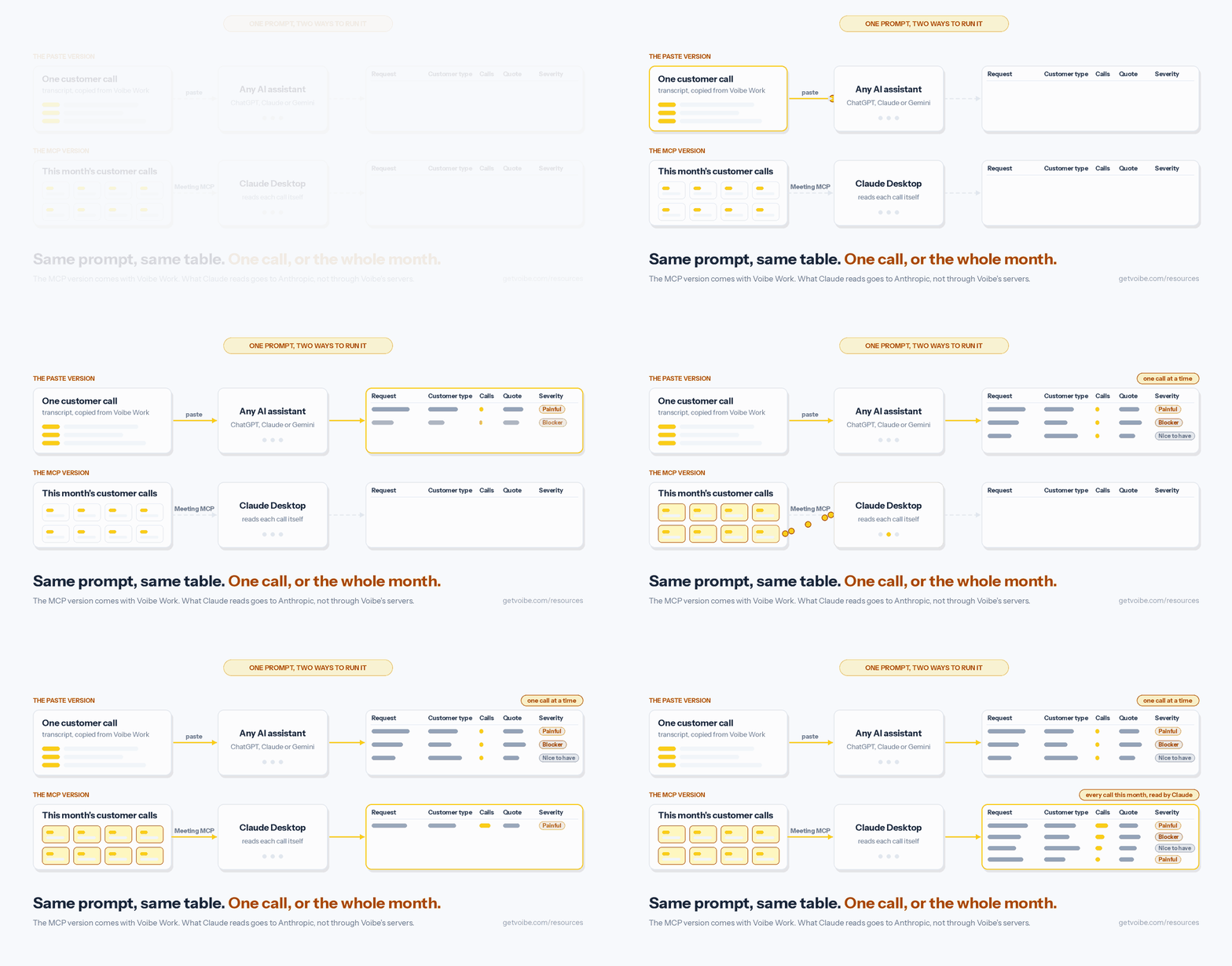
Pick the version by how many calls the job covers. The paste version handles one call at a time, or a few summaries you paste together. The MCP version covers every call this month, read by Claude, so nothing gets copied by hand.
| Job | Use |
|---|---|
| One customer call you just finished | The paste version, in ChatGPT, Claude or Gemini |
| Three or four calls from this week | The paste version, with each call's summary pasted under the prompt |
| Every customer call this month or this quarter | The MCP version, in Claude Desktop |
| A quick question about one call, such as what a customer said about pricing | Chat with your meetings, inside Voibe Work |
Chat with your meetings is the chat built into Voibe Work. It answers from one meeting, runs on Voibe's zero-retention cloud, and stores nothing you ask. Use it when a full table would be more than the question needs.
Both versions carry the same table instructions, so they produce the same five-column table. The difference is who does the reading: you, by copying calls in, or Claude, through Meeting MCP.
The MCP Version: Let Claude Read This Month's Customer Calls
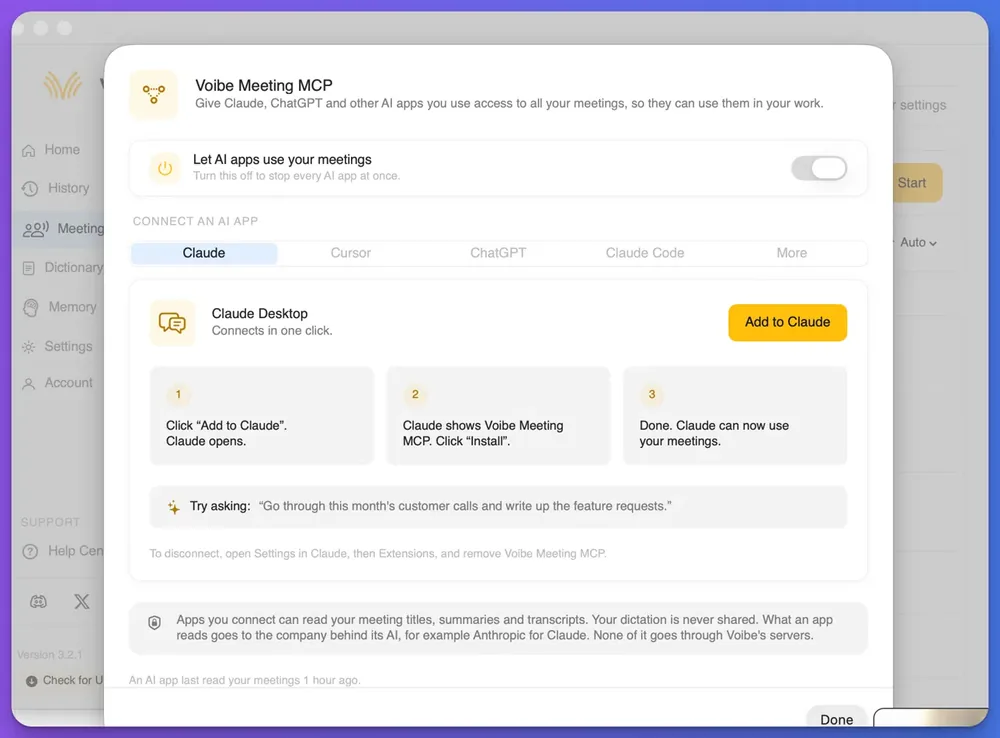
The MCP version starts from the Meeting MCP panel's sample question and adds the paste version's table instructions, so the output matches. With Meeting MCP connected, Claude finds the customer calls and reads their summaries and transcripts. Then it fills the table, with no pasting.
The Model Context Protocol site describes MCP as an open-source standard for connecting AI applications to external systems. Voibe's Meeting MCP launch post covers what the panel does.
Connect Meeting MCP to Claude Desktop
- Open the Meeting MCP panel: in Voibe Work, click MCP on the Meetings page. Check that the switch labelled Let AI apps use your meetings is on.
- Add it to Claude: on the Claude tab, click Add to Claude, and Claude Desktop opens.
- Install it: when Claude shows Voibe Meeting MCP, click Install, and the connection is done.
Meeting MCP comes with Voibe Work and the 7-day trial, not with Voibe Free or Voibe Dictation. The panel also has tabs for other AI apps. The steps above cover Claude Desktop, the one Voibe has published steps for.
The MCP version of the prompt
Go through this month's customer calls in Voibe and write up the feature requests.

Before the table, list the meetings you treated as customer calls, with each one's date and title, so I can check you picked the right ones. Skip internal meetings. For a long month, work from the summaries first and open a transcript only to find the quote.

The reader is a product manager deciding what to build next. Keep it exact and brief.

Build one table with these five columns:
1. Request: the feature or change the customer asked for, in plain words. One request per row. Merge rows that ask for the same thing.
2. Customer type: role, industry and company size, as stated in the call. Write not stated if the call does not say.
3. Times raised: the number of calls the request came up in, out of the total number of calls, written as 2 of 3. Count each call once per request, however often it came up in that call.
4. Quote: the customer's shortest line that shows the need, word for word, with the call date. If you only have a summary, use its wording and add [CHECK: from summary, not verbatim].
5. Severity: Blocker if the customer says they cannot adopt, roll out or renew without it. Painful if they describe a workaround or the time it costs them. Nice to have if they say so, or mention it in passing.

Rules:
- Sort by times raised, then by severity, Blocker first.
- Include only requests a customer made or agreed with. Leave out ideas from our own team.
- Put bugs (something that exists but is broken) in a short list under the table, not in the table.
- Use only names, figures and words that appear in the calls. Never invent a quote, a count or a customer type.
- If the customer type, the severity or whether two requests are the same is unclear, write [CHECK: what is unclear].
- Under 400 words. End with a list of every [CHECK] item, or write none.
Change the words this month in the prompt to any range, such as October or the last two weeks. You can also narrow it with a condition, such as calls with customers on your enterprise plan.
Claude decides which meetings count as customer calls from what it reads. That is why the prompt asks for the meeting list first. Other note takers with their own MCP servers are compared in our roundup of AI note takers with MCP servers.
Worked Example: Three Invented Calls, One Feature Request Table
The three calls below are invented for illustration, for an imaginary invoicing app. Each is a short excerpt, pasted under the paste version as a transcript.
Call 1, 3 November. Dana, operations lead at a 40-person logistics company.
Dana: Every Friday someone exports our invoices to CSV and loads them into the accounting software by hand. It takes the whole afternoon.
Dana: Dark mode would be nice, but it's not a big deal.

Call 2, 4 November. Ravi, finance manager at a 12-person design agency.
Ravi: The CSV export is the thing. I spend Monday mornings on it.
Ravi: We can't roll this out to our second office until invoices over a set amount need a second person to approve them.

Call 3, 6 November. Mei, founder of a two-person consultancy.
Mei: I make the same three invoices every month. I'd love them to repeat on their own.
Mei: Also, I'd love dark mode.
Mei: The logo on our invoice PDFs comes out blurry.
What the prompt returns
| Request | Customer type | Times raised | Quote | Severity |
|---|---|---|---|---|
| Replace the manual CSV export of invoices | Operations lead, logistics company, 40 people; finance manager, design agency, 12 people | 2 of 3 | “I spend Monday mornings on it.” (4 November) | Painful |
| Dark mode | Operations lead, logistics company, 40 people; founder, consultancy, 2 people | 2 of 3 | “Dark mode would be nice, but it's not a big deal.” (3 November) | Nice to have [CHECK: Mei gave no severity] |
| Second-person approval for invoices over a set amount | Finance manager, design agency, 12 people | 1 of 3 | “We can't roll this out to our second office until invoices over a set amount need a second person to approve them.” (4 November) | Blocker |
| Recurring invoices | Founder, consultancy, 2 people | 1 of 3 | “I make the same three invoices every month.” (6 November) | Painful |
Bugs: the logo on invoice PDFs comes out blurry (Mei, 6 November).
[CHECK] items: dark mode severity, because Mei gave no severity.
What to notice in the output
- Frequency and severity disagree: dark mode sits above the approval request because two of three customers mentioned it. The approval request is the one stopping a rollout, so read both columns before you rank anything.
- The gap is flagged: Mei asked for dark mode but said nothing about how much it mattered. The AI marked the gap instead of guessing.
- The bug stayed out of the table: the blurry logo is something broken, not something new. It went to the short list.
How to Adapt the Feature Request Prompt
The five columns suit most product teams. The changes below cover the common variations without dropping the rules that keep the table accurate.
Change the scope
- A quarter instead of a month: replace the words this month with a range such as 1 July to 30 September. Add a First raised column with the earliest call date for each request.
- One customer segment: add a line such as include only calls with customers on our enterprise plan. The meeting list at the top shows whether Claude found the right ones.
- Sales calls: rename the table Requests and objections, and add a column for whether a deal is waiting on the request.
Change the output
- Group by theme: ask for the rows grouped under three to six themes, such as reporting or permissions.
- A planning-meeting summary: ask for the top five requests only, each with a one-sentence summary for a roadmap review.
- Ticket drafts: once you've picked what to build, use the meeting notes to tickets prompt. It turns a request into a ticket draft with acceptance criteria.
Other kinds of calls
User research interviews need a different shape. Their goal is themes and pains rather than a request list. The user interview synthesis prompt handles a round of interviews. Our list of the best AI note takers for user interviews covers the tools that record them.
Support calls work with the prompt as written. Move bugs from the short list into the table if your support team owns both.
What to Check Before the Table Reaches Your Roadmap
Check five things before the table goes to a planning meeting. An AI reads calls quickly. It can still miss a call, merge two different asks or rate a passing comment as a blocker.
- The meeting list: in the MCP version, compare the calls Claude read with your own list of this month's customer calls. A missing call changes every count.
- The counts: open two or three calls behind the top rows and confirm the request came up in each one.
- The quotes: find each quote in the transcript. Voibe Work's transcript labels each speaker and puts a time next to every line. That makes a quoted line quick to find.
- The severity: read the Blocker rows against the scale. A customer who says a feature would be nice has not described a blocker.
- The sharing: remove customer names and company details first. Then the table can go beyond the team that owns the customer relationship.
Keep in mind what the count measures. Times raised counts the calls you recorded. It reflects who you talked to this month, not your whole customer base. Read it next to support tickets and usage data, not in place of them.
Run the Feature Request Prompt on Your Voibe Work Calls
Voibe Work records the calls this prompt reads. It captures a customer call from your Mac or Windows PC, and no bot joins the call. That works in Zoom, Microsoft Teams, Google Meet, Webex, Slack huddles or any other meeting app. It also records in-person meetings through your computer's microphone.
Where the input comes from
- Transcript and summary: each meeting gets a transcript with speaker labels and a time on every line, plus a summary. Voibe Work summarizes each meeting with a template for its type, such as client intake or investment committee. You can also create your own template.
- For the paste version: copy the transcript or summary in one click, or export it as a PDF. Then paste it under the prompt.
- For the MCP version: connect Meeting MCP to Claude Desktop once, and Claude reads the meetings itself.
What happens to the call and the notes
Meeting audio is processed by open-source models on zero-retention cloud providers and deleted as soon as processing completes. The transcript and summary are saved on your computer, not on Voibe's servers, and never used to train AI. Processing runs in the cloud, so meeting notes need an internet connection.
The Meeting MCP panel puts it in these words: “Apps you connect can read your meeting titles, summaries and transcripts. Your dictation is never shared. What an app reads goes to the company behind its AI, for example Anthropic for Claude. None of it goes through Voibe's servers.”
With the paste version, what you paste into an assistant goes to that AI company under its terms. Turning off Let AI apps use your meetings stops every AI app at once. Our guide to giving Claude access to your meeting notes compares the routes.
When recording starts, Voibe reminds you to tell everyone you're taking notes. Following the recording consent rules for each customer's location is your responsibility.
What it costs
Voibe Work costs $19 a month, $149 a year or $399 lifetime per seat. One seat covers Mac and Windows. Every new account starts with a 7-day trial of every Voibe Work feature, Meeting MCP included. The trial needs no credit card and makes no automatic charge.
After the trial the account moves to Voibe Free, which covers dictation but not meeting notes.
New to Voibe Work? The first-week setup guide walks you through it.
See Voibe Work in action
Run this prompt on next month's customer calls
7 days of every Voibe Work feature on Mac or Windows. No credit card.
Feature Request Prompt FAQ
The prompt
What does the feature request prompt produce? A table of request, customer type, times raised, quote and severity, sorted by times raised. Bugs go in a short list underneath, and every unclear item is marked [CHECK].
Can I use summaries instead of transcripts? Yes, and the prompt marks those quotes [CHECK: from summary, not verbatim]. Confirm them in the transcript before you share the table.
Why does severity have fixed levels? A fixed scale gives the AI a test for each level. Without one, an assistant tends to rate most requests as important.
The MCP version
Can Claude read a month of customer calls on its own? Yes, in Claude Desktop with Voibe Meeting MCP connected. The paste version covers one call or a few pasted summaries in any assistant.
How does Claude know which meetings are customer calls? It decides from the meetings it reads. The MCP version asks it to list those meetings before the table so you can check its choice.
Voibe Work and privacy
Does Voibe Work put a bot in my customer calls? No, it captures the call from your Mac or Windows PC. Voibe also reminds you to tell everyone you're taking notes when recording starts.
Where do my customer call notes go? The transcript and summary are saved on your computer, and the audio is deleted once processing completes. What a connected AI app reads goes to the company behind it, such as Anthropic for Claude.
How much does Voibe Work cost? It costs $19 a month, $149 a year or $399 lifetime per seat. A 7-day trial of every feature needs no credit card.
Turn This Month's Customer Calls Into Next Month's Roadmap Input
Customer calls hold some of the clearest evidence of what to build. That evidence only helps if someone writes it down the same way every time. Copy the paste version for the call you just finished. Or connect Meeting MCP and run the MCP version on the whole month.
Keep the severity scale and the [CHECK] rule when you edit the rest. More prompts for other jobs, from follow-up emails to weekly status updates, are in our AI prompts for meeting notes library.