

AI Prompts for Meeting Notes: The Quick Answer
The meeting ended twenty minutes ago, and the notes are fine. What you still owe is the follow-up email, three tickets and a line for Friday's status update. None of that writes itself.
This library is ten copy-paste AI prompts that turn a meeting's notes into the thing you need next. They are grouped by job: follow-ups and clients, team and management, product and research, and content and learning. Each has a short version here and its own page with a worked example.
I wrote them for notes from Voibe Work, the meeting-notes plan in Voibe, the dictation and meeting-notes app we build. Voibe Work takes notes with no bot in the call. The prompts work just as well with a transcript from any other notetaker.
Every prompt names its output, its reader and its length, and tells the AI to use only what's in the notes. Each one runs two ways:
- The paste version works in ChatGPT, Claude, Gemini or any assistant, with a transcript or summary pasted under it.
- The MCP version runs in Claude Desktop, Anthropic's desktop app, with Voibe Meeting MCP connected.
Voibe Meeting MCP is a Voibe Work feature that lets AI apps such as Claude read your meetings. MCP, short for Model Context Protocol, is the standard AI apps use to connect to other software.
Key takeaways
| Question | Answer |
|---|---|
| What is in the library? | Ten copy-paste prompts in four groups: follow-ups and clients, team and management, product and research, content and learning |
| What does each prompt produce? | One asset from your notes: a follow-up email, a client-file note, a proposal outline, action items, a status update, 1:1 prep, ticket drafts, a feature-request table, an interview synthesis or a LinkedIn post |
| Which assistants do they work in? | The paste version works in ChatGPT, Claude, Gemini or any assistant. The MCP version runs in Claude Desktop with Voibe Meeting MCP connected |
| Can one prompt read many meetings? | Yes, in the MCP version, for asks such as this month's customer calls or the last four 1:1s with one person |
| How do the prompts avoid made-up facts? | They allow only names, figures and commitments from the notes, and mark anything unclear as [CHECK: what is unclear] for you to resolve |
| What should I check before sending? | Names, numbers, dates, commitments and every [CHECK] item, above all in anything client-facing or headed for a compliance file |
Key Takeaway
AI prompts for meeting notes turn a meeting's transcript or summary into the next piece of work, such as a follow-up email, action items, ticket drafts or a status update. Paste them into any AI assistant, or run them in Claude Desktop with Voibe Meeting MCP so Claude reads the meetings itself.
How to Use a Meeting Notes Prompt in Four Steps
Every prompt in the library follows the same pattern, so once you've run one, you can run them all. The paste version needs nothing but the prompt and your notes.
- Copy the prompt. Each code block has a copy button. Pick the prompt for the job you need done, not for the meeting type.
- Fill in the brackets. Replace text in square brackets, such as [client name], with your own details. Leave every [CHECK: …] as it is, since it tells the AI what to do when unsure.
- Paste your notes under the last line. Copy the transcript or summary from your notetaker. A summary is shorter, while a transcript keeps exact quotes.
- Check the output. Resolve every [CHECK] item, then confirm names, numbers, dates and commitments against the transcript before anything goes out.
What every prompt tells the AI
Each prompt states what to write, who reads it, its format and its length. Leave out those four and the AI guesses, and its guess is usually long and generic.
Each one also carries two safety rules. The AI may use only names, figures, dates and commitments that appear in the notes. Where it isn't sure, it writes [CHECK: what is unclear] instead of guessing.
The [CHECK] flag is a marker the AI leaves for you to resolve. Anthropic's guide to reducing hallucinations recommends two similar habits: give the model explicit permission to admit uncertainty, and ask it for word-for-word quotes.
Follow-Up and Client Prompts: Email, File Note and Proposal Outline
These three prompts turn a client or prospect meeting into something that leaves your desk. The reader is outside your team, so check every name, figure and promise before you send.
1. Follow-up email after a client or prospect meeting
Produces a short email to the client. It covers what you heard, what you agreed, next steps with dates, and anything you promised to send.
Write a follow-up email to [client name] from the meeting notes below. The reader is the client, who was in the meeting. Plain and warm, under 200 words.
Sections: what we heard, what we agreed, next steps with an owner and a date for each, and anything we promised to send.
Use only names, figures, dates and commitments that appear in the notes. If a next step has no date, write [CHECK: no date stated].

Notes:
[paste the transcript or summary here]
Full prompt, MCP version and worked example →
2. Client-file note from a client meeting
Produces a neutral, factual note for the client file. It records what was discussed, advice given and why, disclosures, client decisions and follow-ups. It suits insurance agents, financial advisors and lawyers.
Write a client-file note from the meeting notes below, for the client file and anyone who reviews it later. Neutral record style, past tense, under 300 words.
Headings: date and attendees, what was discussed, advice given and the reason given, disclosures made, client decisions, follow-ups with owner and date.
Record only what the notes say was said or decided. Never add advice, reasons or disclosures. Mark anything unclear as [CHECK: what is unclear].

Notes:
[paste the transcript or summary here]
Read a file note line by line before you file it. The record is yours, and the AI only drafts it from the notes you give it.
Full prompt, MCP version and worked example →
3. Proposal outline from a discovery call
Produces an outline for you to finish: the client's problem, goals, scope, options and open questions. It suits consultants, brokers and agencies who write a proposal after the first call.
Draft a proposal outline from the discovery call notes below, for me to finish before it goes to the prospect. Bullet outline, under 350 words.
Headings: the problem in the client's words, goals, proposed scope, two or three options, open questions.
Never invent prices, fees, timelines or commitments. If the call didn't settle one, list it under open questions. Mark anything unclear as [CHECK: what is unclear].

Notes:
[paste the transcript or summary here]Team and Management Prompts: Action Items, Status Updates, 1:1 Prep and Tickets
These four prompts work on the meetings that keep a team moving: stand-ups, syncs, planning sessions and 1:1s. Each runs on one pasted meeting. The MCP version can read a week or a month of them at once.
4. Action items with owners and due dates
Produces a table of every action: owner, task, due date and the line in the notes that created it.
List every action item in the meeting notes below as a table for the team. Columns: owner, task, due date, source line (the words in the notes that created it).
One row per action. List an action only if someone agreed to do it. If no date was given, write no date stated.
Use only names from the notes. Mark anything unclear as [CHECK: what is unclear].

Notes:
[paste the transcript or summary here]
Full prompt, MCP version and worked example →
5. Weekly status update from the week's meetings
Produces a short update for people who weren't in the room. It covers decisions, progress, risks and blockers, each with an owner.
Write a weekly status update from the meeting notes below, for stakeholders who weren't in the meetings. Bullets, under 250 words.
Headings: decisions, progress, risks, blockers. Give each item its owner and the meeting it came from.
Use only facts, names and dates in the notes. Mark anything unclear as [CHECK: what is unclear].

Notes:
[paste the transcript or summary here]
For the paste version, paste one summary or several. In the MCP version, Claude can read every sync and stand-up from the week itself.
Full prompt, MCP version and worked example →
6. 1:1 prep from your last meetings with one person
Produces a private prep sheet for your next 1:1: open threads, commitments on both sides, blockers and questions to ask.
Prepare me for my next 1:1 with [name] from the notes of our recent 1:1s below. For my eyes only, under 200 words.
Headings: open threads, commitments each of us made and whether the notes show them done, blockers raised, three questions to ask.
Use only what the notes say. Leave out health and pay details. Mark anything unclear as [CHECK: what is unclear].

Notes:
[paste the transcript or summary here]
Full prompt, MCP version and worked example →
7. Ticket drafts from a stand-up, retro or planning meeting
Produces ticket drafts with a title, a description, acceptance criteria, an owner and the source quote from the meeting.
Turn the meeting notes below into ticket drafts for our issue tracker. For each ticket: a title under 10 words, a description, acceptance criteria as a checklist, the owner, and the source quote from the notes.
Draft a ticket only for work someone said should be tracked or done. Never invent ticket IDs, owners or dates.
Mark anything unclear as [CHECK: what is unclear].

Notes:
[paste the transcript or summary here]
The prompt drafts text only. Voibe Meeting MCP only reads meetings. To create tickets in an issue tracker such as Linear or Jira, Claude needs a connector you add to Claude yourself.
Product and Research Prompts: Feature Requests and Interview Synthesis
These two prompts pull patterns out of conversations with customers and users. They pay off most across many calls, which is where the MCP version helps.
8. Feature requests from customer calls
Produces a table with each request, the customer type, how often it came up, a short quote and a severity.
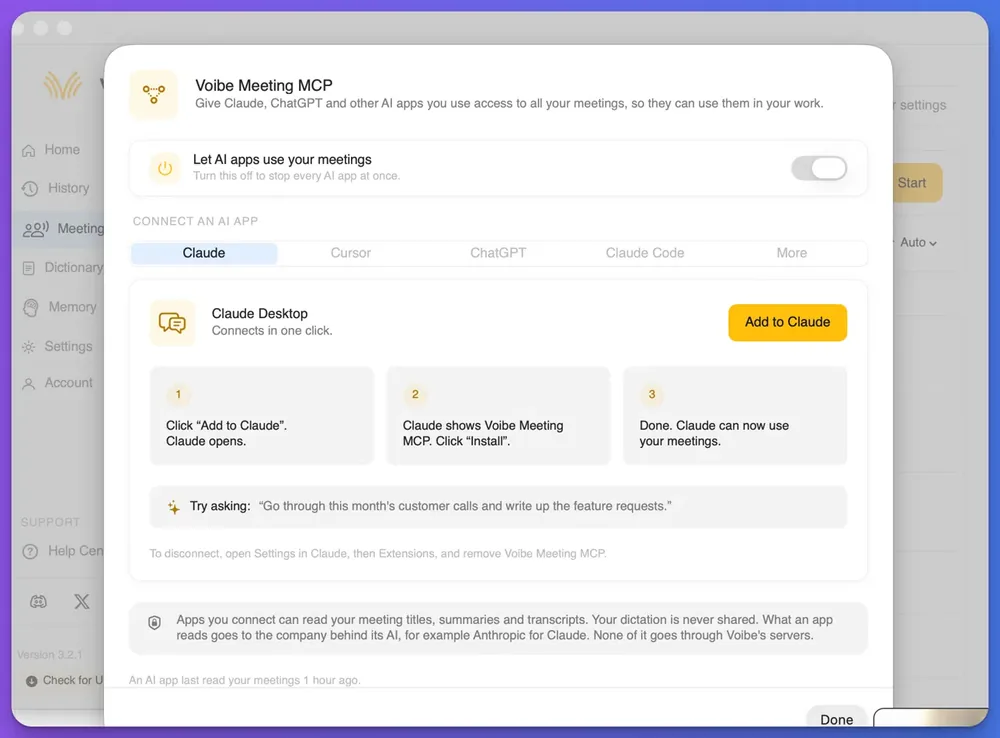
The MCP version of this job is the sample ask Voibe suggests in its Meeting MCP panel, the screen in Voibe Work where you connect AI apps. It reads: “Go through this month's customer calls and write up the feature requests.” The paste version handles one call, or a few summaries pasted together.
Write up the feature requests in the customer call notes below as a table for the product team. Columns: request, customer type, how often it came up, a short quote, severity (high, medium or low, with the reason).
Count a request only if a customer asked for it or described the gap. Quote word for word from the notes.
Mark anything unclear as [CHECK: what is unclear].

Notes:
[paste the transcript or summary here]
Full prompt, MCP version and worked example →
9. User-interview synthesis across a round of interviews
Produces themes, pains, quotes for each participant and the points where participants disagree, for a product or design team.
Synthesize the user interview notes below for the product and design team. Under 400 words.
Sections: themes (with how many participants raised each), pains, one or two quotes per participant, and contradictions between participants.
Quote word for word and label each quote by participant. Add no opinions or recommendations. Mark anything unclear as [CHECK: what is unclear].

Notes:
[paste the transcript or summary here]
Paste one interview at a time, or a few summaries together. With the MCP version, Claude can read the whole round of interviews and compare participants.
Content and Learning Prompt: A Post From a Talk or Webinar
This prompt turns notes from a talk, webinar or conference session into a LinkedIn post with key takeaways. Its full page leads with a blog-post version and also covers the LinkedIn post, a CPD or CLE log entry and a sermon study guide.
CPD and CLE stand for continuing professional development and continuing legal education. Both are training hours many professionals have to log.
10. LinkedIn post from a talk or webinar
Produces a first-person post that credits the speaker. It lists three takeaways for people in your field who missed the session.
Turn the talk or webinar notes below into a LinkedIn post for people in my field who didn't attend. First person, under 250 words, with three key takeaways as bullets.
Name the speaker and the event, and credit every idea to the speaker. Use only points made in the notes, with no new facts or figures.
Mark anything unclear as [CHECK: what is unclear].

Notes:
[paste the transcript or summary here]
A talk you didn't give belongs to its speaker. Summarize it and cite the speaker, and don't republish their material as your own.
Voibe Work captures a webinar you join from your Mac or Windows PC with no bot in the call. One meeting can run up to 4 hours, according to Voibe's October 2026 update. Recording a session is still subject to the host's terms and to recording-consent laws.
Summary Prompts That Format the Notes Themselves
The ten prompts in this library are asset prompts: they turn finished notes into something else. Summary prompts work one step earlier, and shape the notes themselves.
A summary prompt is a meeting notes template written as instructions for an AI. It sets the sections, the length and what stays out of the notes.
Voibe Work summarizes each meeting with a template for its type, such as client intake or investment committee. You can also create your own template. Each summary prompt below lives on the page for its template:
- Insurance client meeting notes template: client needs, products discussed, quotes, objections, the recommendation and a compliance note.
- One-on-one meeting notes template: carry-overs (items still open from the last 1:1), updates, blockers, feedback both ways and growth notes.
- Standup meeting notes template: done, doing and blocked for each person, then tickets to create, decisions and a parking lot.
- AI meeting notes templates guide: eight more templates, and the rules for writing one of your own.
When to use a summary prompt, and when to use an asset prompt
Use a summary prompt when the notes themselves come out wrong, too long or without owners. Use an asset prompt when the notes are right and you need the email, the tickets or the update.
The two stack well. A good template gives every asset prompt cleaner input, so the follow-up email or status update needs fewer fixes.
The Paste Version and the MCP Version: Two Ways to Run Every Prompt
Every prompt in the library comes in two forms. The paste version works with any assistant, while the MCP version lets Claude read your meetings without any copying.
The paste version: any assistant, the meetings you paste
Copy the transcript or summary from Voibe Work with one-click copy, or export a PDF. Then paste it under the prompt. It works in ChatGPT, Claude, Gemini or any other assistant, with notes from any notetaker.
What you paste goes to the company behind that assistant, such as OpenAI for ChatGPT or Google for Gemini, under its terms. Remove anything you wouldn't share with that company before you paste.
The MCP version: Claude Desktop reads the meetings itself
With Voibe Meeting MCP connected, you type the prompt in Claude Desktop and paste nothing. Claude reads the meetings it needs, so one ask can span many meetings. Two examples are this month's customer calls and your last four 1:1s with one teammate.
Meeting MCP comes with Voibe Work and its 7-day trial, not with Voibe Free or Voibe Dictation, the two dictation-only plans. Connecting it to Claude Desktop takes three clicks:
- Open the Meeting MCP panel. In Voibe Work, click MCP on the Meetings page.
- Click Add to Claude. The button is on the Claude tab, and clicking it opens Claude Desktop.
- Click Install. Claude shows Voibe Meeting MCP, and once you install it, Claude can use your meetings.
The panel's own privacy note reads: “Apps you connect can read your meeting titles, summaries and transcripts. Your dictation is never shared. What an app reads goes to the company behind its AI, for example Anthropic for Claude. None of it goes through Voibe's servers.”
Turning off the panel's switch, Let AI apps use your meetings, stops every AI app at once. To remove only Claude, open Settings in Claude, then Extensions, and remove Voibe Meeting MCP.
For a quick question about one meeting
Use chat with your meetings, the chat built into Voibe Work, instead of either version. It answers from one meeting, runs on Voibe's zero-retention cloud and stores nothing you ask.
The Meeting MCP launch post covers the panel in more detail. Our guide on how to give Claude access to your meeting notes compares Meeting MCP with pasting and other routes.
Which Prompt for Which Job: A Cheat Sheet
Find the job you have in the left column, then pick the version. The paste version handles any meeting you paste, and the MCP version adds asks that span many meetings.
| The job after the meeting | Prompt | What to ask in the MCP version |
|---|---|---|
| Send a client what you agreed | Follow-up email | Draft a follow-up email to [client] based on our last call |
| Put a client meeting on the record | Client-file note | Write a file note for each of this week's meetings with [client] |
| Turn a discovery call into a proposal | Proposal outline | Outline a proposal from my discovery calls with [prospect] |
| Know who does what, by when | Action items | List every open action from the last five team meetings |
| Tell stakeholders how the week went | Weekly status update | Write this week's status update from every sync and stand-up |
| Walk into a 1:1 prepared | 1:1 prep | Prepare me for my 1:1 with [name] from our last four 1:1s |
| Get agreed work into the tracker | Ticket drafts | Draft tickets from this week's stand-ups |
| Hear what customers keep asking for | Feature requests | Go through this month's customer calls and write up the feature requests |
| Make sense of a round of user interviews | Interview synthesis | Synthesize every user interview from this round |
| Share what you learned at a webinar | Post from a talk or webinar | Write a LinkedIn post from yesterday's webinar |
Each of these asks still follows the rules in its prompt's full page, including the notes-only rule and the [CHECK] flag. Replace the bracketed names before you send one.
Tips for Getting Output You Can Send Without Rewriting
A prompt is only as good as the notes under it and the check after it. Five habits make most of the difference.
- Rename speakers before you run a prompt. Voibe Work labels each speaker and puts a time next to every line. Click a speaker's name to rename them and the summary updates, so owners in the output carry real names.
- Paste the transcript when quotes matter. Feature requests, interview synthesis and ticket source quotes need exact words. A summary is enough for emails and status updates.
- Give each prompt one job. Ask for the email, then ask for the action items in a second prompt. A prompt that tries to do both usually does neither well.
- Keep the two safety rules when you edit. Change the tone, length or headings freely, but keep the notes-only rule and the [CHECK] flag.
- Check before it leaves your hands. Confirm names, numbers, dates and commitments against the transcript. Take extra care with anything client-facing or headed for a compliance file.
Why the output still comes out wrong
If the AI invents an owner or a date, the notes probably didn't name one. Put the notes-only rule back if you removed it, or fill the gap yourself.
If the output runs long, lower the word limit in the prompt. If owners show up as Speaker 1 and Speaker 2, rename the speakers in Voibe Work and copy the notes again.
Run the Prompts on Your Voibe Work Meetings
Voibe Work gives every prompt clean input: a transcript with speaker labels you can rename, and a summary in your own template. It takes notes with no bot in the call.
It captures meetings from your Mac or Windows PC in Zoom, Microsoft Teams, Google Meet, Webex, Slack huddles or any other meeting app. It also records in-person meetings through your computer's microphone.
Where the notes come from, and where they go
Meeting audio is processed by open-source models on zero-retention cloud providers and deleted as soon as processing completes. The transcript and summary are saved on your computer, not on Voibe's servers, and never used to train AI.
Processing runs in the cloud, so meeting notes need an internet connection. For the paste version, use one-click copy or a PDF export. For the MCP version, connect Meeting MCP to Claude Desktop once.
When recording starts, Voibe reminds you to tell everyone you're taking notes. Following the recording consent rules wherever each participant is located stays your responsibility.
What Voibe Work costs
Voibe Work costs $19 a month, $149 a year or $399 once per seat, with Mac and Windows on one seat. Every new account starts with a 7-day trial of every Voibe Work feature, Meeting MCP included. It needs no credit card and makes no automatic charge.
After the trial, the account moves to Voibe Free, which covers dictation but not meeting notes.
New to Voibe Work? The first-week setup guide walks you through it.
See Voibe Work in action
Run your first prompt on tomorrow's meeting
7 days of every Voibe Work feature on Mac or Windows. No credit card.
AI Prompts for Meeting Notes FAQ
Using the prompts
What is an AI prompt for meeting notes? It is a set of instructions you give an AI assistant along with a meeting's transcript or summary. It says what to write, who reads it, how long it runs and what to do when the AI is unsure.
Do these meeting prompts work in ChatGPT and Gemini? Yes. The paste version of every prompt works in ChatGPT, Claude, Gemini or any assistant you can paste a transcript or summary into.
Should I paste the transcript or the summary? Paste the transcript when exact quotes matter, such as for feature requests, interview synthesis or ticket source quotes. A summary is enough for follow-up emails, status updates and 1:1 prep.
The MCP version
What is the MCP version of a prompt? It is the same prompt typed in Claude Desktop with Voibe Meeting MCP connected. Claude reads your meetings itself instead of reading what you paste, so one ask can cover many meetings.
Which AI apps can connect to Voibe Meeting MCP? The Meeting MCP panel has tabs for Claude, Cursor, ChatGPT, Claude Code and More. The one-click setup, Add to Claude, is for Claude Desktop.
Can a prompt cover a month of meetings? Yes, in the MCP version, because Claude can read every meeting it needs. The paste version covers only the notes you paste, so it suits one meeting or a few summaries.
Privacy and accuracy
What happens to my meetings when Claude reads them? What an AI app reads goes to the company behind its AI, for example Anthropic for Claude, under that company's terms. None of it goes through Voibe's servers, and your dictation is never shared.
Can I send the output without checking it? No, treat it as a draft. The prompts limit the AI to the notes and flag unclear points with [CHECK]. You still confirm names, numbers, dates and commitments before anything goes out.
Voibe Work
Does Voibe Work need a bot in the call? No. Voibe Work captures meetings from your Mac or Windows PC with no bot in the call. That covers Zoom, Microsoft Teams, Google Meet and any other meeting app. It also records in-person meetings through your computer's microphone.
How much does Voibe Work cost? Voibe Work costs $19 a month, $149 a year or $399 once per seat, with Mac and Windows on one seat. A 7-day trial of every feature, Meeting MCP included, needs no credit card.
Copy One Prompt Today, Then Make It Yours
Start with the job you do most often after meetings: the follow-up email, the action items or Friday's status update. Copy that prompt, run it on your next meeting and check what comes back.
Then change the tone, length and headings to fit how you work. Keep the notes-only rule and the [CHECK] flag. Each prompt's full page adds the MCP version and a worked example when you want more.