

Meeting Notes to Tickets Prompt: The Quick Answer
Every stand-up has a moment where someone says the bug should really be tracked. By Friday, nobody remembers who agreed to write the ticket, or whether anyone did.
The meeting notes to tickets prompt turns a stand-up, retro or planning meeting into ticket drafts you can paste into your tracker. Each draft has a title, a description, acceptance criteria, an owner and the exact line from the meeting it came from.
It suits engineering leads, product managers and scrum masters who run the meeting and own the backlog. The drafts come back as text, so you review them before anything reaches your issue tracker, such as Linear or Atlassian's Jira.
The prompt comes in two forms:
- The paste version works in ChatGPT, Claude or Gemini with a transcript you copy in.
- The MCP version lets Claude read the meeting itself, through Voibe Meeting MCP. MCP stands for Model Context Protocol, a standard way for AI apps to connect to other software.
Meeting MCP only reads meetings and never creates tickets. It comes with Voibe Work, the meeting-notes plan we build, which takes notes with no bot in the call.
Key takeaways
| Question | Answer |
|---|---|
| What does the prompt produce? | One draft per agreed piece of work: title, description, acceptance criteria, owner, related ticket IDs and the source line with its timestamp |
| Which meetings does it work on? | Stand-ups, retrospectives, sprint planning and bug triage, from a transcript or a summary |
| How does it avoid inventing work? | A ticket needs someone in the meeting to say the work should be tracked. Everything else goes in a separate list of work mentioned but not agreed |
| Can the assistant create the tickets? | Yes, but only through the tracker's own Linear or Jira connector, which you add to the assistant yourself. Voibe Meeting MCP only reads meetings |
| Which version should I use? | The paste version for one meeting in any assistant. The MCP version when Claude should read the meeting, or a whole sprint of them, itself |
| What does Voibe Work cost? | $19 a month, $149 a year or $399 once, after a 7-day trial with no credit card |
Key Takeaway
The meeting notes to tickets prompt turns a stand-up, retro or planning meeting into ticket drafts with a title, description, acceptance criteria, owner and source line. It drafts only work someone agreed to track, and an assistant creates tickets only through a Linear or Jira connector you add yourself.
The Meeting Notes to Tickets Prompt to Copy: The Paste Version
The paste version works in any AI assistant, including ChatGPT, Claude and Gemini. Paste the transcript between the two marker lines at the bottom. A transcript with speaker names and times gives the best source lines, though a summary works too.
Where the meeting leaves a detail unclear, the prompt has the assistant write a [CHECK] flag instead of guessing.
Turn the meeting transcript below into ticket drafts for our tracker. The meeting was a [stand-up / retro / planning meeting] for the [team name] team. Write each draft for a teammate who wasn't in the meeting.

Draft a ticket only when someone in the meeting said the work should be tracked, or agreed when someone else proposed it. One ticket per separate piece of work.

For each ticket, under 120 words:
- Title: under 70 characters, starting with a verb.
- Description: two or three sentences on the problem and where it shows up, using only what was said.
- Acceptance criteria: the conditions for done that someone stated. If nobody stated any, write [CHECK: acceptance criteria not stated].
- Owner: as named in the meeting, or no owner named.
- Related: ticket IDs exactly as spoken, such as PAY-212, or none. Never invent an ID.
- Source: the line where the work was agreed, quoted exactly, with its timestamp.

After the tickets, add two lists:
- Mentioned but not agreed: work someone raised that nobody agreed to track, with who raised it and the timestamp.
- [CHECK] items: everything you were unsure of.

Rules:
- Use only names, figures, dates and commitments from the transcript. Add no priority, estimate or due date unless someone said one.
- Leave out customer names, personal data, passwords and API keys, even if someone read them aloud.
- Plain text, no tables, so each draft pastes straight into a ticket.

--- TRANSCRIPT START ---
[paste the transcript or summary here]
--- TRANSCRIPT END ---
Why the prompt is built this way
- The agreement test. A ticket needs someone to say the work should be tracked. Without that rule, every complaint in a retro becomes a ticket, and the backlog fills with work nobody owns.
- Mentioned but not agreed. Ideas that fail the test still appear, in their own list. You decide what happens to them, not the assistant.
- Criteria only when stated. Acceptance criteria are where an assistant is most tempted to fill gaps, so the prompt flags missing ones instead. A variant further down lets it propose criteria, clearly labelled.
- The source line. A quoted line with its timestamp lets anyone find the moment in the transcript and check the ticket against it.
- No invented dates. A due date nobody said becomes a deadline somebody misses. The same goes for priorities and estimates.
- Plain text. Drafts without tables are easier to paste into a ticket by hand, one field at a time.
If your stand-up summaries follow our stand-up meeting notes template, they already have a Tickets to create section. Paste that section with the rest of the summary, and the prompt has less to search through.
The MCP Version: Claude Reads the Meeting, You Decide What Gets Created
The MCP version gives Claude the meeting directly, so you don't copy or paste the transcript.
Voibe Meeting MCP is a Voibe Work feature that lets AI apps such as Claude read your meetings. MCP, short for Model Context Protocol, is the standard AI apps use to connect to other software.
A prompt that asks the assistant to find meetings on its own, such as every planning meeting this sprint, works only with the MCP version. With the paste version you collect the transcripts yourself.
Connect Voibe Meeting MCP to Claude Desktop
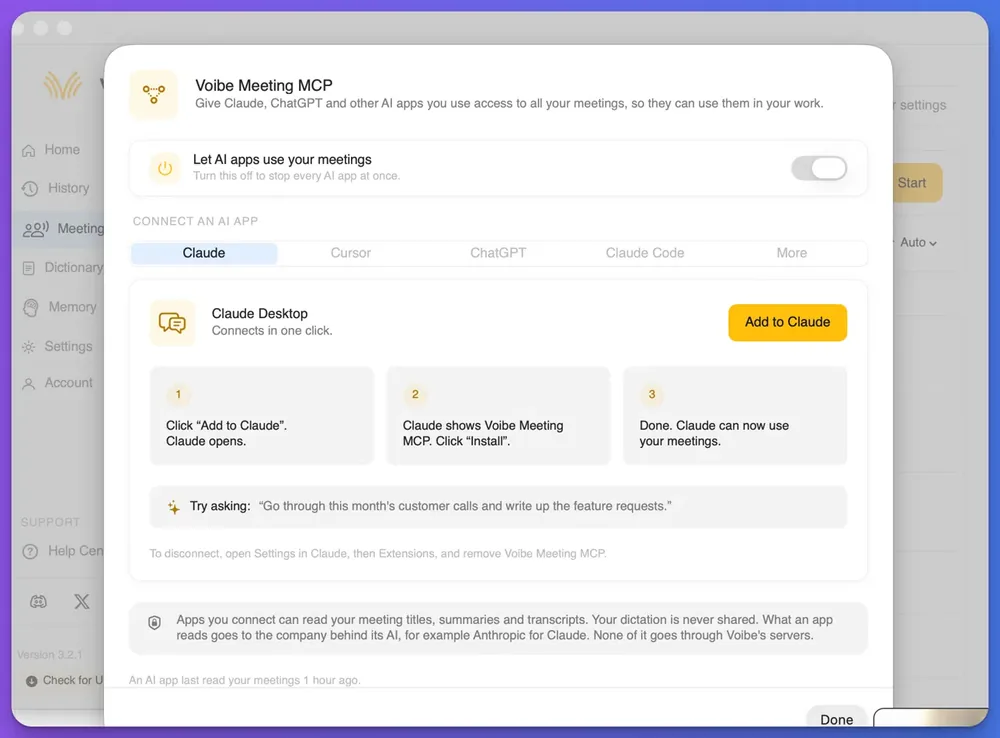
Claude Desktop is Anthropic's desktop app, and it connects to Meeting MCP in one click. Meeting MCP comes with Voibe Work and with the 7-day trial.
- Open the Meeting MCP panel. In Voibe, go to the Meetings page and click MCP.
- Check the switch. Make sure the switch labelled Let AI apps use your meetings is on.
- Add it to Claude. On the Claude tab, click Add to Claude. Claude opens and shows Voibe Meeting MCP.
- Install it. Click Install in Claude, and the connection is done.
To disconnect later, open Settings in Claude, then Extensions, and remove Voibe Meeting MCP. Turning the panel's switch off stops every AI app at once.
The prompt for the MCP version
Read today's [stand-up / retro / planning meeting] for the [team name] team in Voibe.

Draft a ticket for each piece of work someone said should be tracked, or agreed to when someone else proposed it. One ticket per separate piece of work, each under 120 words:
- Title: under 70 characters, starting with a verb.
- Description: two or three sentences on the problem and where it shows up.
- Acceptance criteria: only conditions someone stated, or [CHECK: acceptance criteria not stated].
- Owner: as named in the meeting, or no owner named.
- Related: ticket IDs exactly as spoken, or none.
- Source: the speaker's line, quoted exactly, with its timestamp.

Then list work that was mentioned but not agreed, and every [CHECK] item.

Use only what the meeting says. Add no priority, estimate or due date nobody stated. Leave out customer names, personal data and secrets. Do not create anything yet. Show me the drafts first.
For a whole sprint, ask Claude to collect agreed work across every meeting and merge repeats into one draft:
Read every stand-up, planning meeting and retro for the [team name] team in Voibe since [sprint start date].

List every piece of work someone agreed should be tracked, as ticket drafts with a title, description, acceptance criteria (only as stated), owner and source line with its date and timestamp.

Merge an item raised in more than one meeting into one draft, with every source line. Mark any item whose ticket ID was spoken in a meeting as already tracked.

Use only what the meetings say, write [CHECK: what is unclear] where unsure, and do not create anything yet.
Creating the tickets in Linear or Jira
Voibe Meeting MCP only reads meetings. It never writes to Linear or Jira, and Voibe has no Linear or Jira integration. Claude can create the tickets you approve only if you've also added that tracker's own connector to Claude yourself.
Linear and Atlassian, the company behind Jira, each run an MCP server, which Claude adds as a connector.
- Linear. Linear's MCP server has tools for finding, creating and updating issues, projects and comments. Linear's docs say Claude Desktop users on Claude's Free and Pro plans can add the Linear connector from Claude's settings, under Connectors.
- Jira. Atlassian's MCP server lets an AI app create and update Jira work items (Jira's name for tickets) under your existing permissions. Atlassian advises reviewing high-impact changes before you confirm them.
With a tracker connected, a second message turns the drafts you approved into tickets:
Create tickets 1 and 3 in Linear, in the [team name] team, exactly as drafted. Skip ticket 2. Show me each new ticket's ID when you're done.Keep drafting and creating as two separate steps, so nothing reaches the backlog before you've read it. The guide to giving Claude access to your meeting notes compares Meeting MCP with other ways to get meeting notes into Claude.
Worked Example: An Invented Stand-Up Turned Into Ticket Drafts
In this invented example, Noor leads a billing team, and Felix and Ines are engineers on it. This excerpt comes from their Tuesday stand-up, with a speaker name and a time on every line:
[10:02:14] Felix: The CSV export drops the currency column. Two customers flagged it this week.
[10:02:30] Noor: That's a bug, so we track it. Felix, it's yours.
[10:02:41] Felix: It's done when the export has the currency column and matches the invoice screen.
[10:03:05] Ines: The invoice PDF is slow for big accounts. Someone should look at that.
[10:03:12] Noor: Maybe later in the quarter.
[10:04:20] Ines: In the retro we said we'd write a runbook for failed payouts.
[10:04:31] Noor: Yes, make a ticket for it. Ines owns it. Link it to BIL-88.
The paste version returns two tickets and one item it left out of the backlog:
TICKET 1
Title: Fix the CSV export dropping the currency column
Description: The CSV export leaves out the currency column. Felix
said two customers flagged it this week.
Acceptance criteria:
- The CSV export includes the currency column.
- The export matches the invoice screen.
Owner: Felix
Related: none
Source: [10:02:30] Noor: That's a bug, so we track it. Felix, it's yours.

TICKET 2
Title: Write a runbook for failed payouts
Description: Ines said the team agreed in the retro to write a
runbook for failed payouts.
Acceptance criteria: [CHECK: acceptance criteria not stated]
Owner: Ines
Related: BIL-88
Source: [10:04:31] Noor: Yes, make a ticket for it. Ines owns it.
Link it to BIL-88.

MENTIONED BUT NOT AGREED
- Invoice PDF slow for big accounts. Raised by Ines at 10:03:05;
  Noor said maybe later in the quarter.

[CHECK] ITEMS
- Ticket 2: acceptance criteria not stated.
What the prompt did with each line
- The CSV bug became a ticket. Noor agreed it should be tracked and named Felix as owner, and Felix stated the conditions for done. Both acceptance criteria come from his words.
- The runbook kept its link. Noor gave the ticket ID BIL-88, and the draft copies it exactly. Nobody said what done looks like, so the criteria carry a [CHECK] flag.
- The slow PDF stayed out of the backlog. Ines raised it and Noor deferred it, so it went to Mentioned but not agreed instead of becoming a ticket.
- No priority or due date appeared. Nobody stated one, so neither draft has one.
How to Adapt the Tickets Prompt for Retros, Planning and Triage
The prompt works on any meeting where work gets agreed. Change the meeting line at the top, add the fields your tracker uses, and keep the agreement test.
| Meeting | What to change in the prompt |
|---|---|
| Daily stand-up | Keep it as written. Stand-up tickets are often small fixes, so ask for under 80 words per draft |
| Retrospective | Draft tickets only from actions the team agreed to take. Allow the team as owner when the retro gave an action to everyone |
| Sprint planning | Add a Story points field, filled only with estimates someone said aloud, and a Sprint field when the meeting named one |
| Bug triage | Add Steps to reproduce and Severity fields, filled only from what was said, with [CHECK] where they're missing |
| Customer or user calls | Feedback isn't agreed work yet. Use the feature requests from customer calls prompt instead |
Match your tracker's words
Jira calls tickets work items and groups them into projects with a short key, such as BIL. Linear calls them issues and groups them by team. Name your tracker and project in the prompt, and the drafts will use the same words.
For user stories, ask for the title in the form As a [role], I want [goal], so that [reason]. Add a rule to use it only when the meeting gave the role and the reason, or the assistant will invent both.
Let the assistant propose acceptance criteria
Some teams want a starting point rather than a [CHECK] flag. Replace the acceptance criteria line with this one:
- Acceptance criteria: list the conditions someone stated. If there are none, suggest up to three testable criteria based only on the problem as described, and label each one (proposed).Proposed criteria are the assistant's guess, not the team's decision. Read each one with the ticket's owner before the ticket is created.
What to Check Before Any Ticket Is Created
Ticket drafts are only as good as the meeting they came from. Read every draft before you create it, and check these six things first.
- Owners. An unnamed speaker means a guessed owner. If you record with Voibe Work, rename each speaker once, and the summary updates with the right names.
- Ticket IDs. Compare every spoken ID with your tracker, because a misheard number links the wrong ticket.
- Duplicates. The prompt only knows the meeting, not your backlog. Search your tracker for the same work before you create anything.
- Acceptance criteria. Each criterion should trace back to something said. Agree any proposed ones with the owner first.
- Customer data. Tickets reach more people than meeting notes do. Name the bug, not the customer whose account showed it.
- Secrets read aloud. Debugging out loud sometimes means reading a password, token or API key. None of it belongs in a ticket.
For tickets you'd rather write yourself, our guide to dictating in Linear and Jira covers titles and acceptance criteria by voice.
Run the Tickets Prompt on Your Voibe Work Meetings
Ticket drafts need a transcript with names and times, and the easiest source is a meeting you recorded with Voibe Work. Voibe Work records Zoom, Teams, Google Meet, Webex, Slack huddles or any other meeting app from your Mac or Windows PC. No bot joins the call, so nobody has to admit a notetaker.
Where the input comes from
- The transcript. Every line carries a speaker label and a time, which the prompt quotes as the source. Click a speaker's name to rename them, and the summary updates.
- The summary. Voibe Work summarizes each meeting with a template for its type, and you can create your own template. A stand-up template with a Tickets to create section hands the prompt a ready list.
- One-click copy or PDF. For the paste version, copy the transcript or summary in one click, or export it as a PDF.
- In-person meetings. Voibe Work records in-person meetings through your Mac or PC's mic, so a planning session around one laptop works too.
Where your meeting notes go
- Meeting audio is processed by open-source models on zero-retention cloud providers and deleted as soon as processing completes.
- The transcript and summary are saved on your computer, not on Voibe's servers, and never used to train AI.
- For a quick question about one meeting, you can chat with your meetings inside Voibe Work. The chat runs on the same zero-retention cloud, and nothing you ask is stored.
The Meeting MCP panel states what a connected AI app can see:
“Apps you connect can read your meeting titles, summaries and transcripts. Your dictation is never shared. What an app reads goes to the company behind its AI, for example Anthropic for Claude. None of it goes through Voibe's servers.”
The paste version follows the same logic, because whatever you paste into ChatGPT, Claude or Gemini goes to OpenAI, Anthropic or Google under that company's terms. A tracker connector sends what Claude writes on to Linear or Atlassian as well.
When recording starts, Voibe reminds you to tell everyone you're taking notes, and following the consent rules is your responsibility. Our guide to AI notetaker recording consent laws covers them state by state.
What Voibe Work costs
Voibe Work costs $19 a month, $149 a year or $399 once per seat, with Mac and Windows on one seat. Every new account starts with a 7-day trial of every Voibe Work feature, with no credit card and no automatic charge.
New to Voibe Work? The first-week setup guide walks you through it.
Turn your next stand-up into ticket drafts
7 days of every Voibe Work feature on Mac or Windows. No credit card.
Meeting Notes to Tickets Prompt FAQ
Using the prompt
Can ChatGPT turn meeting notes into tickets? Yes, ChatGPT, Claude or Gemini can draft tickets from a pasted transcript or summary. Use the paste version of the prompt, and check owners, ticket IDs and acceptance criteria before you create anything.
What should a ticket drafted from a meeting include? A ticket drafted from a meeting should include a short title, a description of the problem and any acceptance criteria someone stated. Add the owner named in the meeting, related ticket IDs and the source line with its timestamp.
How do I stop AI from inventing tickets from a meeting? Tell the assistant to draft a ticket only when someone said the work should be tracked. Ask it to list everything else under Mentioned but not agreed, and to add no priority, estimate or date nobody stated.
Creating tickets in Linear and Jira
Can Claude create Jira or Linear tickets from my meetings? Claude can create them only through Linear's or Atlassian's own connector, added to Claude by you. Ask for drafts first, then tell Claude which drafts to create in a second message.
Does Voibe integrate with Linear or Jira? No, Voibe has no Linear or Jira integration. Voibe Meeting MCP only lets AI apps read your meetings, and any ticket is created by the AI app through the tracker's own connector.
Which AI apps can read my meetings through Voibe Meeting MCP? The Meeting MCP panel has tabs for Claude, Cursor, ChatGPT, Claude Code and More. Claude Desktop connects in one click through Add to Claude, and Meeting MCP comes with Voibe Work and the 7-day trial.
Privacy
What does Anthropic see when Claude reads my stand-ups? Claude can read the meeting titles, summaries and transcripts it opens, and what it reads goes to Anthropic under Anthropic's terms. None of it goes through Voibe's servers, and your dictation is never shared.
Where does Voibe Work keep my meeting notes? Voibe Work saves the transcript and summary on your computer, not on Voibe's servers. Meeting audio is deleted as soon as processing completes, and nothing is used to train AI.
Cost
How much does Voibe Work cost per seat? Voibe Work costs $19 a month, $149 a year or $399 once per seat, with Mac and Windows on one seat. Every new account gets a 7-day trial of every Voibe Work feature with no credit card.
Get Agreed Work Into the Backlog Before Friday
Agreed work goes missing between the meeting and the backlog, and the tickets prompt closes that gap with drafts you can check line by line. Paste a transcript, or let Claude read the meeting through Meeting MCP. Then create only the drafts you approve, through your tracker's own connector.
The prompt is one of a set in our library of AI prompts for meeting notes. For the actions that never needed a ticket, the meeting action items prompt lists owner, task and due date.