

One-on-One Prep Prompt: The Quick Answer
Five minutes before a 1:1, you scroll back through old notes looking for the thing you promised last month. It's usually buried two meetings back, under a status update nobody needed.
The one-on-one prep prompt does that scroll for you. Give an AI assistant your notes from the last few 1:1s with one person, and it returns a short prep note for you alone.
The note lists commitments still open, blockers nobody has fixed, topics you carried forward, the person's growth goals and three questions to open with.
The prompt comes in two forms, and both use the same six sections:
- The paste version works in ChatGPT, Claude or Gemini with notes you copy in.
- The MCP version lets Claude read your past 1:1s itself, through Voibe Meeting MCP. MCP stands for Model Context Protocol, a standard way for AI apps to connect to other software.
Meeting MCP comes with Voibe Work, the meeting-notes plan we build, which takes notes with no bot in the call.
Key takeaways
| Question | Answer |
|---|---|
| What does the prompt produce? | A prep note for you only, under 200 words: open commitments, unresolved blockers, open threads, growth goals, what's done since, and three opening questions |
| What does it need? | Notes or summaries from your last two to four 1:1s with one person, each with its date |
| Which version should I use? | The paste version for one or two meetings in any assistant. The MCP version when Claude should find and read the last four 1:1s itself |
| How does it avoid making things up? | It uses only names, dates and commitments from the notes, writes not mentioned since when a status is unknown, and flags gaps with a [CHECK] note |
| Who is it for? | Managers with weekly or fortnightly 1:1s, and reports preparing for a 1:1 with their own manager |
| What does Voibe Work cost? | $19 a month, $149 a year or $399 once, after a 7-day trial with no credit card |
Key Takeaway
The one-on-one prep prompt turns your notes from the last few 1:1s with one person into a private prep note: open commitments, unresolved blockers, open threads, growth goals and three questions to ask. Use the paste version in any assistant, or the MCP version so Claude reads the meetings itself.
The One-on-One Prep Prompt to Copy: The Paste Version
The paste version works in any AI assistant, including ChatGPT, Claude and Gemini. Paste your notes from the last few 1:1s with one person under the prompt, oldest first, with the date at the top of each.
I'm preparing for my next 1:1 with [name]. Below are the notes from our last few 1:1s, oldest first, each with its date.

Write a prep note for me only, not for [name]. Plain bullets, under 200 words, in these sections:
1. Commitments still open: owner, commitment, the date it was agreed, and its latest status.
2. Blockers not yet resolved, with every date each one was raised.
3. Open threads: topics carried forward and not discussed since.
4. Growth goals: each goal in [name]'s words, with the latest progress mentioned.
5. Done since: commitments the notes show as finished.
6. Three questions to open with, each tied to an item above.

Rules:
- Use only names, dates and commitments that appear in the notes. Never guess what happened between meetings.
- If the notes don't say whether something was done, write: not mentioned since [date].
- Give the meeting date next to every item.
- Leave out health details, pay figures and family matters, even if the notes mention them.
- If anything is unclear, write [CHECK: what is unclear] instead of guessing.

Notes:
[paste each 1:1's notes or summary, oldest first, with its date]
Why the prompt is built this way
- For you only. A prep note can be blunter than shared notes, so the prompt names you as the only reader. To send it as an agenda, use the shared-agenda variant in the table further down.
- A date on every item. A commitment agreed three meetings ago reads differently from one agreed last week. The date shows how long it has been sitting.
- Not mentioned since. Notes record what was said, not what happened. A budget request nobody raised again may have been answered by email. The prompt never calls it done or dropped on a guess.
- Done since. Closed commitments get a line too. A 1:1 that opens with thanks starts better than one that opens with a chase.
- Questions tied to items. Each question points at something in the note. That keeps the assistant away from generic coaching questions.
Summaries work better than full transcripts for this job, since they're shorter and already sorted. If your 1:1 summaries follow our One-on-One meeting notes template, the carry-overs (items left open from the 1:1 before) and actions arrive in labelled sections the prompt can read.
The MCP Version: Let Claude Read Your Last Four 1:1s
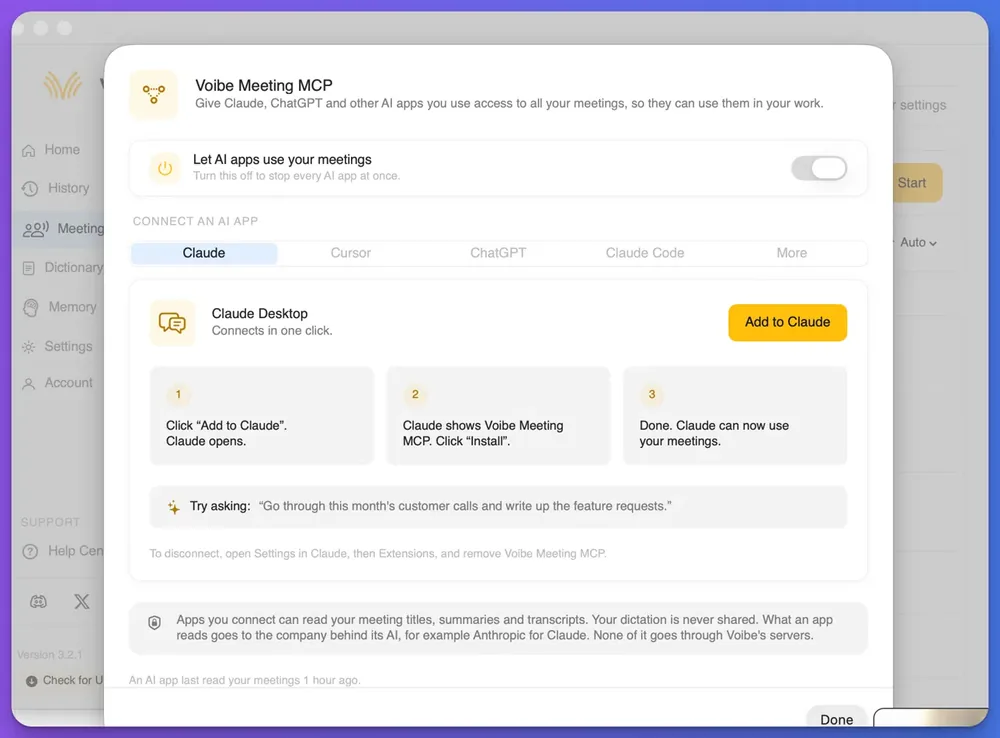
The MCP version does the same job, but Claude finds and reads the meetings itself, so you collect and paste nothing.
Voibe Meeting MCP is a Voibe Work feature that lets AI apps such as Claude read your meetings. MCP, short for Model Context Protocol, is the standard AI apps use to connect to other software.
A prompt that asks the assistant to find meetings on its own, such as the last four 1:1s with one person, works only with the MCP version. With the paste version you gather the notes yourself, which is fine for one or two meetings and slow for a quarter.
Connect Voibe Meeting MCP to Claude Desktop
Claude Desktop is Anthropic's desktop app, and it connects to Meeting MCP in one click. Meeting MCP comes with Voibe Work and with the 7-day trial.
- Open the Meeting MCP panel. In Voibe, go to the Meetings page and click MCP.
- Check the switch. Make sure the switch labelled Let AI apps use your meetings is on.
- Add it to Claude. On the Claude tab, click Add to Claude. Claude opens and shows Voibe Meeting MCP.
- Install it. Click Install in Claude, and the connection is done.
To disconnect later, open Settings in Claude, then Extensions, and remove Voibe Meeting MCP. Turning the panel's switch off stops every AI app at once.
The prompt for the MCP version
Read my last four 1:1 meetings with [name] in Voibe.

Write a prep note for our next 1:1, for me only. Plain bullets, under 200 words, in these sections:
1. Commitments still open: owner, commitment, the meeting date it was agreed, and its latest status.
2. Blockers not yet resolved, with every meeting date each one came up.
3. Open threads: topics carried forward and not discussed since.
4. Growth goals: each goal in [name]'s words, with the latest progress mentioned.
5. Done since: commitments the meetings show as finished.
6. Three questions to open with, each tied to an item above.

Rules:
- Use only what the meetings say. Never guess what happened between them.
- If a meeting doesn't say whether something was done, write: not mentioned since [date].
- Leave out health details, pay figures and family matters.
- Write [CHECK: what is unclear] for any name, date or commitment you are unsure of.
Change four to two for fortnightly 1:1s, since each meeting covers more ground. For a longer view, ask Claude for the repeat items across every 1:1 since a date you choose:
Read every 1:1 with [name] in Voibe since [date].

List the commitments and blockers that came up in more than one meeting, with each meeting date, and say whether the latest meeting shows them resolved. For me only, under 200 words, as a table.

Use only what the meetings say, and write [CHECK: what is unclear] where you are unsure.
The Meeting MCP launch post walks through the panel in more detail.
Worked Example: Three Invented 1:1s Turned Into a Prep Note
In this invented example, Grace manages a product design team and Leon is a designer who reports to her. These are the summaries of their last three weekly 1:1s, pasted under the paste version of the prompt:
1:1 notes: Grace and Leon, 6 October
Actions
| Grace | Ask finance about the user-research budget | 10 October  |
| Leon  | Share the onboarding redesign with support | no date set |
Blockers
- Design reviews keep slipping; the product lead is double-booked.
Career and growth
- Goal: run a usability study on his own this quarter.

1:1 notes: Grace and Leon, 13 October
Carry-overs
- User-research budget (Grace): still open, finance has not replied.
- Onboarding redesign shared with support (Leon): done.
Blockers
- Design reviews still slipping.
Carry forward
- Moving the design review slot.

1:1 notes: Grace and Leon, 20 October
Updates
- Leon drafted the usability study plan.
Actions
| Grace | Introduce Leon to the research team lead | no date set |
Carry forward
- Leon's idea for a conference talk.
The paste version returns this prep note for Grace:
Prep: 1:1 with Leon

Commitments still open
- Grace: ask finance about the user-research budget. Agreed 6 Oct,
  due 10 Oct. Still open on 13 Oct; not mentioned since 13 Oct.
- Grace: introduce Leon to the research team lead. Agreed 20 Oct,
  no date set.

Blockers not yet resolved
- Design reviews slipping because the product lead is double-booked.
  Raised 6 Oct and 13 Oct; not mentioned since 13 Oct.

Open threads
- Moving the design review slot (13 Oct).
- Leon's idea for a conference talk (20 Oct).

Growth goals
- Run a usability study on his own this quarter (6 Oct).
  Latest: Leon drafted the study plan (20 Oct).

Done since
- Leon shared the onboarding redesign with support (13 Oct).

Questions to open with
1. Design reviews were slipping on 6 and 13 Oct. Are they still?
2. What does the usability study plan need next?
3. Do you want time today for the conference talk idea?
What the prompt did with each line
- The research budget stayed open: it's Grace's own commitment, and neither later meeting closed it. The note says not mentioned since 13 October instead of marking it done or dropped. That tells Grace to check with finance before the 1:1.
- The blocker kept both dates: design reviews came up on 6 and 13 October. Two dates on one blocker earned the first question.
- The redesign moved to Done since: Leon finished it by 13 October. That gives Grace an easy, specific way to open.
- The goal kept Leon's words: the usability study goal from 6 October sits next to the plan he drafted on 20 October.
- Nothing came from outside the notes: the prep note adds no dates, owners or outcomes the summaries don't contain.
How to Adapt the Prep Prompt for Other Kinds of 1:1
The six sections suit a manager preparing for a weekly 1:1 with a direct report. For other 1:1s, change who the note is for and one or two sections, and keep the rules as they are.
| Your 1:1 | What to change in the prompt |
|---|---|
| You're the report, preparing for your manager | Say in the prompt that you're the report and [name] is your manager. Split Commitments still open into what you owe and what your manager owes you, and swap Growth goals for the support you were promised |
| A shared agenda you send beforehand | Write the note for both of you, ask for neutral third person, and drop anything only you should see |
| A skip-level 1:1 | Ask for themes and blockers raised across the meetings, and leave out individual performance |
| A mentoring or coaching session | Replace Blockers with Questions they asked, and Growth goals with what they want to work on next |
| A check-in with a client contact | Replace Growth goals with the client's stated priorities, and add a list of promises made to the client, with dates |
| A quarterly review | Use the quarterly review draft prompt on our One-on-One meeting notes template page, which reads a quarter of 1:1s |
Change the length and the tone
For a two-minute read on a back-to-back day, ask for under 100 words and only sections 1, 2 and 6. After a long gap between 1:1s, raise the limit to 300 words. Otherwise items from the older meetings get cut.
Add a line about tone when the note leaves your hands. A note for you can be terse. An agenda for the other person reads better in full sentences, with no verdicts.
Related prompts for team rhythm
For every open action across a team's meetings, not one person's, use the meeting action items prompt. For a Friday summary of the week's syncs, use the weekly status update prompt.
What to Check in the Prep Note Before You Walk In
A prep note is a memory aid, not a record. Check it against the meetings before you rely on it, and again before any of it reaches the other person.
- Statuses. The assistant only knows what was said in meetings. A commitment marked not mentioned since may have been settled by email, so confirm it first.
- Owners. If speakers weren't named in the transcript, the summary may have guessed who agreed to what. If you record with Voibe Work, rename each speaker once, and the summary updates with the right names.
- Dates. Check each agreed and due date against its meeting, especially relative ones like Friday or next week.
- Private topics. Health, pay and family details stay out even of a private prep note. If one slipped through, delete it before the note goes anywhere.
- [CHECK] flags. Resolve each one before the meeting, or turn it into a question for the 1:1 itself.
- Anything you share. If the prep note becomes the agenda, read it again as the other person would.
Some 1:1s should never reach an AI app at all, such as a conversation about a health matter or a grievance. Our guide to taking confidential meeting notes covers what to do with those.
Run the Prep Prompt on Your Voibe Work 1:1s
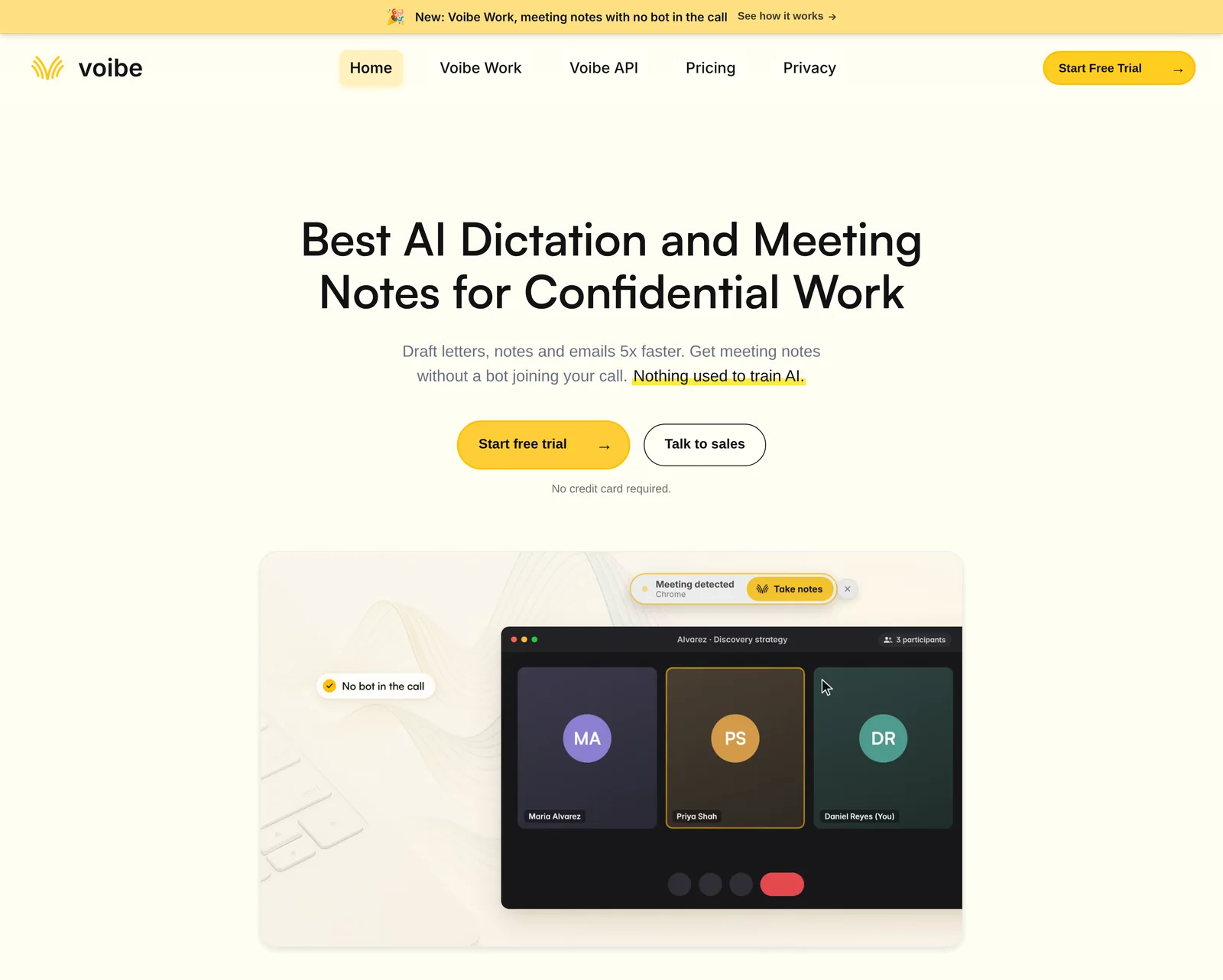
The prep prompt is only as good as its input, and the easiest source is a 1:1 you recorded with Voibe Work. Voibe Work records Zoom, Teams, Google Meet, Webex, Slack huddles or any other meeting app from your Mac or Windows PC. No bot joins the call, so nobody has to admit a notetaker.
Where the input comes from
- The summary. Voibe Work summarizes each meeting with a template for its type, and you can create your own template. Our One-on-One meeting notes template page has a summary prompt you can save as your own 1:1 template, so every summary has the sections the prep prompt reads.
- The transcript. Every line carries a speaker label and a time. Click a speaker's name to rename them, and the summary updates.
- One-click copy or PDF. For the paste version, copy the summary in one click or export it as a PDF.
- In-person 1:1s. Voibe Work records in-person meetings through your Mac or PC's mic, so a meeting-room 1:1 works too.
Where your 1:1 notes go
- Meeting audio is processed by open-source models on zero-retention cloud providers and deleted as soon as processing completes.
- The transcript and summary are saved on your computer, not on Voibe's servers, and never used to train AI.
- For a quick question about one 1:1, you can chat with your meetings inside Voibe Work. The chat runs on the same zero-retention cloud, and nothing you ask is stored.
The Meeting MCP panel states what a connected AI app can see:
“Apps you connect can read your meeting titles, summaries and transcripts. Your dictation is never shared. What an app reads goes to the company behind its AI, for example Anthropic for Claude. None of it goes through Voibe's servers.”
The paste version follows the same logic, because whatever you paste into ChatGPT, Claude or Gemini goes to OpenAI, Anthropic or Google under that company's terms.
When recording starts, Voibe reminds you to tell everyone you're taking notes, and following the consent rules is your responsibility. Our guide to AI notetaker recording consent laws covers them state by state.
What Voibe Work costs
Voibe Work costs $19 a month, $149 a year or $399 once per seat, with Mac and Windows on one seat. Every new account starts with a 7-day trial of every Voibe Work feature, with no credit card and no automatic charge.
New to Voibe Work? The first-week setup guide walks you through it.
Prep your next 1:1 from real notes
7 days of every Voibe Work feature on Mac or Windows. No credit card.
One-on-One Prep Prompt FAQ
Using the prep prompt
What does a one-on-one prep prompt do? A one-on-one prep prompt is an instruction you give an AI assistant with notes from your last few 1:1s with one person. It returns a private prep note listing open commitments, unresolved blockers, open threads, growth goals and three questions to open the next 1:1 with.
How many past 1:1s should I give the prep prompt? Two to four is enough for a weekly 1:1, and two for a fortnightly one. More meetings add older items, so raise the word limit if you go back a full quarter.
Does the prep prompt work in ChatGPT and Gemini? Yes, the paste version works in ChatGPT, Claude, Gemini or any other assistant. Paste the notes under it, oldest first, with a date on each.
Meeting MCP and Claude
Do I need Voibe Meeting MCP to prepare for a 1:1? No, the paste version works with notes you copy in. Voibe Meeting MCP lets Claude find and read your last few 1:1s itself, which saves you gathering and pasting them.
Which AI apps can read my meetings through Voibe Meeting MCP? The Meeting MCP panel has tabs for Claude, Cursor, ChatGPT, Claude Code and More. Claude Desktop connects in one click through Add to Claude, and Meeting MCP comes with Voibe Work and the 7-day trial.
What does Anthropic see when Claude reads my 1:1s? Claude can read the meeting titles, summaries and transcripts it opens, and what it reads goes to Anthropic under Anthropic's terms. None of it goes through Voibe's servers, and your dictation is never shared.
Privacy and recording
Should I record my 1:1s at all? Only with the other person's agreement, so ask before the first recorded 1:1. Voibe reminds you to tell everyone when recording starts, and following the consent rules is your responsibility.
Where does Voibe Work keep my 1:1 notes? Voibe Work saves the transcript and summary on your computer, not on Voibe's servers. Meeting audio is deleted as soon as processing completes, and nothing is used to train AI.
Cost
How much does Voibe Work cost per seat? Voibe Work costs $19 a month, $149 a year or $399 once per seat, with Mac and Windows on one seat. Every new account gets a 7-day trial of every Voibe Work feature with no credit card.
Walk Into Your Next 1:1 With Last Month in Hand
A good 1:1 starts with what's still open from the last one. The prep prompt finds those items for you, with a date on each. Paste last time's notes, or let Claude read the last four 1:1s through Meeting MCP. Then check the statuses before you walk in.
The prompt is one of a set in our library of AI prompts for meeting notes. Each one turns a meeting's notes into the next thing you need, from follow-up emails to tickets.